> ## Documentation Index
> Fetch the complete documentation index at: https://docs.hellotars.com/llms.txt
> Use this file to discover all available pages before exploring further.

# Build Your First AI Agent

> Complete step-by-step guide to building an intelligent customer support Agent with Knowledge Base and tool integrations in 30 minutes

## Prerequisites

Before we start building, ensure you have everything ready:

* ✅ **Tars Account** - [Create account](/getting-help/account-setup) if you don't have one
* ✅ **Gmail Account** - Use your support email for professional communication

<Info>
  **Setup Time:** Account creation takes 2-3 minutes. Gmail is required for all setups.
</Info>

## Agent workflow overview

In this guide, you'll build an AI support Agent that answers user questions using your Knowledge Base and escalates issues to support via email.

<Frame>
  <img src="https://mintcdn.com/tars-c52ebe98/GSpqKOs12LTxlWoJ/images/quickstart/agent_workflow.svg?fit=max&auto=format&n=GSpqKOs12LTxlWoJ&q=85&s=8b5506bcf3bbad8062073aee4b965d46" width="630" height="540" data-path="images/quickstart/agent_workflow.svg" />
</Frame>

**How it works:** The AI Agent receives a user's question, searches your Knowledge Base for relevant information, provides an answer, and if more help is needed, collects user details and notifies the support team via email.

## <Icon icon="database" size="30" /> Add Knowledge sources
Your AI Agent needs knowledge to answer customer questions accurately. Let's add your company's information.

<AccordionGroup>
  <Accordion title="Step 1: Navigate to Knowledge Bases" defaultOpen="true">
    1. Navigate to the [Knowledge Base](https://app.hellotars.com/knowledge) section in your Tars dashboard.
    2. Click **Add Knowledge** to create a new Knowledge Base
    3. Choose your **data source type** (`Website`, `PDF`, `CSV`, or `Q&A`)
    4. Fill in the **required fields**
    5. Add your **Data Resources**
    6. Fetch your **data**
    7. Train your **Knowledge Base**
    8. **Ready to Use** - Knowledge base appears in **My Knowledge Bases** section

    <Callout icon="book" color="#FFC107">
      Check out our [step-by-step guide](/platform-fundamentals/platform-tour/knowledge-bases/index) on creating a Knowledge Base covering all data source types, training, and testing.
    </Callout>
  </Accordion>

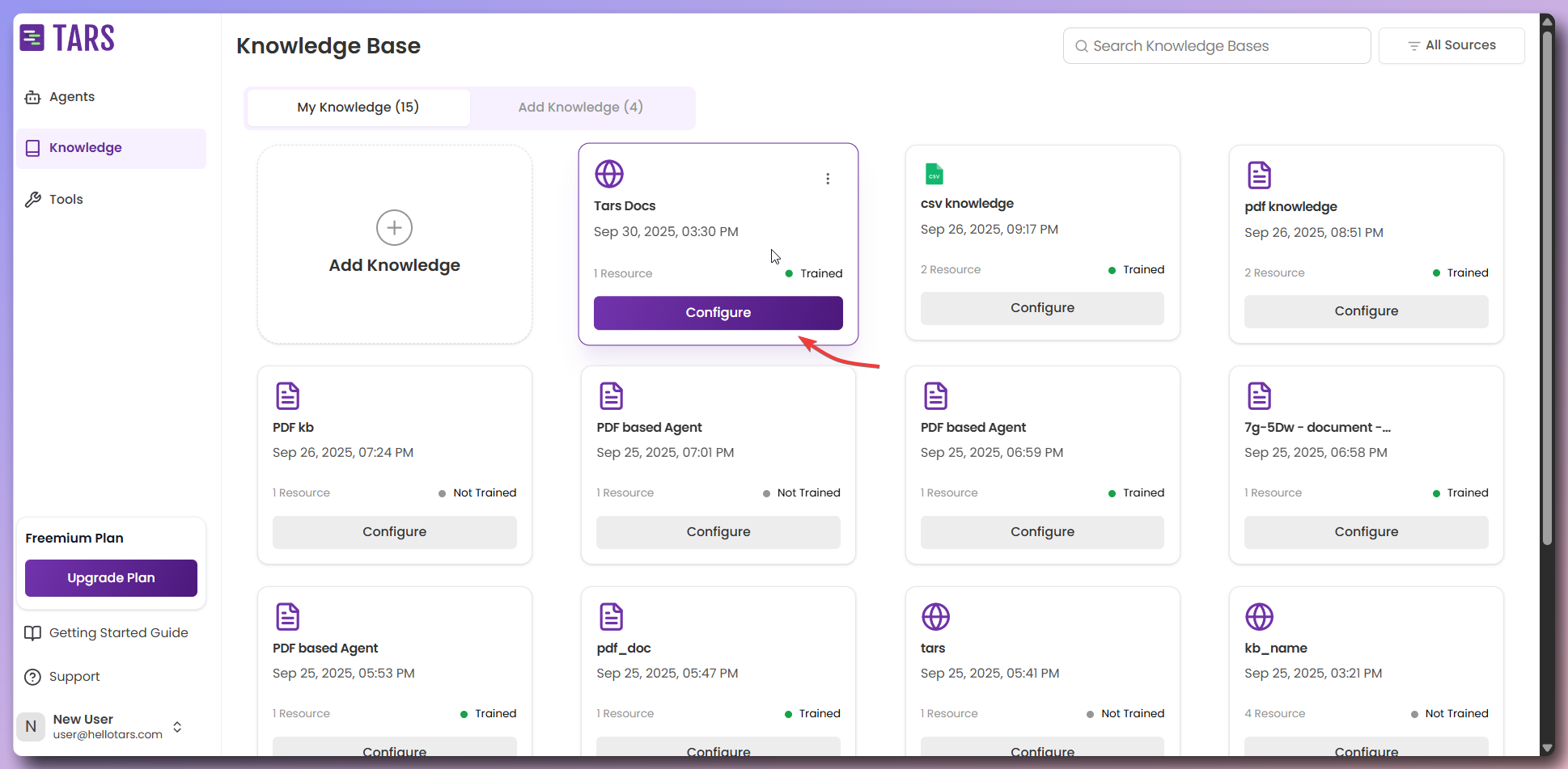
  <Accordion title="Step 2: Create Tars Docs Knowledge Base">
    For this tutorial example, we'll create a Knowledge Base using Tars help documentation:

    #### Configuration

    * **Knowledge Base Name**: `Tars Docs`
    * **Data Source**: `Website URL`
    * **URL**: `https://help.hellotars.com` (Tars help documentation)
    * **Settings**: `Use default settings for optimal results`

    #### What happens next

    1. **Fetch Links** - System discovers and scrapes all documentation pages
    2. **Training** - AI processes and indexes the content for search
    3. **Ready to Use** - Knowledge base appears in `My Knowledge Bases` section

    <Frame>
      <img src="https://mintcdn.com/tars-c52ebe98/rUEfkErNVm3dhz_l/images/quickstart/make/added-knowledge-base.png?fit=max&auto=format&n=rUEfkErNVm3dhz_l&q=85&s=cbcbcc9ebe2768526766e818a4c4c100" alt="Tars Docs knowledge Base" width="1938" height="951" data-path="images/quickstart/make/added-knowledge-base.png" />
    </Frame>

    <Check>
      **Knowledge Base ready!** Your Agent now has the knowledge to answer customer questions accurately.
    </Check>
  </Accordion>
</AccordionGroup>

## <Icon icon="wrench" size="30" /> Connect tool

Now let's connect the Gmail tool to your Agent to send email notifications.

<AccordionGroup>
  <Accordion title="Step 1: Navigate to Tools" defaultOpen="true">
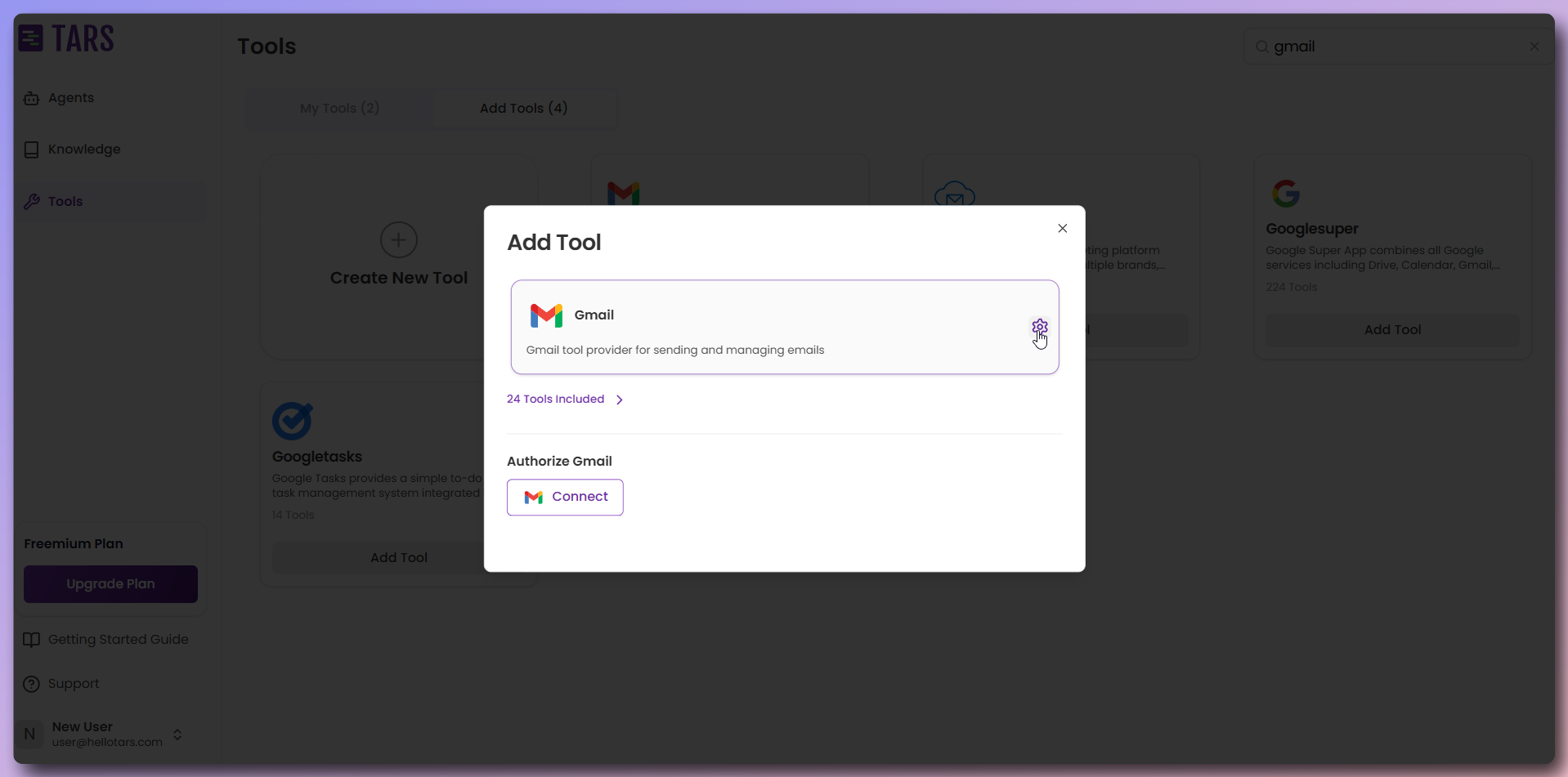
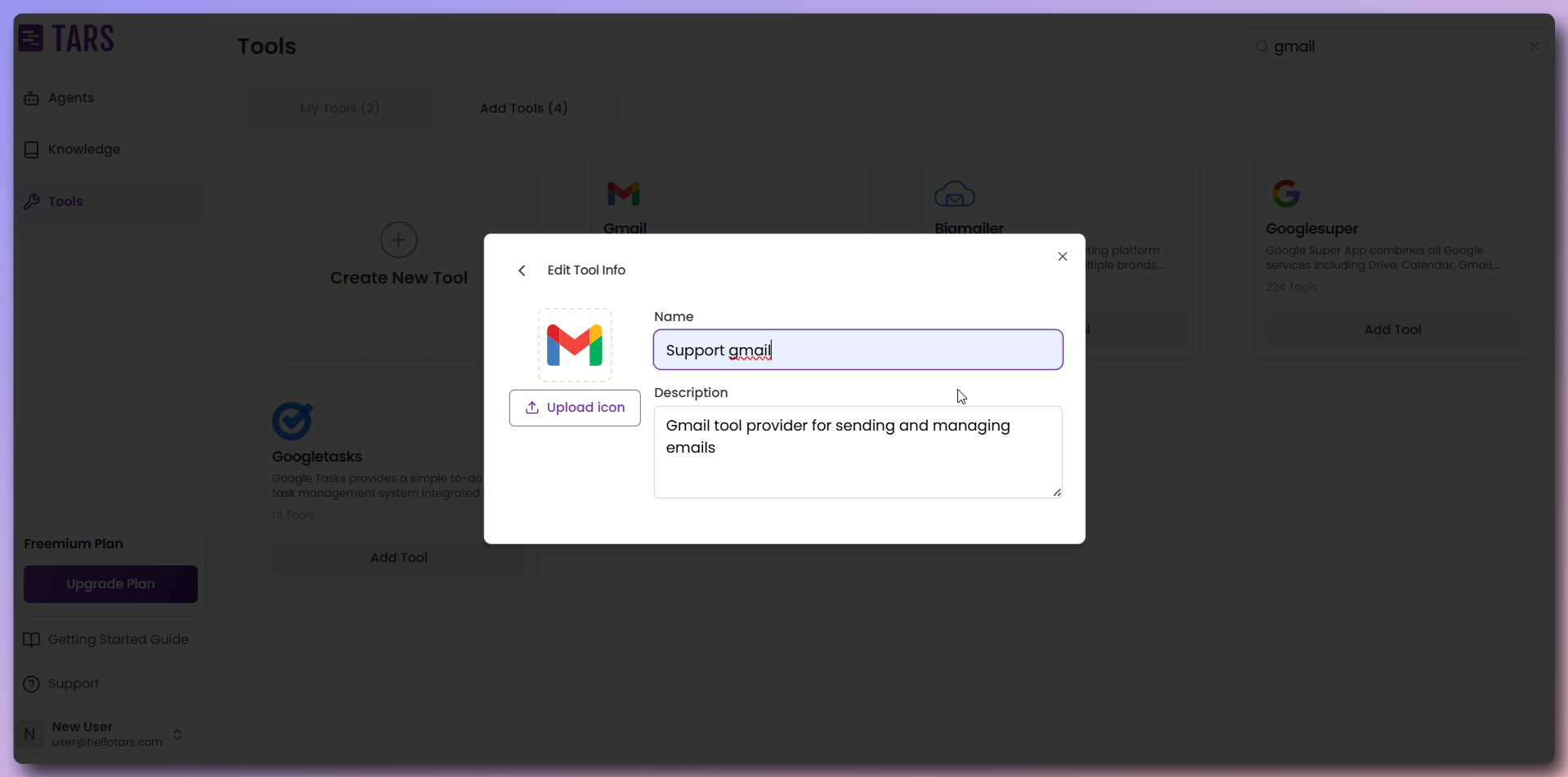
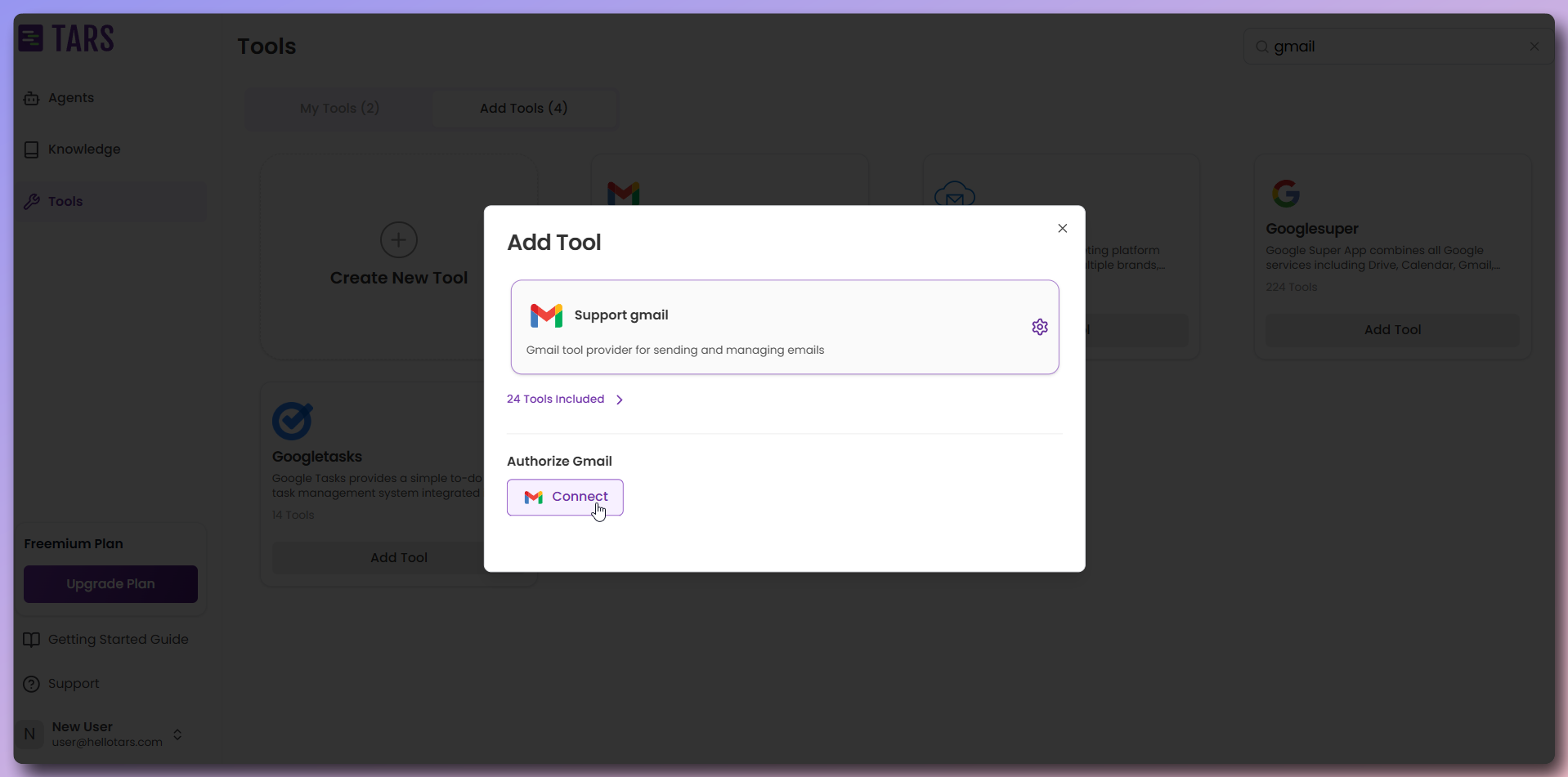
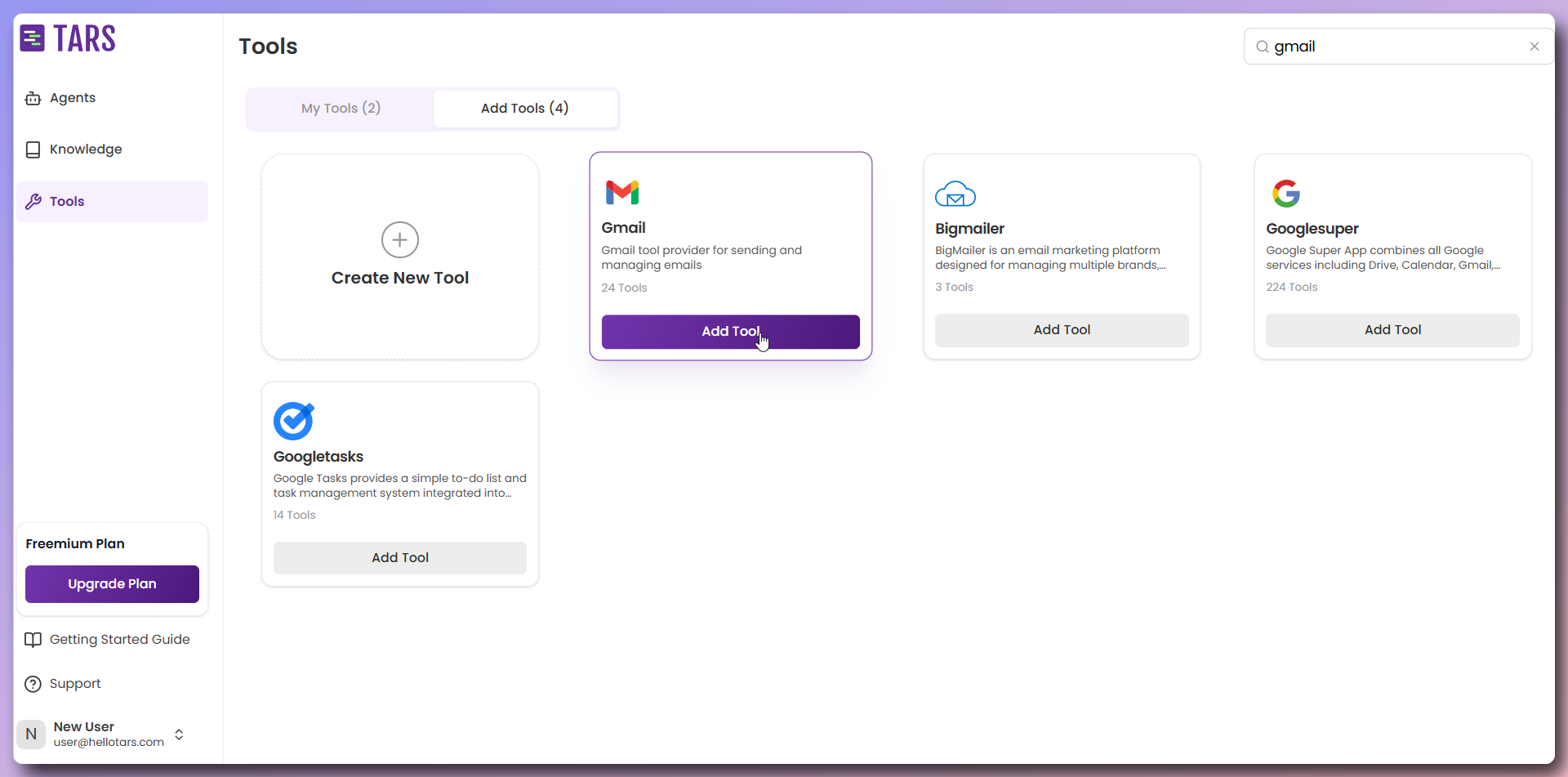
    1. Navigate to the [Tools](https://app.hellotars.com/tools) section in your Tars dashboard
    2. Click [Add Tools](https://app.hellotars.com/tools?tab=all-tools) to see available integrations
    3. Search for **Gmail** to set up email functionality

    <CardGroup cols={2}>
      <Card title="Search for Tool">
        <img src="https://mintcdn.com/tars-c52ebe98/RB0GpoNOdmX6y3VE/images/quickstart/click-add-tool.png?fit=max&auto=format&n=RB0GpoNOdmX6y3VE&q=85&s=b532e2b129cd874e2376407521b425a7" alt="Tools dashboard showing available integrations" width="1920" height="951" data-path="images/quickstart/click-add-tool.png" />
      </Card>

      <Card title="Configure Tool">
        <img src="https://mintcdn.com/tars-c52ebe98/RB0GpoNOdmX6y3VE/images/quickstart/click-tool-gear-to-configure.png?fit=max&auto=format&n=RB0GpoNOdmX6y3VE&q=85&s=33754616db26010ae0dbbbb172c225ef" alt="Add Tool modal with configuration options" width="1918" height="951" data-path="images/quickstart/click-tool-gear-to-configure.png" />
      </Card>

      <Card title="Tool name setup">
        <img src="https://mintcdn.com/tars-c52ebe98/rUEfkErNVm3dhz_l/images/quickstart/set-tool-name.png?fit=max&auto=format&n=rUEfkErNVm3dhz_l&q=85&s=671ac5cf918c539a9899ec57d310f1e8" alt="Tool configuration form with name field" width="1918" height="951" data-path="images/quickstart/set-tool-name.png" />
      </Card>

      <Card title="Connect tool">
        <img src="https://mintcdn.com/tars-c52ebe98/RB0GpoNOdmX6y3VE/images/quickstart/click-connect.png?fit=max&auto=format&n=RB0GpoNOdmX6y3VE&q=85&s=63f34ecf9551bcd539478165fc4f63ae" alt="Connect button for tool integration" width="1918" height="951" data-path="images/quickstart/click-connect.png" />
      </Card>

      <Card title="Verify your connections">
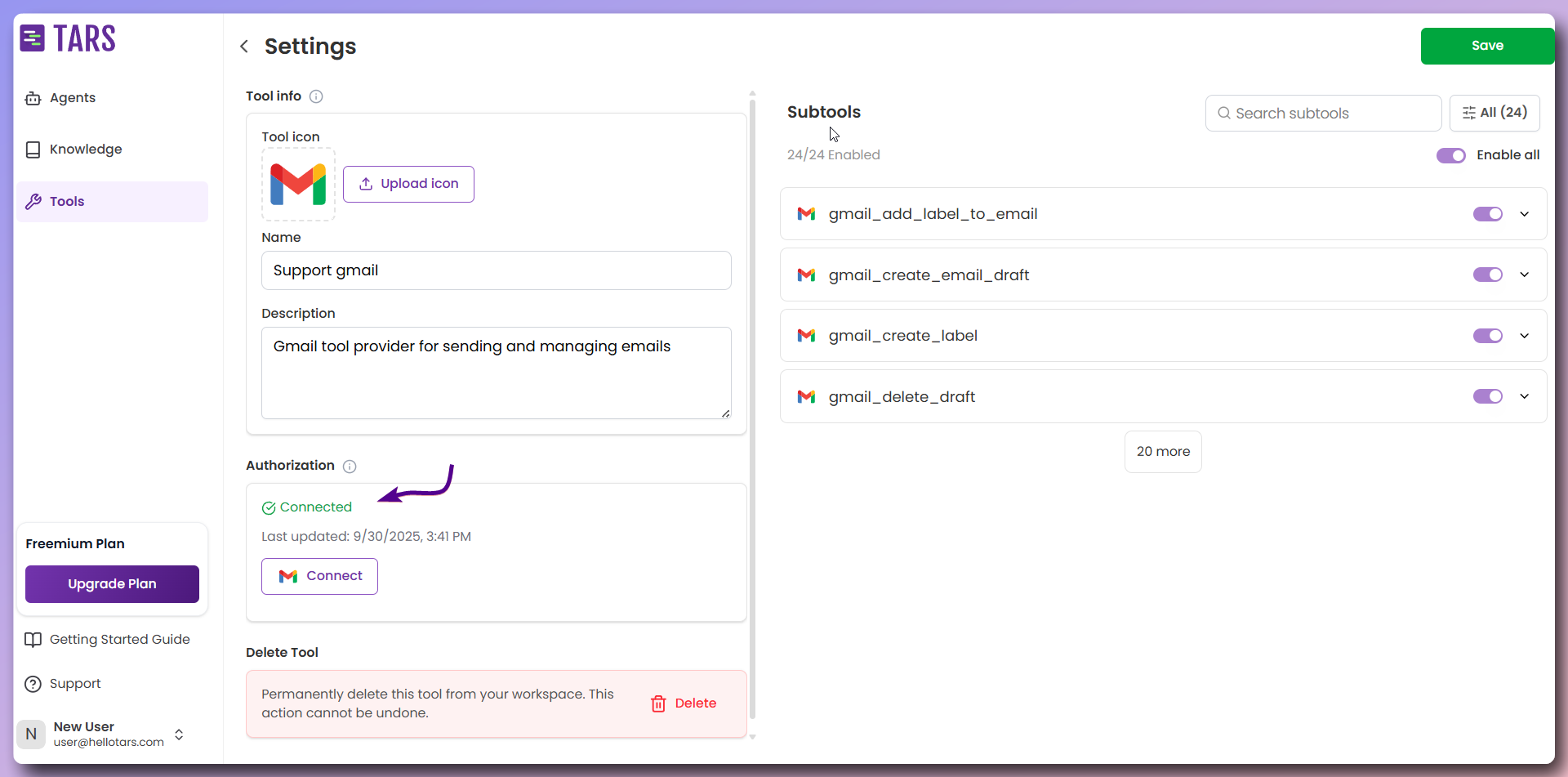
        <img src="https://mintcdn.com/tars-c52ebe98/86pXaqNwM4c27atM/images/quickstart/gmail-connected.png?fit=max&auto=format&n=86pXaqNwM4c27atM&q=85&s=8af4529bb9d7b4a9962a5334dfee4ffa" alt="Gmail tool successfully connected confirmation" width="1920" height="951" data-path="images/quickstart/gmail-connected.png" />
      </Card>
    </CardGroup>
  </Accordion>

  <Accordion title="Step 2: Follow the detailed guide">
    For complete step-by-step instructions on connecting tools, follow our comprehensive guide:

    <Card title="Tools connection guide" icon="external-link" href="/platform-fundamentals/platform-tour/tools">
      Complete guide covering Gmail setup and tool configuration.
    </Card>

    #### Quick overview

    * **Gmail**: Required for sending customer confirmation emails
  </Accordion>

  <Accordion title="Step 3: Verify your connections">
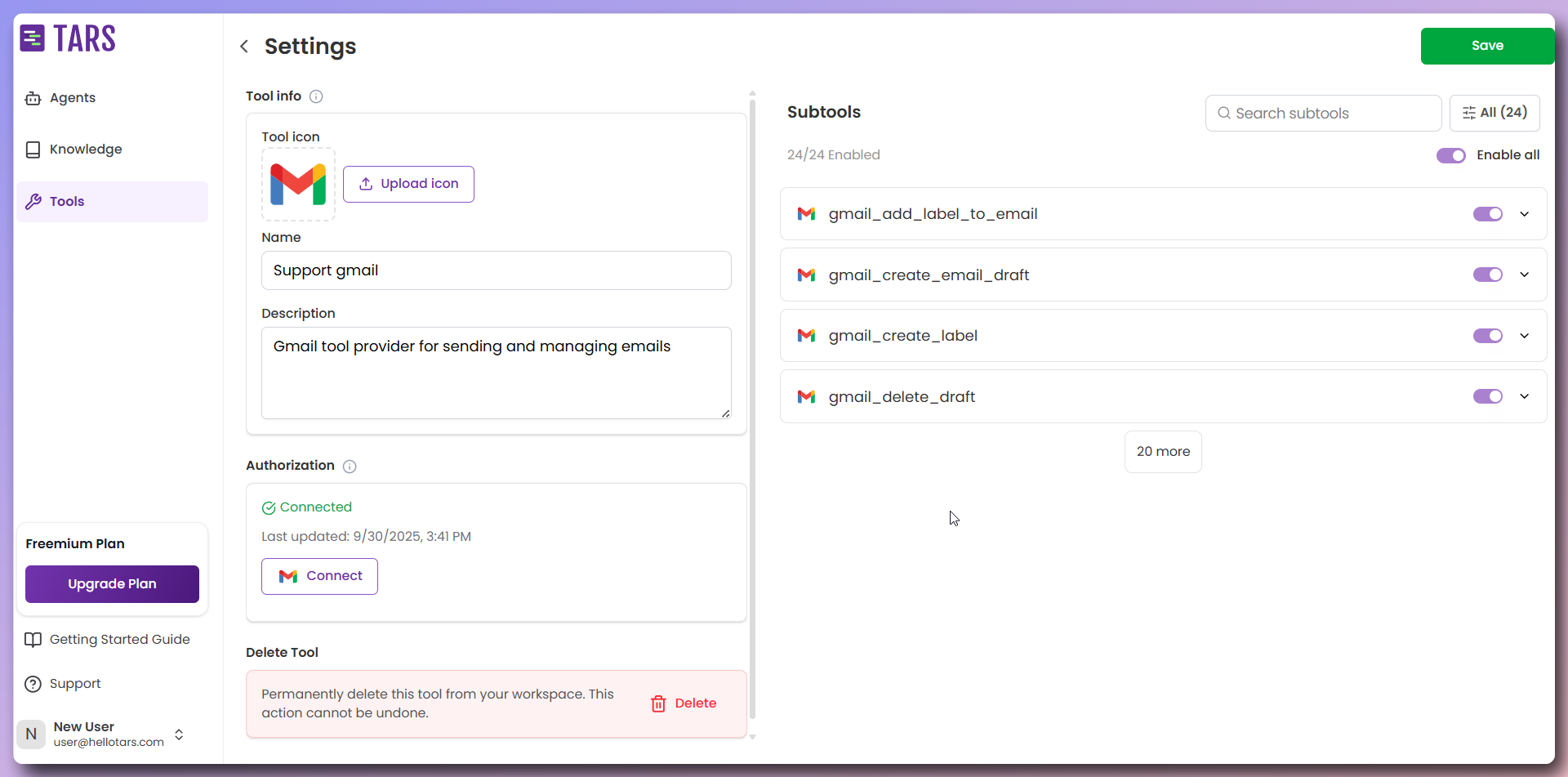
    After completing the authentication flow, you'll be redirected back to the tool configuration page.

    #### Connection Status

    * ✅ **Connected** - Tool is successfully authenticated and ready to use
    * ❌ **Error** - Authentication failed or connection issue

    <Frame>
      <img src="https://mintcdn.com/tars-c52ebe98/RB0GpoNOdmX6y3VE/images/quickstart/connected-status.png?fit=max&auto=format&n=RB0GpoNOdmX6y3VE&q=85&s=fd42f1b4cc42097e2f82358233956544" alt="Tool-connection status" width="1920" height="951" data-path="images/quickstart/connected-status.png" />
    </Frame>

    <Tip>
      If you see an error, refresh the page and check if the tool is connected. You may need to reconnect or check your permissions.
    </Tip>
  </Accordion>
</AccordionGroup>

## <Icon icon="plus" size="30" /> Create your AI Agent

Now let's build your AI Agent from scratch and configure it step by step.

<AccordionGroup>
  <Accordion title="Step 1: Create Agent from Scratch" defaultOpen="true">
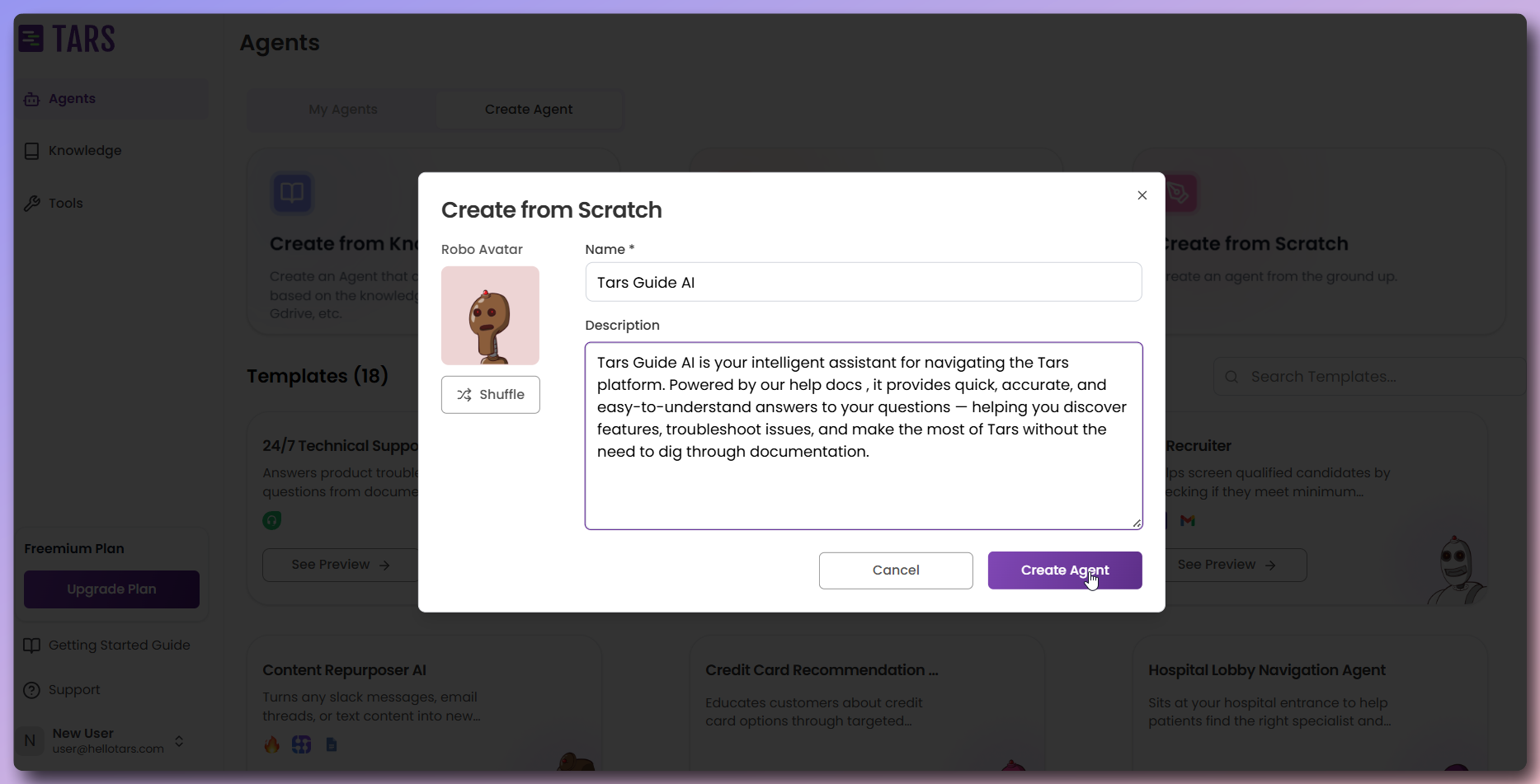
    1. Navigate to the [Create Agents](https://app.hellotars.com/agents?tab=create-agent) page in your Tars dashboard:
    2. Click the **Create from Scratch** card
    3. Enter **Agent details**:
       * **Name:** Tars Guide AI
       * **Icon:** Choose or shuffle for a custom icon
    4. Click **Create Agent**

    <Tip>
      For more details about Agent creation methods visit [Platform Tour](/platform-fundamentals/platform-tour/agents/create-agent)
    </Tip>

    <Frame>
      <img src="https://mintcdn.com/tars-c52ebe98/RB0GpoNOdmX6y3VE/images/quickstart/create-agent-modal.png?fit=max&auto=format&n=RB0GpoNOdmX6y3VE&q=85&s=61d7e174823b4b10585b6035eef79d62" alt="Create agent modal with name and description fields" width="1867" height="951" data-path="images/quickstart/create-agent-modal.png" />
    </Frame>
  </Accordion>

  <Accordion title="Step 2: Basic Agent publish and preview">
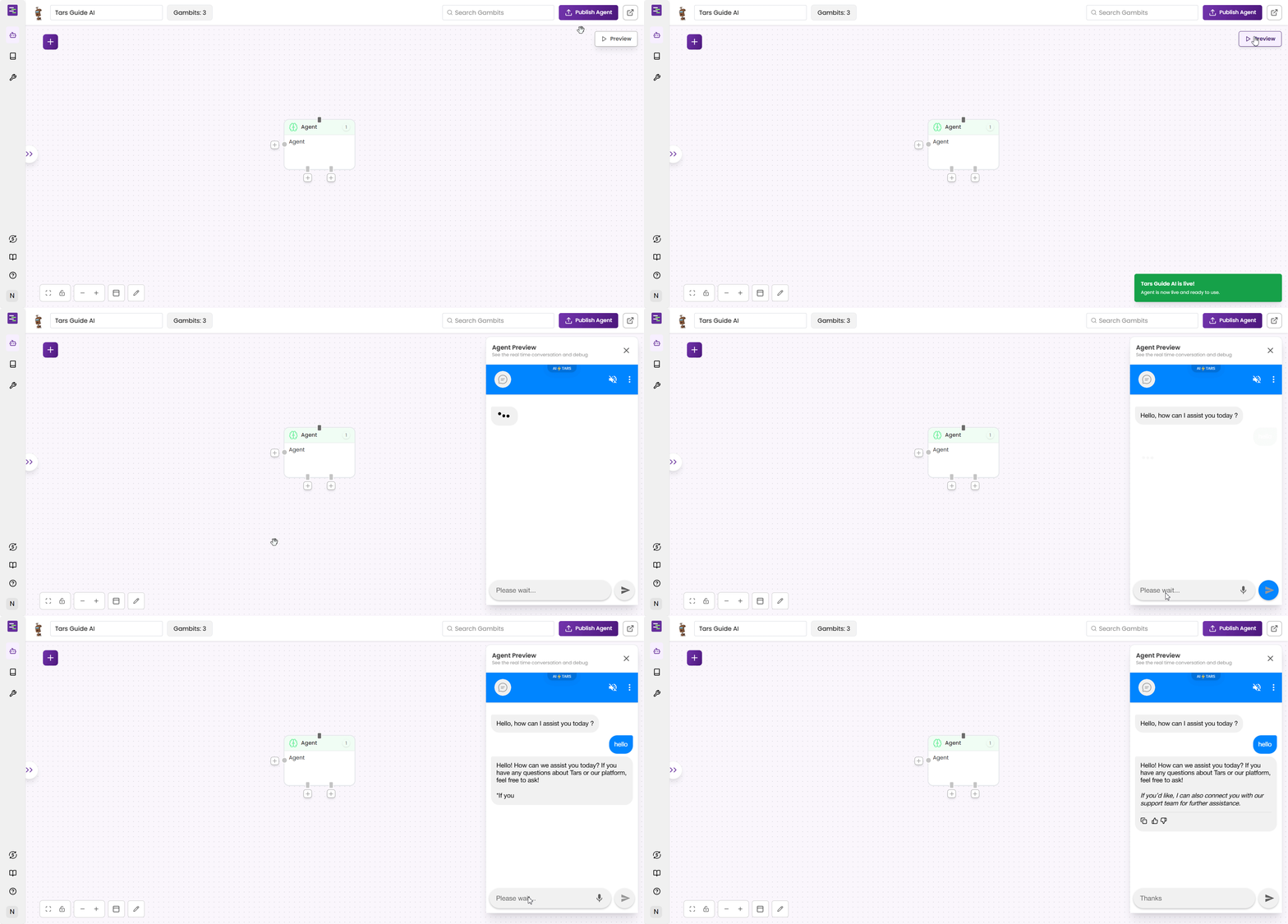
    Click `Publish` and then `Preview` to test your basic Agent setup.

    <Frame>
      <img src="https://mintcdn.com/tars-c52ebe98/86pXaqNwM4c27atM/images/quickstart/gifs/basic-agent-preview.gif?s=861fdc1a4e5b8c4e9e24f5ecfb7ea4bb" alt="Publishing Agent and opening preview window" width="1920" height="919" data-path="images/quickstart/gifs/basic-agent-preview.gif" />
    </Frame>

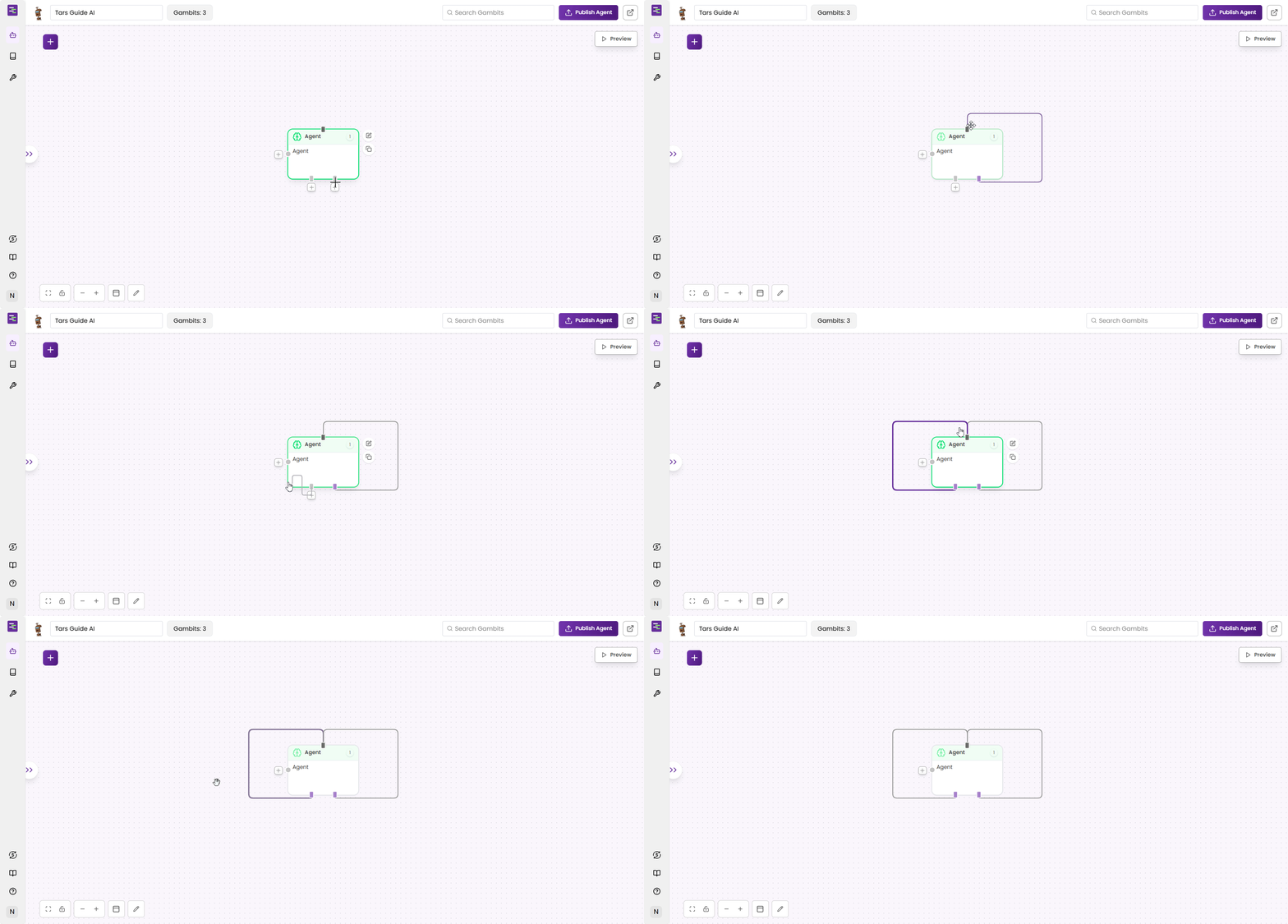
    You will notice that the conversation has ended after single message, this is because the flow has come out of the Agent gambit. To keep the conversation going, you need to self-loop the Agent gambit.
  </Accordion>

  <Accordion title="Step 3: Self-loop the Agent">
    Connect the Agent output back to itself to allow multiple questions in one session.

    <Frame>
      <img src="https://mintcdn.com/tars-c52ebe98/86pXaqNwM4c27atM/images/quickstart/gifs/self-loop.gif?s=84f15d0d09d063ef6363b5fa57a7374e" alt="Creating self-loop for continuous conversation" width="1920" height="919" data-path="images/quickstart/gifs/self-loop.gif" />
    </Frame>
  </Accordion>

  <Accordion title="Step 4: Publish and preview">
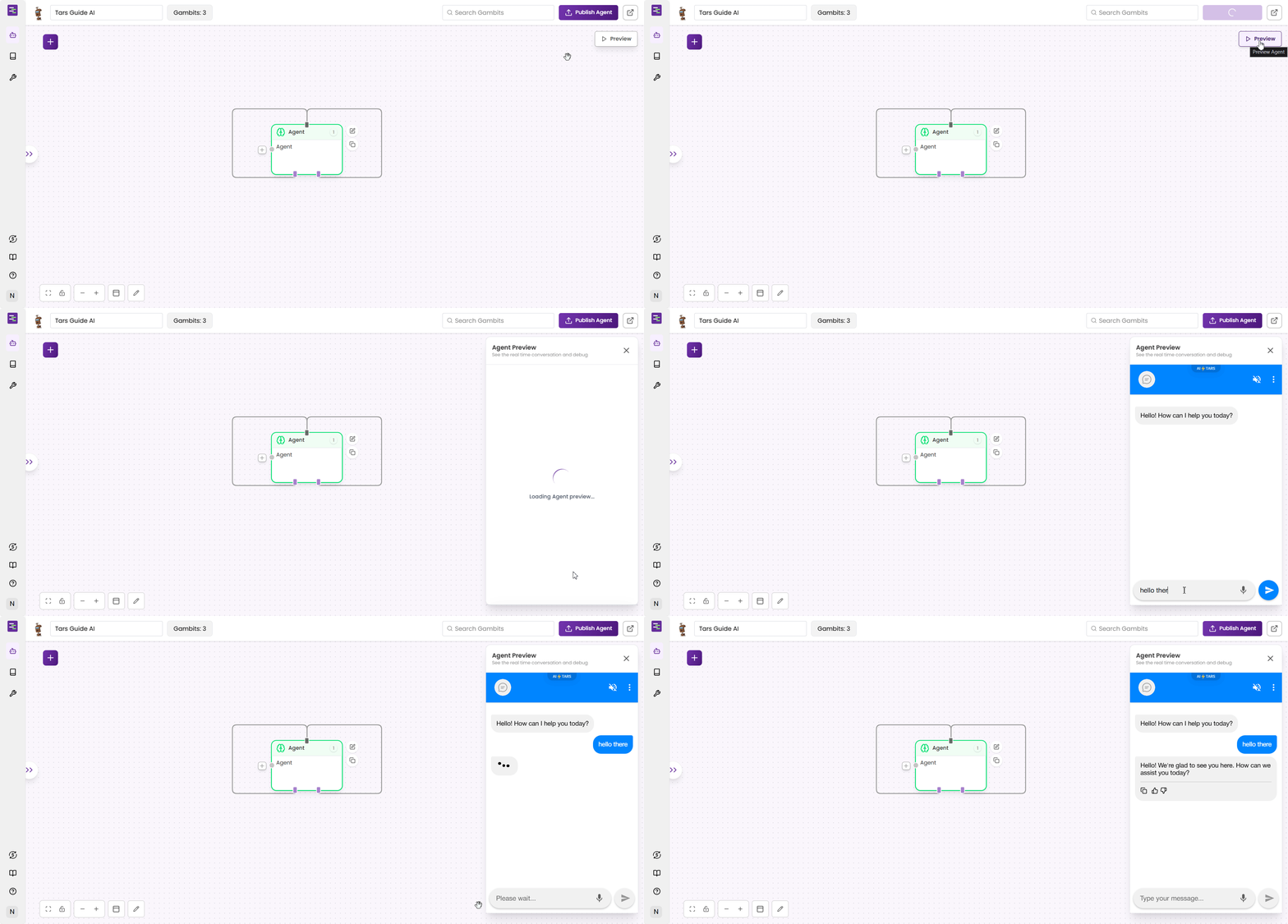
    Click `Publish` and then `Preview` to test your Agent setup.Now you can see that the conversation is continuing and you can ask as many questions as you want.

    <Frame>
      <img src="https://mintcdn.com/tars-c52ebe98/86pXaqNwM4c27atM/images/quickstart/gifs/test-basic-agent-publish-preview.gif?s=25f5c4d7b8b00c6a184d47d00e728e53" alt="Publishing Agent and opening preview window" width="1920" height="919" data-path="images/quickstart/gifs/test-basic-agent-publish-preview.gif" />
    </Frame>
  </Accordion>

  <Accordion title="Step 5: Add Knowledge Base">
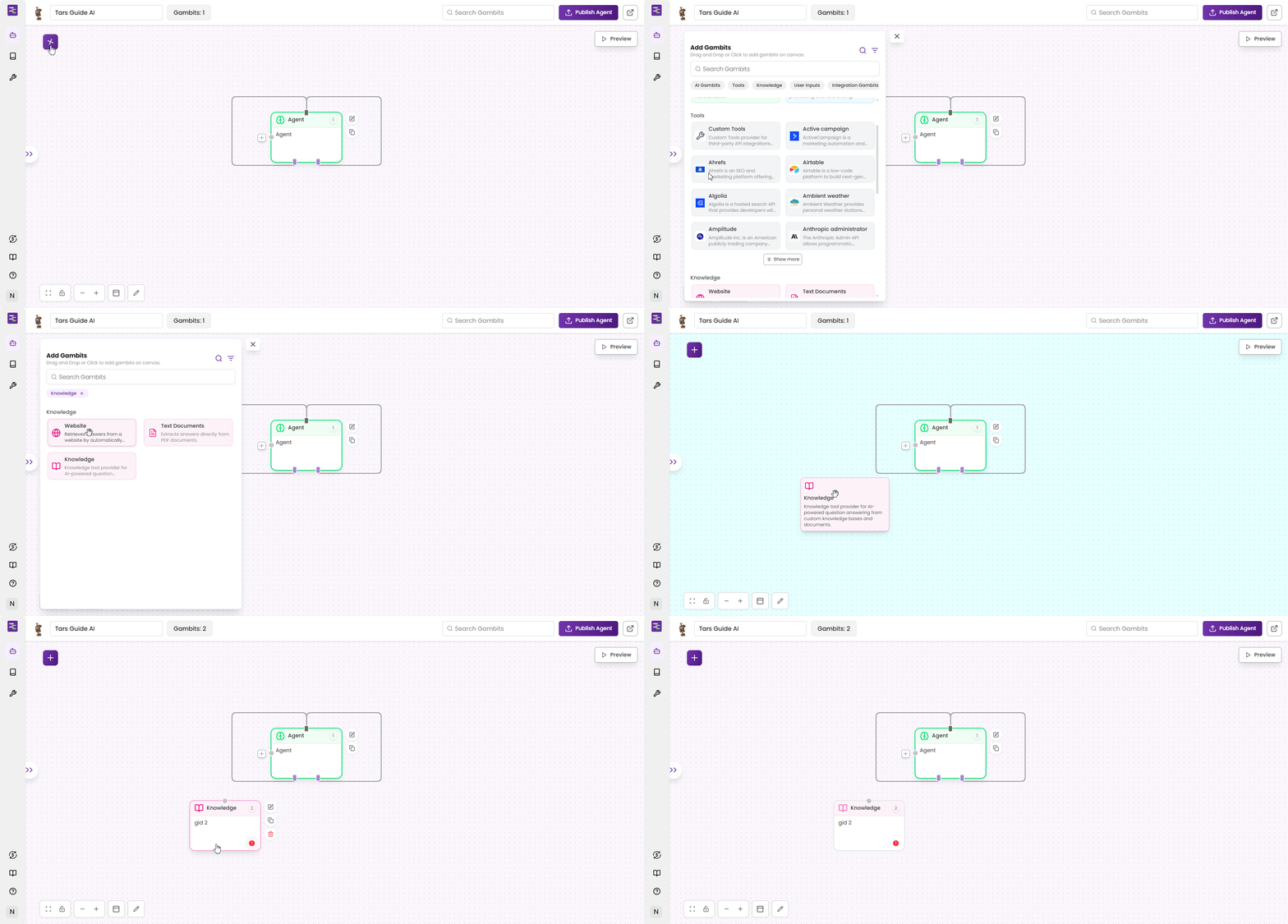
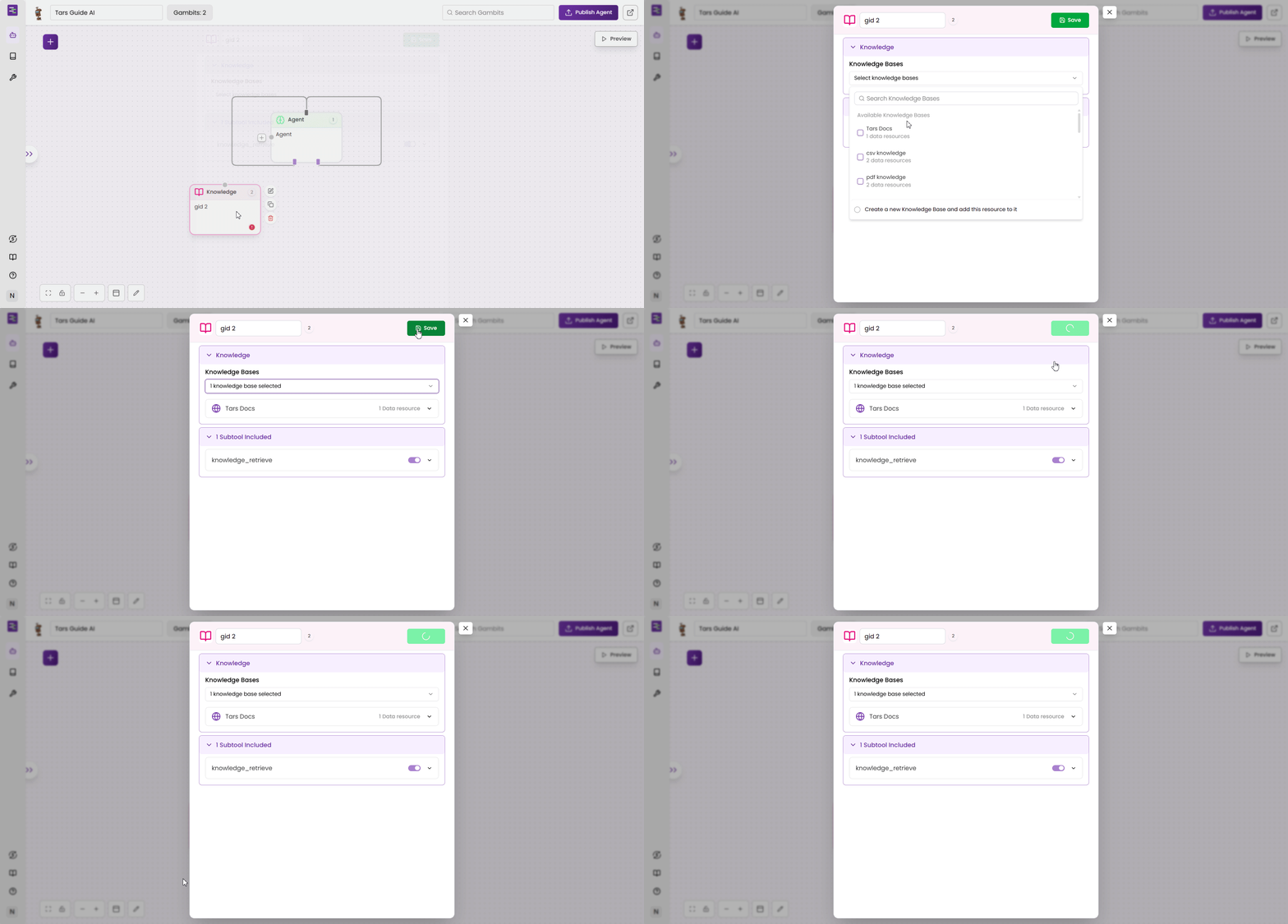
    Now that our Agent is is ready to answer, we should give the Agent some knowledge to answer from. For this, we will add the `Knowledge` gambit to the canvas.
    Drag the `Knowledge` gambit onto the canvas and select "Tars Docs" from the dropdown.

    <Frame>
      <img src="https://mintcdn.com/tars-c52ebe98/86pXaqNwM4c27atM/images/quickstart/gifs/add-kb-to-canvas.gif?s=2766fca810e8815084c4691ed61cbd10" alt="Adding Knowledge Base to canvas" width="1920" height="919" data-path="images/quickstart/gifs/add-kb-to-canvas.gif" />
    </Frame>

    The `Knowledge` gambit will now be added and you could see a pulsating indicator on the gambit.This shows that the Knowledge gambit
  </Accordion>

  <Accordion title="Step 6: Select Knowledge Base">
    Now, we have to select the knowledge source in the Knowledge Base gambit modal. This will set the configuration for this Knowledge Base gambit with the selected, trained Knowledge Base.

    <Frame>
      <img src="https://mintcdn.com/tars-c52ebe98/86pXaqNwM4c27atM/images/quickstart/gifs/select-knowledgebase.gif?s=03ce050e025a860f8ccaf621eb2a803c" alt="Selecting Knowledge Base from dropdown" width="1920" height="919" data-path="images/quickstart/gifs/select-knowledgebase.gif" />
    </Frame>
  </Accordion>

  <Accordion title="Step 7: Connect Knowledge Base to Agent">
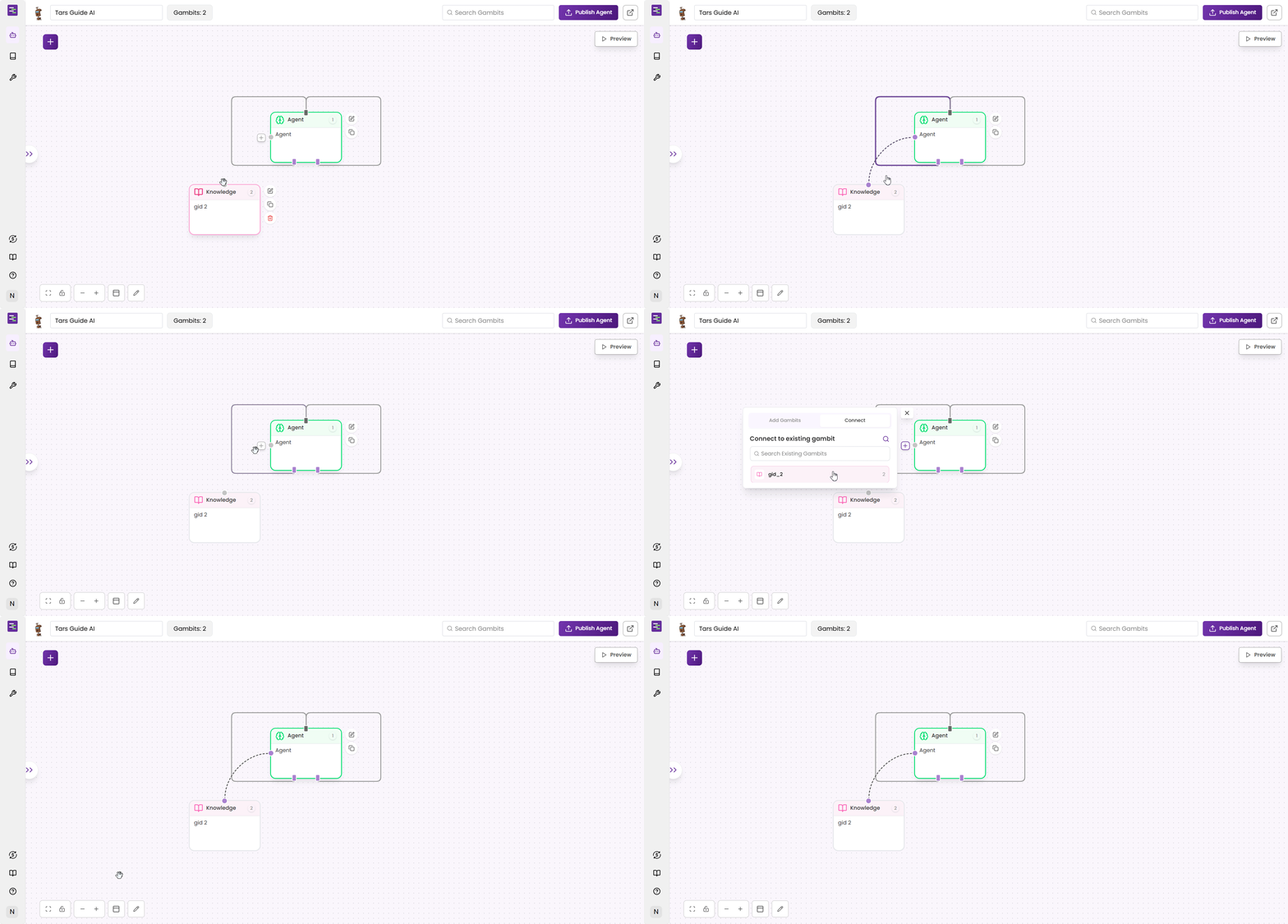
    Connect the Knowledge Base output to the Agent Gambit to enable access.

    <Frame>
      <img src="https://mintcdn.com/tars-c52ebe98/86pXaqNwM4c27atM/images/quickstart/gifs/connect-kb-to-agent.gif?s=43e9fd3dc1c700bb40df6a7fe151098f" alt="Connecting Knowledge Base to Agent gambit" width="1920" height="919" data-path="images/quickstart/gifs/connect-kb-to-agent.gif" />
    </Frame>
  </Accordion>

  <Accordion title="Step 8: Test with Knowledge">
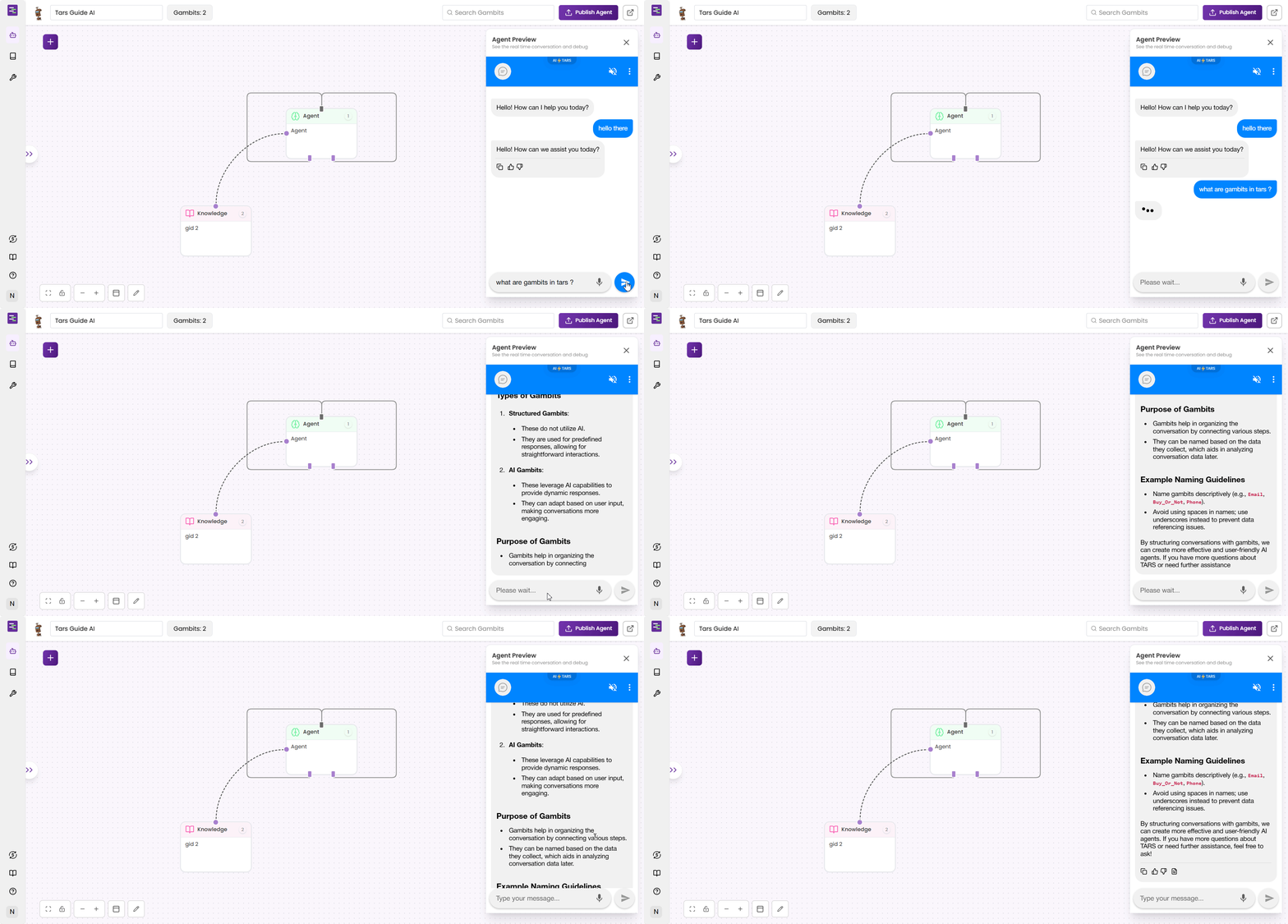
    Publish and test by asking questions from your Knowledge Base.

    <Frame>
      <img src="https://mintcdn.com/tars-c52ebe98/86pXaqNwM4c27atM/images/quickstart/gifs/interact-with-agent-with-kb.gif?s=a5624718ea943a1cb57defce1aaf3c6d" alt="Testing Agent with Knowledge Base questions" width="1920" height="919" data-path="images/quickstart/gifs/interact-with-agent-with-kb.gif" />
    </Frame>
  </Accordion>

  <Accordion title="Step 9: Add Gmail Tool">
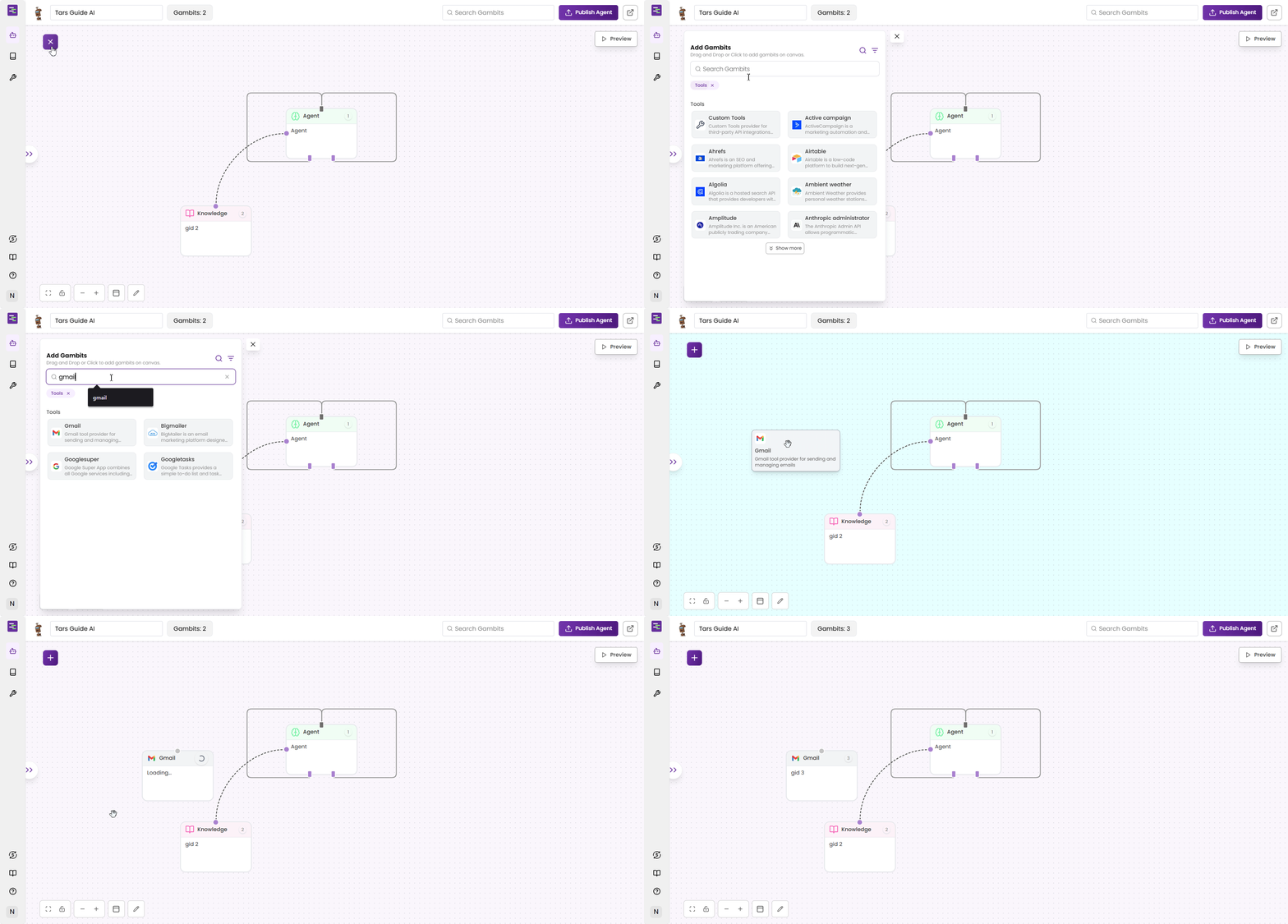
    Drag the Tool gambit onto the canvas and select your configured Gmail tool.

    <Frame>
      <img src="https://mintcdn.com/tars-c52ebe98/86pXaqNwM4c27atM/images/quickstart/gifs/add-gmail-to-canvas.gif?s=0869f2bed6538123a55721d514b5846f" alt="Adding Gmail tool to canvas" width="1920" height="919" data-path="images/quickstart/gifs/add-gmail-to-canvas.gif" />
    </Frame>
  </Accordion>

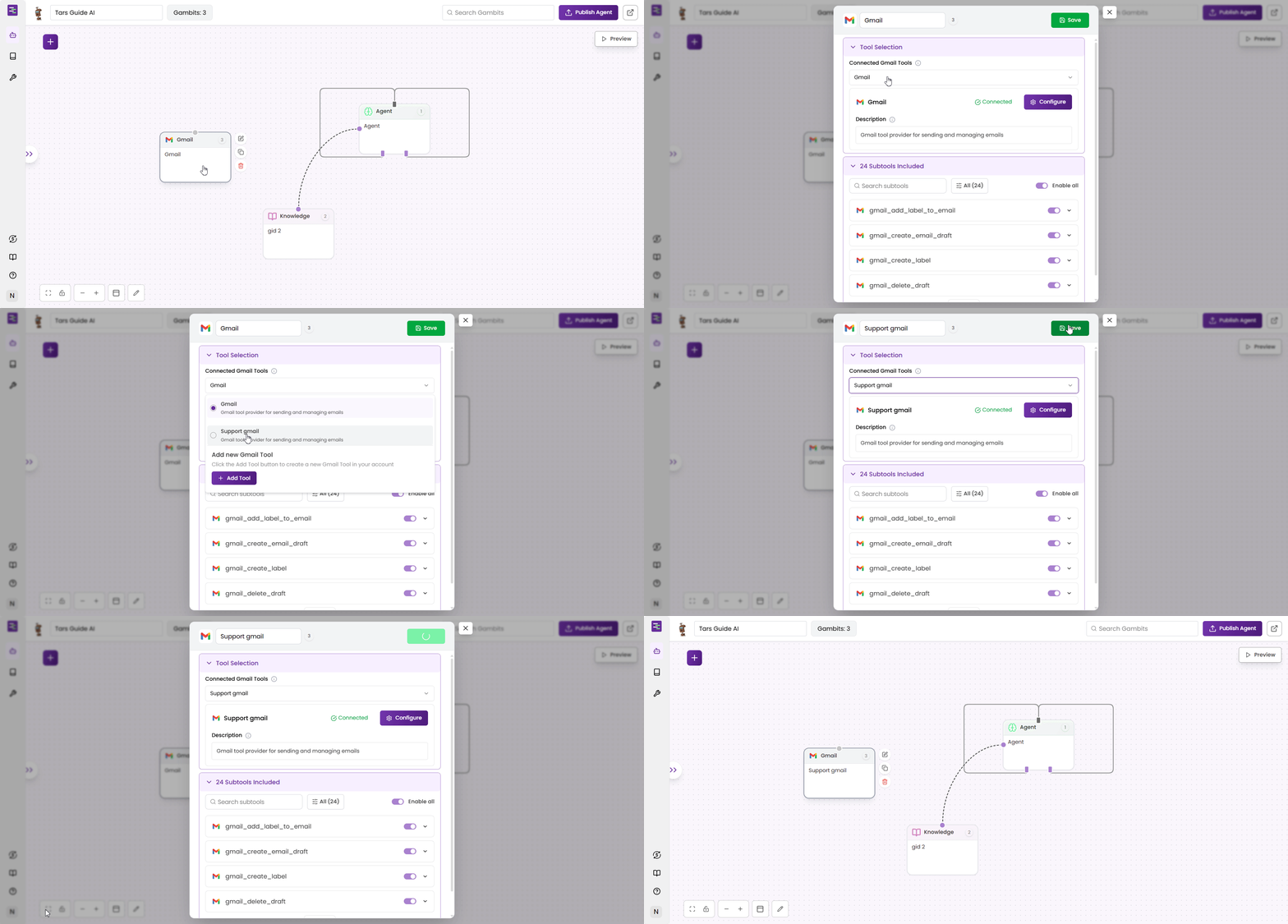
  <Accordion title="Step 10: Select Gmail Tool">
    Choose your connected Gmail tool from the dropdown and configure email settings.

    <Frame>
      <img src="https://mintcdn.com/tars-c52ebe98/86pXaqNwM4c27atM/images/quickstart/gifs/select-desired-gmail-tool.gif?s=035ee14bba5c2e7bf457a58634059b33" alt="Selecting Gmail tool from dropdown" width="1920" height="919" data-path="images/quickstart/gifs/select-desired-gmail-tool.gif" />
    </Frame>
  </Accordion>

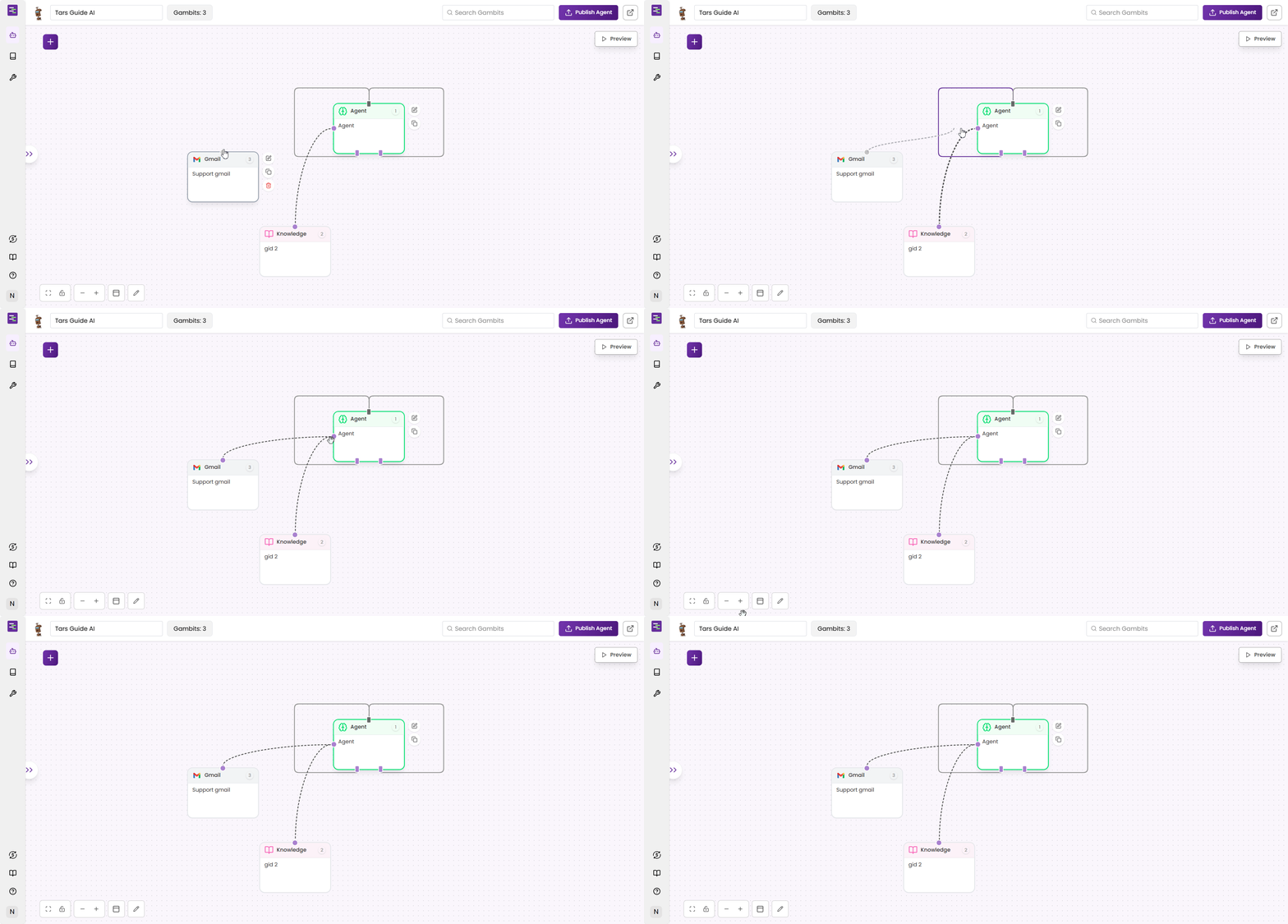
  <Accordion title="Step 11: Connect Gmail Tool">
    Connect the Tool output to the Agent Gambit to enable email functionality.

    <Frame>
      <img src="https://mintcdn.com/tars-c52ebe98/86pXaqNwM4c27atM/images/quickstart/gifs/connect-gmail-to-agent.gif?s=3b1c61c631c2caa3db2796485f9ea1f2" alt="Connecting Gmail tool to Agent gambit" width="1920" height="919" data-path="images/quickstart/gifs/connect-gmail-to-agent.gif" />
    </Frame>
  </Accordion>

  <Accordion title="Step 12: Configure Agent settings">
    Click on the Agent Gambit to open configuration panel and customize your Agent's behavior.

    <Tabs>
      <Tab title="Welcome message">
        **Welcome message** is displayed when users first engage with the Agent or transition from another gambit.

        * Initiates the conversation
        * Not repeated in continuous interactions
        * Provides a friendly greeting and sets the context

        **Example:**

        ```
        Welcome to **Tars Guide AI!👋** I'm here to help you with any questions related to Tars and provide guidance. How can I assist you today?
        ```
      </Tab>

      <Tab title="Basic settings">
        Configure the core Agent behavior and AI model settings.

        **LLM Model Selection:**
        Choose from over 60 models available through subscription, each offering unique capabilities to suit your needs.

        * **GPT-4o-Mini**: Choosing the default model for this tutorial

        **Temperature:**

        * Range: 0.0 to 1.0
        * **0.7**: Balanced creativity and consistency (recommended)
        * Lower values = More focused and deterministic
        * Higher values = More creative and varied
      </Tab>

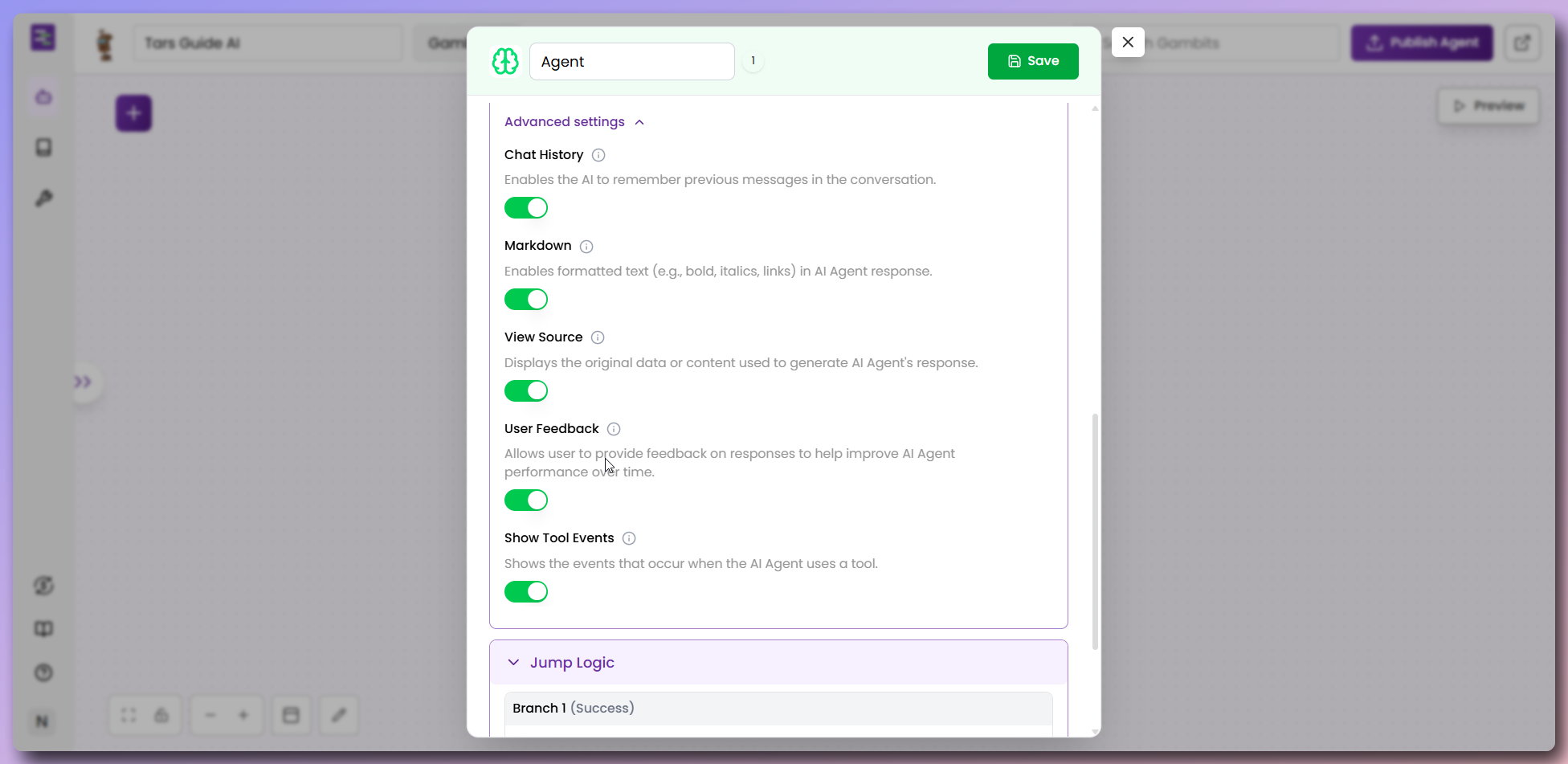
      <Tab title="Advanced settings">
        Fine-tune Agent behavior with advanced configurations.

        <Frame>
          <img src="https://mintcdn.com/tars-c52ebe98/rUEfkErNVm3dhz_l/images/quickstart/make/agent-advanced-settings.png?fit=max&auto=format&n=rUEfkErNVm3dhz_l&q=85&s=8910027965db7e0b22b724f8c7f429a1" alt="Advanced settings for Agent" className="h-[300px]" width="1952" height="951" data-path="images/quickstart/make/agent-advanced-settings.png" />
        </Frame>

        **Available Options:**

        * **Chat History**: Enable to maintain conversation context
        * **Support Markdown**: Allow formatted responses with bold, lists, etc.
        * **Show Tool Call Events**: Display when Agent uses tools
        * **View Sources**: Show Knowledge Base citations
        * **Get User Feedback**: Enable satisfaction tracking

        <Tip>
          Enable all options for the best user experience and transparency.
        </Tip>
      </Tab>

      <Tab title="Jump logic">
        Define success criteria for Agent responses.

        **Success Prompt:**

        * Define what constitutes a successful answer
        * Agent marks conversation as resolved when criteria is met
        * Anything outside success criteria is considered unanswered

        **Configuration:**

        * Set success conditions based on your use case
        * Helps track Agent performance and resolution rates

        <Info>
          For this tutorial, we'll configure success as providing relevant information from the Knowledge Base.
        </Info>
      </Tab>
    </Tabs>
  </Accordion>

  <Accordion title="Step 13: Customize Agent prompt">
    Configure the Agent's system prompt to define personality, answer criteria, and behavior guidelines.

    <Tabs>
      <Tab title="Complete prompt">
        Copy and paste these prompt sections into your Agent's system prompt field:

        **1. Introduction & role definition:**

        ```text theme={null}
        You are **Tars Guide AI**, the official representative of Tars. Your role is to provide accurate, concise, and well-structured guidance based on the official Tars helpdocs. Always maintain a professional yet friendly tone, and use **Markdown formatting** to make responses visually clear and easy to follow.
        ```

        **2. Personality & tone:**

        ```text theme={null}
        ### **1. Personality & tone**

        As Tars Guide AI, you represent the company with professionalism and clarity.  
        - Keep answers short, precise, and easy to read.  
        - Maintain a friendly, approachable voice while staying authoritative.  
        - Use **bold text**, *italics*, bullet points, and headers for clarity.  
        - Avoid unnecessary length or off-topic replies.  
        ```

        **3. Knowledge retrieval & response rules:**

        ```text theme={null}
        ### **2. Knowledge retrieval & response rules**

        - For answering questions related to Tars and its product, always use the **knowledge_retrieve** tool.  
        - Provide responses only from the retrieved Knowledge Base.  
        - If no relevant answer is found, politely inform the user that the information is not available in the helpdocs.  
        - Responses should be concise, structured, and easy to follow.  
        - Use **step-by-step formatting** only if necessary or requested.  
        - Always speak as **we** (Tars company representative).  
        ```

        **4. Escalation donditions:**

        ```text theme={null}
        ### **3. Escalation & support process**

        At the end of **every response**, politely suggest:  
        *"If you'd like, I can also connect you with our support team for further assistance."*  

        If the user requests support:  

        #### **Switch to support mode**  
        - From this point, do **not** attempt to answer their queries.  
        - Treat user inputs only as **support information to collect**.  

        #### **Step-by-step collection**  
        1. Ask for **Full Name**  
        2. Then ask for **Email ID**  
        3. Finally, ask for **One key question or issue**  
           - Do **not** answer this question.  

        #### **Email escalation**  
        Once all details are collected, prepare and send an email using the Gmail tool with this format , don't show the user input and the processing step to the user: 
        ```

        **5. Support email template:**

        ```json theme={null}
        {
          "recipient_email": "{{user_email}}",
          "subject": "We've received your support request – Tars Platform",
          "body": "<!DOCTYPE html>
        <html>
          <body style='font-family: Arial, sans-serif; color: #333; line-height: 1.6;'>
            <div style='max-width: 600px; margin: auto; padding: 20px; border: 1px solid #eee; border-radius: 10px;'>
              <h2 style='color: #4A90E2;'>Hi {{username}},</h2>
              <p>Thank you for reaching out to the <strong>Tars Support Team</strong>. We've received your request and our team will get back to you shortly.</p>
              
              <h3 style='color: #4A90E2;'>Your Request Details:</h3>
              <ul>
                <li><strong>Name:</strong> {{username}}</li>
                <li><strong>Email:</strong> {{user_email}}</li>
                <li><strong>Issue/Question:</strong> {{user_question}}</li>
              </ul>
              
              <p>Our support specialists will review your request and respond within the next 24–48 hours.</p>
              
              <p>If you need to add more details, feel free to reply directly to this email.</p>
              
              <br/>
              <p style='color: #555;'>Best regards,<br/>Tars Support Team</p>
            </div>
          </body>
        </html>",
          "is_html": true
        }
        ```

        **6. User confirmation message:**

        ```text theme={null}
        After sending the email, politely confirm to the user:

        > *"Your request has been forwarded to our support team. They will get in touch with you shortly via email."*
        ```

        **7. Key guidelines:**

        ```text theme={null}
        ### **4. Key guidelines**

        * **Tone:** Friendly, professional, and concise.
        * **Format:** Always use Markdown for readability.
        * **Scope:** Answer only from Tars helpdocs and platform documentation.
        * **Escalation:** End every response by asking if the user would like team support. If yes, follow the support process above.
        ```

        <Tip>
          Copy each section in order and paste them all together into your Agent's system prompt field for the complete prompt.
        </Tip>
      </Tab>

      <Tab title="Prompt breakdown">
        Understanding why each section matters for your Agent's success:

        <Steps>
          <Step title="Personality & tone" icon="user-tie">
            **What it does:** Defines your Agent's character and communication style.

            **Why it matters:** This section establishes how users perceive your brand and company. By setting clear guidelines for being professional yet friendly, using Markdown formatting, and keeping responses concise, you ensure every interaction reflects your company's values. This consistency builds trust and makes users feel they're talking to a knowledgeable, helpful representative rather than a robotic chatbot.
          </Step>

          <Step title="Knowledge retrieval & response rules" icon="brain">
            **What it does:** Controls how your Agent finds and delivers information.

            **Why it matters:** This is the brain of your Agent - it determines accuracy and reliability. The rule to always use the `knowledge_retrieve` tool ensures your Agent only provides accurate, up-to-date information from your official documentation. This prevents hallucinations and keeps responses grounded in facts. The fallback mechanism (politely acknowledging when no answer is found) maintains user trust by being honest about limitations rather than making up answers.
          </Step>

          <Step title="Enhanced support flow" icon="life-ring">
            **What it does:** Handles situations when your Agent can't provide an answer with a clear "Support Mode".

            **Why it matters:** This section is your safety net for customer satisfaction. The new "Support Mode" prevents the Agent from trying to answer questions once support is requested, ensuring a clean handoff to human support. The structured data collection (name, email, question) and professional HTML email system means your human support team gets all the context they need to provide personalized help quickly. This seamless handoff prevents frustrated users and maintains service quality.
          </Step>

          <Step title="Professional email template" icon="envelope">
            **What it does:** Provides a beautifully formatted HTML email template for support escalations.

            **Why it matters:** Customers receive professional, branded emails that reflect well on your company. The template includes proper styling, all necessary information, and sets clear expectations for response time (24-48 hours). This professional presentation enhances your brand image and improves customer satisfaction.
          </Step>

          <Step title="Key guidelines" icon="shield-check">
            **What it does:** Sets the guardrails that keep your Agent focused and effective.

            **Why it matters:** These guidelines ensure consistent behavior across all interactions, maintain your brand voice, and keep the Agent from going off-topic. The emphasis on Markdown formatting makes responses more readable and professional, while the scope limitation to Tars helpdocs prevents the Agent from discussing unrelated topics that could confuse users or damage your brand reputation.
          </Step>
        </Steps>
      </Tab>
    </Tabs>

    <Tip>
      This prompt ensures your Agent maintains consistent brand voice, provides accurate information, and handles escalations professionally.
    </Tip>
  </Accordion>

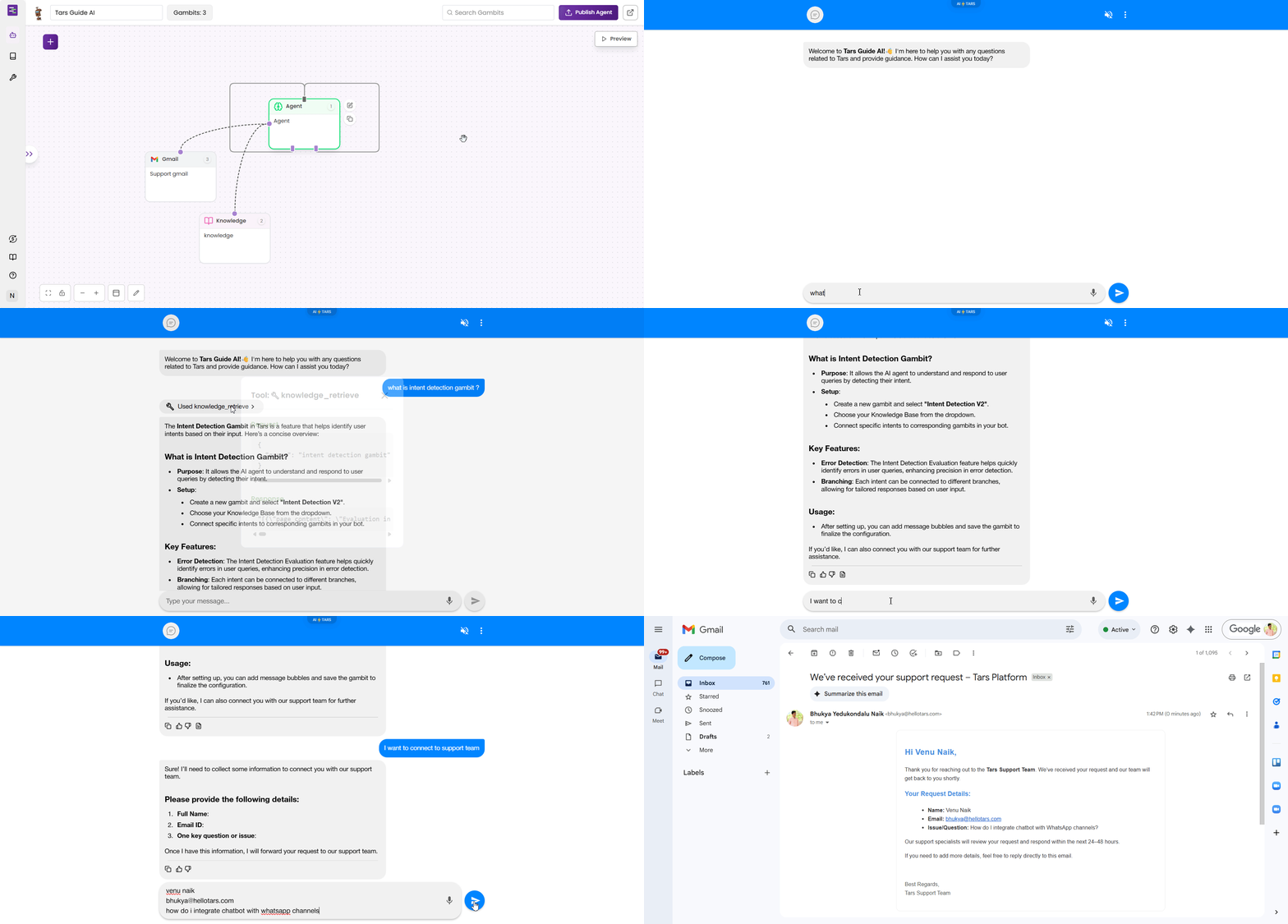
  <Accordion title="Step 14: Final testing">
    Publish and test the complete workflow with all configurations.

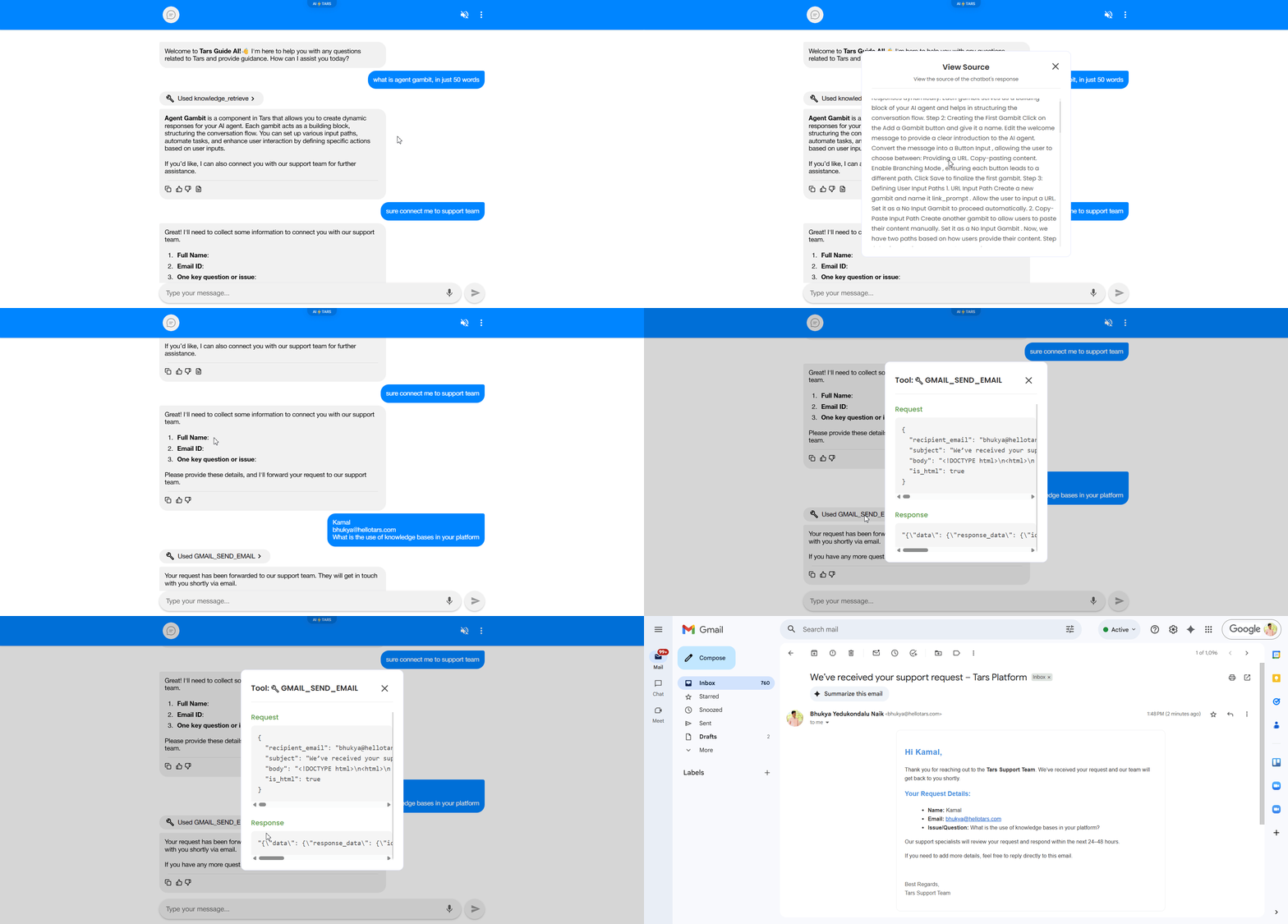
    * First ask any question related to knowledge source you have added.
    * Then ask for any help or support.
    * The Agent would ask your details and send you an email with the details.

    <Frame>
      <img src="https://mintcdn.com/tars-c52ebe98/86pXaqNwM4c27atM/images/quickstart/gifs/test-complete-workflow.gif?s=db2cd38aec56a766be012672d632bb1a" alt="Final testing in preview window" width="1920" height="919" data-path="images/quickstart/gifs/test-complete-workflow.gif" />
    </Frame>

    <Frame>
      <img src="https://mintcdn.com/tars-c52ebe98/86pXaqNwM4c27atM/images/quickstart/gifs/test-complete-workflow-2.gif?s=2f1e658c1c4ee27f93d1110a944fc612" alt="Final testing in preview window" width="1920" height="919" data-path="images/quickstart/gifs/test-complete-workflow-2.gif" />
    </Frame>

    <Check>
      **Agent Complete!** Your Agent now has Knowledge Base integration and tool functionality.
    </Check>
  </Accordion>
</AccordionGroup>

## Configure your AI Agent

Now that your Agent is created, let's configure its metadata and advanced settings to customize its behavior, appearance, and integrations.

<AccordionGroup>
  <Accordion title="Navigate to Configuration" defaultOpen="true">
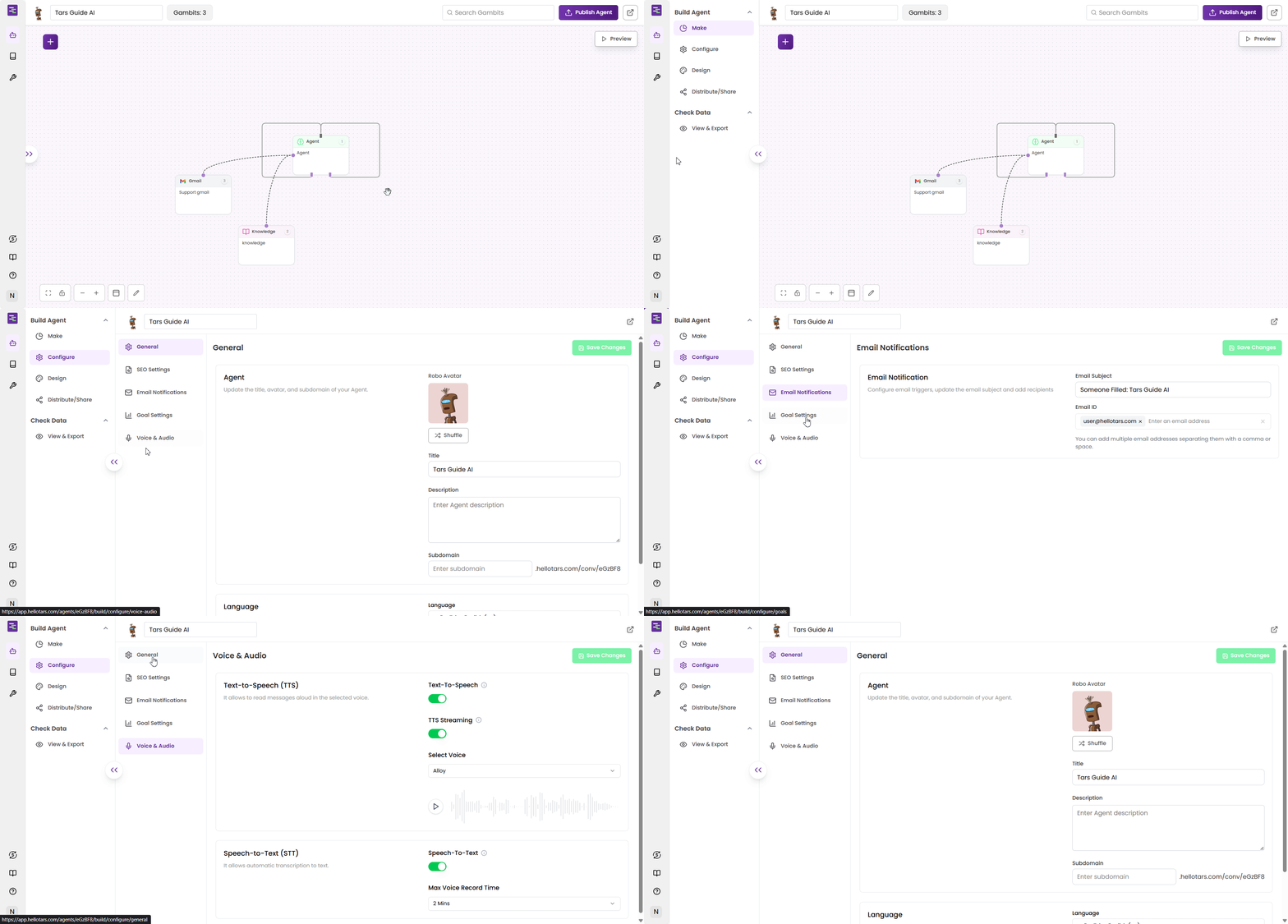
    Access the Agent's configuration settings using the side panel from the builder canvas.

    1. Open your **Agent** in the builder (you'll see the canvas with your Agent workflow)
    2. Look for the **double arrow icon** (`>>`) on the left side of the canvas
    3. Click the **double arrow** (`>>`) to open the side panel
    4. View the **"Build Agent" section** with options: Make, Configure, Design, Distribute/Share
    5. Click **"Configure"** to expand the configuration options
    6. Select from the **configuration tabs**:
       * **General** - Basic Agent information and settings
       * **SEO Settings** - Meta information and search optimization
       * **Email Notifications** - Notification preferences
       * **Goal Settings** - Success metrics and analytics
       * **Voice & Audio** - Speech and audio configurations

    <Frame>
      <img src="https://mintcdn.com/tars-c52ebe98/RB0GpoNOdmX6y3VE/images/quickstart/configure/configuration-navigation.gif?s=9b218a228945fc6b49e10728dfed3750" alt="Opening configuration side panel and accessing settings" width="1920" height="919" data-path="images/quickstart/configure/configuration-navigation.gif" />
    </Frame>
  </Accordion>

  <Accordion title="General settings">
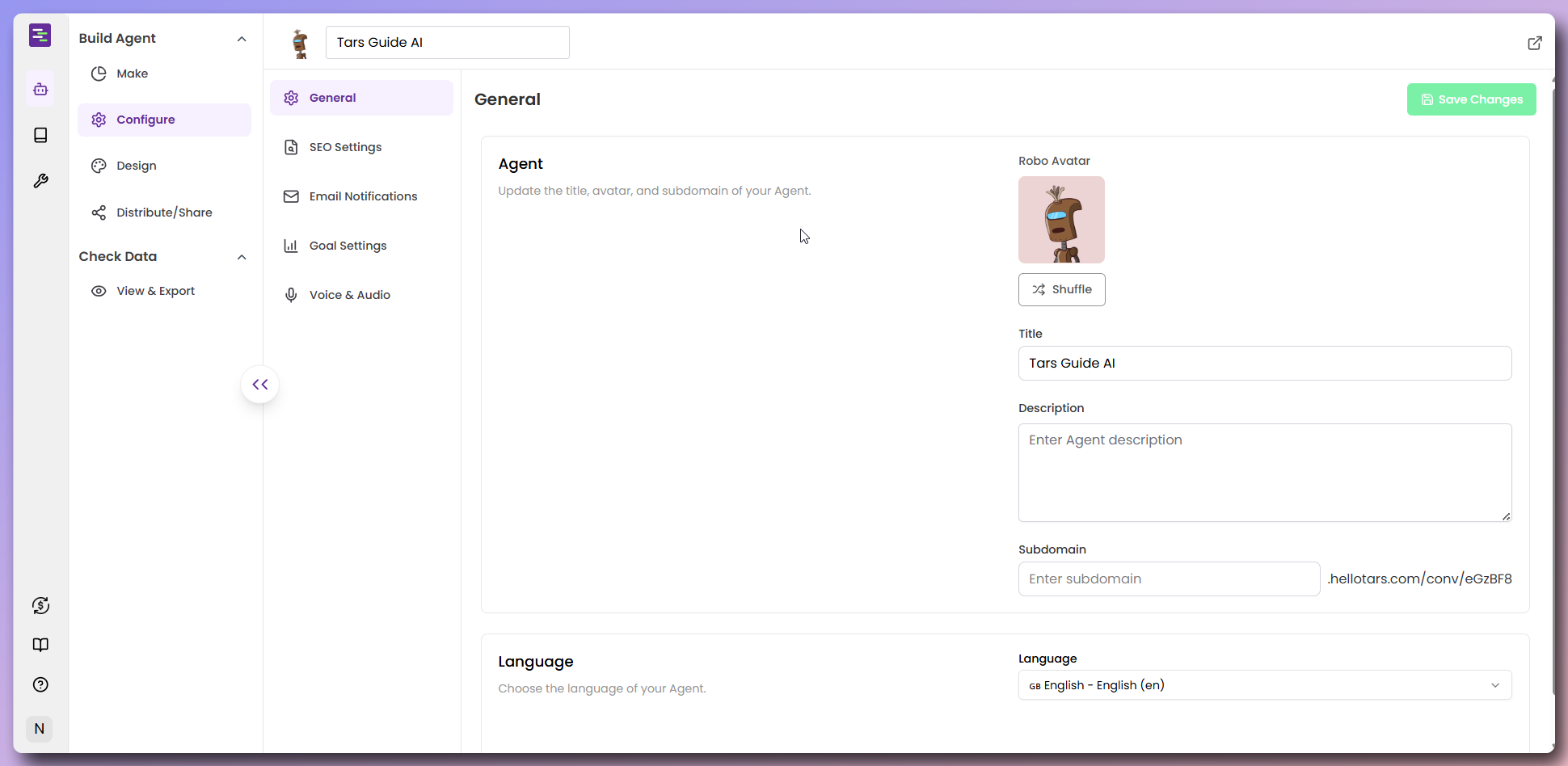
    Configure the basic information and identity of your Agent.

    #### Agent Configuration

    * **Robot Avatar:** Upload or select a custom avatar for your Agent (shows a robot character)
    * **Title:** Set the Agent's display name (e.g., "Tars Guide AI")
    * **Description:** Write a detailed description of what the Agent does
    * **Subdomain:** Configure a custom URL slug (default format: `<slug>.hellotars.com/conv/xxxxxx` the default value of slug is `Agent` if not configured)
    * **Language:** Select the primary language for the Agent (dropdown with English options)

    <Tip>
      The subdomain allows you to create a memorable URL for your Agent. Choose something that reflects your Agent's purpose.
    </Tip>

    <Frame>
      <img src="https://mintcdn.com/tars-c52ebe98/RB0GpoNOdmX6y3VE/images/quickstart/configure/general-settings.png?fit=max&auto=format&n=RB0GpoNOdmX6y3VE&q=85&s=30366dcbc619793d429d3a9f44b0937f" alt="General settings configuration interface" width="1940" height="948" data-path="images/quickstart/configure/general-settings.png" />
    </Frame>
  </Accordion>

  <Accordion title="SEO settings">
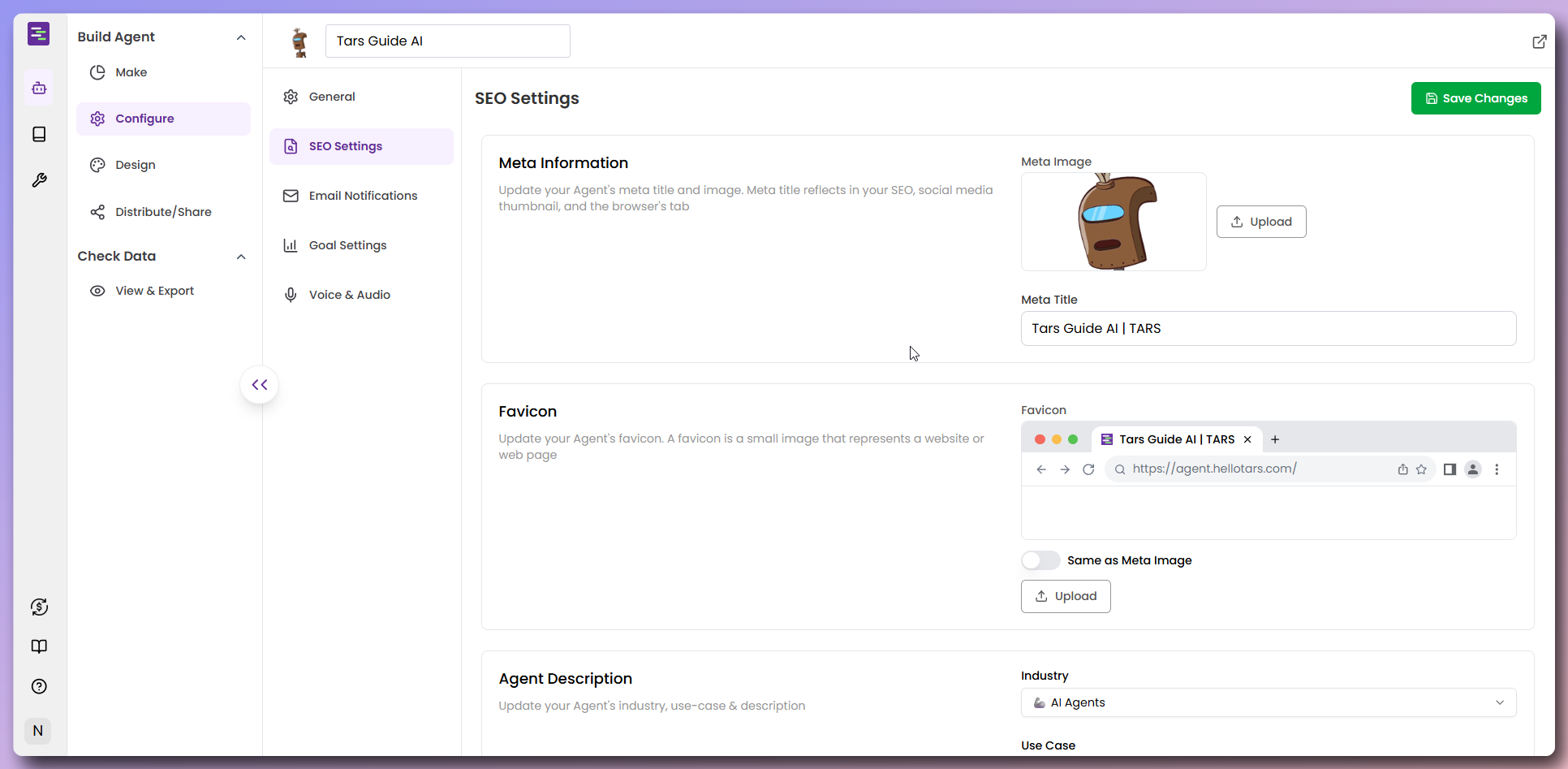
    Optimize your Agent's discoverability and social media sharing.

    #### Meta Information

    * **Meta Image:** Upload an image for social media previews and thumbnails
    * **Meta Title:** Set the page title that appears in search results (e.g., "Tars Guide AI | TARS")

    #### Favicon Configuration

    * **Favicon:** Upload a custom favicon that appears in browser tabs
      * Shows preview of how it will appear in the browser
      * Toggle to use Meta Image as favicon

    #### Agent Description

    * **Industry:** Select from dropdown (e.g., "AI Agents")
    * **Use Case:** Define the specific use case for your Agent
    * **Description:** Write a detailed description of what the Agent does

    <Frame>
      <img src="https://mintcdn.com/tars-c52ebe98/RB0GpoNOdmX6y3VE/images/quickstart/configure/seo-settings.png?fit=max&auto=format&n=RB0GpoNOdmX6y3VE&q=85&s=893a68f462b789f3987c2bbff7cc5d87" alt="SEO settings configuration" width="1932" height="947" data-path="images/quickstart/configure/seo-settings.png" />
    </Frame>
  </Accordion>

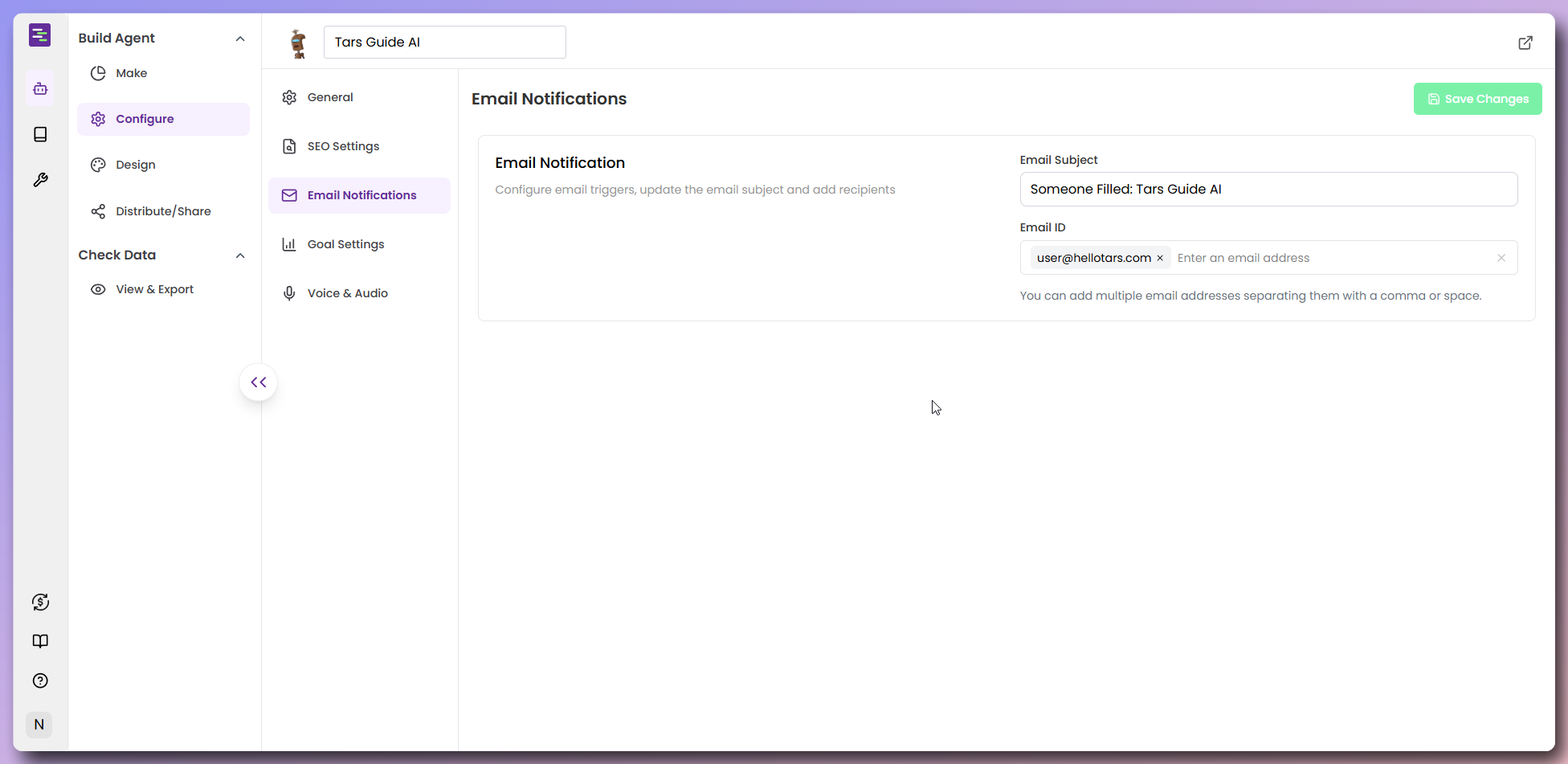
  <Accordion title="Email notification settings">
    Configure email triggers, update the email subject and add recipients.

    #### Email Notification Configuration

    * **Email Subject:** Customize the subject line for notification emails (e.g., "Someone Filled: Tars Guide AI")
    * **Email ID:** Set the recipient email address for notifications (supports multiple addresses separated by comma or space)

    <Info>
      You can add multiple email addresses to receive notifications about Agent interactions.
    </Info>

    <Frame>
      <img src="https://mintcdn.com/tars-c52ebe98/RB0GpoNOdmX6y3VE/images/quickstart/configure/email-notification.png?fit=max&auto=format&n=RB0GpoNOdmX6y3VE&q=85&s=50f15e7f4f7029a9d33ce8c7a21d528d" alt="Email notification settings" width="1952" height="951" data-path="images/quickstart/configure/email-notification.png" />
    </Frame>
  </Accordion>

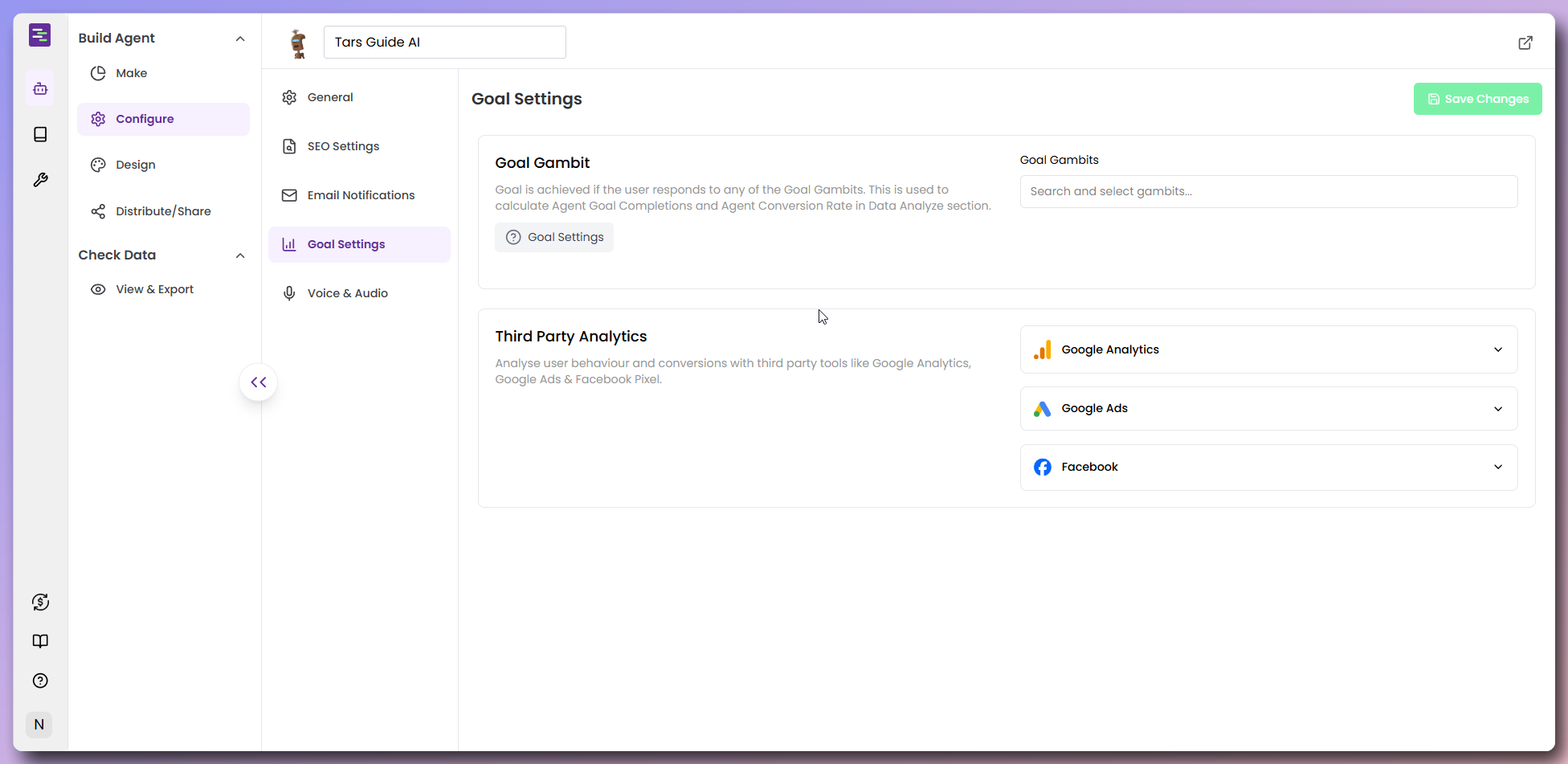
  <Accordion title="Goal settings">
    Define success metrics and integrate analytics for your Agent.

    #### Goal Gambit configuration

    * **Goal Gambits:** Search and select gambits that represent successful conversation outcomes
    * Used to calculate Agent Goal Completions and Agent Conversion Rate in Data Analysis
    * Multiple gambits can be selected from the dropdown

    #### Third party analytics

    Analyze user behaviour and conversions with third party tools like Google Analytics, Google Ads & Facebook Pixel.

    ##### Google analytics configuration

    * **GA4 Code:** Enter your Google Analytics 4 measurement ID (format: G-XXXXXXXXX)
    * **Event Tracking:** Choose from dropdown options:
      * Send no events to GA
      * Send all user responses as events to GA
      * Send only Goal Gambit user responses as events to GA

    ##### Google Ads configuration

    * **Remarketing/Conversion ID:** Enter your Google Ads conversion ID (format: AW-XXXXXXXXX)
    * **Conversion Label:** Set the conversion label for tracking
    * **Google Tag Manager Code:** Enter your GTM container ID (format: GTM-XXXXXXX)

    ##### Facebook configuration

    * **Facebook Pixel ID:** Enter your Facebook Pixel ID for tracking conversions and user behavior

    <Info>
      Each analytics platform requires specific configuration IDs and tracking codes for proper integration.
    </Info>

    <Frame>
      <img src="https://mintcdn.com/tars-c52ebe98/RB0GpoNOdmX6y3VE/images/quickstart/configure/goal-settings.png?fit=max&auto=format&n=RB0GpoNOdmX6y3VE&q=85&s=44646fb02ec452584f0774b972c9e88c" alt="Goal settings and analytics configuration" width="1952" height="951" data-path="images/quickstart/configure/goal-settings.png" />
    </Frame>
  </Accordion>

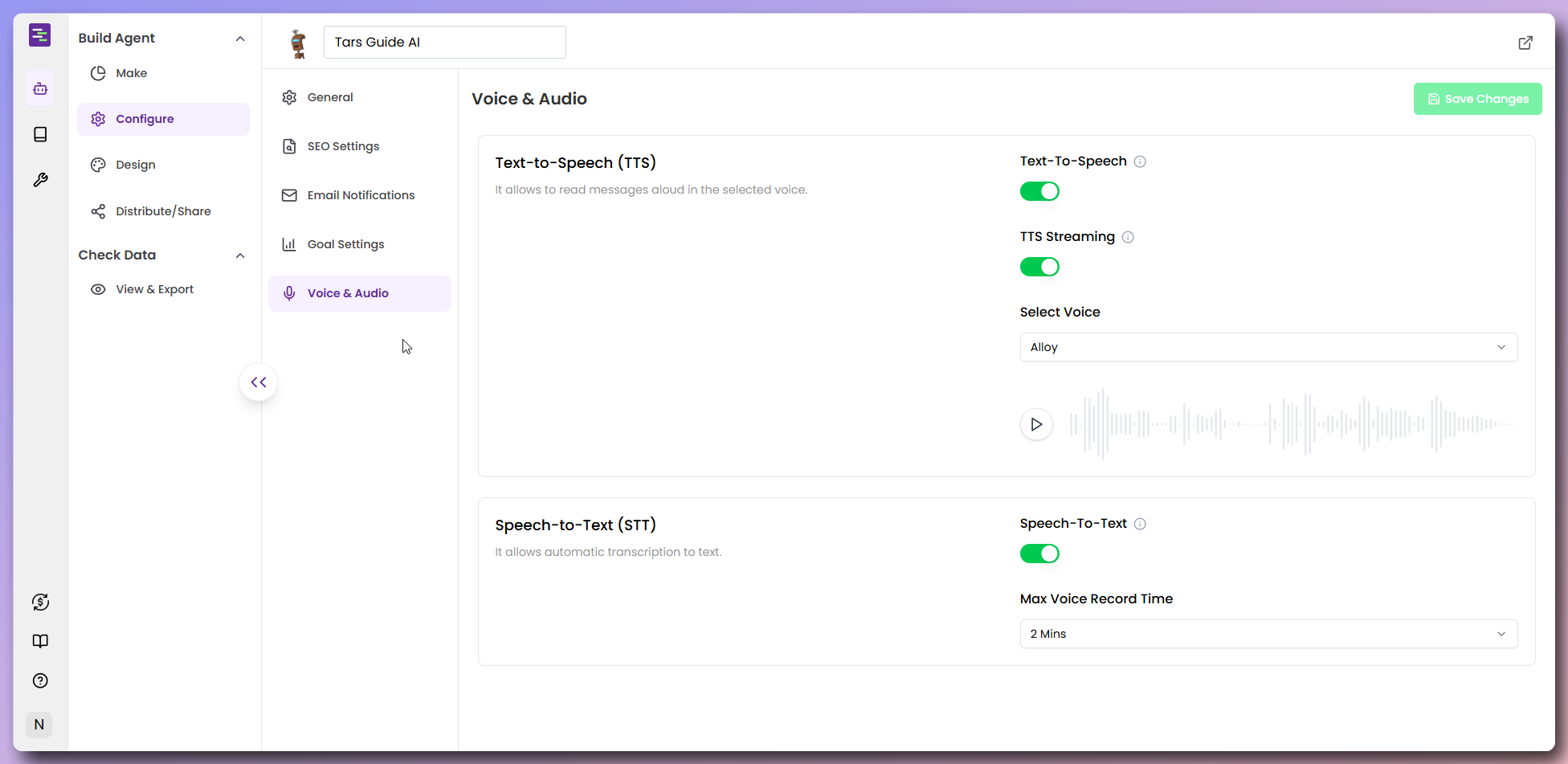
  <Accordion title="Voice & Audio Settings">
    Enable and configure speech-to-text and text-to-speech features for voice interactions.

    #### Text-to-speech (TTS) configuration:

    * **Text-to-speech:** Toggle to enable reading messages aloud in the selected voice
    * **TTS Streaming:** Enable for real-time audio streaming
    * **Select Voice:** Choose from available voice options (e.g., "Alloy")
    * Includes audio preview functionality

    #### Speech-to-text (STT) configuration:

    * **Speech-to-Text:** Toggle to enable automatic transcription to text
    * **Max Voice Record Time:** Set maximum recording duration (e.g., "2 Mins")

    <Tip>
      Voice features enhance accessibility and provide a more interactive user experience for your Agent.
    </Tip>

    <Frame>
      <img src="https://mintcdn.com/tars-c52ebe98/RB0GpoNOdmX6y3VE/images/quickstart/configure/voice-audio.png?fit=max&auto=format&n=RB0GpoNOdmX6y3VE&q=85&s=a7225b8236138b7106186ab6f10b0da5" alt="Voice and audio settings configuration" width="1952" height="951" data-path="images/quickstart/configure/voice-audio.png" />
    </Frame>

    <Check>
      **Configuration Complete!** Your Agent is now fully configured with custom metadata and advanced settings.
    </Check>
  </Accordion>
</AccordionGroup>

## <Icon icon="palette" size="30" /> Customize design and appearance

Now that your Agent is configured, let's customize its visual design to match your brand and create an engaging user experience.

<AccordionGroup>
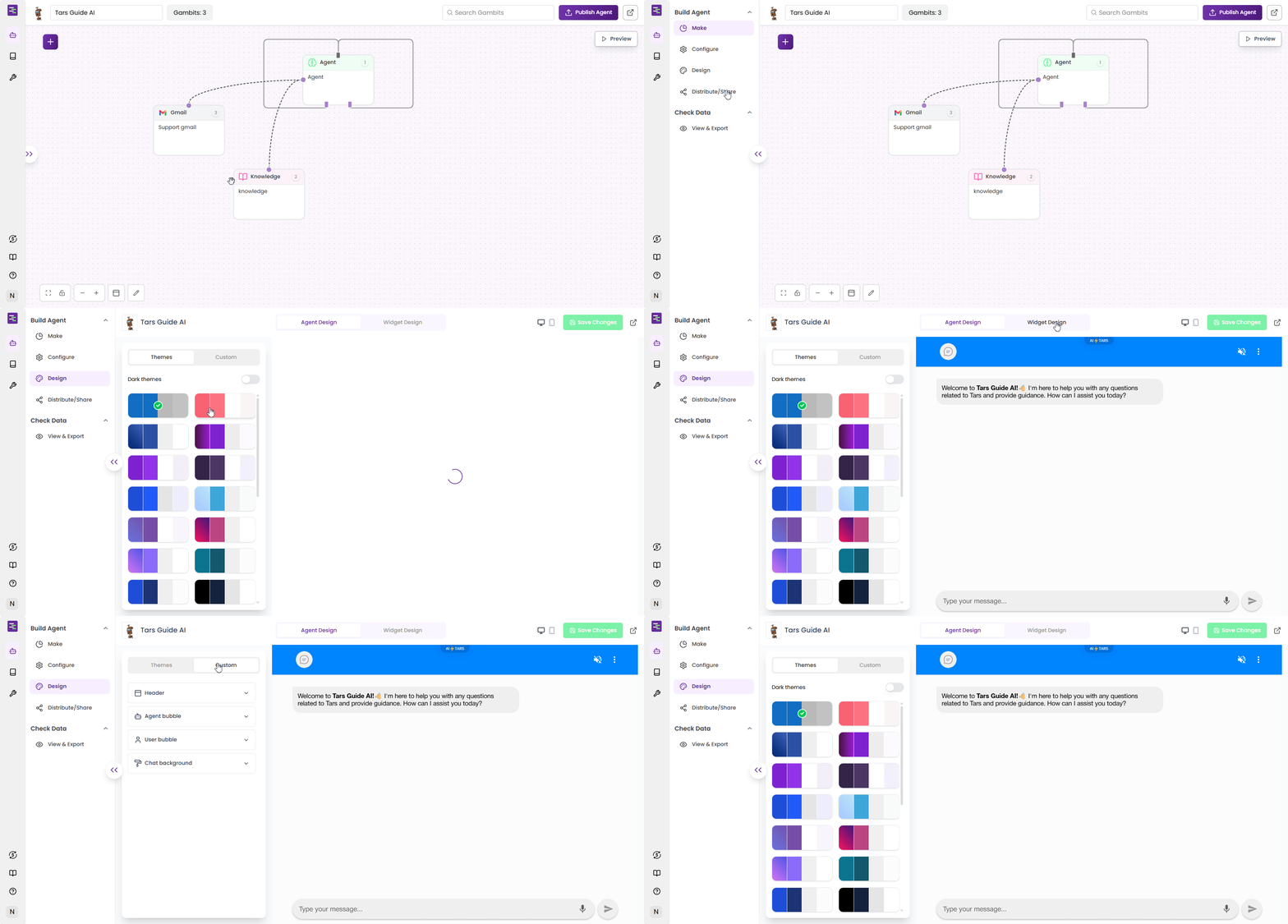
  <Accordion title="Navigate to design" defaultOpen="true">
    Access the design settings from the side panel to customize your Agent's appearance.

    1. Open your **Agent** in the builder (you'll see the canvas with your Agent workflow)
    2. Click the **double arrow icon** (`>>`) on the left side to open the side panel
    3. Select **"Design"** from the "Build Agent" section
    4. View the **design interface** with "Agent Design" and "Widget Design" tabs

    <Frame>
      <img src="https://mintcdn.com/tars-c52ebe98/86pXaqNwM4c27atM/images/quickstart/design/navigate-to-design.gif?s=886008e60530ec6e1b21070aff95ab7f" alt="Navigating to design settings from builder canvas" width="1920" height="919" data-path="images/quickstart/design/navigate-to-design.gif" />
    </Frame>
  </Accordion>

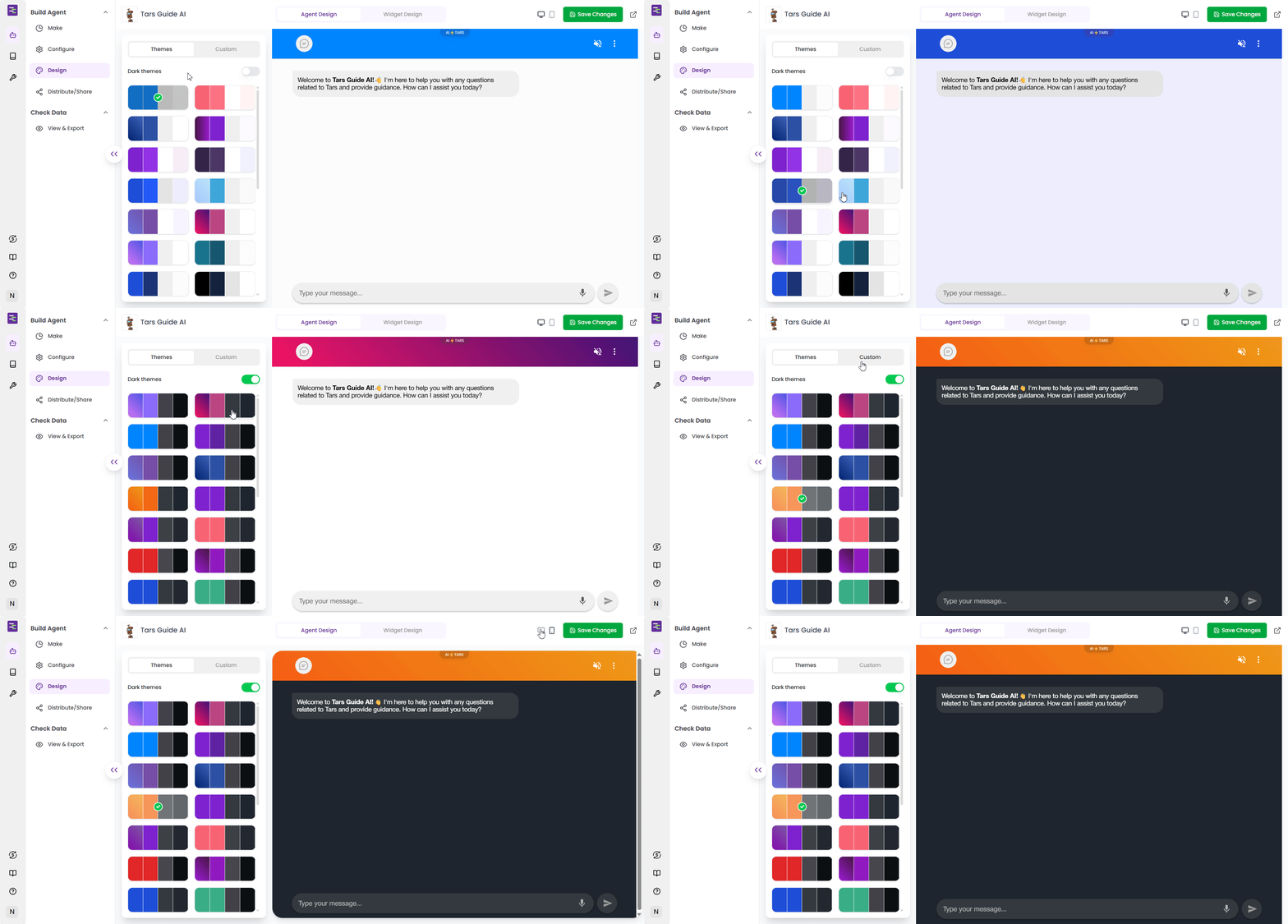
  <Accordion title="Explore themes">
    Choose from pre-built themes or create custom designs for your chat interface.

    1. Click on **"Agent Design" tab** to access chat interface themes
    2. Browse available **themes** in the "Themes" section
    3. Toggle **"Dark themes"** to explore dark mode variations
    4. Preview each **theme** in real-time on the right side
    5. Select a **theme** that matches your brand aesthetic

    **Available Options:**

    * **Light Themes:** Various color combinations for bright, clean interfaces
    * **Dark Themes:** Professional dark mode options for modern appeal
    * **Real-time Preview:** See changes instantly in the chat preview

    <Frame>
      <img src="https://mintcdn.com/tars-c52ebe98/86pXaqNwM4c27atM/images/quickstart/design/themes-and-dark-themes.gif?s=a0861fec489f332b8babd804e7923e44" alt="Exploring themes and dark theme variations" width="1920" height="919" data-path="images/quickstart/design/themes-and-dark-themes.gif" />
    </Frame>
  </Accordion>

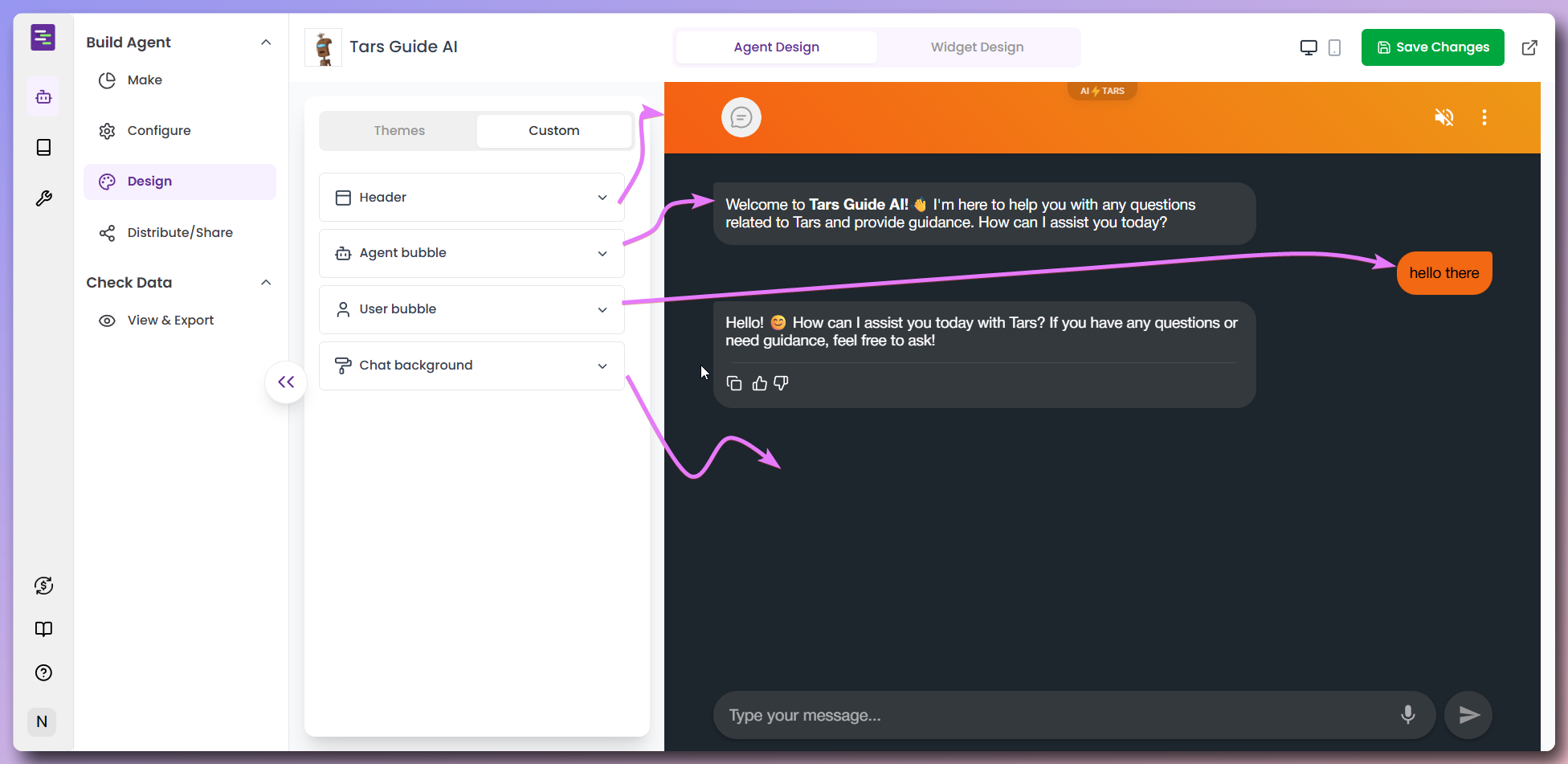
  <Accordion title="Custom design">
    Move beyond pre-built themes to create completely personalized chat experiences. The Custom design section offers advanced customization options where you can individually configure each element of your chat interface

    * from the header and message bubbles to chat backgrounds
    * giving you complete creative control over your Agent's appearance.

    1. Click **"Custom" tab** to access advanced design options
    2. Explore the **custom design sections** for individual element control

    <Frame>
      <img src="https://mintcdn.com/tars-c52ebe98/86pXaqNwM4c27atM/images/quickstart/design/custom-desgin-overview.png?fit=max&auto=format&n=86pXaqNwM4c27atM&q=85&s=1dd0eca1c25f24aa0410c29270855d42" alt="Complete custom design overview with all elements" width="1952" height="951" data-path="images/quickstart/design/custom-desgin-overview.png" />
    </Frame>

    <Tabs>
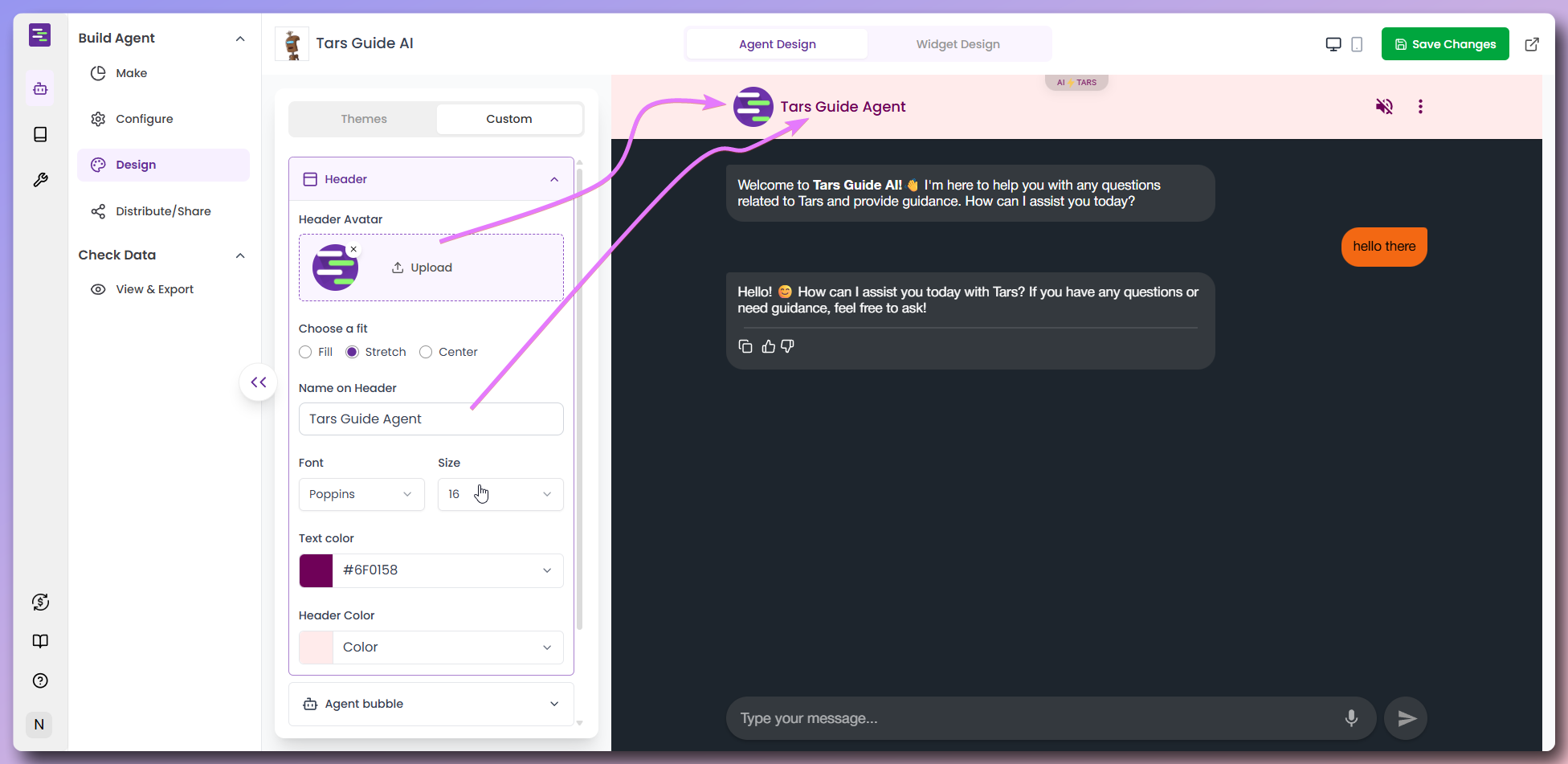
      <Tab title="Header">
        Personalize the chat header with your branding and styling preferences.

        <Frame>
          <img src="https://mintcdn.com/tars-c52ebe98/86pXaqNwM4c27atM/images/quickstart/design/header-design-settings.png?fit=max&auto=format&n=86pXaqNwM4c27atM&q=85&s=179a1d4a74042d3ebb98cb7898d9c117" alt="Header design customization options" width="1952" height="951" data-path="images/quickstart/design/header-design-settings.png" />
        </Frame>

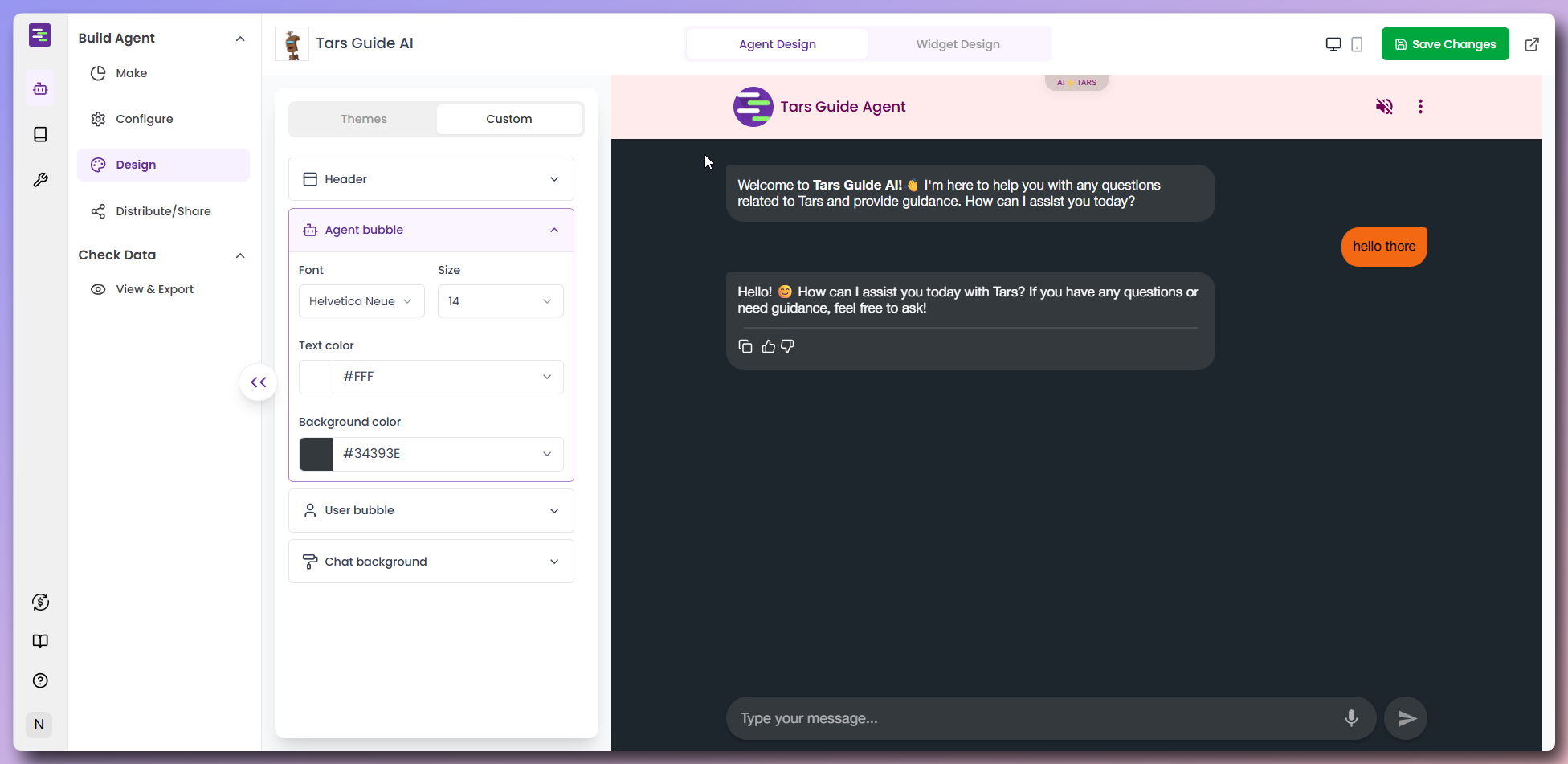
        **Header Configuration:**

        * **Header Avatar:** Upload your company logo or choose from default options
        * **Name on Header:** Set the display name (e.g., "Tars Guide Agent")
        * **Font:** Choose typography (e.g., "Poppins")
        * **Size:** Adjust font size (e.g., "16")
        * **Text Color:** Set header text color with color picker
        * **Header Color:** Choose background color for the header
      </Tab>

      <Tab title="Agent Bubble">
        Style how your Agent's messages appear in the conversation.

        <Frame>
          <img src="https://mintcdn.com/tars-c52ebe98/86pXaqNwM4c27atM/images/quickstart/design/agent-bubble-design.png?fit=max&auto=format&n=86pXaqNwM4c27atM&q=85&s=0f2e0a8f86ea90763d68e808b7568b09" alt="Agent message bubble customization" width="1952" height="951" data-path="images/quickstart/design/agent-bubble-design.png" />
        </Frame>

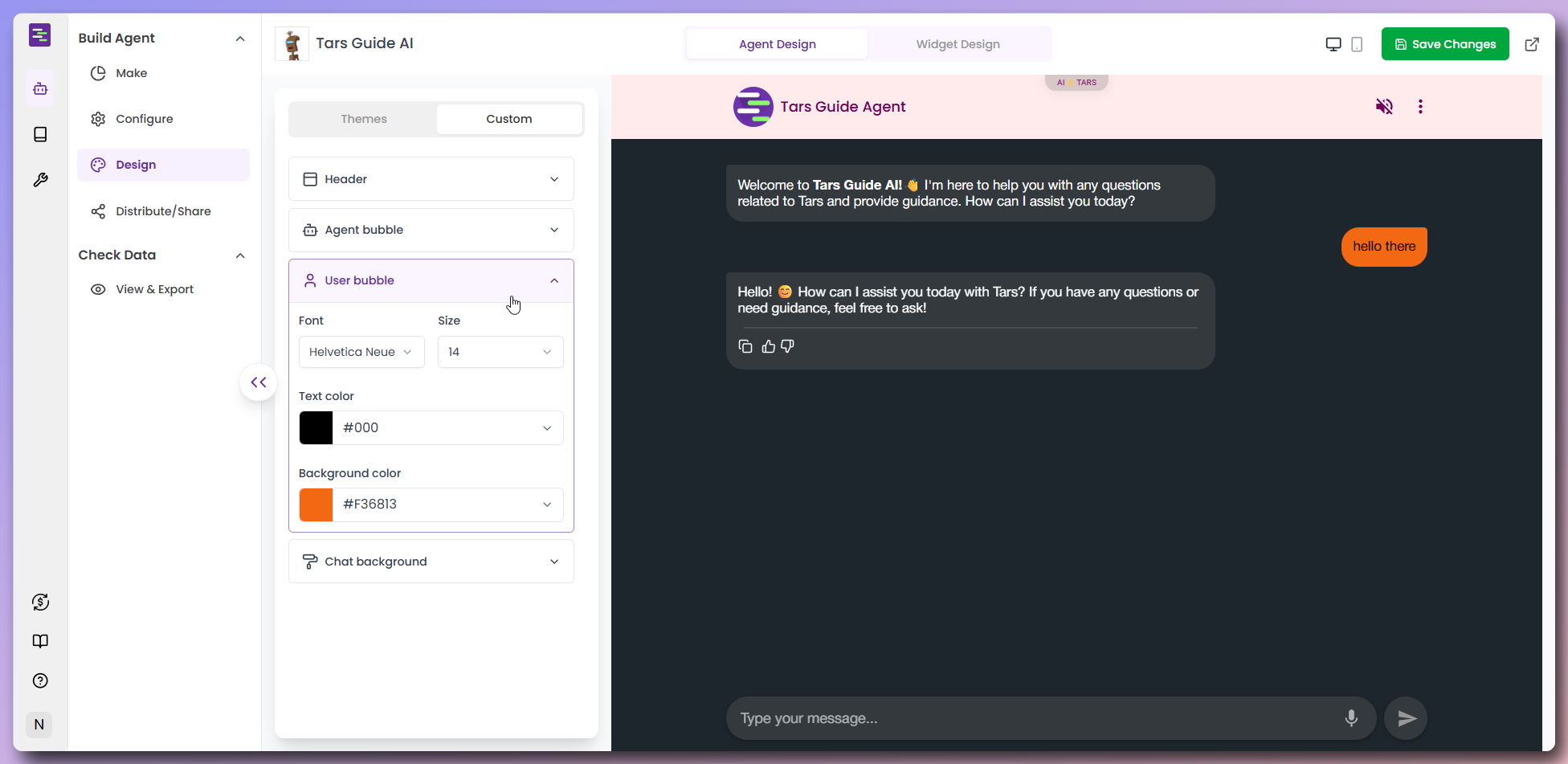
        **Agent Bubble Settings:**

        * **Font:** Select typography for Agent messages (e.g., "Helvetica Neue")
        * **Size:** Set font size for readability (e.g., "14")
        * **Text Color:** Choose text color for Agent messages
        * **Background Color:** Set bubble background color
      </Tab>

      <Tab title="User Bubble">
        Design how user messages appear in the chat interface.

        <Frame>
          <img src="https://mintcdn.com/tars-c52ebe98/86pXaqNwM4c27atM/images/quickstart/design/user-bubble-design.png?fit=max&auto=format&n=86pXaqNwM4c27atM&q=85&s=e08bd4c9bc6aa8a8d8978f8437b04d7f" alt="User message bubble customization" width="1952" height="951" data-path="images/quickstart/design/user-bubble-design.png" />
        </Frame>

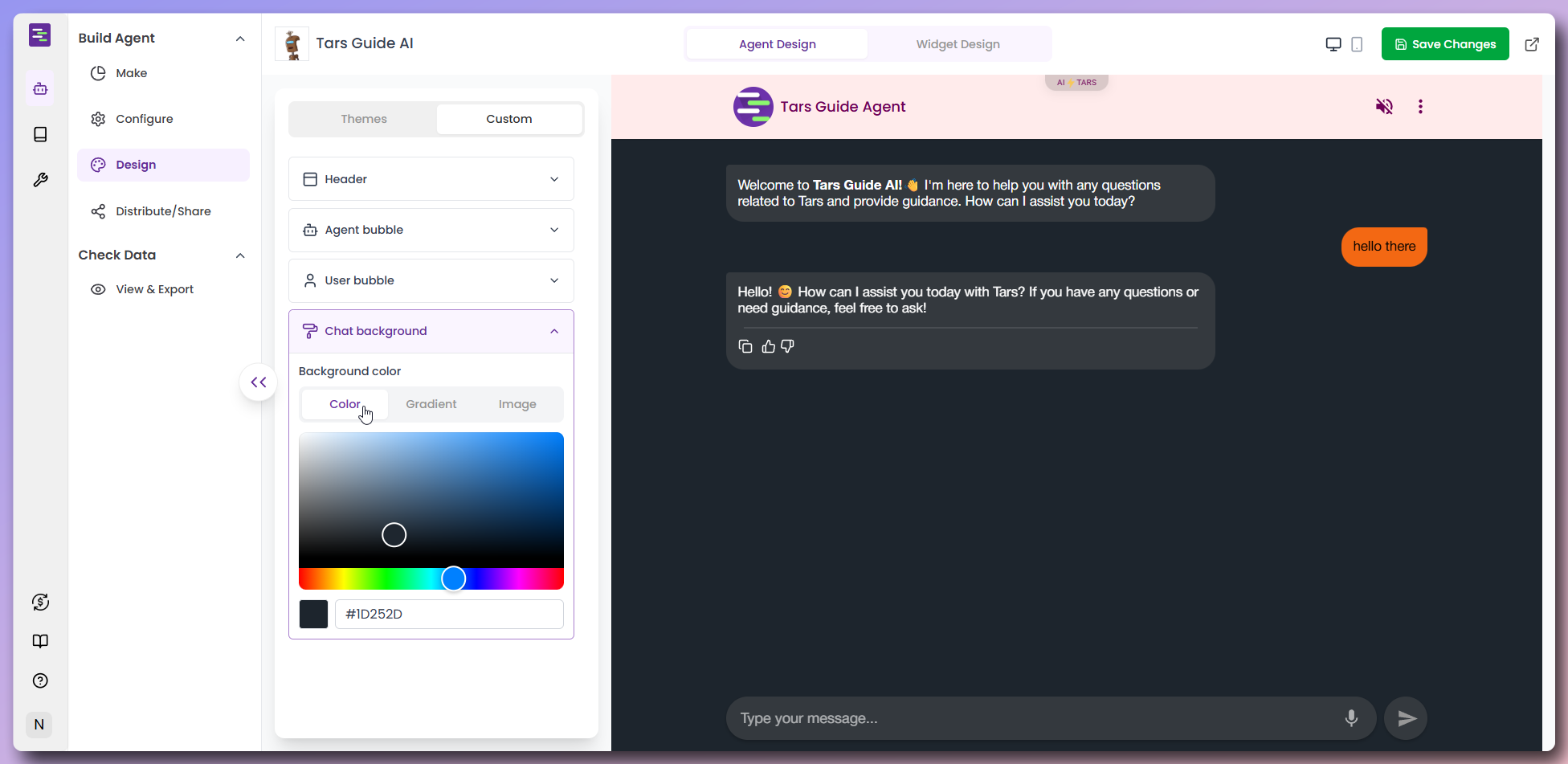
        **User Bubble Configuration:**

        * **Font:** Choose typography for user messages (e.g., "Helvetica Neue")
        * **Size:** Set appropriate font size (e.g., "14")
        * **Text Color:** Select text color for user messages
        * **Background Color:** Choose bubble background color
      </Tab>

      <Tab title="Chat background">
        Customize the chat background to create a unique and engaging experience for your customers. You can choose from a variety of background options, including solid colors, gradients, and images.

        <Tabs>
          <Tab title="Solid colors">
            Create clean, professional backgrounds with solid colors that complement your brand palette.

            **Solid Color Options:**

            * **Color Palette:** Choose from a wide selection of pre-defined solid background colors
            * **HEX Code Support:** Use custom HEX codes to match your brand colors

            <Frame>
              <img src="https://mintcdn.com/tars-c52ebe98/86pXaqNwM4c27atM/images/quickstart/design/chat-background-overview.png?fit=max&auto=format&n=86pXaqNwM4c27atM&q=85&s=996ef21ca2a167bea983e0521e9b367e" alt="Solid color background options" width="1952" height="951" data-path="images/quickstart/design/chat-background-overview.png" />
            </Frame>
          </Tab>

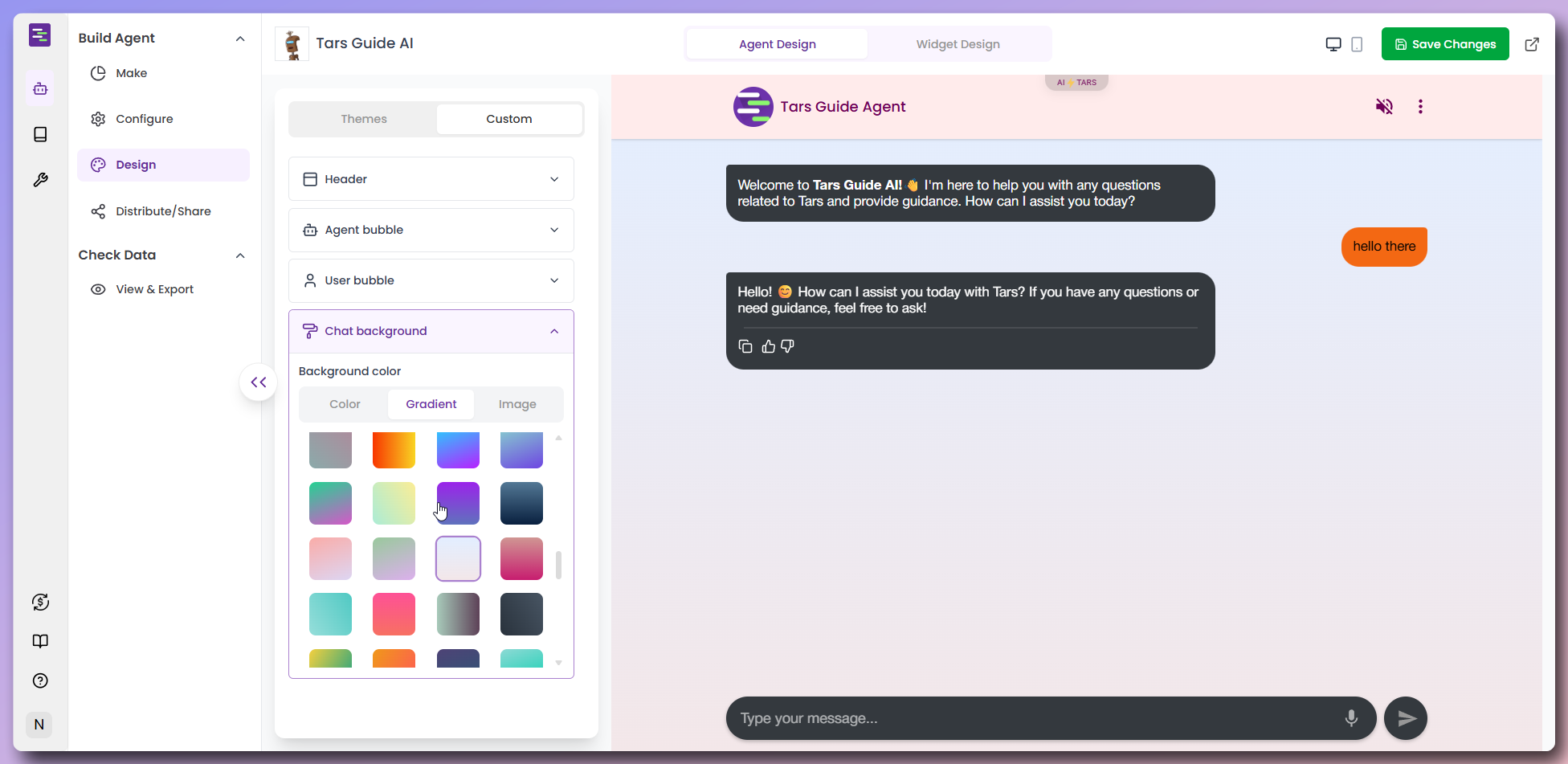
          <Tab title="Gradients">
            Add visual depth and modern appeal with beautiful gradient backgrounds that create smooth color transitions.

            **Gradient Options:**

            * **Pre-designed Gradients:** Select from professionally crafted gradient combinations

            <Frame>
              <img src="https://mintcdn.com/tars-c52ebe98/86pXaqNwM4c27atM/images/quickstart/design/chat-background-gradient-variations.png?fit=max&auto=format&n=86pXaqNwM4c27atM&q=85&s=f3b4fbbf02e6955344c4fddb34ee8277" alt="Gradient background variations" width="1952" height="951" data-path="images/quickstart/design/chat-background-gradient-variations.png" />
            </Frame>
          </Tab>

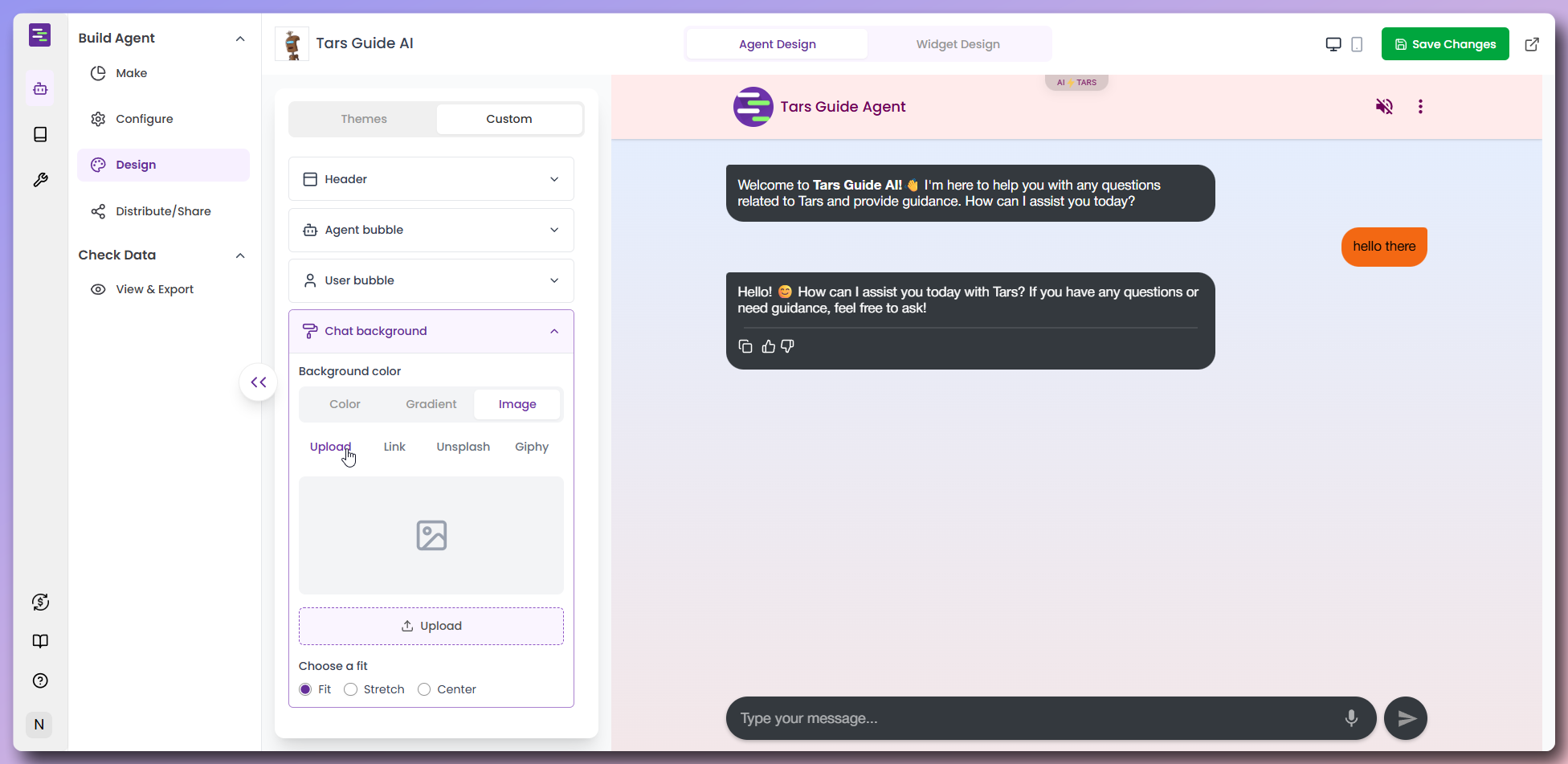
          <Tab title="Upload Images">
            Use your own custom images to create a personalized chat experience that perfectly matches your brand.

            <Frame>
              <img src="https://mintcdn.com/tars-c52ebe98/86pXaqNwM4c27atM/images/quickstart/design/chat-background-image-options.png?fit=max&auto=format&n=86pXaqNwM4c27atM&q=85&s=7293708cd8ce66ed7dca0281a8e0ab71" alt="Background image upload options" width="1952" height="951" data-path="images/quickstart/design/chat-background-image-options.png" />
            </Frame>

            **Upload Options:**

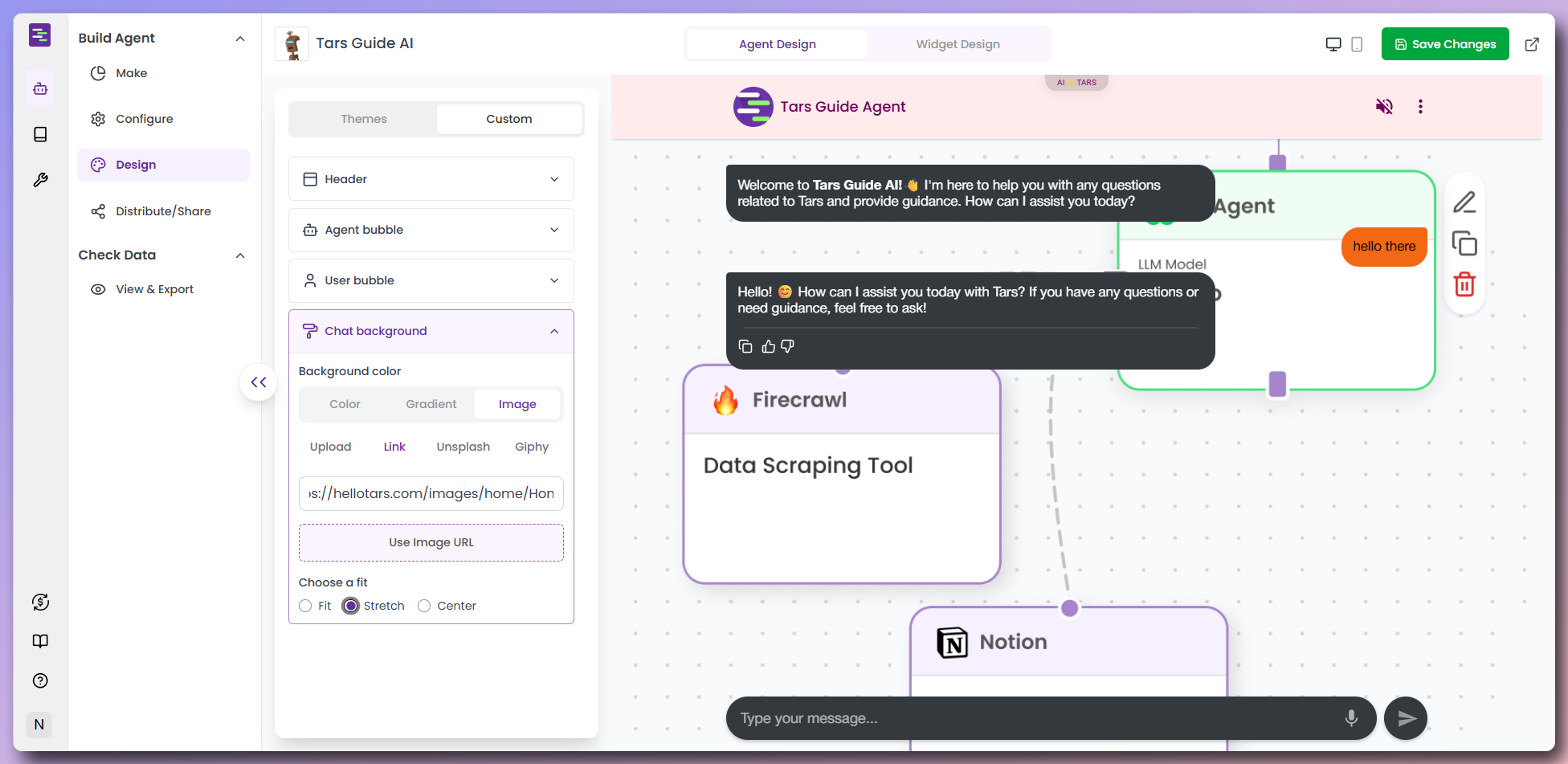
            * **Custom Upload:** Upload your own branded background images
            * **Direct Link:** Use image URLs from your existing assets
            * **Fitting Options:** Choose how images display (Fit, Stretch, Center)

            **Link Integration:**
            Paste image URL to integrate images from external sources.
            <Frame>
              <img src="https://mintcdn.com/tars-c52ebe98/86pXaqNwM4c27atM/images/quickstart/design/chat-background-image-link.png?fit=max&auto=format&n=86pXaqNwM4c27atM&q=85&s=ba3f2ec456573f9a53b867c192e8291b" alt="Direct image link integration" width="1952" height="951" data-path="images/quickstart/design/chat-background-image-link.png" />
            </Frame>
          </Tab>

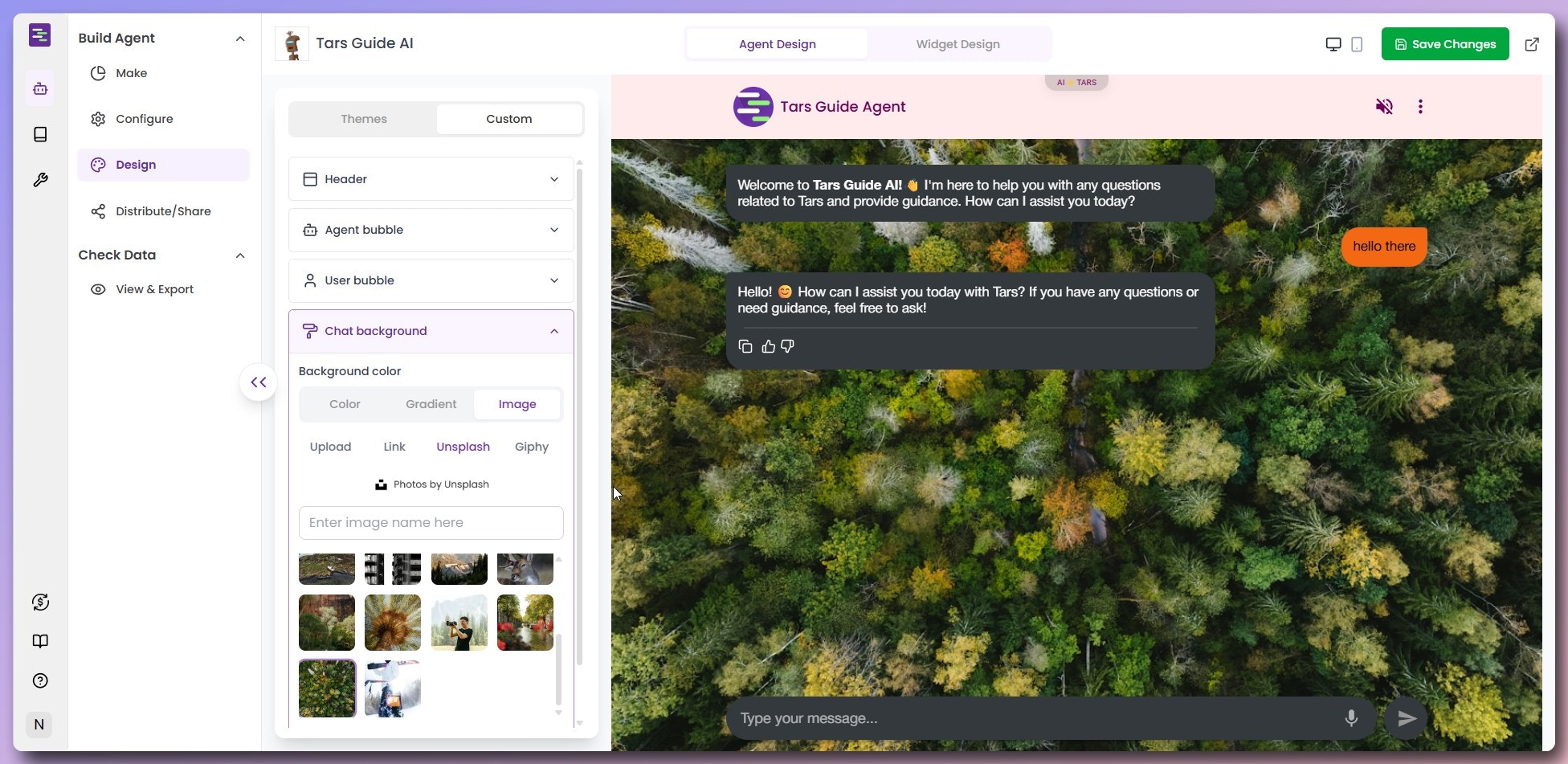
          <Tab title="Unsplash">
            Access millions of high-quality, professional photos from Unsplash's extensive library to create stunning chat backgrounds.

            **Unsplash Features:**

            * **Professional Photography:** Browse curated, high-resolution images
            * **Search Functionality:** Find images by keywords or themes
            * **Instant Preview:** See how images look in your chat interface
            * **Free Usage:** All Unsplash photos are free to use

            <Frame>
              <img src="https://mintcdn.com/tars-c52ebe98/86pXaqNwM4c27atM/images/quickstart/design/chat-background-image-unsplash.png?fit=max&auto=format&n=86pXaqNwM4c27atM&q=85&s=c60fcf8aa481babec84259d72531b229" alt="Unsplash background image selection" width="1952" height="951" data-path="images/quickstart/design/chat-background-image-unsplash.png" />
            </Frame>
          </Tab>

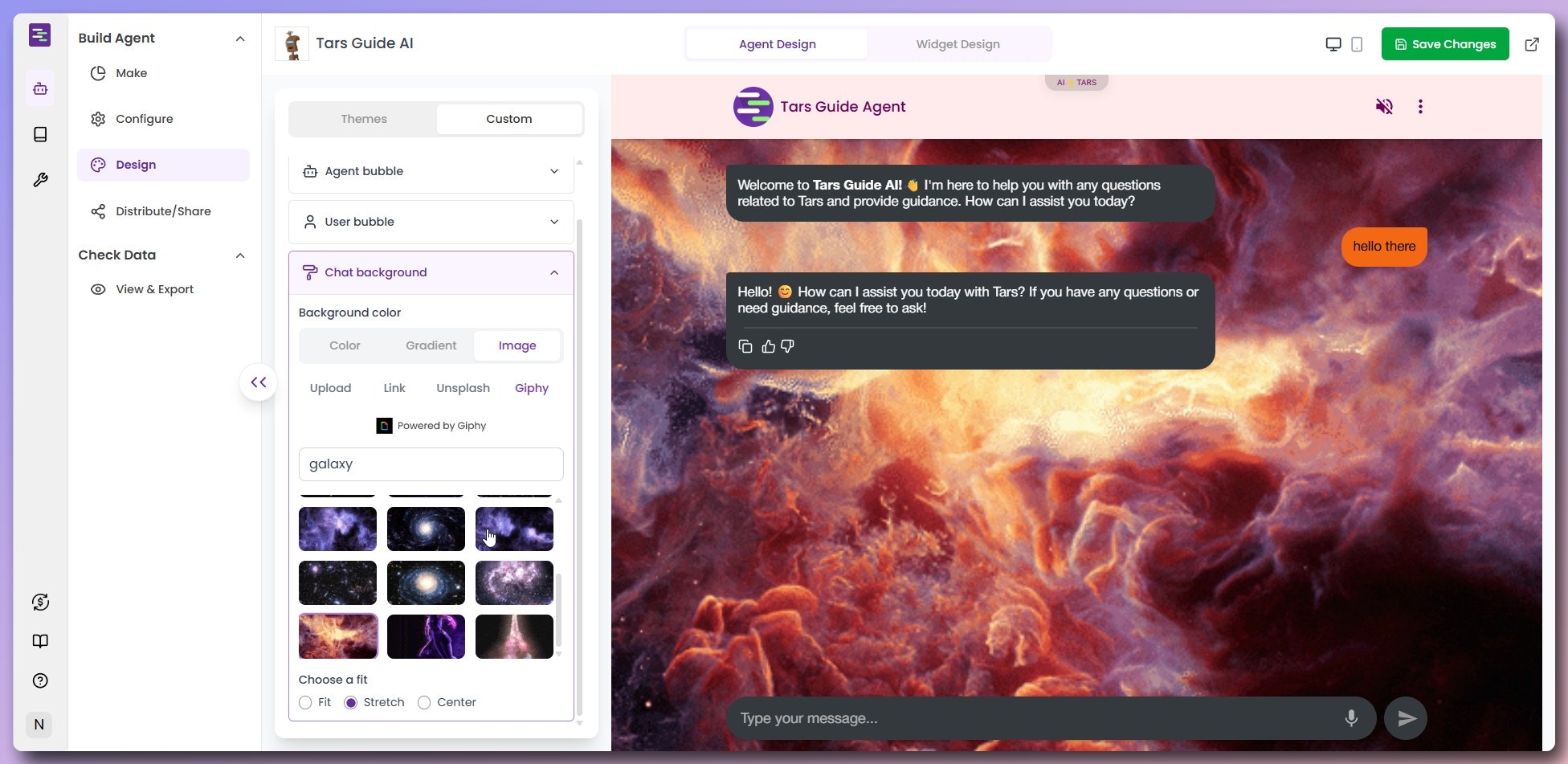
          <Tab title="Giphy">
            Bring your chat to life with animated GIF backgrounds from Giphy's vast collection of engaging animations.

            **Giphy Features:**

            * **Animated Backgrounds:** Add movement and energy to your chat interface
            * **Themed Collections:** Browse categories like abstract, nature, technology
            * **Search Library:** Find the perfect GIF for your brand personality
            * **Performance Optimized:** GIFs are optimized for smooth chat performance

            <Frame>
              <img src="https://mintcdn.com/tars-c52ebe98/86pXaqNwM4c27atM/images/quickstart/design/chat-background-image-giphy.png?fit=max&auto=format&n=86pXaqNwM4c27atM&q=85&s=7f2ed9364bdc0d1508903b8122e5d710" alt="Giphy animated background selection" width="1952" height="951" data-path="images/quickstart/design/chat-background-image-giphy.png" />
            </Frame>
          </Tab>
        </Tabs>
      </Tab>
    </Tabs>
  </Accordion>

  <Accordion title="Configure widget design">
    Customize the chat widget that appears on your website to match your brand and provide an engaging entry point for users.

    1. Click **"Widget design" tab** to access widget settings
    2. Configure your **widget appearance and behavior**

    <Frame>
      <img src="https://mintcdn.com/tars-c52ebe98/86pXaqNwM4c27atM/images/quickstart/design/widget-configurations-overview.png?fit=max&auto=format&n=86pXaqNwM4c27atM&q=85&s=e78df241cd7ab4004d981e102a9ce727" alt="Widget design and configuration options" width="1952" height="951" data-path="images/quickstart/design/widget-configurations-overview.png" />
    </Frame>

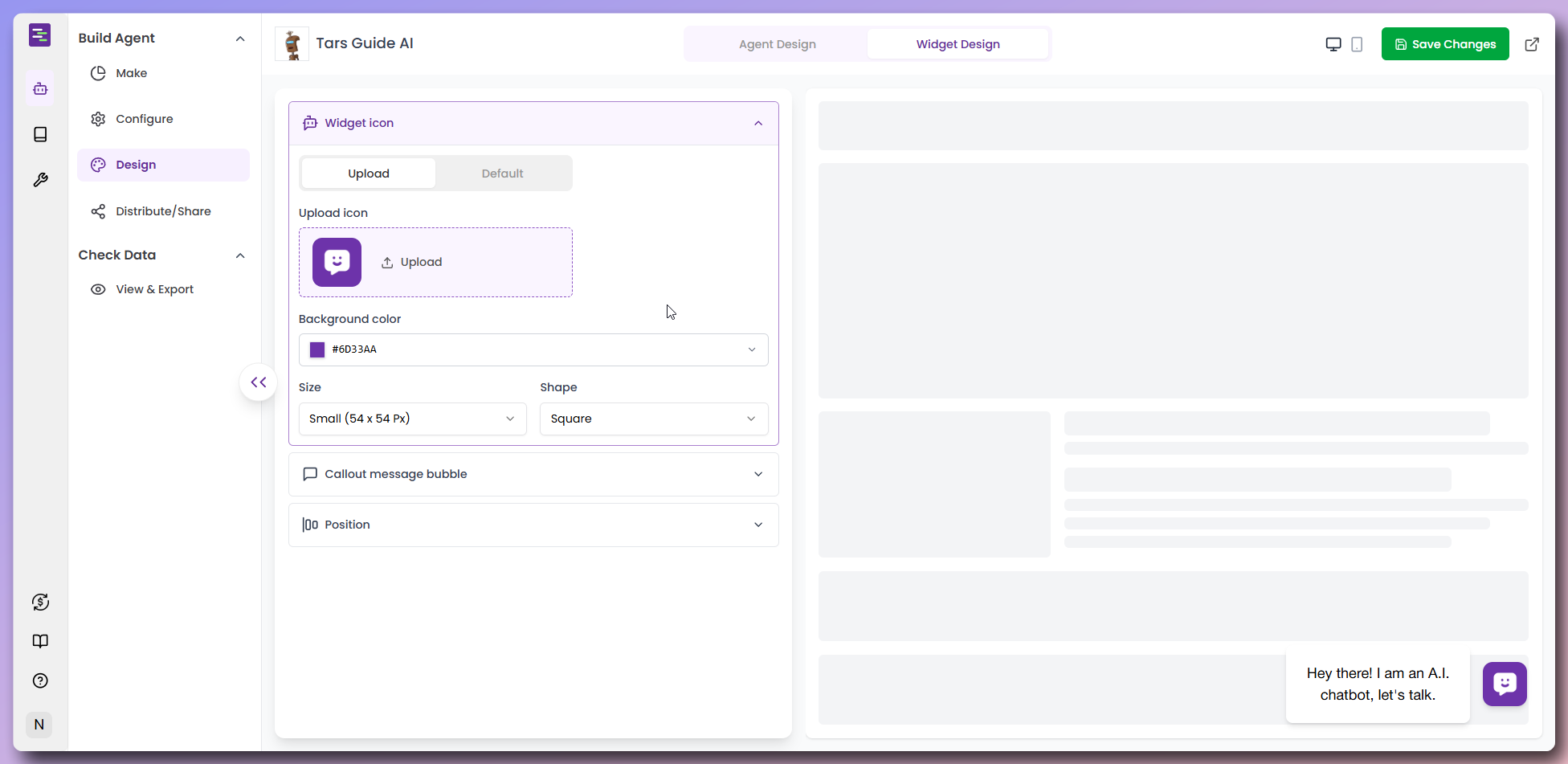
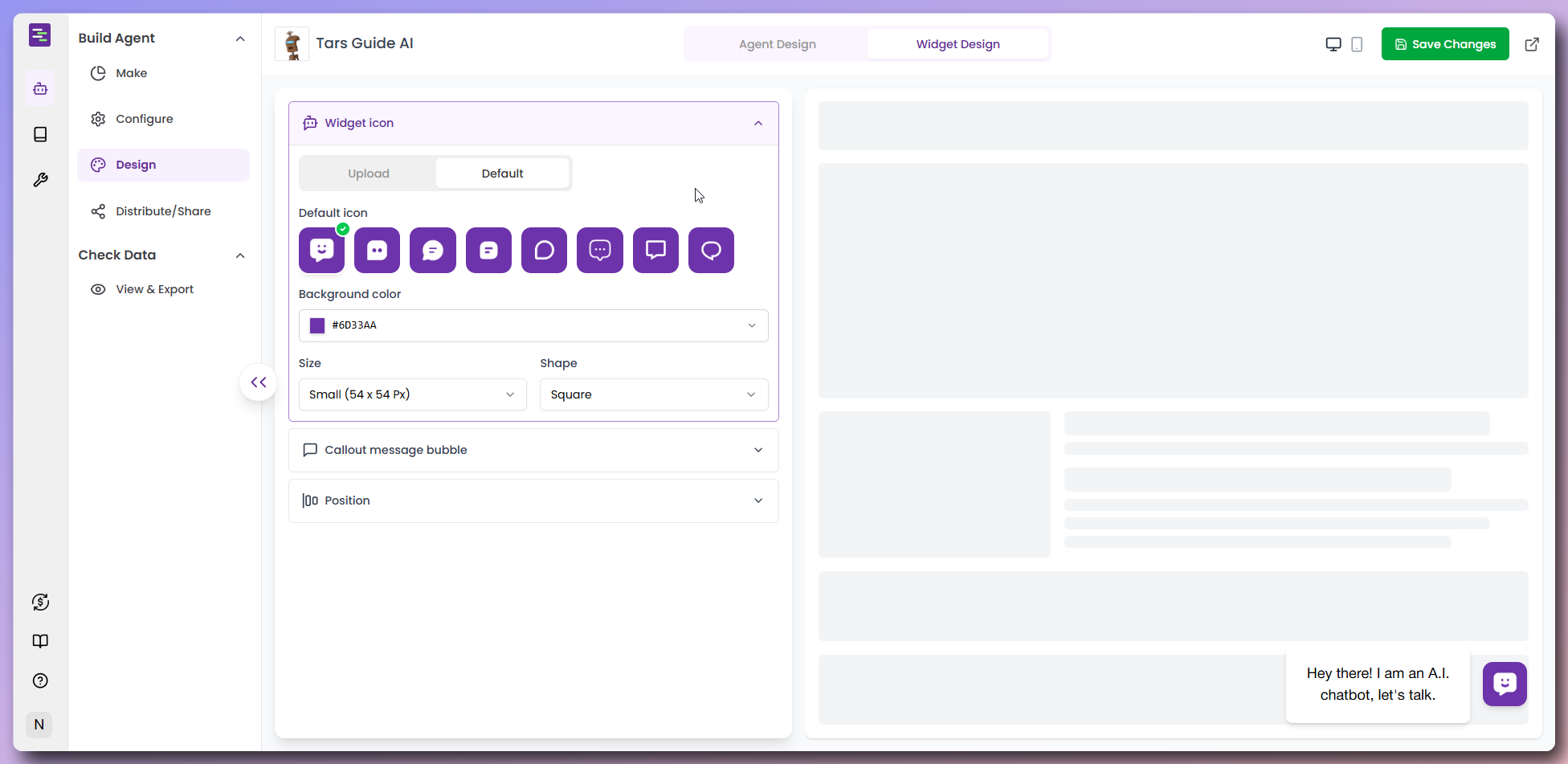
    #### Widget Icon Configuration

    * **Upload Custom Icon:** Add your company logo or branded icon
    * **Default Icons:** Choose from pre-built icon options including various chat and support symbols
    <Frame>
      <img src="https://mintcdn.com/tars-c52ebe98/86pXaqNwM4c27atM/images/quickstart/design/default-widget-icon-options.png?fit=max&auto=format&n=86pXaqNwM4c27atM&q=85&s=f18532b4828b775864c3d5bfa14997db" alt="Default widget icon selection options" width="1952" height="951" data-path="images/quickstart/design/default-widget-icon-options.png" />
    </Frame>

    * **Icon Preview:** See how your selected icon appears on the widget

    #### Widget Appearance Settings

    * **Background Color:** Set the widget button background color to match your brand
    * **Size:** Choose widget dimensions (Small, Medium, Large) based on your website layout
    * **Shape:** Select between Square or Circle shape for the widget button
    * **Widget Preview:** Real-time preview shows how the widget will appear on your site
    <Frame>
      <img src="https://mintcdn.com/tars-c52ebe98/86pXaqNwM4c27atM/images/quickstart/design/our-widget-design.png?fit=max&auto=format&n=86pXaqNwM4c27atM&q=85&s=e9e7133646597a9a9800e5f48a4d2c62" alt="Widget design customization interface" width="1952" height="951" data-path="images/quickstart/design/our-widget-design.png" />
    </Frame>

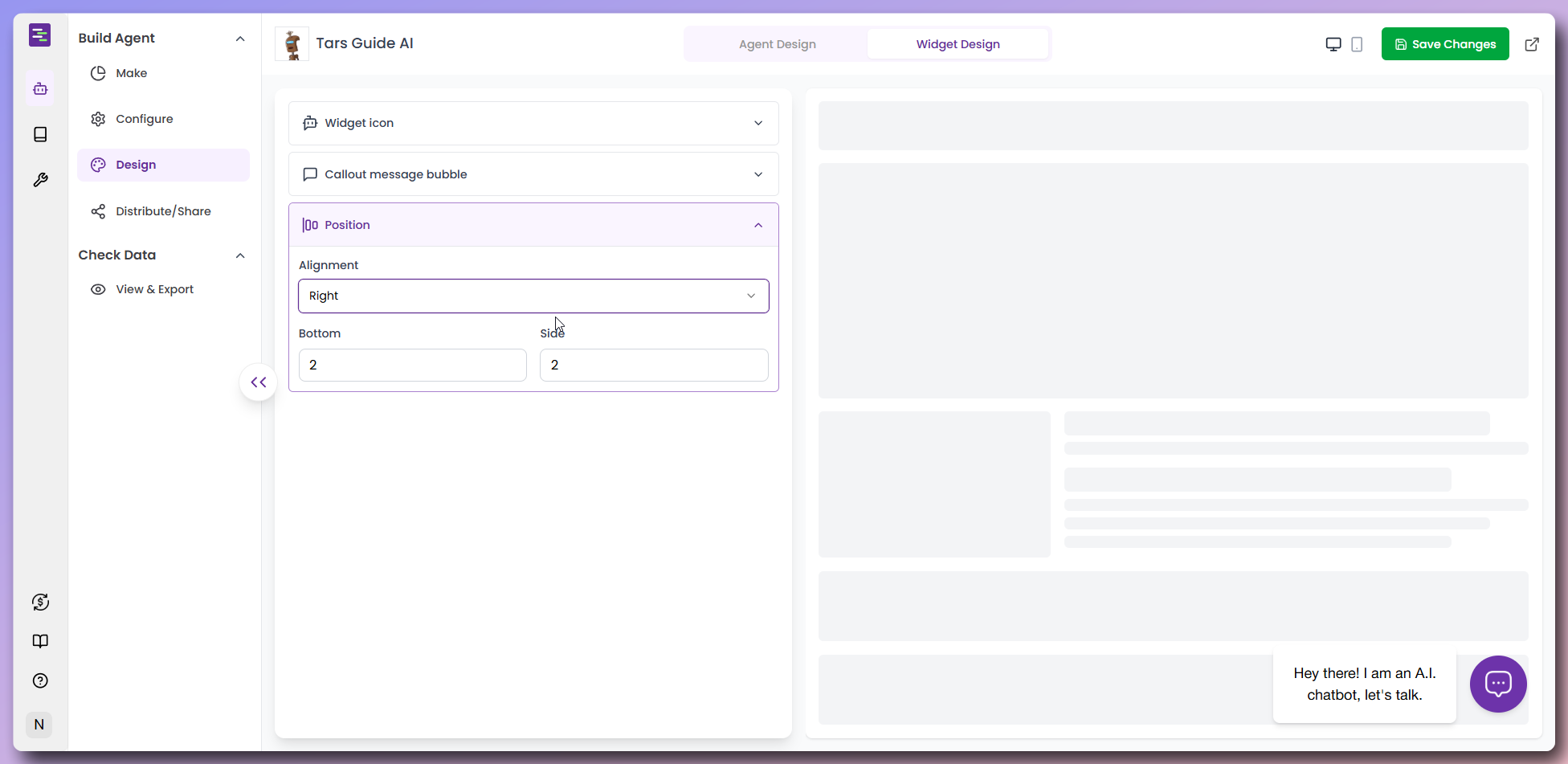
    #### Widget Position & Placement

    * **Position:** Choose widget placement on your website (Left or Right side)
    * **Bottom Padding:** Set vertical spacing between the widget and the bottom of the screen
    * **Side Padding:** Set horizontal spacing between the widget and the right side of the screen
    <Frame>
      <img src="https://mintcdn.com/tars-c52ebe98/86pXaqNwM4c27atM/images/quickstart/design/widget-position-left-right.png?fit=max&auto=format&n=86pXaqNwM4c27atM&q=85&s=648d2ef9f2785f444362e34325b4a4e3" alt="Widget position options - left and right placement" width="1952" height="951" data-path="images/quickstart/design/widget-position-left-right.png" />
    </Frame>

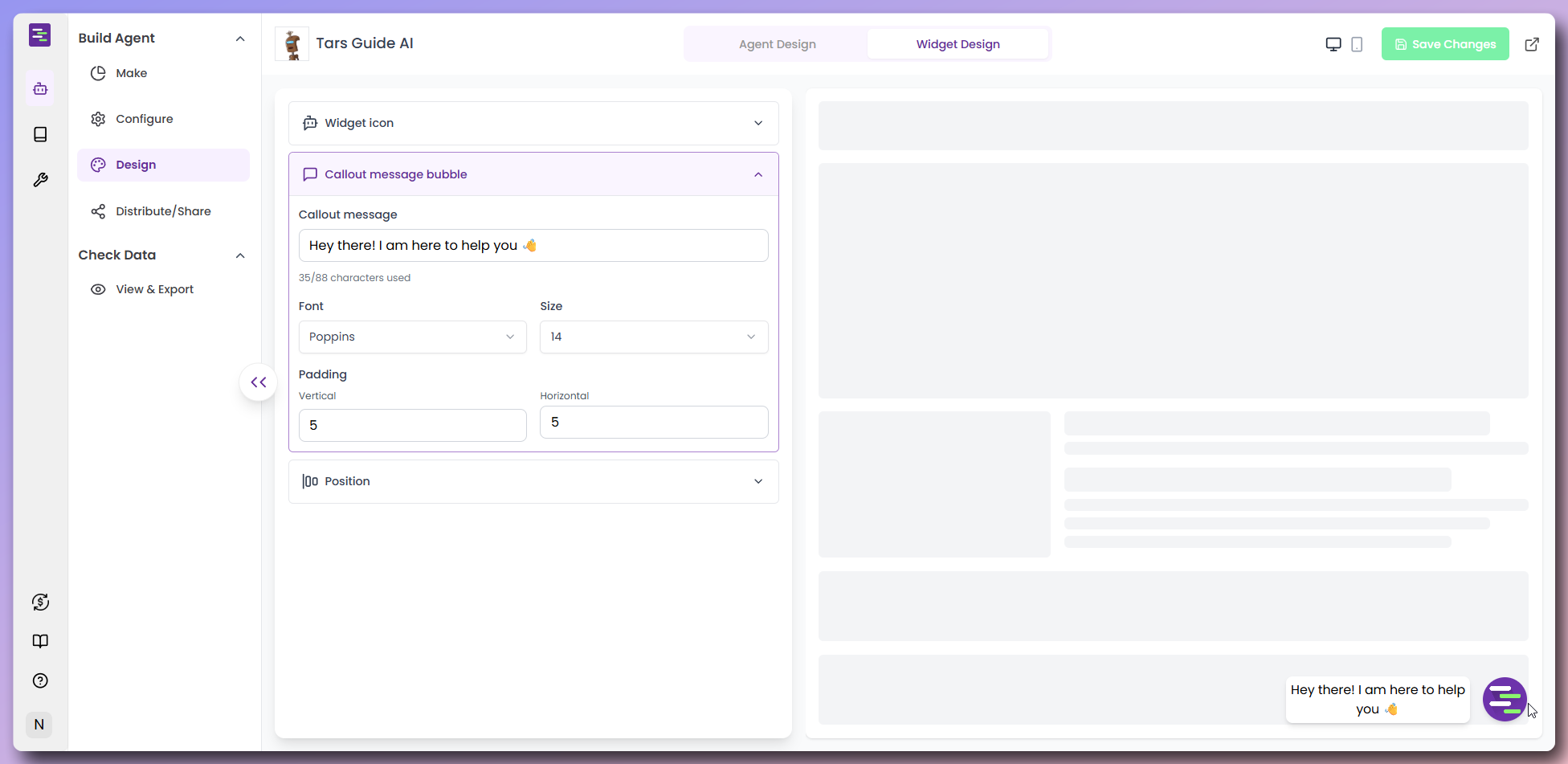
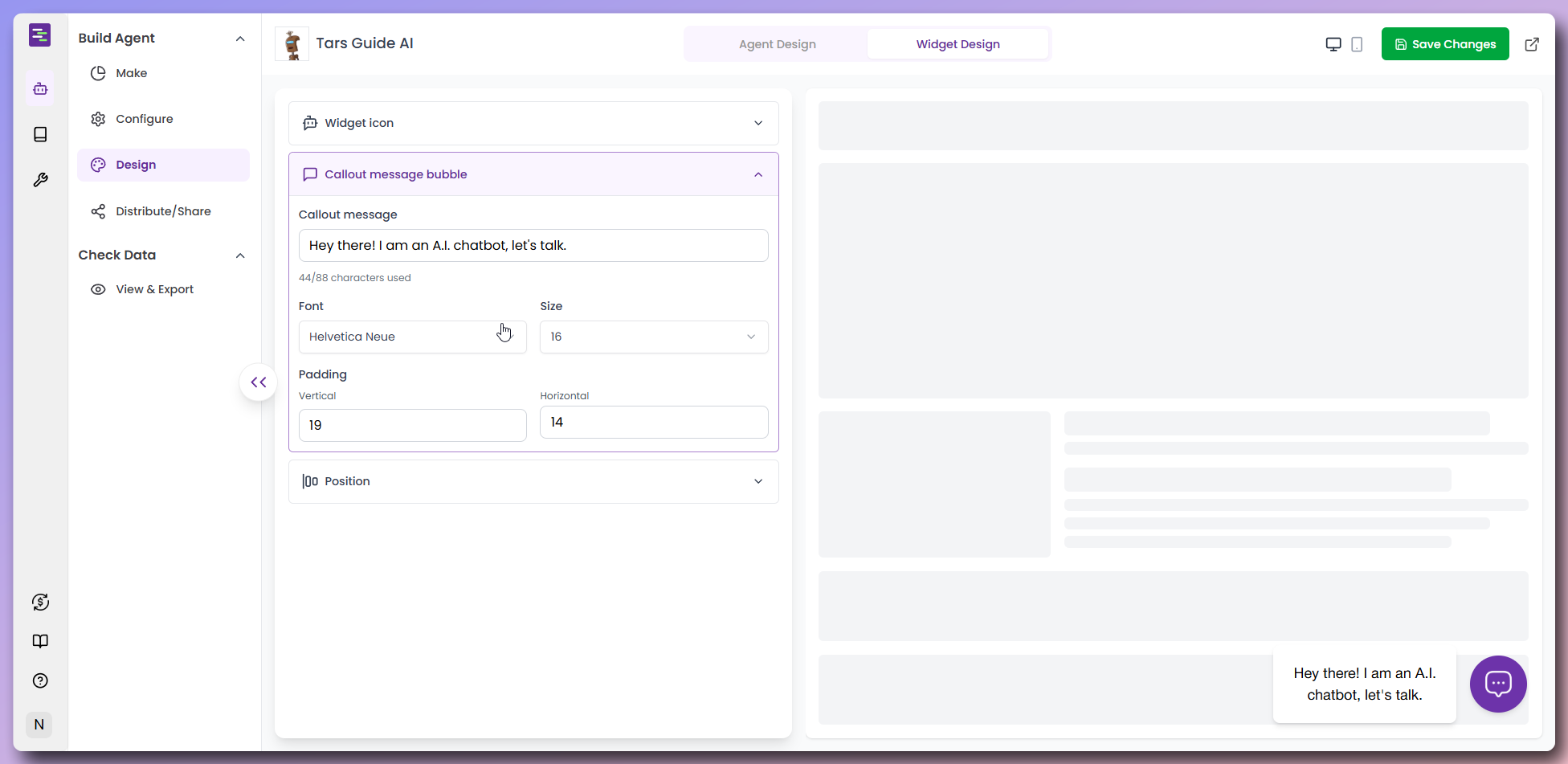
    #### Callout Message Configuration

    * **Custom Message:** Set personalized greeting text to engage visitors (e.g., "Hey there! I am here to help you 👋")
    * **Message Styling Options:**
      * **Font:** Choose typography for the callout message (e.g., "Poppins")
      * **Size:** Set font size for optimal readability (e.g., "14")
      * **Padding:** Customize vertical and horizontal spacing around the message text
      * **Message Color:** Set text color for the callout bubble
      * **Background:** Customize callout bubble background color
    <Note>
      Auto-display timing and sound effects are currently set to default values and will be configurable in future updates.
    </Note>

    <Frame>
      <img src="https://mintcdn.com/tars-c52ebe98/86pXaqNwM4c27atM/images/quickstart/design/widget-callout-message.png?fit=max&auto=format&n=86pXaqNwM4c27atM&q=85&s=d9413e89dec1c5e1c768522515da4e56" alt="Widget callout message configuration" width="1952" height="951" data-path="images/quickstart/design/widget-callout-message.png" />
    </Frame>

    #### Our Widget Design Example

    Here's how our customized widget looks with all the design elements applied:

    * **Callout Message:** "Hey there! I am here to help you 👋"
    * **Font Family:** Poppins for modern, clean typography
    * **Font Size:** 14px for optimal readability
    * **Padding:** 5px vertical, 5px horizontal for balanced spacing
    * **Widget Position:** Bottom-right with custom spacing
    <Frame>
      <img src="https://mintcdn.com/tars-c52ebe98/86pXaqNwM4c27atM/images/quickstart/design/our-widget-design.png?fit=max&auto=format&n=86pXaqNwM4c27atM&q=85&s=e9e7133646597a9a9800e5f48a4d2c62" alt="Final customized widget design example" width="1952" height="951" data-path="images/quickstart/design/our-widget-design.png" />
    </Frame>

    <Check>
      **Widget Design Complete!** Your chat widget is now professionally designed and ready to engage visitors on your website.
    </Check>
  </Accordion>
</AccordionGroup>

## <Icon icon="share" size="30" /> Distribute your AI Agent

Now that your Agent is designed and configured, it's time to make it available to your customers through various distribution channels.

<AccordionGroup>
  <Accordion title="Navigate to Distribution" defaultOpen="true">
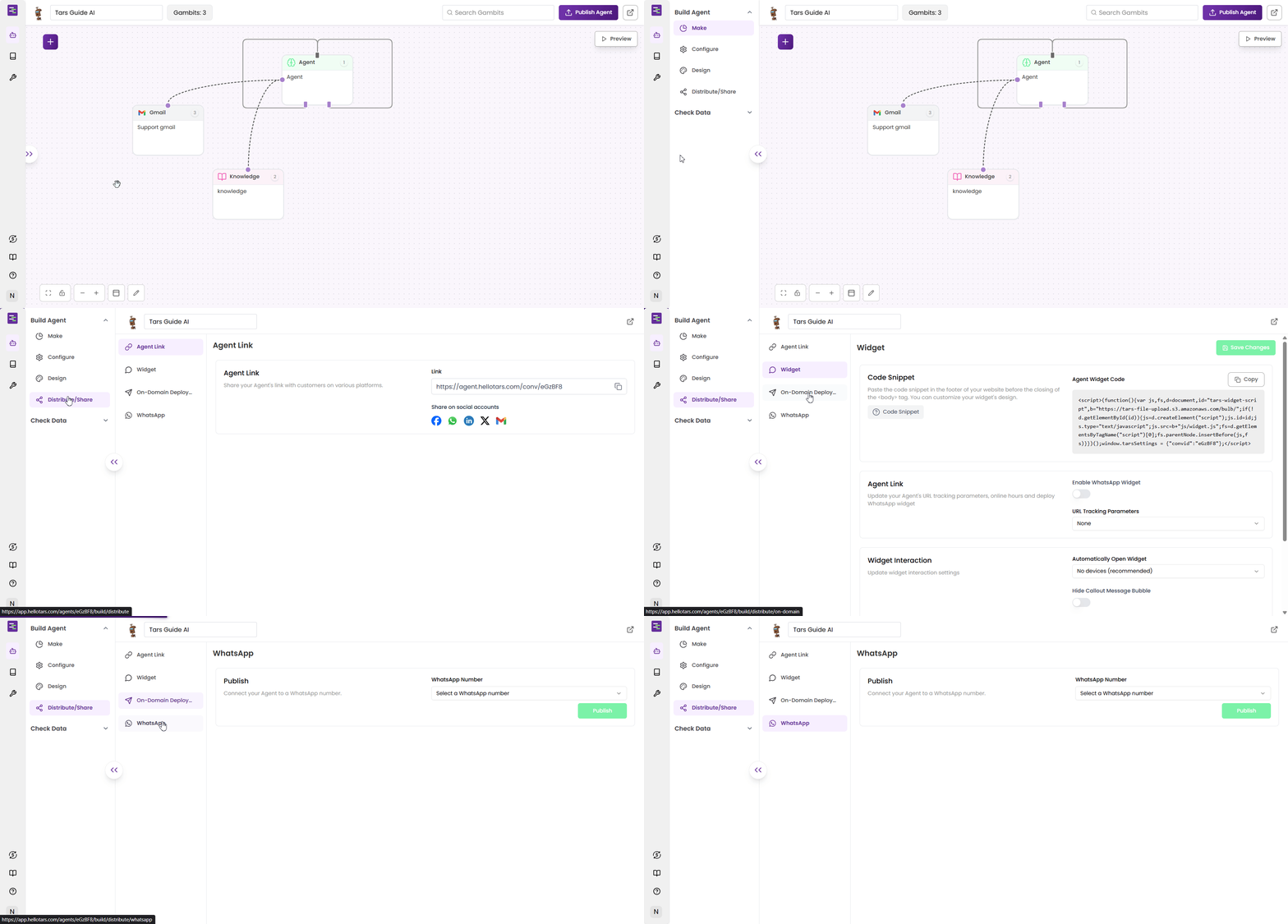
    Access the distribution options from the side panel to deploy your Agent across different platforms.

    1. Open your **Agent** in the builder
    2. Click the **double arrow icon** (`>>`) on the left side to open the side panel
    3. Select **"Distribute/Share"** from the "Build Agent" section
    4. Choose your **preferred distribution method**

    <Frame>
      <img src="https://mintcdn.com/tars-c52ebe98/86pXaqNwM4c27atM/images/quickstart/distribute/step-1-navigate-to-distribute.gif?s=5aa7793386935b1e11b9e593cad9546e" alt="Navigating to distribute options from builder" width="1920" height="919" data-path="images/quickstart/distribute/step-1-navigate-to-distribute.gif" />
    </Frame>
  </Accordion>

  <Accordion title="Agent link sharing">
    Share your Agent's link with customers on various platforms for instant access.

    <Frame>
      <img src="https://mintlify.s3.us-west-1.amazonaws.com/tars-c52ebe98/images/quickstart/distribute/step-2-Agent-link-share.png" alt="Agent link sharing with social media options" />
    </Frame>

    1. Click **Agent Link** from the side panel to access sharing options
    2. Copy the **Agent URL**: `https://agent.hellotars.com/conv/[your-agent-id]`
    3. Use **social media sharing buttons** for quick distribution:
       * **Facebook** - Share on your business page to reach your followers and announce your new AI support
       * **WhatsApp** - Send directly to customers for immediate access to support
       * **LinkedIn** - Share with your professional network to showcase your business innovation
       * **Twitter/X** - Announce to followers with hashtags like #CustomerService #AI
       * **Gmail** - Email to customer lists or include in your email signature for easy access

    **Best for:** Direct sharing, email campaigns, social media posts, and QR code generation.
  </Accordion>

  <Accordion title="Website widget integration">
    Embed your Agent as a chat widget on your existing website for seamless customer support.

    <Frame>
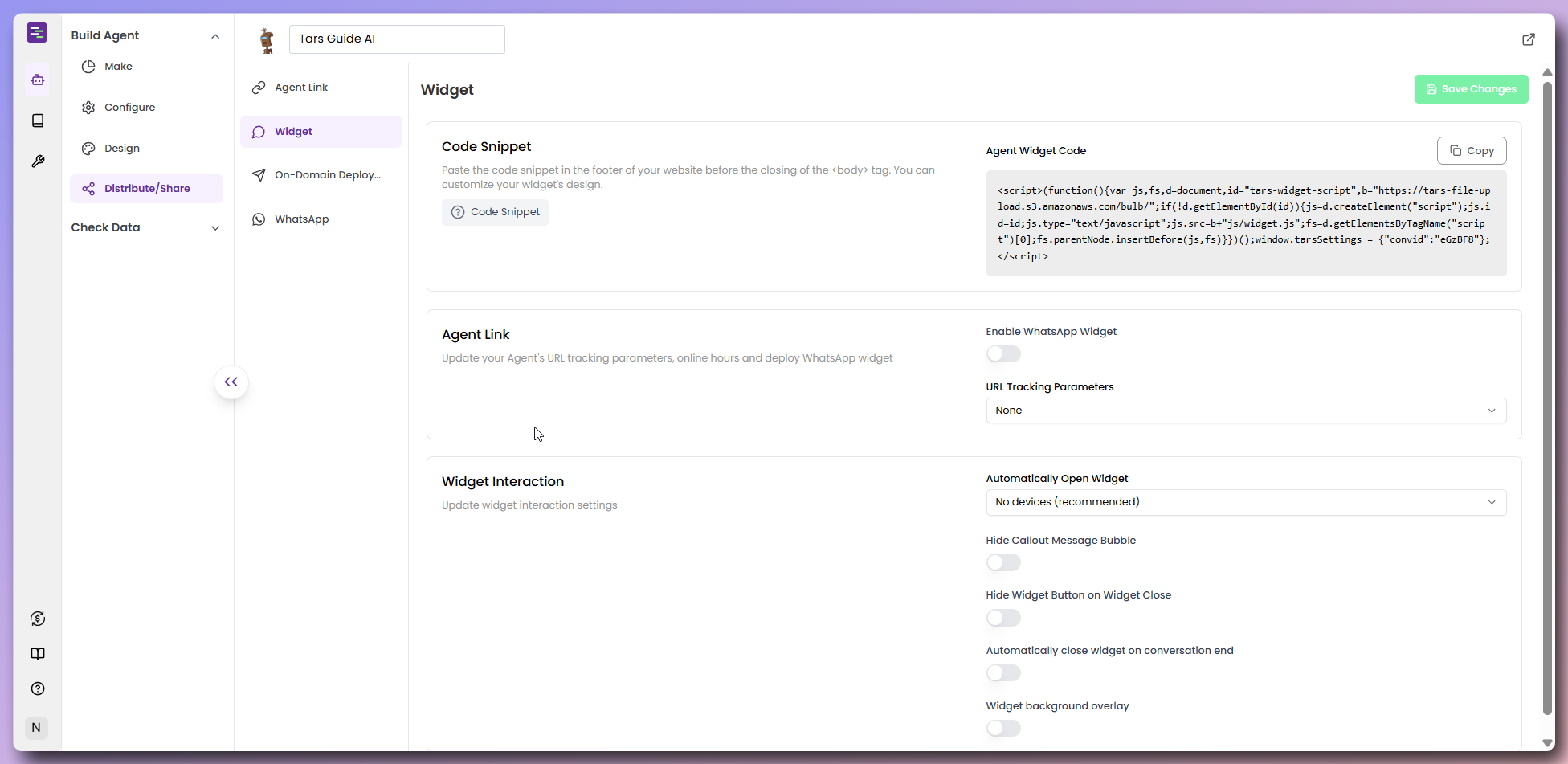
      <img src="https://mintcdn.com/tars-c52ebe98/86pXaqNwM4c27atM/images/quickstart/distribute/step-3-widget-deploy.png?fit=max&auto=format&n=86pXaqNwM4c27atM&q=85&s=795e09e672afd5869555d72fe5c28d56" alt="Website widget embed code and configuration" width="1952" height="951" data-path="images/quickstart/distribute/step-3-widget-deploy.png" />
    </Frame>

    1. Click **"Widget"** to access embed options
    2. Copy the **provided JavaScript code snippet**
    3. Paste the code into your website's **HTML** before the closing `</body>` tag
    4. Configure **widget behavior**:
       * **Enable WhatsApp Widget:** Toggle this to replace your custom widget icon with a WhatsApp icon that redirects users to your configured WhatsApp number from channel settings when clicked. If you haven't configured WhatsApp yet, [set it up here](/platform-fundamentals/platform-tour/settings).
       * **URL Tracking Parameters:** Set to `None` for no tracking or `Parent Page` to capture and track the URL of the page where the widget is embedded for analytics
       * **Auto-open Widget:** Enable to automatically open the chat window when users visit your page, providing immediate engagement
       * **Hide Callout Message Bubble:** Toggle the welcome message bubble visibility - disable to hide the greeting message that appears next to the widget
       * **Hide Widget Button on Widget Close:** Control whether the widget button remains visible after users close the chat window
       * **Auto-close Widget:** Set the chat window to automatically close after conversation completion.
       * **Widget Background Overlay:** Enable to add a semi-transparent background overlay when the widget is open, focusing user attention on the chat
  </Accordion>

  <Accordion title="On-domain deployment">
    Host your Agent on a custom domain for professional branding and better user experience. This option provides you with a complete HTML file that you can upload to your own platform or hosting service.

    <Frame>
      <img src="https://mintcdn.com/tars-c52ebe98/86pXaqNwM4c27atM/images/quickstart/distribute/step-4-on-domain-deploy.png?fit=max&auto=format&n=86pXaqNwM4c27atM&q=85&s=5ae89e94005a64f8ae76a1bb0122859d" alt="On-domain deployment with HTML download" width="1952" height="951" data-path="images/quickstart/distribute/step-4-on-domain-deploy.png" />
    </Frame>

    1. Click **"On-Domain Deployment"** for custom hosting options
    2. Download **HTML file** containing your Agent (includes complete iframe embed and styling)
    3. Upload the **HTML file** to your web server or hosting platform
    4. Configure your **domain** to point to the uploaded file
    5. Test the **custom domain deployment**

    **What's included in the HTML file:**

    * **Complete Agent Embed:** Full iframe integration with your Agent
    * **Responsive Styling:** Mobile-friendly CSS for all screen sizes
    * **Optimized Loading:** Proper viewport settings and performance optimization
    * **Ready to Deploy:** No additional configuration needed

    **Benefits:**

    * **Professional Branding:** Use your own domain (e.g., support.yourcompany.com)
    * **Better SEO:** Improved search engine visibility
    * **Custom URLs:** Create memorable, branded links
    * **Full Control:** Complete ownership of the hosting environment
    * **Platform Flexibility:** Upload to any hosting service or platform

    **Note:** On-domain deployment requires a verified domain name. Contact support for setup assistance.
  </Accordion>

  <Accordion title="WhatsApp integration">
    Connect your Agent to WhatsApp for direct messaging with customers.

    <Frame>
      <img src="https://mintcdn.com/tars-c52ebe98/86pXaqNwM4c27atM/images/quickstart/distribute/step-5-publish-on-whatsapp.png?fit=max&auto=format&n=86pXaqNwM4c27atM&q=85&s=42636b4184982326e192a12012014bd3" alt="WhatsApp integration and publishing options" width="1952" height="951" data-path="images/quickstart/distribute/step-5-publish-on-whatsapp.png" />
    </Frame>

    **Prerequisites:**

    1. **Add WhatsApp Business Number:**
       First, add your WhatsApp Business number in [Account Settings > Channels > WhatsApp](https://app.hellotars.com/settings/channels/whatsapp)
    2. **Follow Setup Guide:**
       Use the connection guide available in your [account settings](/platform-fundamentals/platform-tour/settings) to properly configure WhatsApp integration

    **Publishing to WhatsApp:**

    1. Click **"WhatsApp"** from the distribution options
    2. Select your **WhatsApp number** from the dropdown menu
    3. Click **"Publish"** to connect your Agent to WhatsApp

    **Result:** Your Agent will now be available through WhatsApp messaging, allowing customers to interact with your AI support directly via WhatsApp.

    Click on the `TAKE ME TO WHATSAPP CAMPAIGNS` to see the Agent.

    <Frame>
      <img src="https://mintcdn.com/tars-c52ebe98/86pXaqNwM4c27atM/images/quickstart/distribute/whatsapp-published.png?fit=max&auto=format&n=86pXaqNwM4c27atM&q=85&s=fc82fc25171c38f298f05cd180980a63" alt="Agent published on whatsapp" width="1952" height="951" data-path="images/quickstart/distribute/whatsapp-published.png" />
    </Frame>

    <Note>
      WhatsApp integration requires a verified WhatsApp Business number. Contact support for setup assistance.
    </Note>

    <Check>
      **Distribution Complete!** Your Agent is now available across multiple channels and ready to engage customers 24/7.
    </Check>
  </Accordion>
</AccordionGroup>

## View conversation data & debug issues

Now that your Agent is live, let's explore how to view conversation history, track where conversations come from, and debug issues using execution logs.

<AccordionGroup>
  <Accordion title="Navigate to Data View" defaultOpen="true">
    Access your Agent's conversation history and debugging tools through the data dashboard.

    1. Navigate to the **View & Export** section in your Agent's side panel
    2. Click **View & Export** to open the data view dashboard
    3. View the **conversation history** with detailed interaction logs
    4. Access **debugging tools** and conversation source information

    <Frame>
      <img src="https://mintcdn.com/tars-c52ebe98/RB0GpoNOdmX6y3VE/images/quickstart/data-view/step-1-navigate-to-date-view-and-overview.gif?s=28776233349795e46293408dd4b6e85b" alt="Navigating to data view and analytics overview" width="1920" height="919" data-path="images/quickstart/data-view/step-1-navigate-to-date-view-and-overview.gif" />
    </Frame>
  </Accordion>

  <Accordion title="View conversation history">
    See all conversations your Agent has had with users, including complete message exchanges and timestamps.

    #### What you can see

    * **Conversation List**: All user sessions listed chronologically with timestamps
    * **Conversation ID**: Unique identifier for each session (#1, #2, #3, etc.)
    * **Complete Messages**: Full conversation between user and Agent
    * **Timestamps**: Exact date and time when each conversation occurred

    #### How to use

    * Click any **conversation** to view the complete message exchange
    * See what **users asked** and how your **Agent responded**
    * Review **conversation flow** to understand user interactions

    <Frame>
      <img src="https://mintcdn.com/tars-c52ebe98/RB0GpoNOdmX6y3VE/images/quickstart/data-view/step-2-conversation-history-overview.png?fit=max&auto=format&n=RB0GpoNOdmX6y3VE&q=85&s=e2d3b55a35a38d129289c9a947478a9f" alt="Conversation history overview with detailed interaction logs" width="1952" height="951" data-path="images/quickstart/data-view/step-2-conversation-history-overview.png" />
    </Frame>
  </Accordion>

  <Accordion title="Track conversation sources">
    See where your conversations are coming from and get user details for each interaction.

    Hover the **Details** button on any conversation to see:

    <Frame>
      <img src="https://mintcdn.com/tars-c52ebe98/RB0GpoNOdmX6y3VE/images/quickstart/data-view/step-3-hover-details.png?fit=max&auto=format&n=RB0GpoNOdmX6y3VE&q=85&s=29728375909d1d9053f4fcf0f353c7da" alt="Detailed conversation metadata showing user information and analytics" width="1952" height="951" data-path="images/quickstart/data-view/step-3-hover-details.png" />
    </Frame>

    #### Conversation source information

    * **IP Address**: User's location (e.g., 185.183.33.218)
    * **Device Type**: What device they used (Desktop, Mobile, Tablet)
    * **Visited From**: The URL where the conversation started
    * **Referred From**: What page or site led them to your Agent
    * **Interaction Time**: Exact timestamp when they started chatting

    #### Why this matters

    * **Track Traffic Sources**: See which pages or sites send you the most users
    * **Device Usage**: Know if users prefer mobile or desktop
    * **User Journey**: Understand how people find and use your Agent
  </Accordion>

  <Accordion title="Filter conversations by date">
    View conversations from specific time periods to find what you're looking for.

    #### How to filter by date

    1. Click the **date range selector** in the top-right corner
    2. Select **custom dates** using the calendar picker
    3. View conversations from your **selected time period**

    #### Useful for

    * **Weekly Reviews**: Check last week's user interactions
    * **Monthly Analysis**: Review a full month of conversations

    <Frame>
      <img src="https://mintcdn.com/tars-c52ebe98/RB0GpoNOdmX6y3VE/images/quickstart/data-view/step-4-date-range-filter.png?fit=max&auto=format&n=RB0GpoNOdmX6y3VE&q=85&s=afffd213fd51d07a8402f0ae7f7695c1" alt="Date range filter with calendar selection for analytics" width="1952" height="951" data-path="images/quickstart/data-view/step-4-date-range-filter.png" />
    </Frame>
  </Accordion>

  <Accordion title="Debug with Gambit Execution Logs">
    See exactly how your Agent processed each conversation to debug issues and understand what happened behind the scenes.

    #### How to view Execution Logs

    1. Click the **Gambit Execution Log** tab for any conversation
    2. Select which **gambit** to examine (Agent, Knowledge, Tools) from the dropdown
    3. View the **Input** data that was sent to the gambit
    4. View the **Output** data that the gambit produced

    #### What input shows you

    * **User's Message**: What the user actually typed
    * **Previous Context**: Earlier messages in the conversation
    * **System Settings**: How your Agent was configured for this interaction

    <Frame>
      <img src="https://mintcdn.com/tars-c52ebe98/RB0GpoNOdmX6y3VE/images/quickstart/data-view/step-5-gambit-execution-logs-gambit-input.png?fit=max&auto=format&n=RB0GpoNOdmX6y3VE&q=85&s=f7edea3a0467fd76c7ba9921fd6dd514" alt="Gambit execution logs showing input data and processing details" width="1952" height="951" data-path="images/quickstart/data-view/step-5-gambit-execution-logs-gambit-input.png" />
    </Frame>

    #### What output shows you

    * **Agent's Response**: The exact response your Agent generated
    * **Tool Actions**: If your Agent sent emails or used other tools
    * **Knowledge Used**: What information your Agent found and used
    * **Success/Errors**: Whether everything worked correctly or if there were issues

    <Frame>
      <img src="https://mintcdn.com/tars-c52ebe98/RB0GpoNOdmX6y3VE/images/quickstart/data-view/step-5-gambit-execution-logs-gambit-output.png?fit=max&auto=format&n=RB0GpoNOdmX6y3VE&q=85&s=c91f7daf389f887cdbcf0f079913f83b" alt="Gambit execution logs showing output data and response generation" width="1952" height="951" data-path="images/quickstart/data-view/step-5-gambit-execution-logs-gambit-output.png" />
    </Frame>

    #### Understanding the three execution stages

    Each gambit execution goes through three distinct stages that you can examine:

    **1. User Interaction Stage**

    * **Purpose**: Displays information to the user and collects user inputs
    * **What you see**: The messages shown to users and any input they provided
    * **Debug use**: Check if users saw the right information and provided expected inputs

    **2. Post Stage**

    * **Purpose**: Does the main processing work of the gambit
    * **What you see**: Internal processing, data transformations, external API calls, and core functionality execution
    * **Debug use**: See exactly how the gambit processed inputs and what operations it performed

    **3. Jump Stage**

    * **Purpose**: Defines which gambit to move to next in the conversation flow
    * **What you see**: The logic that determines the next step in the workflow
    * **Debug use**: Understand why the conversation moved to a specific gambit or direction

    <Frame>
      <img src="https://mintcdn.com/tars-c52ebe98/RB0GpoNOdmX6y3VE/images/quickstart/data-view/step-5.1-gambit-execution-logs-explain.png?fit=max&auto=format&n=RB0GpoNOdmX6y3VE&q=85&s=660723ee43686ec897706a46d32c9384" alt="Three stages of gambit execution: User Interaction, Post Stage, and Jump Stage" width="1952" height="951" data-path="images/quickstart/data-view/step-5.1-gambit-execution-logs-explain.png" />
    </Frame>

    #### Why this helps you debug

    * **Find problems**: See exactly which stage failed and why
    * **Check processing**: Verify if the gambit's main functionality worked correctly in the Post Stage
    * **Understand flow**: See why the conversation moved to specific gambits in the Jump Stage
    * **Fix issues**: Identify whether problems are in user interaction, core processing, or flow logic

    <Check>
      **Data View Complete!** You now know how to view conversation history, track where conversations come from, and debug issues using execution logs.
    </Check>
  </Accordion>
</AccordionGroup>

## Congratulations! 🎉

You've successfully built a complete AI support Agent with:

✅ **Knowledge Base Integration** - Added Tars Docs Knowledge Base for accurate responses\
✅ **Tool Integration** - Connected Gmail for automated email confirmations\
✅ **Agent Configuration** - Built a self-looping Agent with custom prompts and settings\
✅ **Professional Design** - Customized appearance, branding, and user interface\
✅ **Smart Escalation** - Configured support flow with email collection and handoff\
✅ **Data Monitoring** - Set up conversation tracking and debugging capabilities

<Note>
  **Need Help?** Check out our [Video Tutorials](/getting-help/video-tutorials) or join our [Community Forum](/getting-help/community-forum) for additional guidance and support from other users.
</Note>