> ## Documentation Index
> Fetch the complete documentation index at: https://docs.hellotars.com/llms.txt
> Use this file to discover all available pages before exploring further.
# Facebook Pixel
Track chatbot conversions and build retargeting audiences using Facebook Pixel
This guide shows you how to integrate Facebook Pixel with your Tars chatbot to track conversions and build retargeting audiences.
In order to track conversions on Facebook Pixel, you need to set goal gambits in your bots. To set goal gambits, you need to configure your goal settings.
## Setting up Facebook Pixel
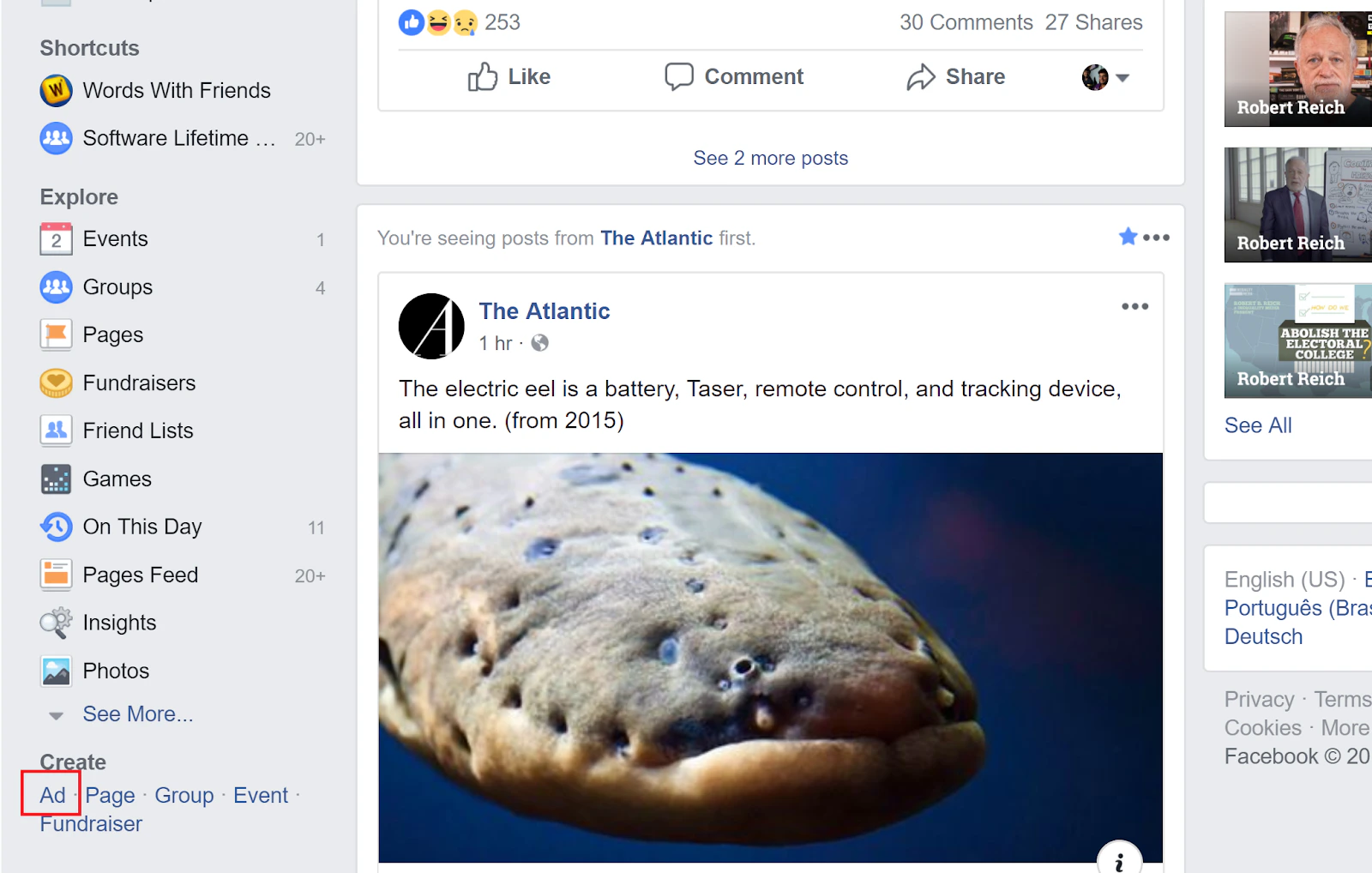
Open Facebook's website and navigate to the Ad Manager page by clicking the **Ad** link in the sidebar.
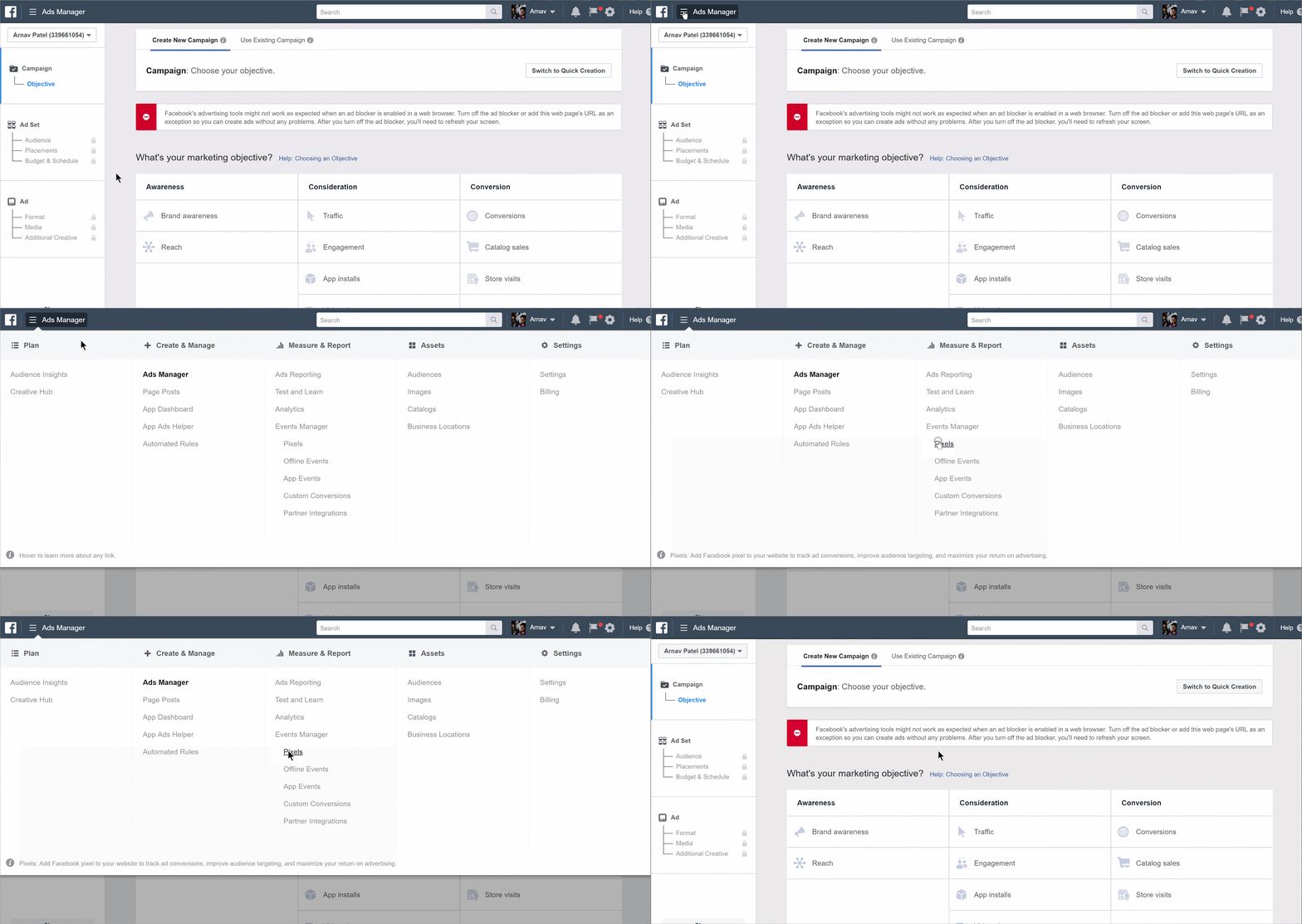
 On the Facebook Ad Manager page, click on the **menu** in the top right of the screen and select the **Pixels** option under **Event Manager**.
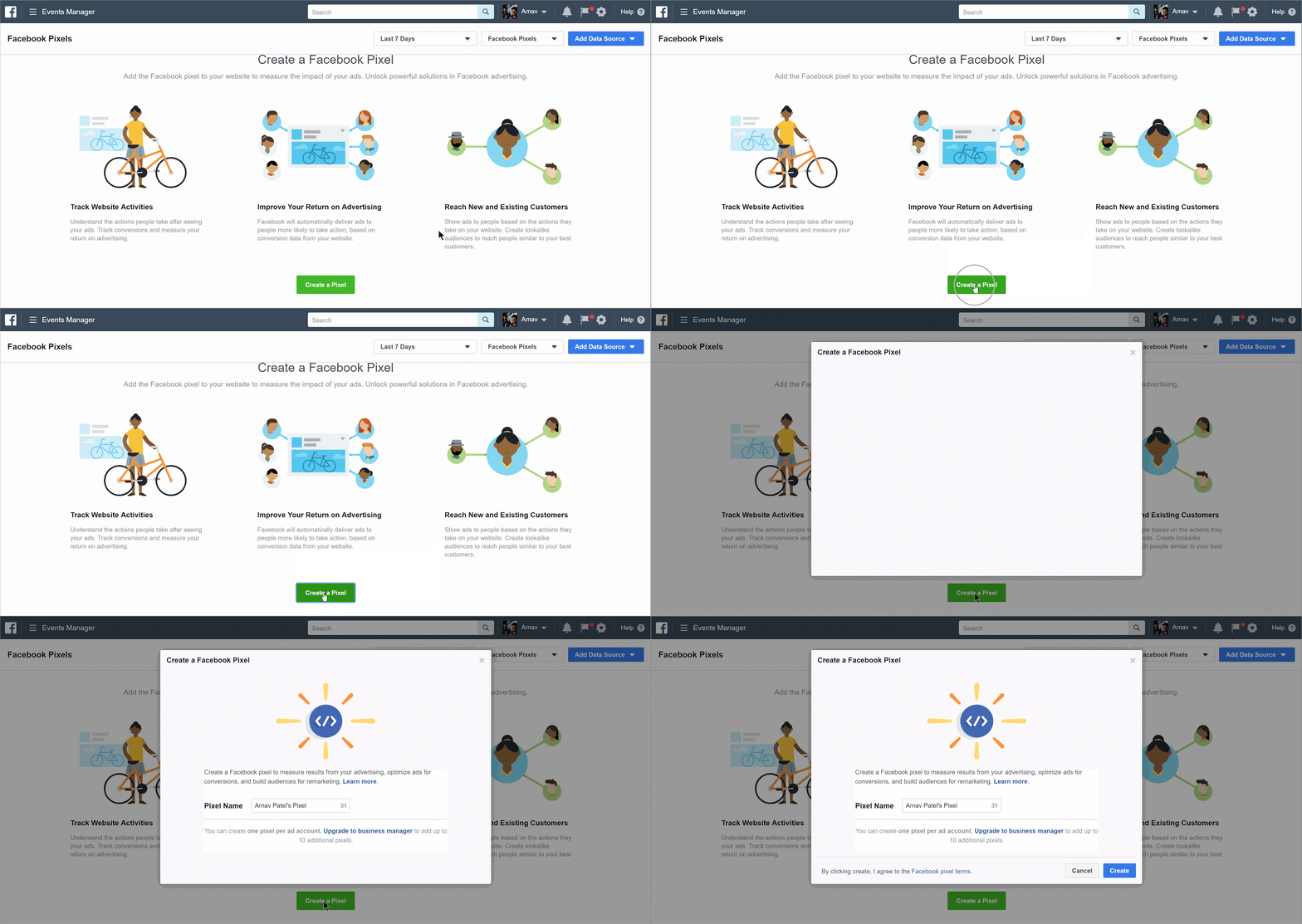
 Once the Pixels page loads, click the **Create a Pixel** button at the bottom of the page.
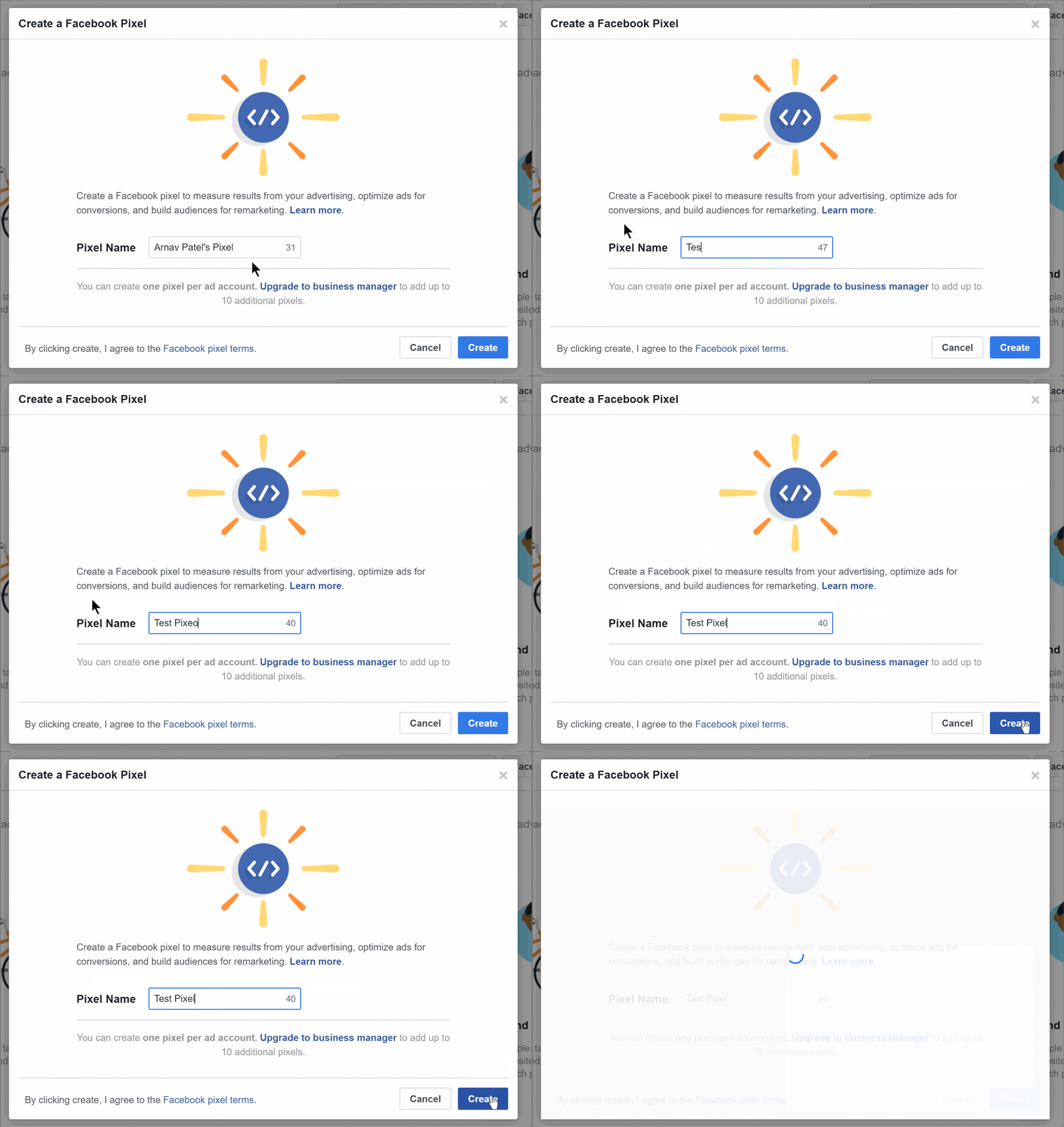
 When the popup loads, rename your pixel and click **Create**.
 On the next page, close the popup and copy the **Pixel ID** from the top right.
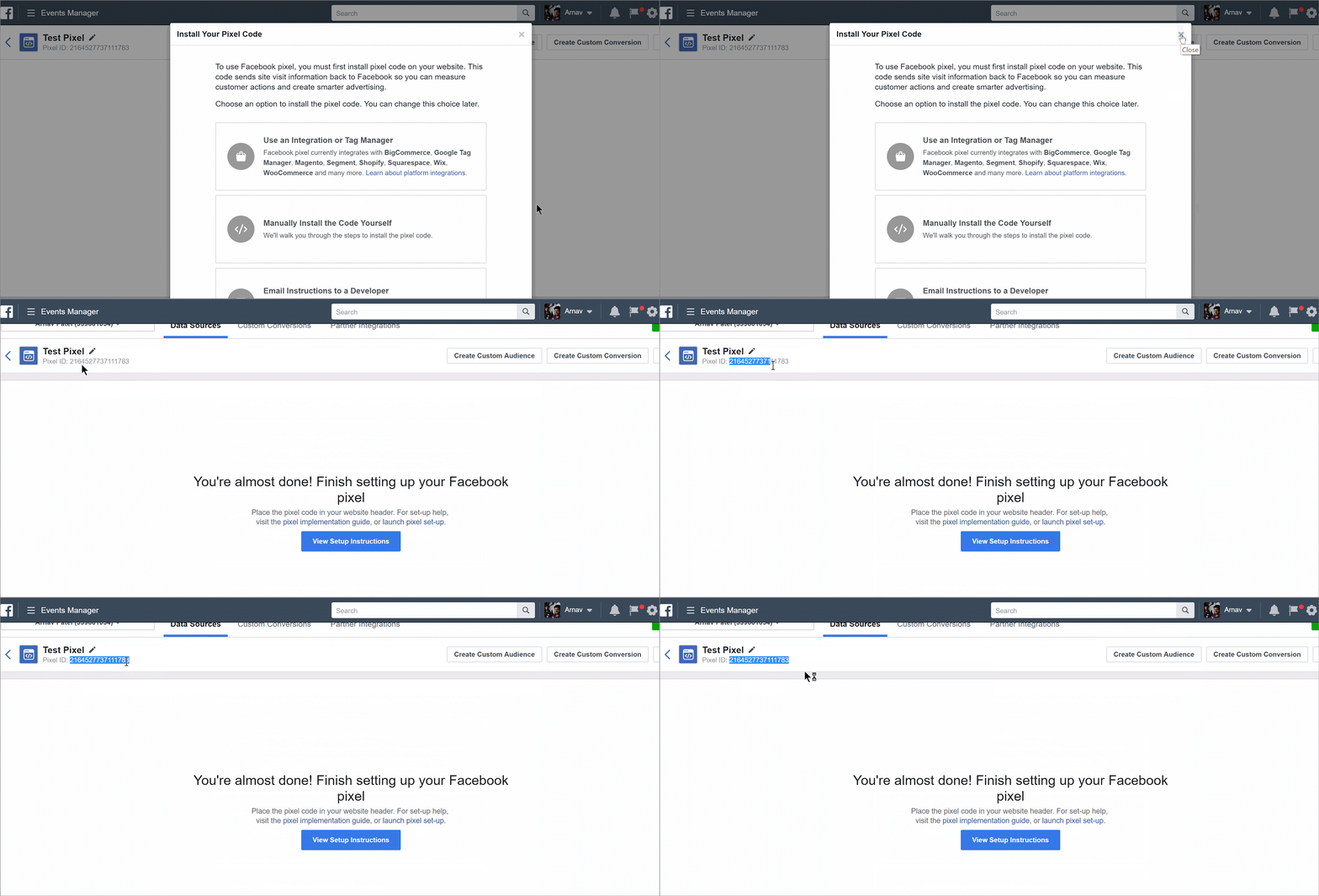 Open your Tars bot, go to **Configure** → **Goal Settings** → **Third Party Analytics**. Expand **Facebook** and paste the Pixel ID in the appropriate field.
Click **Save Changes**.
Your bot is now integrated with Facebook Pixel.
***
## Frequently asked questions
In Facebook Ad Manager, go to **Event Manager** → **Pixels**. Your Pixel ID is displayed at the top right of the page. It's a numeric string like `123456789012345`.
Make sure you have set up **Goal Gambits** in your bot's Goal Settings. Facebook Pixel conversion events only fire when a Goal Gambit is reached during a conversation. Also verify that your Pixel ID is correct and that you clicked Save Changes.
Yes. Once Facebook Pixel is installed on your chatbot, it automatically tracks all visitors. You can then create Custom Audiences in Facebook Ad Manager based on people who interacted with your chatbot and retarget them with ads.
Open your Tars bot, go to **Configure** → **Goal Settings** → **Third Party Analytics**. Expand **Facebook** and paste the Pixel ID in the appropriate field.
Click **Save Changes**.
Your bot is now integrated with Facebook Pixel.
***
## Frequently asked questions
In Facebook Ad Manager, go to **Event Manager** → **Pixels**. Your Pixel ID is displayed at the top right of the page. It's a numeric string like `123456789012345`.
Make sure you have set up **Goal Gambits** in your bot's Goal Settings. Facebook Pixel conversion events only fire when a Goal Gambit is reached during a conversation. Also verify that your Pixel ID is correct and that you clicked Save Changes.
Yes. Once Facebook Pixel is installed on your chatbot, it automatically tracks all visitors. You can then create Custom Audiences in Facebook Ad Manager based on people who interacted with your chatbot and retarget them with ads.