> ## Documentation Index
> Fetch the complete documentation index at: https://docs.hellotars.com/llms.txt
> Use this file to discover all available pages before exploring further.
# Google Ads
Build your remarketing list and track conversions for everyone who visits your Tars chatbot.
This guide is for anyone who uses Google Ads in their company and wants to take advantage of high-converting Tars chatbots in their paid campaigns.
## Setting up Google Ads remarketing
Remarketing for Google Ads requires you to build an audience list, and this can be done by simply adding a Google Ads Remarketing Tag to your chatbot.
Get your Google Ads [Remarketing Tag](https://support.google.com/google-ads/answer/2476688?co=ADWORDS.IsAWNCustomer%3Dtrue\&hl=en\&oco=0) from your Google Ads Dashboard. It will look something like this:
**AW-123456789**
Go to the **Configure** section of your chatbot and under **Goal Settings**, you will see the **Third Party Analytics** section. Expand **Google Ads** and paste your Remarketing Tag in the **Remarketing / Conversion ID** field.
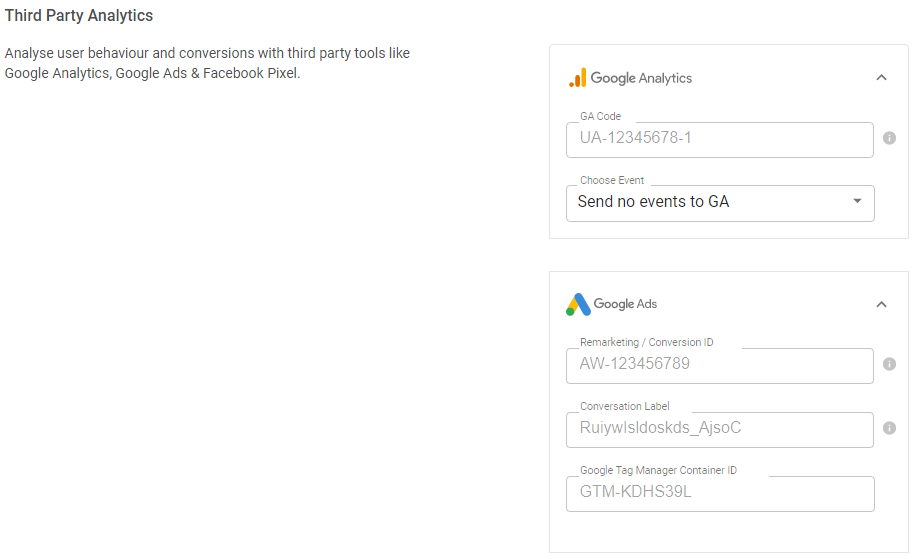 Click **Save Changes**. That's it.
Now all users who visit your chatbot page will be automatically added to your Google Ads Remarketing List. You can then retarget them later with ads and bring them back to your website for better conversion results.
***
## Setting up Google Ads conversion tracking
In order to track conversions with Google Ads, you need to set up the Remarketing Tag first (steps above). Also, to directly send conversion events, you need to set up goals for your bots by configuring your goal settings.
Conversion tracking requires you to set up a Conversion Action in your Google Ads account. If you need help setting it up, check [this Google support article](https://support.google.com/google-ads/answer/6095821).
Once you set up a Conversion Action, you will have **2 codes**:
**Conversion ID** - This is the same as your Remarketing Tag code. It looks something like **AW-123456789** (you may have to add **AW-** in front of your Conversion ID).
**Conversion Label** - This is specific to a particular Conversion Action. You can find it under the Google Tag Manager subsection once you set up your Conversion Action. It looks something like **RuyHCM791ocBEL\_AjvoC**.
Click **Save Changes**. That's it.
Now all users who visit your chatbot page will be automatically added to your Google Ads Remarketing List. You can then retarget them later with ads and bring them back to your website for better conversion results.
***
## Setting up Google Ads conversion tracking
In order to track conversions with Google Ads, you need to set up the Remarketing Tag first (steps above). Also, to directly send conversion events, you need to set up goals for your bots by configuring your goal settings.
Conversion tracking requires you to set up a Conversion Action in your Google Ads account. If you need help setting it up, check [this Google support article](https://support.google.com/google-ads/answer/6095821).
Once you set up a Conversion Action, you will have **2 codes**:
**Conversion ID** - This is the same as your Remarketing Tag code. It looks something like **AW-123456789** (you may have to add **AW-** in front of your Conversion ID).
**Conversion Label** - This is specific to a particular Conversion Action. You can find it under the Google Tag Manager subsection once you set up your Conversion Action. It looks something like **RuyHCM791ocBEL\_AjvoC**.
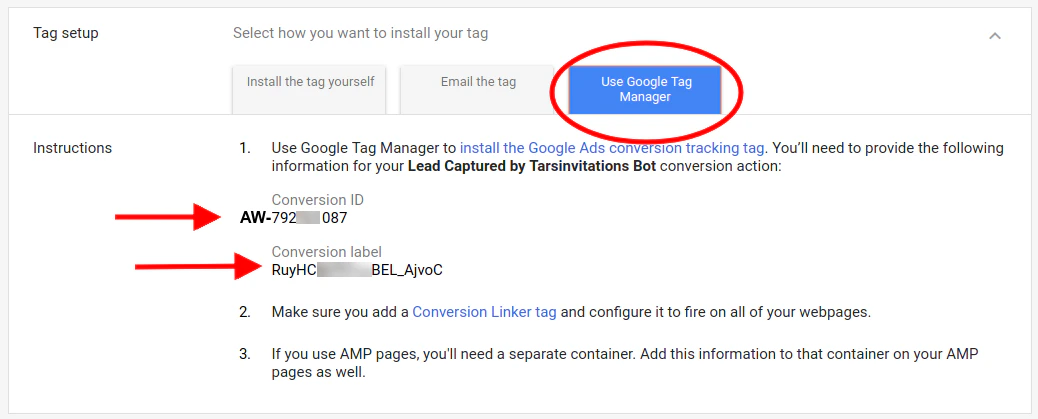 Once you have both codes, go to **Configure** → **Goal Settings** → **Google Ads** and enter the **Conversion ID** and **Conversion Label**.
Click **Save Changes**.
Once you have both codes, go to **Configure** → **Goal Settings** → **Google Ads** and enter the **Conversion ID** and **Conversion Label**.
Click **Save Changes**.
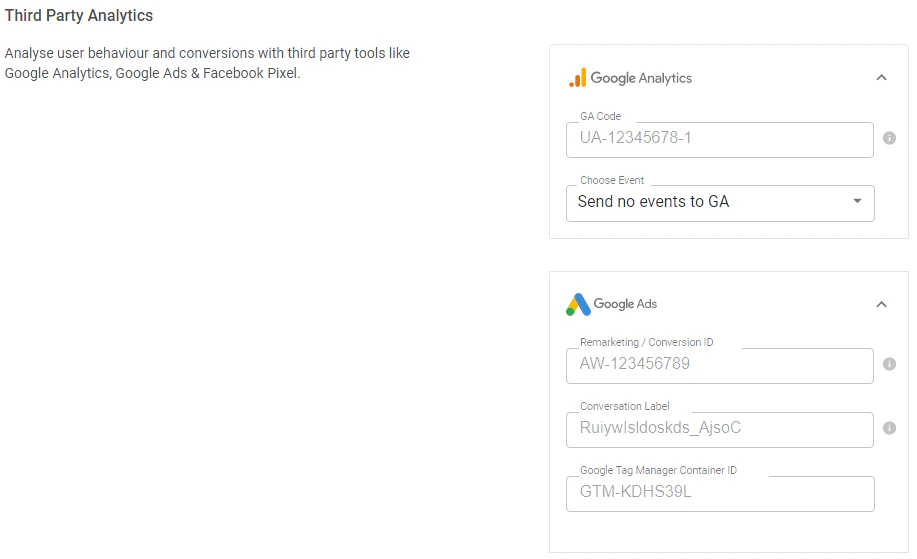 Now, the conversion event will be fired every time the Bot Goal is achieved during a conversation between the user and the bot.
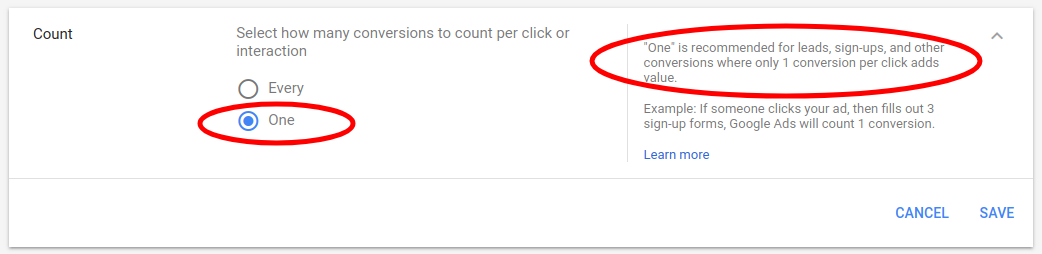
When setting up the Conversion Action in Google Ads, you might want to set the **Conversion Count** as **One**. This is used when the conversion is like a sign-up or a lead — where one user filling multiple lead forms is still counted as one conversion. This is opposed to an e-commerce purchase, where every product sale is a separate conversion.
Now, the conversion event will be fired every time the Bot Goal is achieved during a conversation between the user and the bot.
When setting up the Conversion Action in Google Ads, you might want to set the **Conversion Count** as **One**. This is used when the conversion is like a sign-up or a lead — where one user filling multiple lead forms is still counted as one conversion. This is opposed to an e-commerce purchase, where every product sale is a separate conversion.
 ***
## Frequently asked questions
In your Google Ads Dashboard, go to
***
## Frequently asked questions
In your Google Ads Dashboard, go to
**Tools & Settings** → **Shared Library** → **Audience Manager** → **Audience Sources**.
Your Google Ads tag will show the Remarketing Tag code starting with `AW-`.
**Remarketing** builds an audience list of everyone who visits your chatbot so you can retarget them with ads later. **Conversion Tracking** fires an event only when a user completes a specific goal (like submitting a lead form) in your chatbot. You need Remarketing set up first before you can use Conversion Tracking.
Use **One** for lead generation and sign-ups where multiple form submissions by the same user count as a single conversion. Use **Every** for e-commerce scenarios where each purchase is a separate conversion.
Make sure you have set up Goal Gambits in your bot's Goal Settings. Conversions only fire when a Goal Gambit is reached. Also, it can take up to 24 hours for conversions to appear in your Google Ads dashboard.