> ## Documentation Index
> Fetch the complete documentation index at: https://docs.hellotars.com/llms.txt
> Use this file to discover all available pages before exploring further.
# Sign in to your Tars account
> Access your existing Tars workspace using your email and password or sign in instantly with social media accounts you already trust
## Sign in using social media accounts
Sign in with Google
Sign in with LinkedIn
Sign in with Outlook
Sign in with Enterprise SSO
## Sign in using your Email and Password
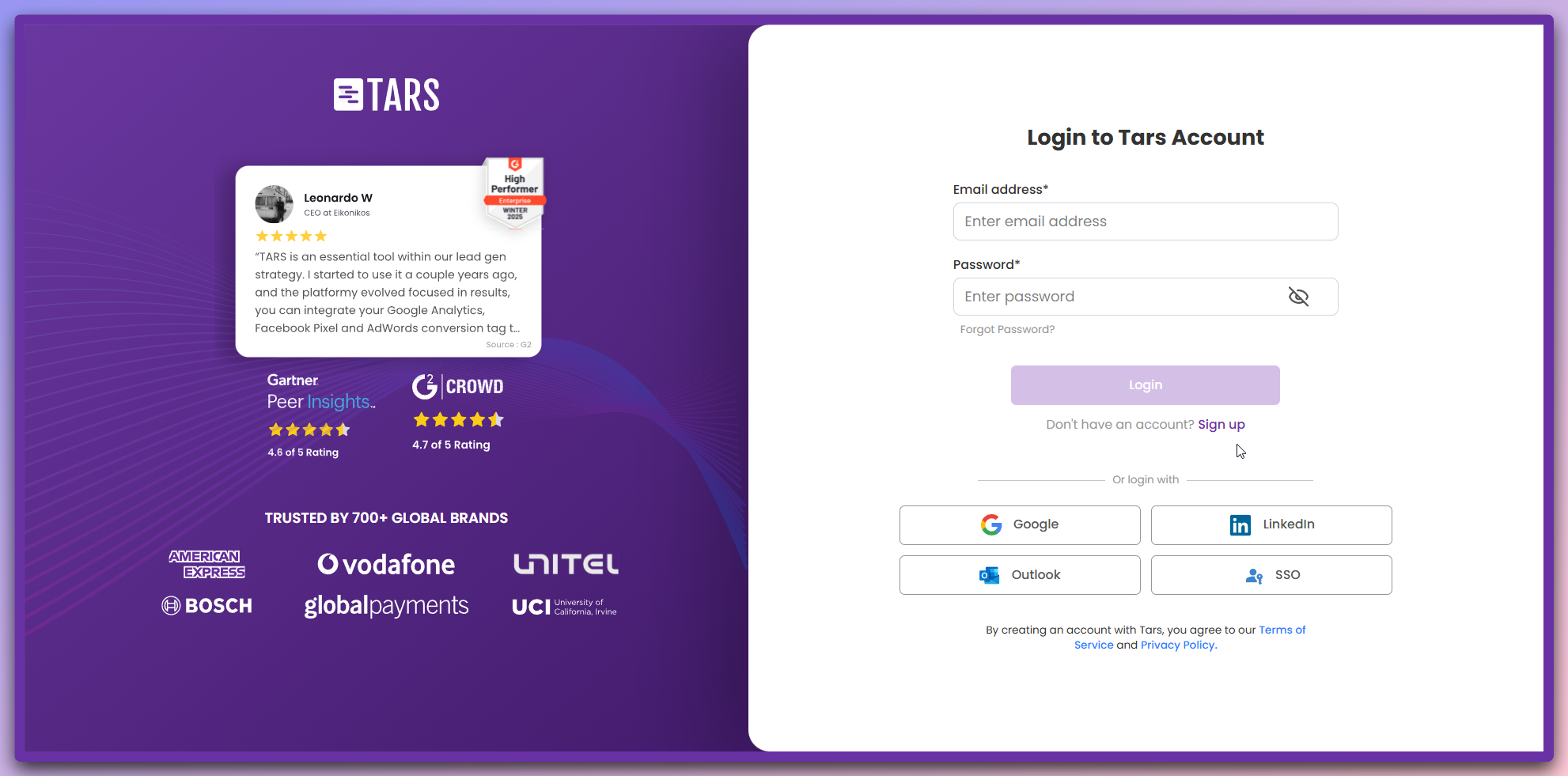 ### How to sign in
* Enter your registered email address
* Enter your password
* Click **"Login"** to access your account
## Forgot your password?
If you can't remember your password, follow these steps to reset it:
* Click **"Forgot Password?"** on the login page
* Enter your email address
* Click **"Send Reset Link"**
* Look for the reset email in your inbox
* Click the reset link in the email
* You'll be redirected to the password reset page
* Enter your **New Password**
* **Confirm New Password**
* Click **"Reset Password"**
**Check your spam folder** if you don't see the reset email within a few minutes.
## Security tips
**Use a strong password** with at least 8 characters, including uppercase, lowercase, numbers, and symbols.
**Enable two-factor authentication** in your account settings for extra security.
## Next steps
**Welcome back!** After signing in, you'll be taken to your dashboard where you can manage your AI Agents and continue building.
### How to sign in
* Enter your registered email address
* Enter your password
* Click **"Login"** to access your account
## Forgot your password?
If you can't remember your password, follow these steps to reset it:
* Click **"Forgot Password?"** on the login page
* Enter your email address
* Click **"Send Reset Link"**
* Look for the reset email in your inbox
* Click the reset link in the email
* You'll be redirected to the password reset page
* Enter your **New Password**
* **Confirm New Password**
* Click **"Reset Password"**
**Check your spam folder** if you don't see the reset email within a few minutes.
## Security tips
**Use a strong password** with at least 8 characters, including uppercase, lowercase, numbers, and symbols.
**Enable two-factor authentication** in your account settings for extra security.
## Next steps
**Welcome back!** After signing in, you'll be taken to your dashboard where you can manage your AI Agents and continue building.