> ## Documentation Index
> Fetch the complete documentation index at: https://docs.hellotars.com/llms.txt
> Use this file to discover all available pages before exploring further.
# Agents Section
> Create, manage, and monitor your AI Agents from the Agents dashboard section
Your Agents section is where you create, manage, and monitor all your AI Agents. Build intelligent assistants that can answer questions, perform actions, and automate workflows across multiple channels.
## My Agents
The **My Agents** section displays all your created AI Agents in an organized, easy-to-navigate interface.
 ### What you'll see
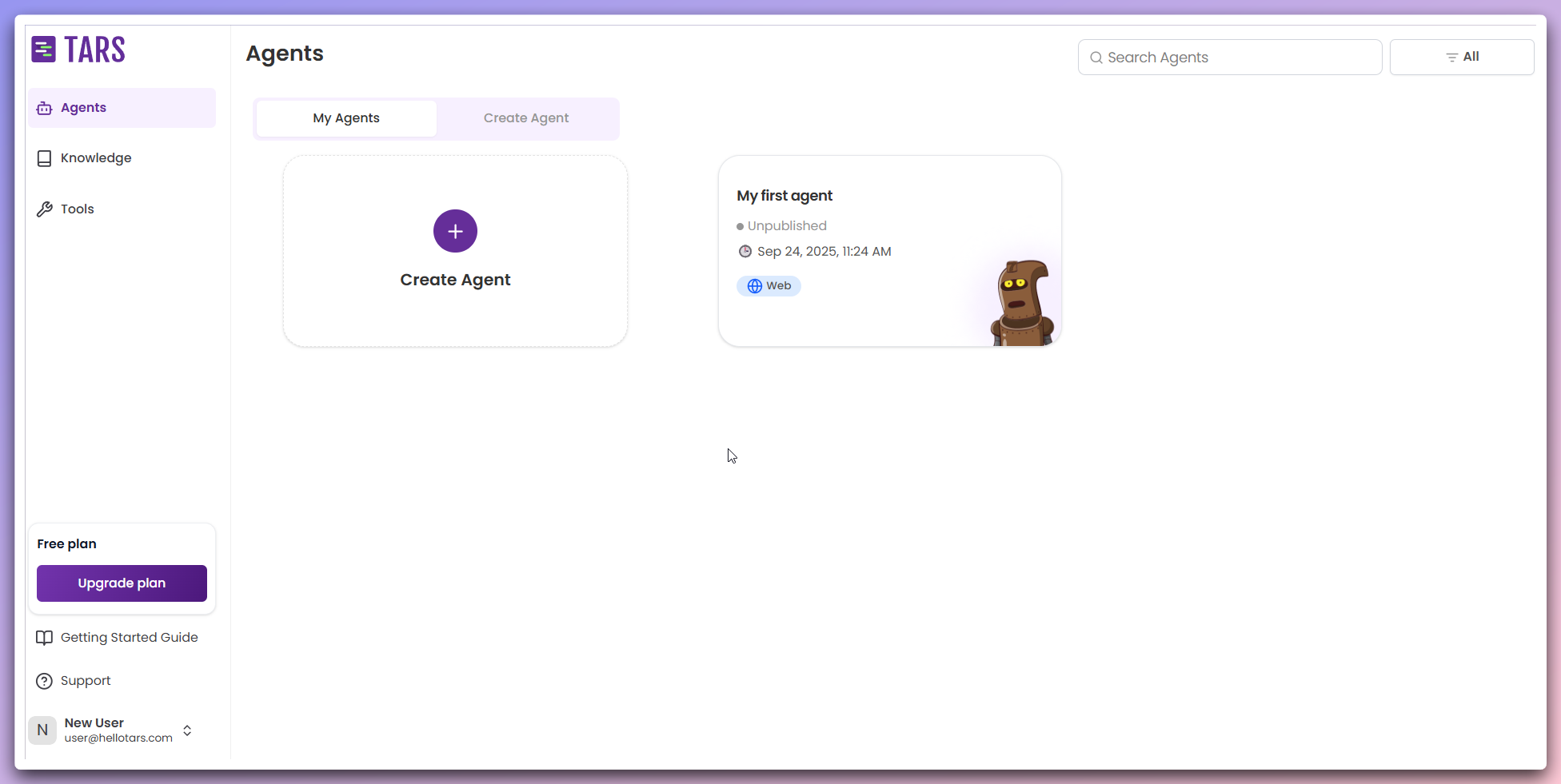
* **Agent Cards**: Each Agent displayed with name, publishing status, description, date added, and quick actions menu
* **Publishing Status**: Clear indicator showing whether each Agent is published or draft
* **Date Added**: Date timestamp of when the Agent was created
* **Deployment Medium**: Indicates whether the Agent is deployed on web or WhatsApp for quick identification
* **Quick Actions Menu**: Access to management functions
When you click on any Agent card, you will be redirected to the Make section.
Here, you can view and manage the Agent's workflow, allowing you to customize
its behavior and responses.
### Quick actions
Quick actions are helpful shortcuts that allow you to efficiently manage your agents. To use them, follow these steps:
### What you'll see
* **Agent Cards**: Each Agent displayed with name, publishing status, description, date added, and quick actions menu
* **Publishing Status**: Clear indicator showing whether each Agent is published or draft
* **Date Added**: Date timestamp of when the Agent was created
* **Deployment Medium**: Indicates whether the Agent is deployed on web or WhatsApp for quick identification
* **Quick Actions Menu**: Access to management functions
When you click on any Agent card, you will be redirected to the Make section.
Here, you can view and manage the Agent's workflow, allowing you to customize
its behavior and responses.
### Quick actions
Quick actions are helpful shortcuts that allow you to efficiently manage your agents. To use them, follow these steps:
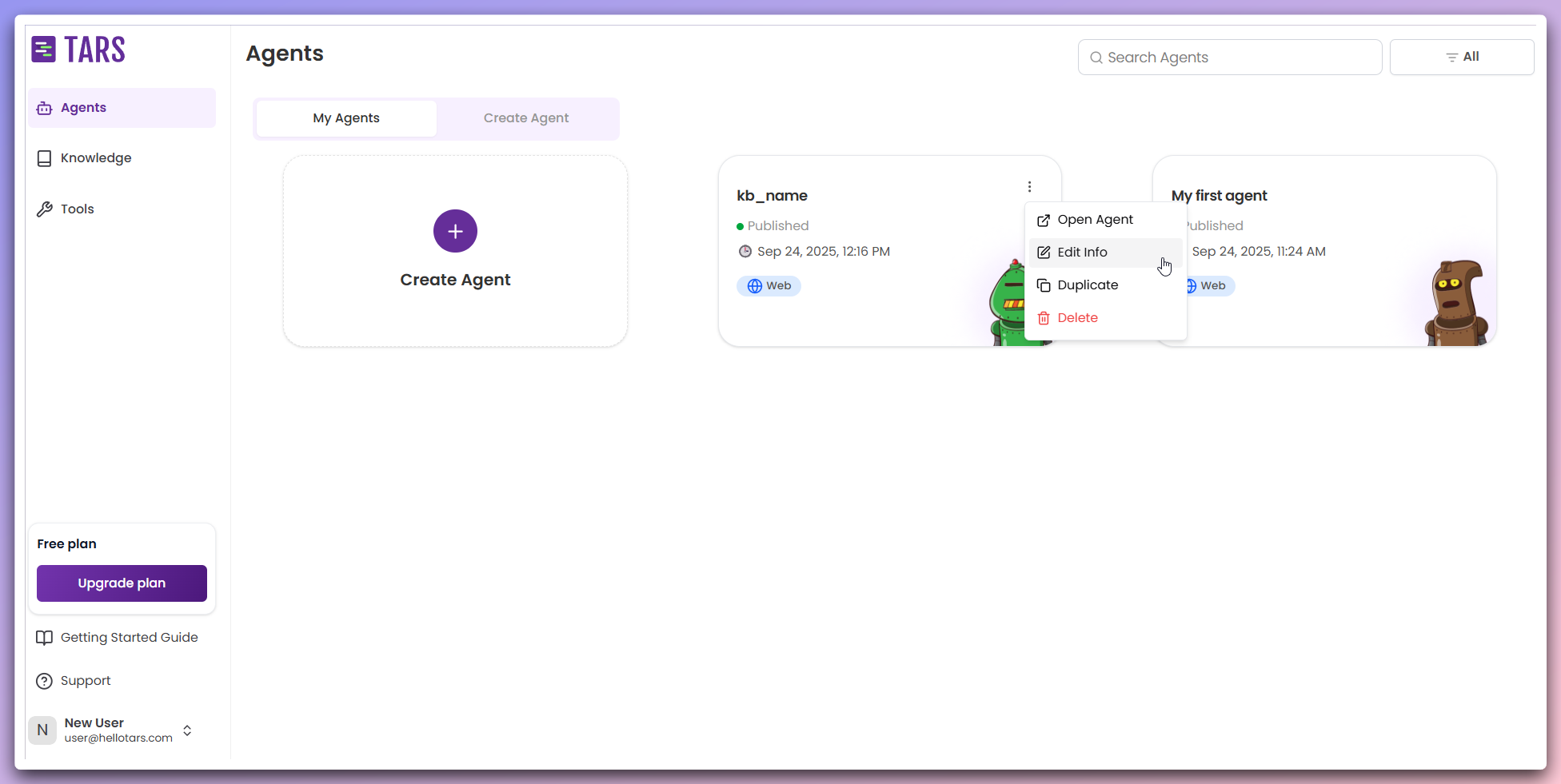 Hover on the Agent card, click the three dots present at top right of the card.
Select the desired action from the quick actions menu.
**Opens the Agent builder interface in a new tab to modify and test**
Launching your Agent opens the Agent builder interface in a new browser tab where you can modify and test the Agent's workflow.
**What happens when you launch:**
* The Agent builder interface opens in a new browser tab
* You can modify and test the Agent's workflow
* All integrations and tools are active for testing
* You can see exactly how users will experience your Agent
**Perfect for:**
* **Workflow Refactoring**: Make changes to the Agent's workflow
* **Testing Conversations**: See how your Agent responds to different questions
* **Validating Integrations**: Ensure all connected tools work properly
* **User Experience Testing**: Experience the Agent from a user's perspective
* **Quick Validation**: Verify Agent behavior before making it public
* **Demo Purposes**: Show your Agent to team members or stakeholders
**Modify Agent name, description, and logo**
The Edit function opens a modal where you can update the basic information and visual identity of your Agent.
**What you can edit:**
* **Agent Name**: Change the display name for easy identification
* **Description**: Update the summary of what your Agent does
**Specific steps for Edit:** 3. A modal opens with two editable fields:
* **Name field**: Update the Agent's display name
* **Description field**: Modify the Agent's description
* **Save your changes to apply them**
**Simple Interface**: The Edit modal provides a clean, focused interface for basic Agent information updates.
**Create a copy of your Agent workflow for testing or variations**
Duplicating an Agent creates a copy of the Agent's workflow and configuration that you can modify without affecting the original.
**What gets duplicated:**
* Agent workflow and conversation logic
* Agent configuration and settings
* Connected integrations and tools
* Knowledge base connections
* Custom responses and behavior
**What does NOT get duplicated:**
* User conversation history and data
* Analytics and performance metrics
* User interactions and feedback
* Any existing user data from the original Agent
**Common use cases:**
* **Testing Changes**: Try new features without risking your live Agent
* **A/B Testing**: Create variations to test different approaches
* **Department Variations**: Adapt the same Agent for different teams
* **Backup Creation**: Keep a copy before making major changes
* **Template Creation**: Use as a starting point for similar agents
**After duplication:**
* The new Agent starts as a draft with a clean slate
* You can modify it independently
* Original Agent remains unchanged
* Both agents can be launched separately
* New Agent starts with no user data or conversation history
**Clean Start**: The duplicated Agent will have the same workflow but no existing user data, giving you a fresh start for testing or variations.
**Remove agents you no longer need**
Deleting an Agent permanently removes it and all associated data from your account. This action cannot be undone.
**What gets deleted:**
* All data related to that Agent
* The workflow that was created
* The Agent disappears from your dashboard
* All conversation history and analytics
* Integration configurations and settings
**Before deleting, consider:**
* **Backup Important Data**: Export any data you want to keep
* **Review Analytics**: Save any important performance insights
**Permanent Action**: Deletion cannot be undone. Make sure you really want to remove this Agent permanently.
Hover on the Agent card, click the three dots present at top right of the card.
Select the desired action from the quick actions menu.
**Opens the Agent builder interface in a new tab to modify and test**
Launching your Agent opens the Agent builder interface in a new browser tab where you can modify and test the Agent's workflow.
**What happens when you launch:**
* The Agent builder interface opens in a new browser tab
* You can modify and test the Agent's workflow
* All integrations and tools are active for testing
* You can see exactly how users will experience your Agent
**Perfect for:**
* **Workflow Refactoring**: Make changes to the Agent's workflow
* **Testing Conversations**: See how your Agent responds to different questions
* **Validating Integrations**: Ensure all connected tools work properly
* **User Experience Testing**: Experience the Agent from a user's perspective
* **Quick Validation**: Verify Agent behavior before making it public
* **Demo Purposes**: Show your Agent to team members or stakeholders
**Modify Agent name, description, and logo**
The Edit function opens a modal where you can update the basic information and visual identity of your Agent.
**What you can edit:**
* **Agent Name**: Change the display name for easy identification
* **Description**: Update the summary of what your Agent does
**Specific steps for Edit:** 3. A modal opens with two editable fields:
* **Name field**: Update the Agent's display name
* **Description field**: Modify the Agent's description
* **Save your changes to apply them**
**Simple Interface**: The Edit modal provides a clean, focused interface for basic Agent information updates.
**Create a copy of your Agent workflow for testing or variations**
Duplicating an Agent creates a copy of the Agent's workflow and configuration that you can modify without affecting the original.
**What gets duplicated:**
* Agent workflow and conversation logic
* Agent configuration and settings
* Connected integrations and tools
* Knowledge base connections
* Custom responses and behavior
**What does NOT get duplicated:**
* User conversation history and data
* Analytics and performance metrics
* User interactions and feedback
* Any existing user data from the original Agent
**Common use cases:**
* **Testing Changes**: Try new features without risking your live Agent
* **A/B Testing**: Create variations to test different approaches
* **Department Variations**: Adapt the same Agent for different teams
* **Backup Creation**: Keep a copy before making major changes
* **Template Creation**: Use as a starting point for similar agents
**After duplication:**
* The new Agent starts as a draft with a clean slate
* You can modify it independently
* Original Agent remains unchanged
* Both agents can be launched separately
* New Agent starts with no user data or conversation history
**Clean Start**: The duplicated Agent will have the same workflow but no existing user data, giving you a fresh start for testing or variations.
**Remove agents you no longer need**
Deleting an Agent permanently removes it and all associated data from your account. This action cannot be undone.
**What gets deleted:**
* All data related to that Agent
* The workflow that was created
* The Agent disappears from your dashboard
* All conversation history and analytics
* Integration configurations and settings
**Before deleting, consider:**
* **Backup Important Data**: Export any data you want to keep
* **Review Analytics**: Save any important performance insights
**Permanent Action**: Deletion cannot be undone. Make sure you really want to remove this Agent permanently.