> ## Documentation Index
> Fetch the complete documentation index at: https://docs.hellotars.com/llms.txt
> Use this file to discover all available pages before exploring further.
# Create Agent from PDF Knowledge
> Build AI Agents that answer questions using PDF document knowledge bases
Create powerful AI Agents that can answer questions and provide information based on PDF documents. This process automatically processes and trains your PDF content to build a smart assistant.
### What you can do with this
* **Build customer support agents** that answer questions using your help documentation
* **Create internal knowledge assistants** to help employees find information quickly
* **Develop product information bots** that provide detailed specs and features
* **Design training assistants** for interactive learning experiences
* **Ensure compliance** with accurate information delivery for regulatory requirements
### What you get
**Knowledge-powered intelligence**
* **Instant expertise**: Your Agent immediately knows your content and can answer related questions
* **Contextual responses**: Provides accurate answers based on your specific information
* **Content updates**: Automatically stays current as you update your Knowledge Base
* **Source citations**: Can reference specific documents or sections when answering
* **Domain expertise**: Specialized knowledge in your specific field or industry
### Step-by-step creation process
Navigate to the Create Agent page and click on the **Create from Knowledge** card to begin the process.
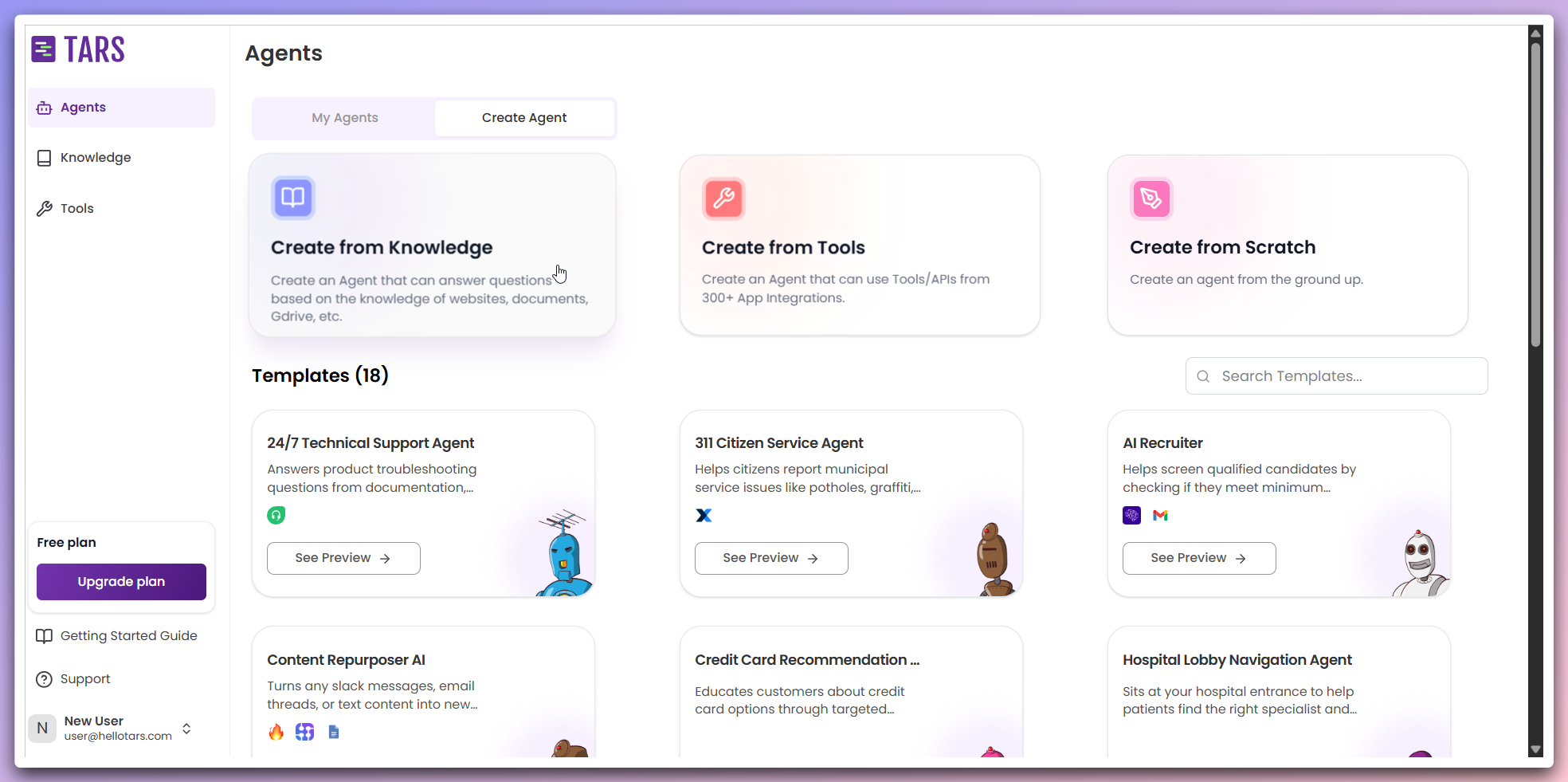 This opens a modal dialog where you can configure your knowledge-powered Agent.
In the modal, select **PDF** as the data source for training your Agent's Knowledge Base and customize the Agent's appearance:
This opens a modal dialog where you can configure your knowledge-powered Agent.
In the modal, select **PDF** as the data source for training your Agent's Knowledge Base and customize the Agent's appearance:
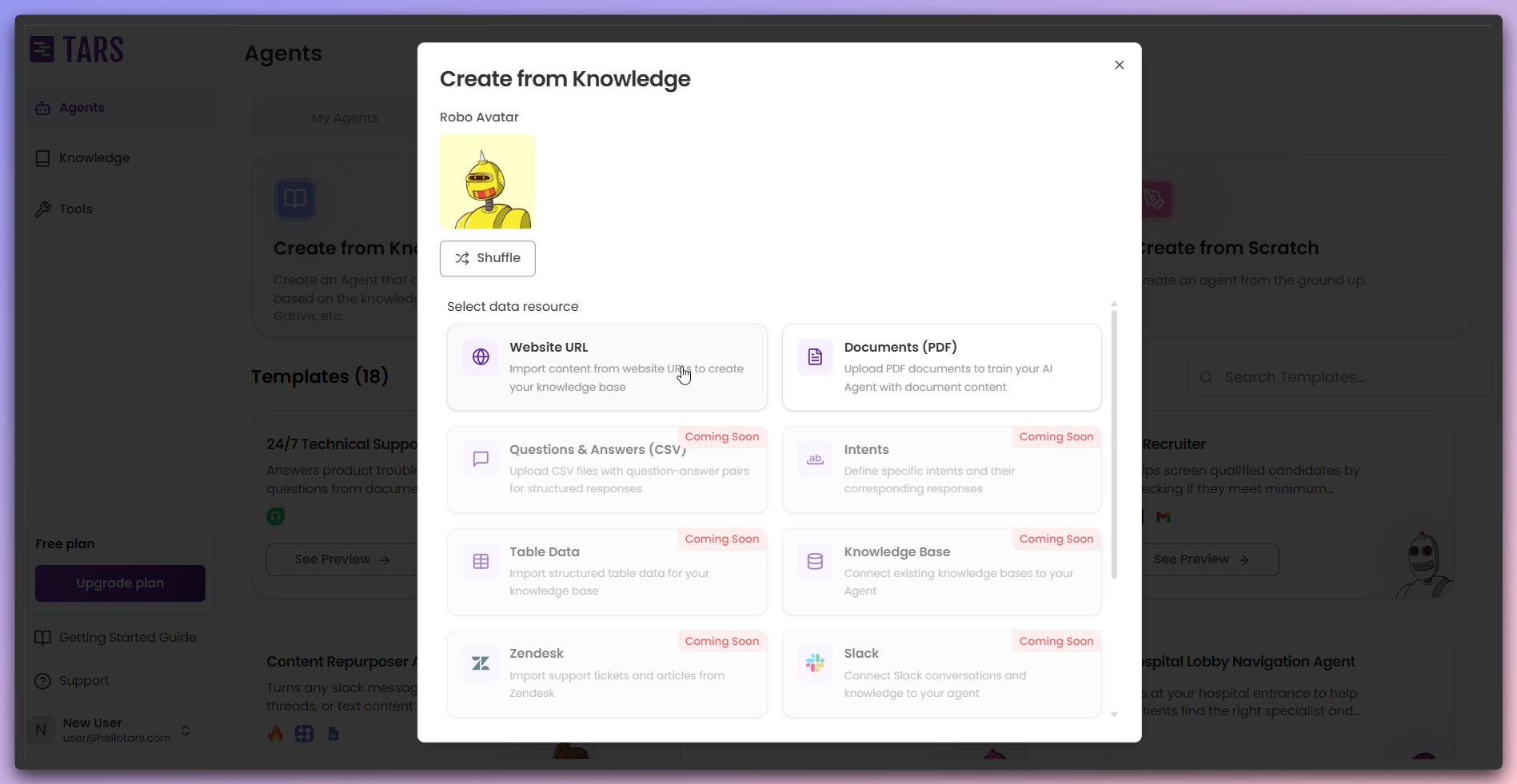 **Customization options:**
* **Data Source**: Choose **PDF** to train from document files
* **Agent Icon**: Select or change the icon representing your Agent
You can choose from various data sources and customize your Agent's icon. Additional data source options will be introduced in future updates.
Once you have clicked on the `Documents (PDF)` card, your Knowledge Base
configuration modal will open.
**Customization options:**
* **Data Source**: Choose **PDF** to train from document files
* **Agent Icon**: Select or change the icon representing your Agent
You can choose from various data sources and customize your Agent's icon. Additional data source options will be introduced in future updates.
Once you have clicked on the `Documents (PDF)` card, your Knowledge Base
configuration modal will open.
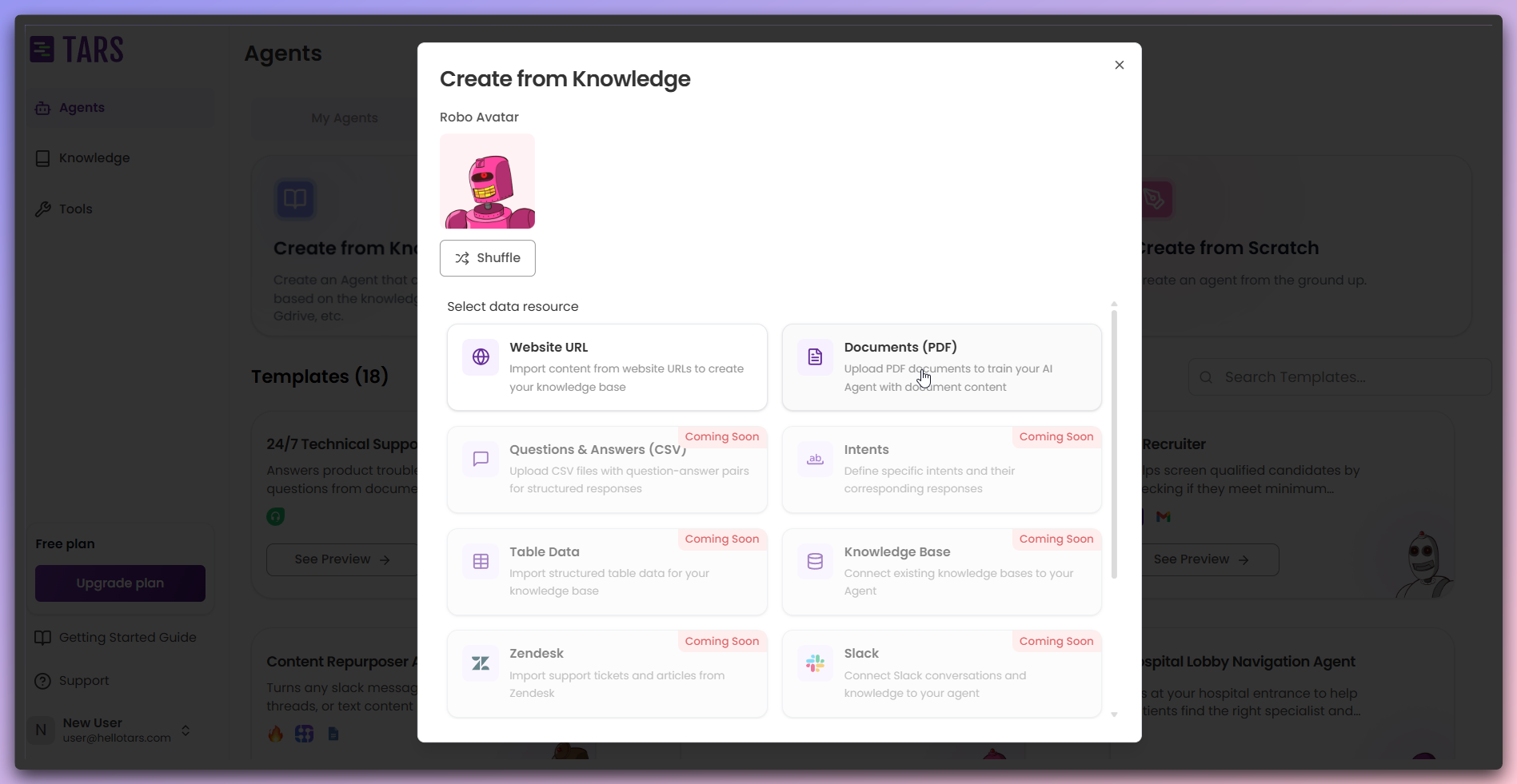 Set up the fundamental information for your Knowledge Base and upload your PDF
documents.
Set up the fundamental information for your Knowledge Base and upload your PDF
documents.
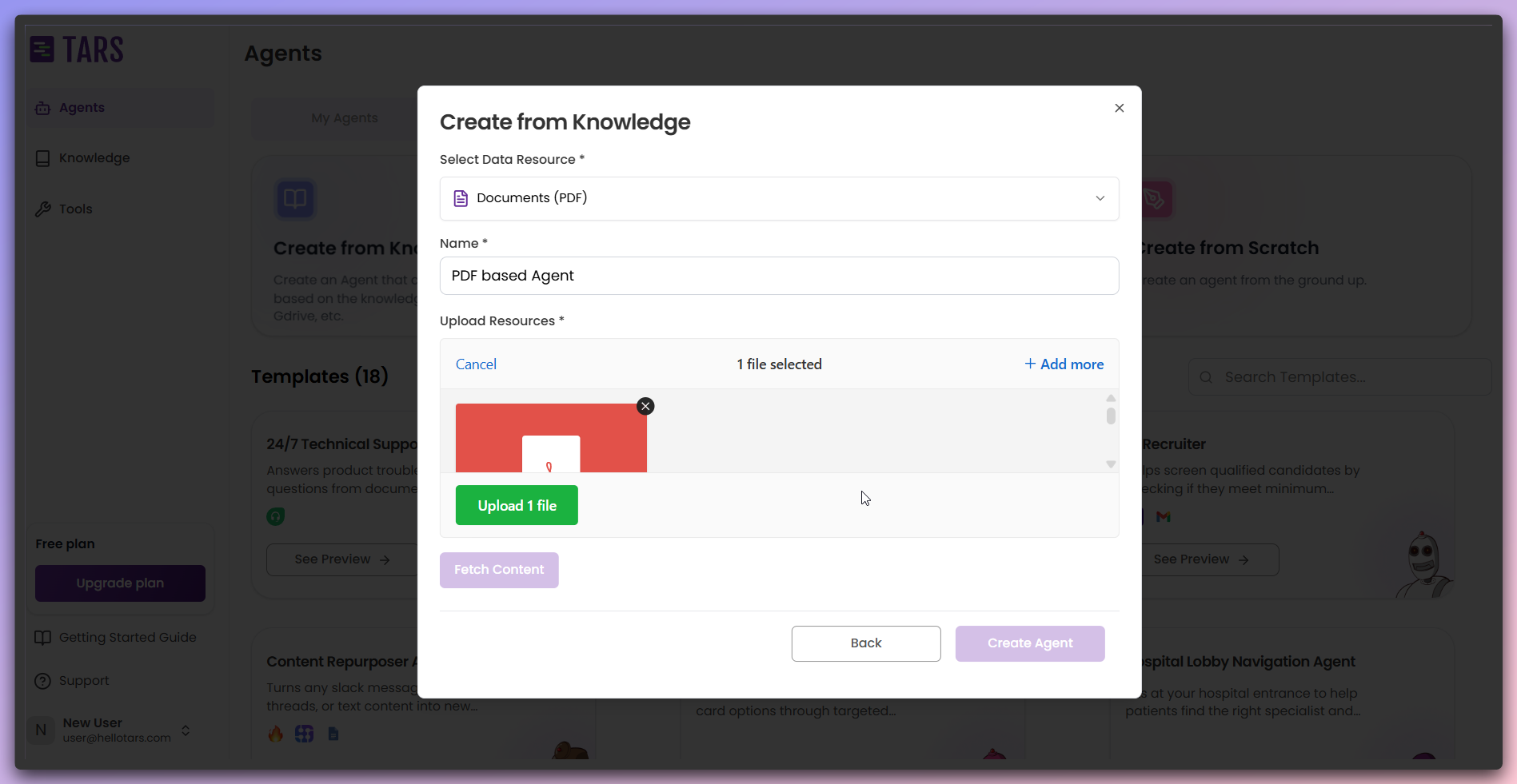 **Required configuration:** - **Knowledge Base Name**: Enter a descriptive
name for your Knowledge Base - **File Upload**: Drag and drop PDF files or
browse to select documents
The system will process your PDF documents to extract text content, tables,
and structured information for Knowledge Base creation.
Click the `Upload` button to upload your selected PDF files to the cloud for
processing.
**Required configuration:** - **Knowledge Base Name**: Enter a descriptive
name for your Knowledge Base - **File Upload**: Drag and drop PDF files or
browse to select documents
The system will process your PDF documents to extract text content, tables,
and structured information for Knowledge Base creation.
Click the `Upload` button to upload your selected PDF files to the cloud for
processing.
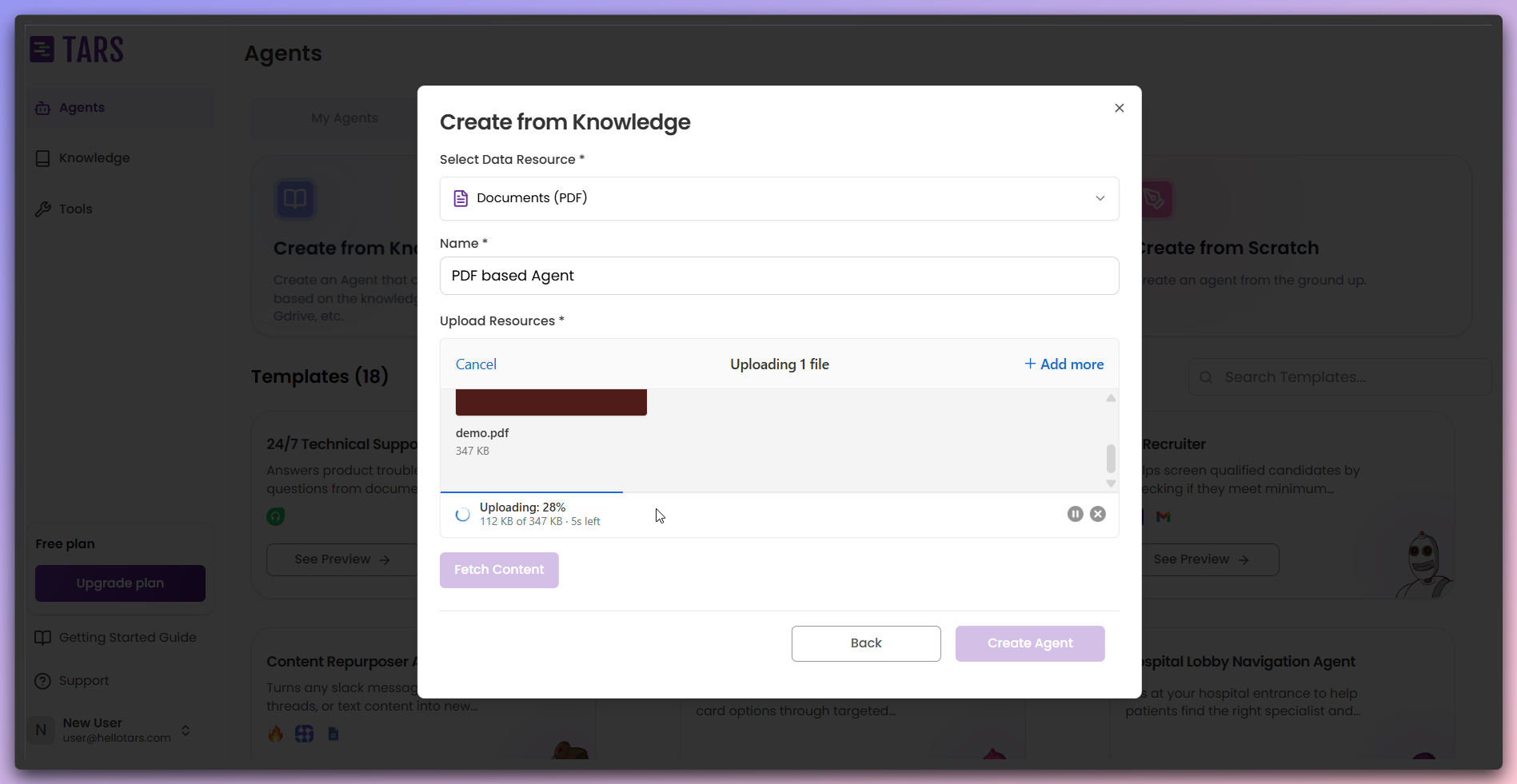 Files are securely uploaded to cloud storage(aws-s3)
Your PDF files are successfully uploaded and ready for content extraction
and processing.
After successful upload, choose to add more files or proceed with content
fetching.
Files are securely uploaded to cloud storage(aws-s3)
Your PDF files are successfully uploaded and ready for content extraction
and processing.
After successful upload, choose to add more files or proceed with content
fetching.
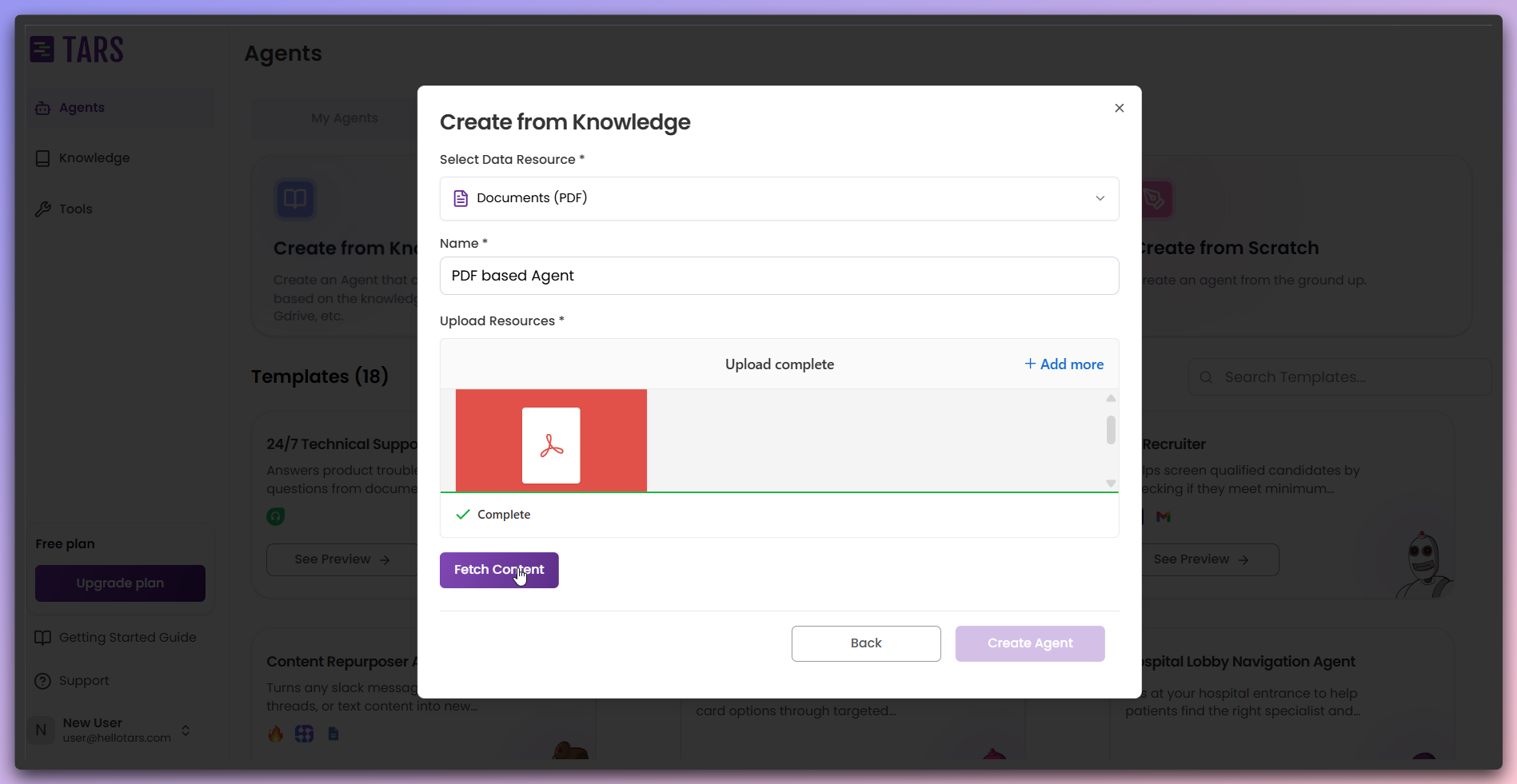 **Available options:** - **Add more files**: Click to upload additional PDF
documents to the same Knowledge Base - **Fetch content**: Begin content
extraction from uploaded PDF files - **File management**: View and manage
uploaded documents
**Multiple Documents**: You can add multiple PDF files to create a
comprehensive Knowledge Base from various document sources.
Click the `Fetch Content` button to begin extracting text and structured data
from your PDF documents.
**Available options:** - **Add more files**: Click to upload additional PDF
documents to the same Knowledge Base - **Fetch content**: Begin content
extraction from uploaded PDF files - **File management**: View and manage
uploaded documents
**Multiple Documents**: You can add multiple PDF files to create a
comprehensive Knowledge Base from various document sources.
Click the `Fetch Content` button to begin extracting text and structured data
from your PDF documents.
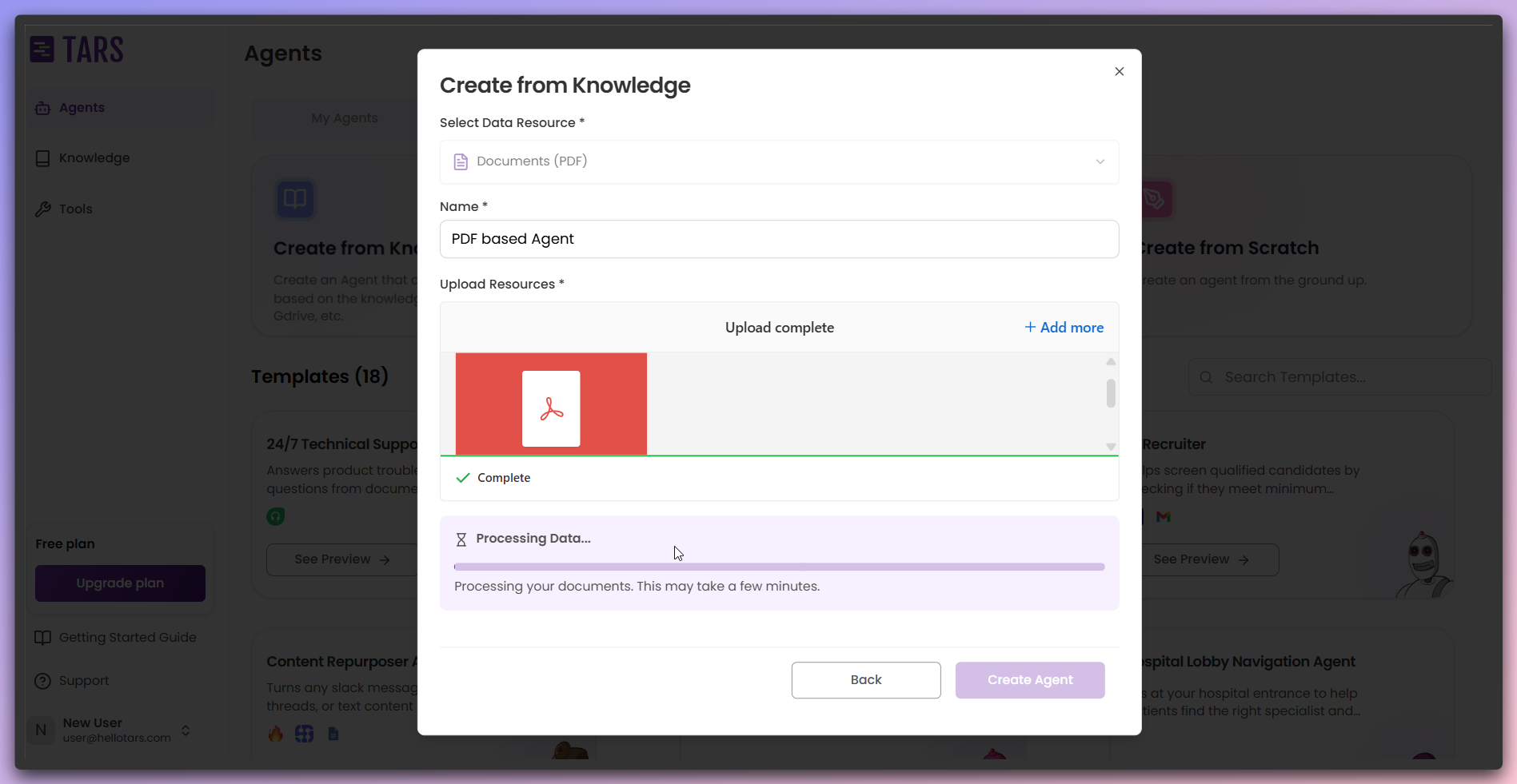 The system extracts and processes text, tables, and document structures from
your uploaded PDF files stored in cloud storage, preparing the content for the
subsequent training phase.
**Processing Time**: Content extraction may take several minutes depending
on document size and complexity. Monitor the progress for detailed status
updates.
After content extraction completes,initiate training after removing the
unwanted documents.
The system extracts and processes text, tables, and document structures from
your uploaded PDF files stored in cloud storage, preparing the content for the
subsequent training phase.
**Processing Time**: Content extraction may take several minutes depending
on document size and complexity. Monitor the progress for detailed status
updates.
After content extraction completes,initiate training after removing the
unwanted documents.
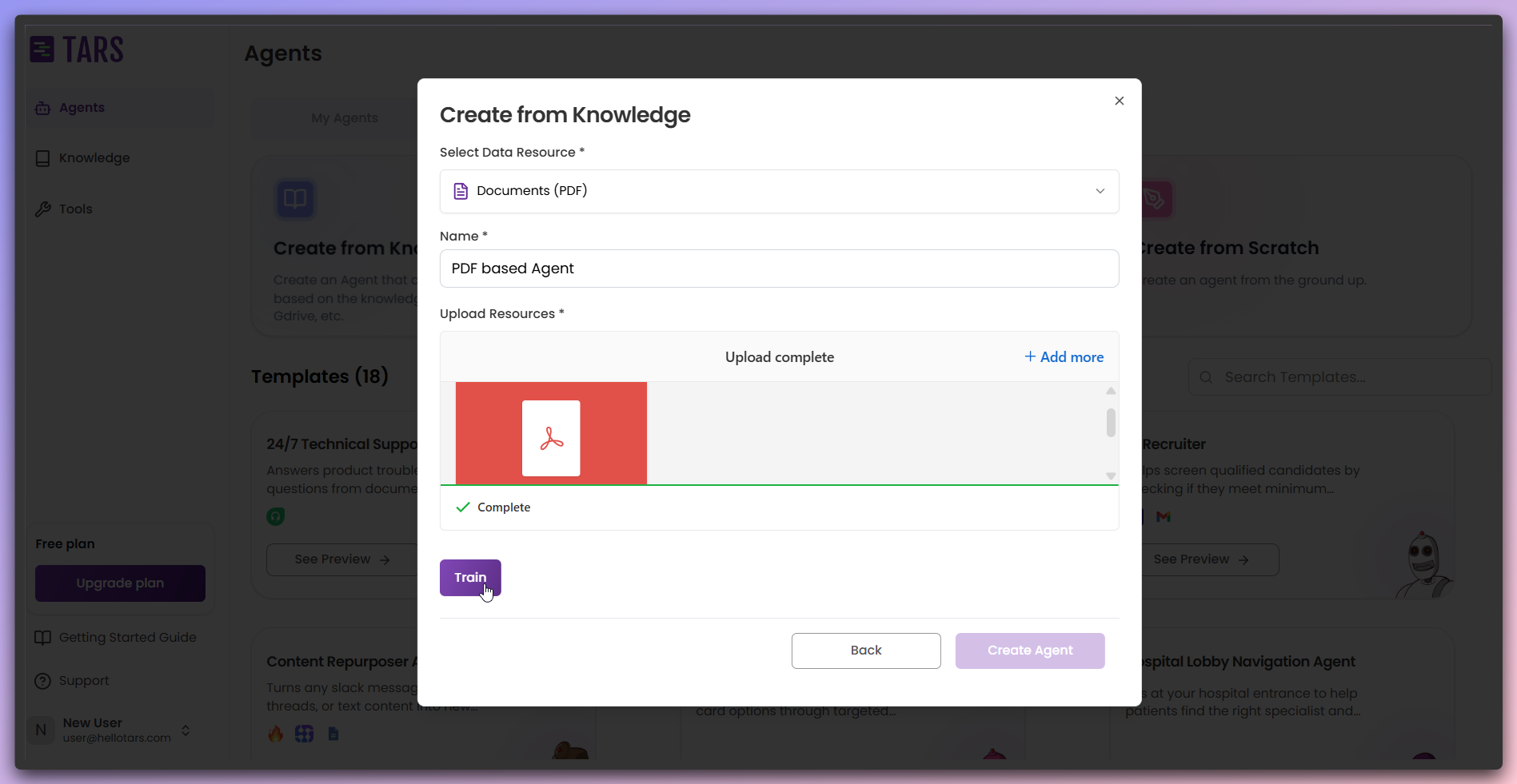 **Content training:** - **Train button**: Click to begin Knowledge Base
training process
All content has been successfully extracted from your PDF documents and is
ready for the training phase.
Watch the real-time training progress as your PDF content is processed and
indexed.
**Content training:** - **Train button**: Click to begin Knowledge Base
training process
All content has been successfully extracted from your PDF documents and is
ready for the training phase.
Watch the real-time training progress as your PDF content is processed and
indexed.
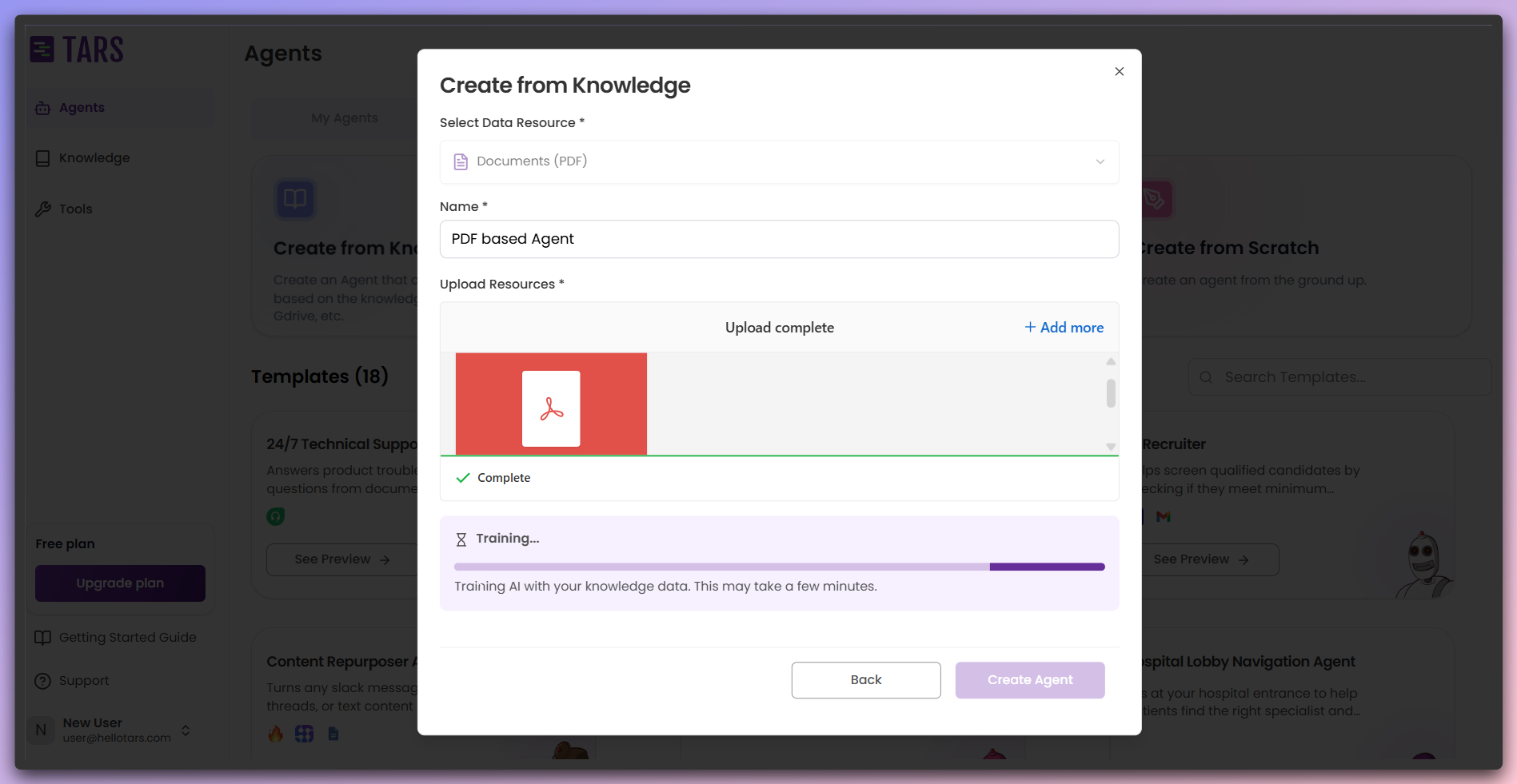 **Training process:** - **Index optimization**: Creates efficient search and
retrieval system - **Quality validation**: Ensures Knowledge Base accuracy and
completeness
Training converts your PDF content into searchable knowledge embeddings that
power AI responses.
After the training process is completed, click the `Create Agent` button to
start building your AI Agent with the pre-configured PDF Knowledge Base.
**Training process:** - **Index optimization**: Creates efficient search and
retrieval system - **Quality validation**: Ensures Knowledge Base accuracy and
completeness
Training converts your PDF content into searchable knowledge embeddings that
power AI responses.
After the training process is completed, click the `Create Agent` button to
start building your AI Agent with the pre-configured PDF Knowledge Base.

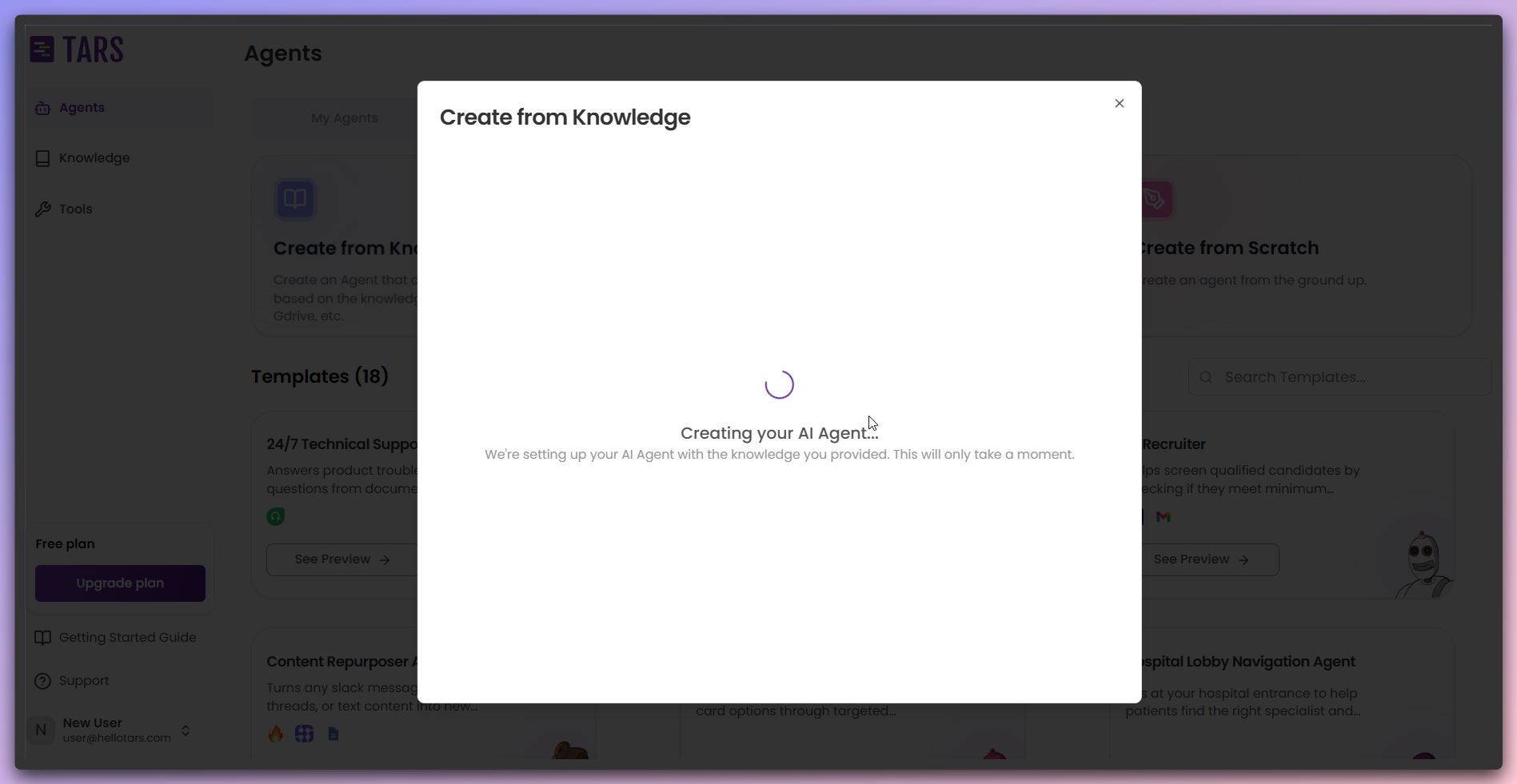 **Agent creation process:** - **Agent initialization**: Begins creating the AI
Agent with the Knowledge Base connection - **Gambit configuration**:
Automatically connects the Knowledge Base gambit - **System integration**:
Sets up the Agent to use PDF content for responses - **Deployment
preparation**: Prepares the Agent for immediate use
The Agent is being created with your PDF Knowledge Base pre-configured for
immediate interaction.
Your AI Agent is now ready, and you can interact with it using the chat
interface.
**Agent creation process:** - **Agent initialization**: Begins creating the AI
Agent with the Knowledge Base connection - **Gambit configuration**:
Automatically connects the Knowledge Base gambit - **System integration**:
Sets up the Agent to use PDF content for responses - **Deployment
preparation**: Prepares the Agent for immediate use
The Agent is being created with your PDF Knowledge Base pre-configured for
immediate interaction.
Your AI Agent is now ready, and you can interact with it using the chat
interface.
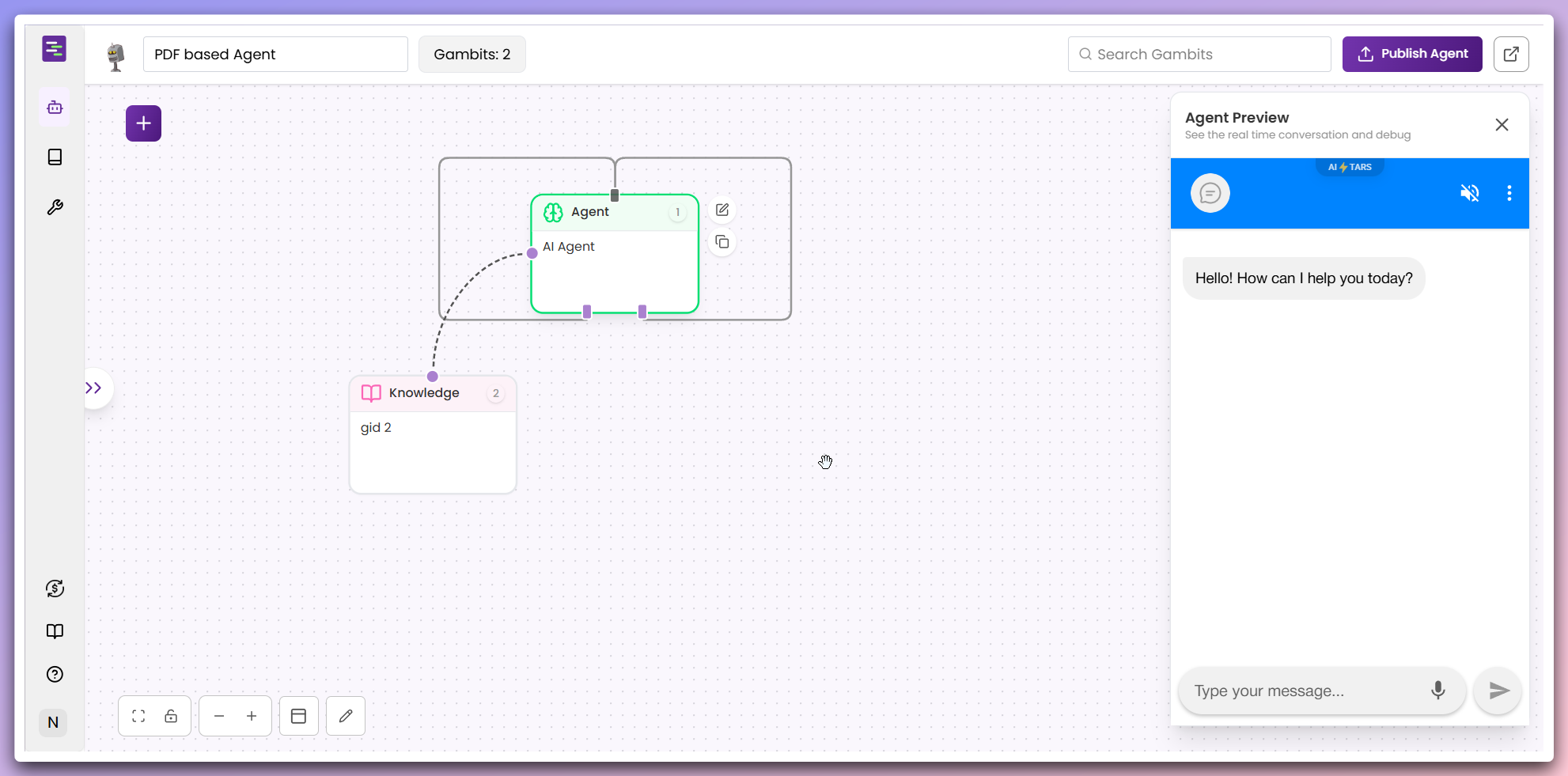 **Agent capabilities:** - **PDF knowledge integration**: Agent can answer
questions based on your PDF content - **Interactive chat**: Use the chat
interface to test Agent responses - **Knowledge base connection**: Agent
automatically references your PDF documents - **Ready for deployment**: Agent
can be deployed to various channels
**Immediate Use**: Your Agent is immediately functional and can answer
questions based on the content extracted from your PDF documents.
**Content Quality**: The effectiveness of your Agent depends on the quality
and organization of your source content. Ensure your PDF documents are
well-structured and comprehensive.
**Content Updates**: If your source PDF documents change significantly,
you may need to retrain your Knowledge Base to ensure the Agent has access to
the latest information.
**Agent capabilities:** - **PDF knowledge integration**: Agent can answer
questions based on your PDF content - **Interactive chat**: Use the chat
interface to test Agent responses - **Knowledge base connection**: Agent
automatically references your PDF documents - **Ready for deployment**: Agent
can be deployed to various channels
**Immediate Use**: Your Agent is immediately functional and can answer
questions based on the content extracted from your PDF documents.
**Content Quality**: The effectiveness of your Agent depends on the quality
and organization of your source content. Ensure your PDF documents are
well-structured and comprehensive.
**Content Updates**: If your source PDF documents change significantly,
you may need to retrain your Knowledge Base to ensure the Agent has access to
the latest information.