> ## Documentation Index
> Fetch the complete documentation index at: https://docs.hellotars.com/llms.txt
> Use this file to discover all available pages before exploring further.
# Create Agent from Website Knowledge
> Build AI Agents that answer questions using website knowledge bases
Create powerful AI Agents that can answer questions and provide information based on website content. This process automatically scrapes, processes, and trains your website content to build a smart assistant.
### What you can do with this
* **Build customer support agents** that answer questions using your help documentation
* **Create internal knowledge assistants** to help employees find information quickly
* **Develop product information bots** that provide detailed specs and features
* **Design training assistants** for interactive learning experiences
* **Ensure compliance** with accurate information delivery for regulatory requirements
### What you get
**Knowledge-powered intelligence**
* **Instant expertise**: Your Agent immediately knows your content and can answer related questions
* **Contextual responses**: Provides accurate answers based on your specific information
* **Content updates**: Automatically stays current as you update your Knowledge Base
* **Source citations**: Can reference specific documents or sections when answering
* **Domain expertise**: Specialized knowledge in your specific field or industry
### Step-by-step creation process
Navigate to the Create Agent page and click on the **Create from Knowledge** card to begin the process.
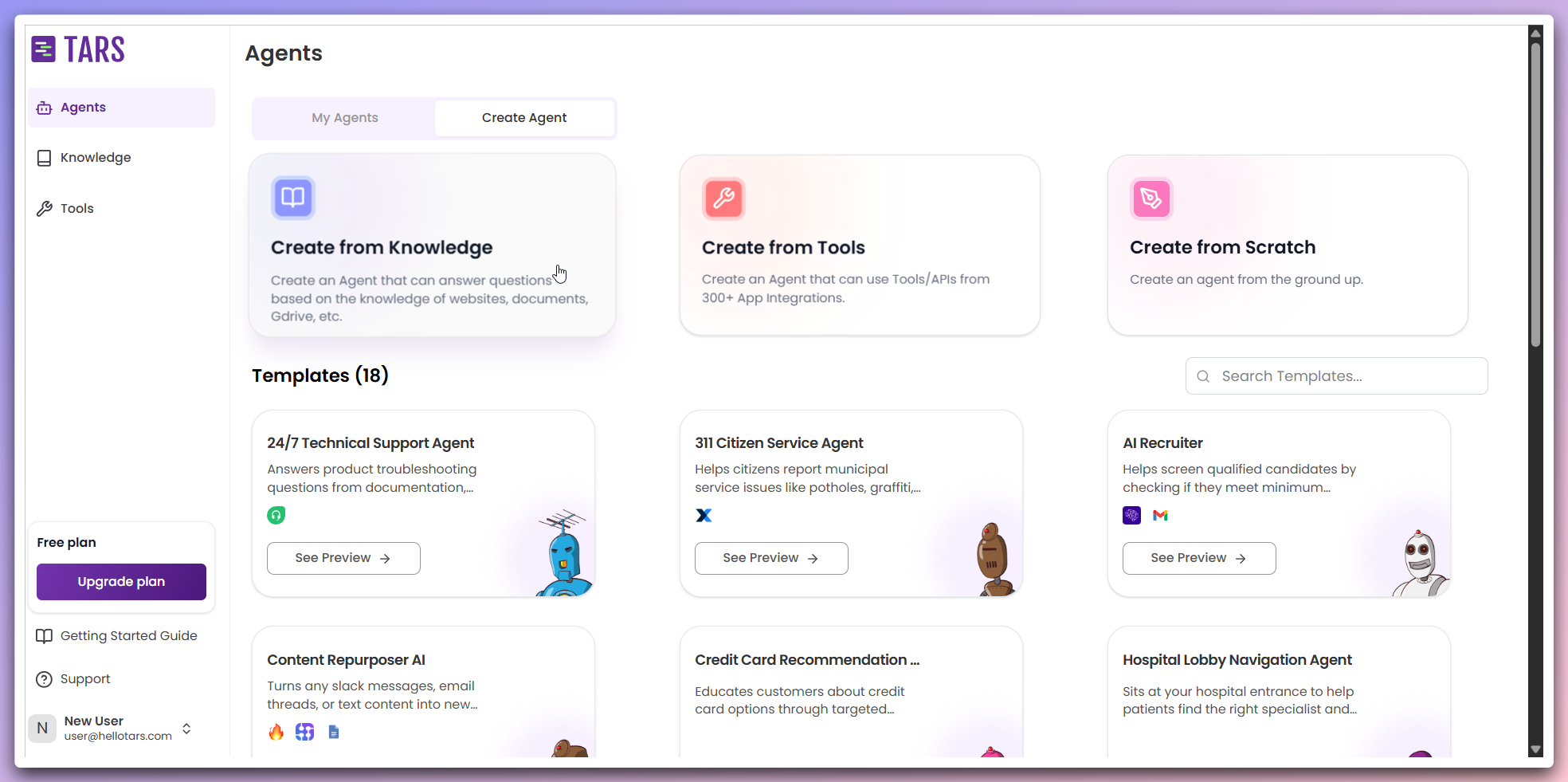 This opens a modal dialog where you can configure your knowledge-powered Agent.
In the modal, select **Website** as the data source for training your Agent's Knowledge Base and customize the Agent's appearance:
This opens a modal dialog where you can configure your knowledge-powered Agent.
In the modal, select **Website** as the data source for training your Agent's Knowledge Base and customize the Agent's appearance:
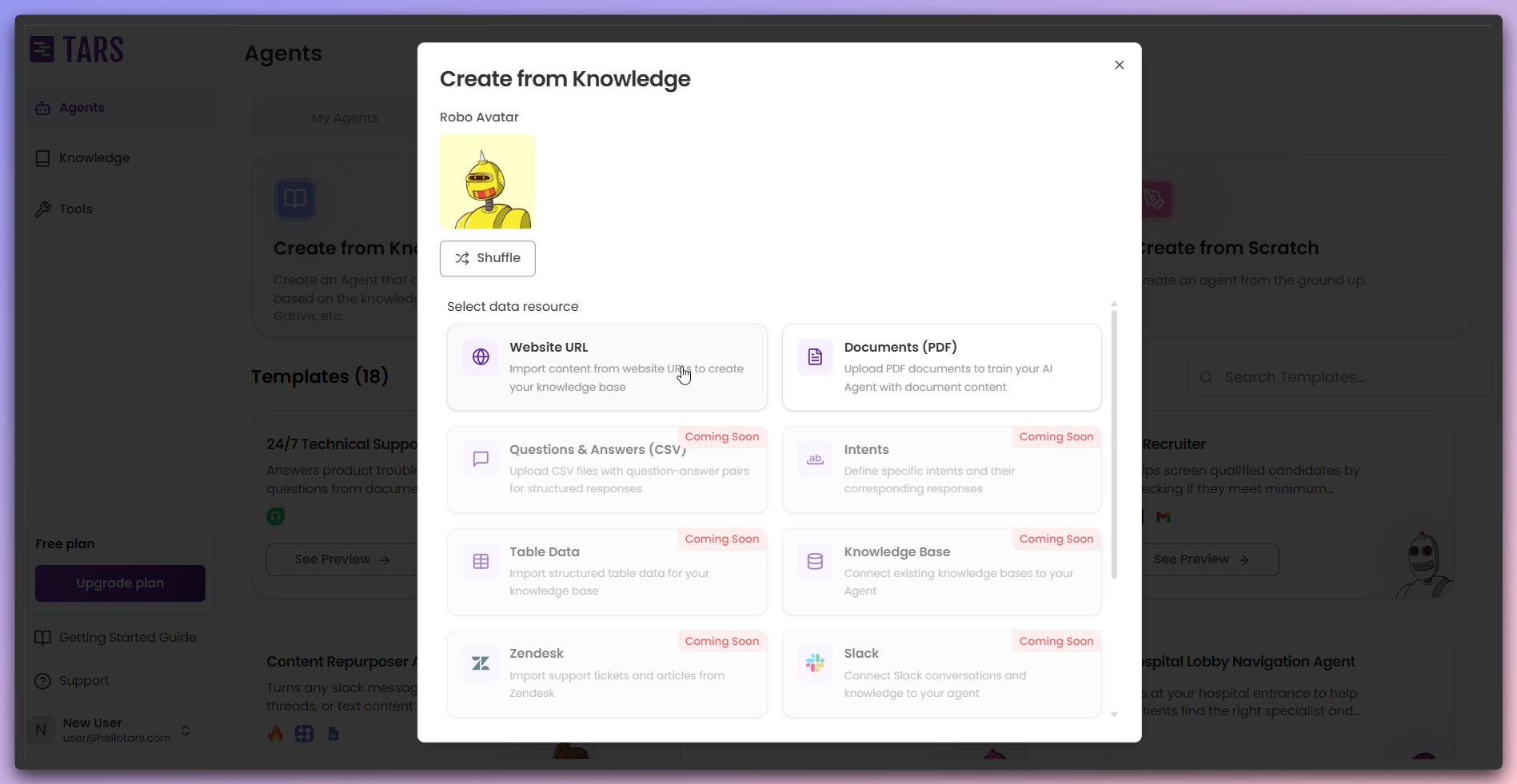 **Customization options:**
* **Data Source**: Choose **Website** to train from web content
* **Agent Icon**: Select or change the icon representing your Agent
You can choose from various data sources and customize your Agent's icon. Additional data source options will be introduced in future updates.
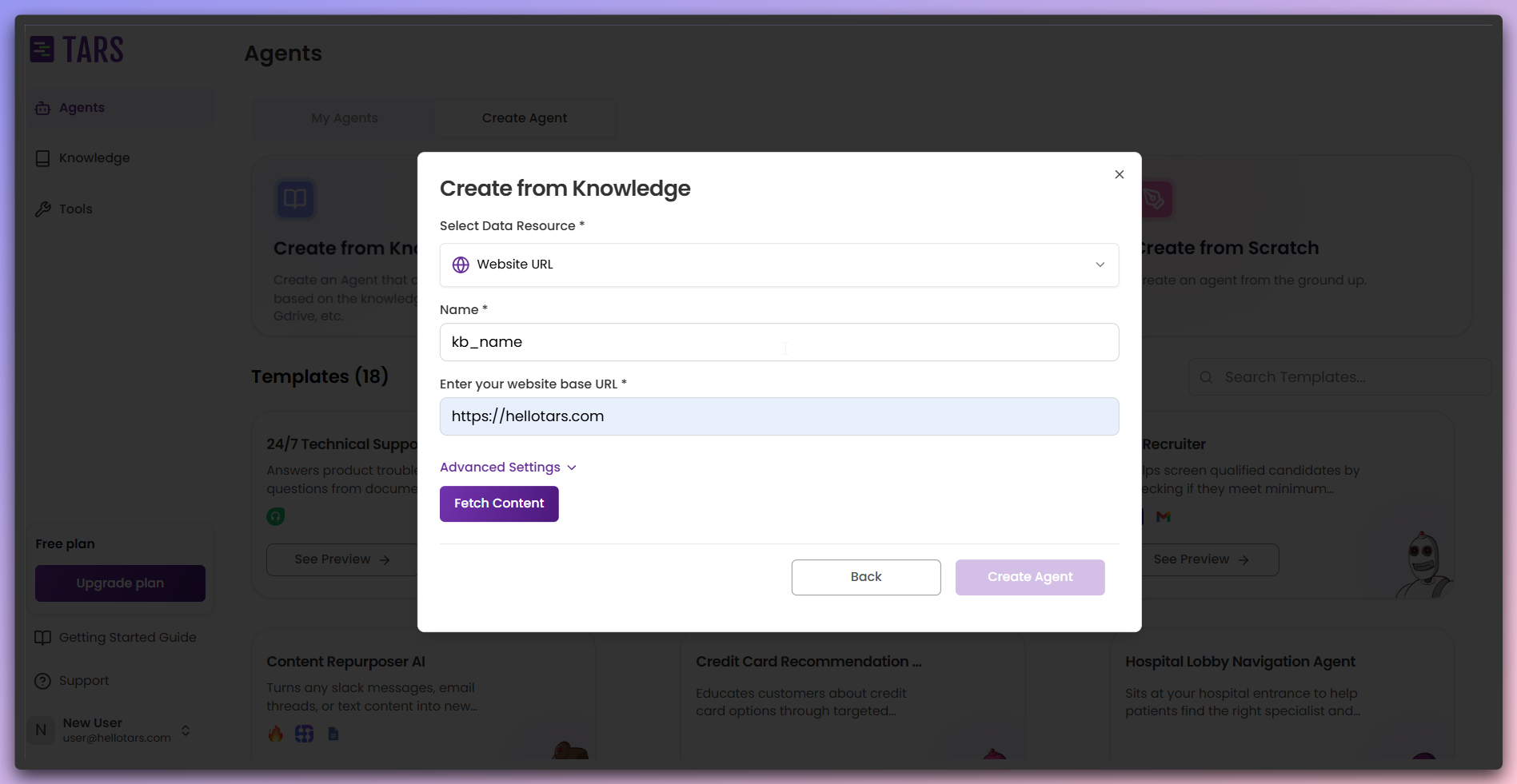
Enter the `Knowledge Base Name` and `Website Base URL`, then configure
advanced scraping settings if needed.
**Customization options:**
* **Data Source**: Choose **Website** to train from web content
* **Agent Icon**: Select or change the icon representing your Agent
You can choose from various data sources and customize your Agent's icon. Additional data source options will be introduced in future updates.
Enter the `Knowledge Base Name` and `Website Base URL`, then configure
advanced scraping settings if needed.
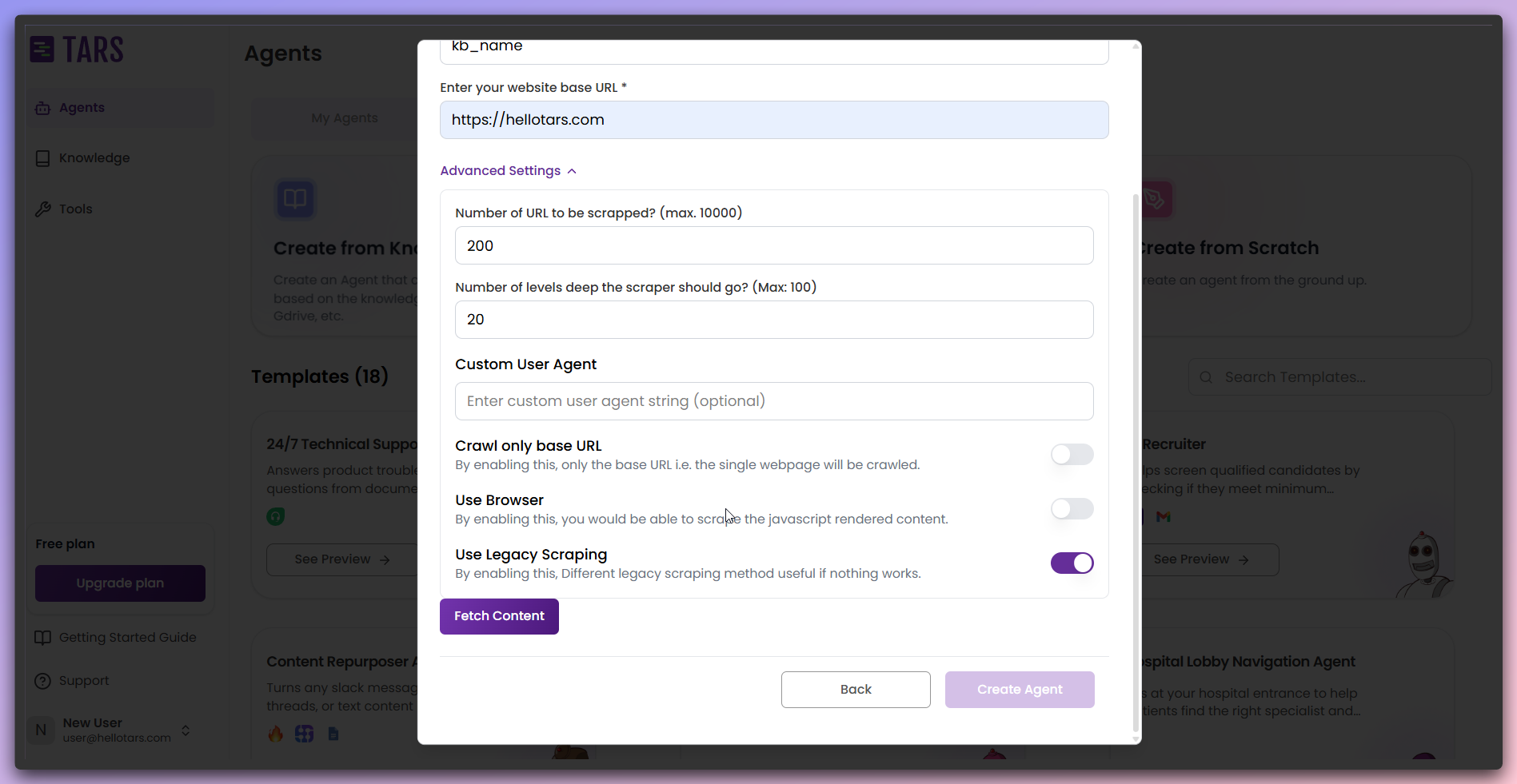 **Advanced configuration options:** - **Number of URLs to scrape**: Set the
maximum number of URLs to crawl (default: 200, maximum: 10,000) - **Number
of levels deep**: Define how deep the scraper should go into the website structure
(default: 20, maximum: 100) - **Custom user Agent**: Optional custom user Agent
string for web requests - **Crawl using only base URLs**: Ensures crawling
goes only one level deep, ignoring the depth setting - **Use browser**: Enable
browser-rendered content in the background instead of raw HTML for dynamic
content - **Use legacy scraper**: Choose between Scrapy (legacy) and Crawl4AI
(non-legacy) scraping engines
**Optimal Settings**: For most websites, the default settings (200 URLs, 20
levels deep) work well. Use the browser option for JavaScript-heavy sites,
and choose legacy scraper if you encounter compatibility issues with the
modern Crawl4AI engine.
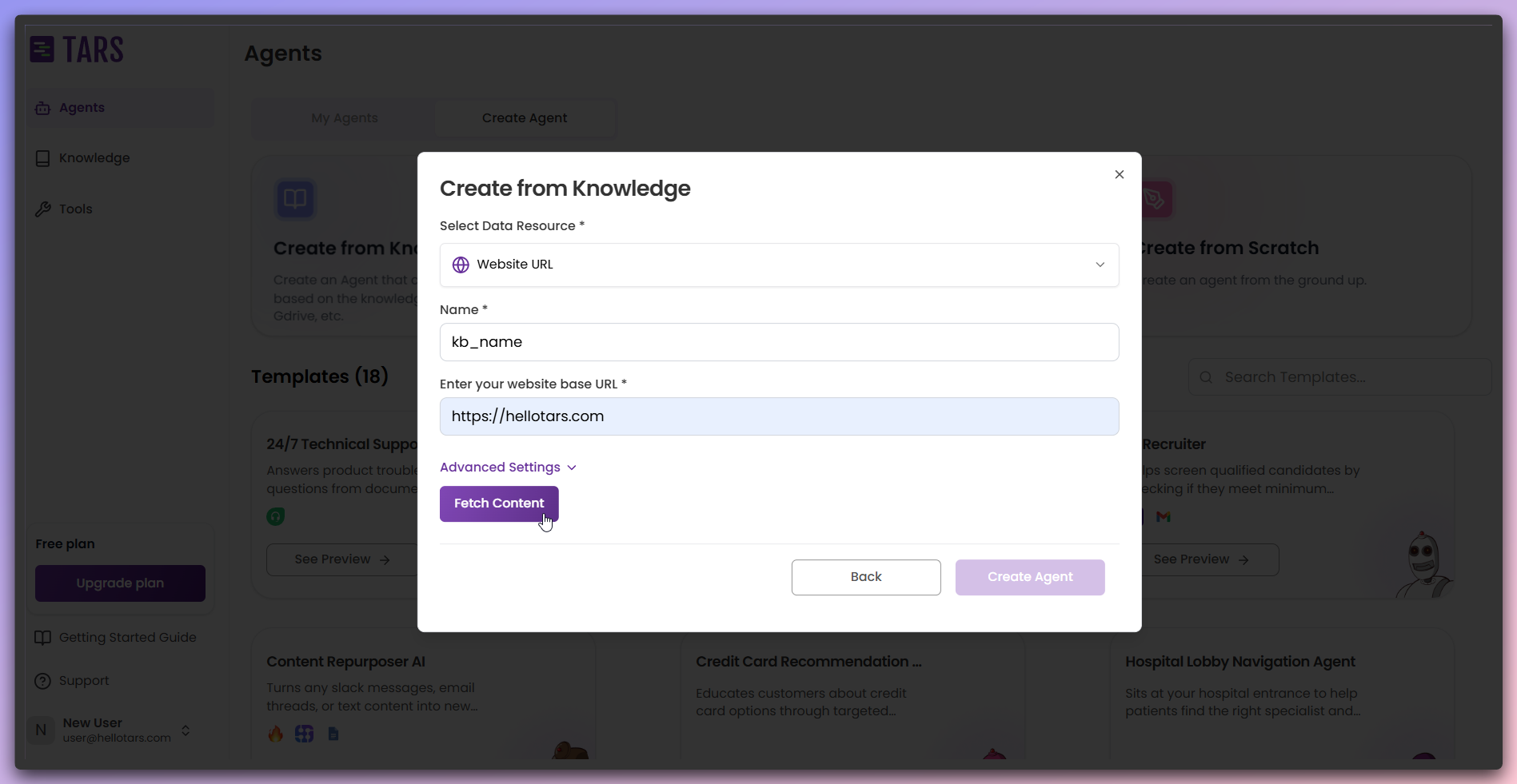
Click the `Fetch Links` button to begin the web scraping process.
**Advanced configuration options:** - **Number of URLs to scrape**: Set the
maximum number of URLs to crawl (default: 200, maximum: 10,000) - **Number
of levels deep**: Define how deep the scraper should go into the website structure
(default: 20, maximum: 100) - **Custom user Agent**: Optional custom user Agent
string for web requests - **Crawl using only base URLs**: Ensures crawling
goes only one level deep, ignoring the depth setting - **Use browser**: Enable
browser-rendered content in the background instead of raw HTML for dynamic
content - **Use legacy scraper**: Choose between Scrapy (legacy) and Crawl4AI
(non-legacy) scraping engines
**Optimal Settings**: For most websites, the default settings (200 URLs, 20
levels deep) work well. Use the browser option for JavaScript-heavy sites,
and choose legacy scraper if you encounter compatibility issues with the
modern Crawl4AI engine.
Click the `Fetch Links` button to begin the web scraping process.
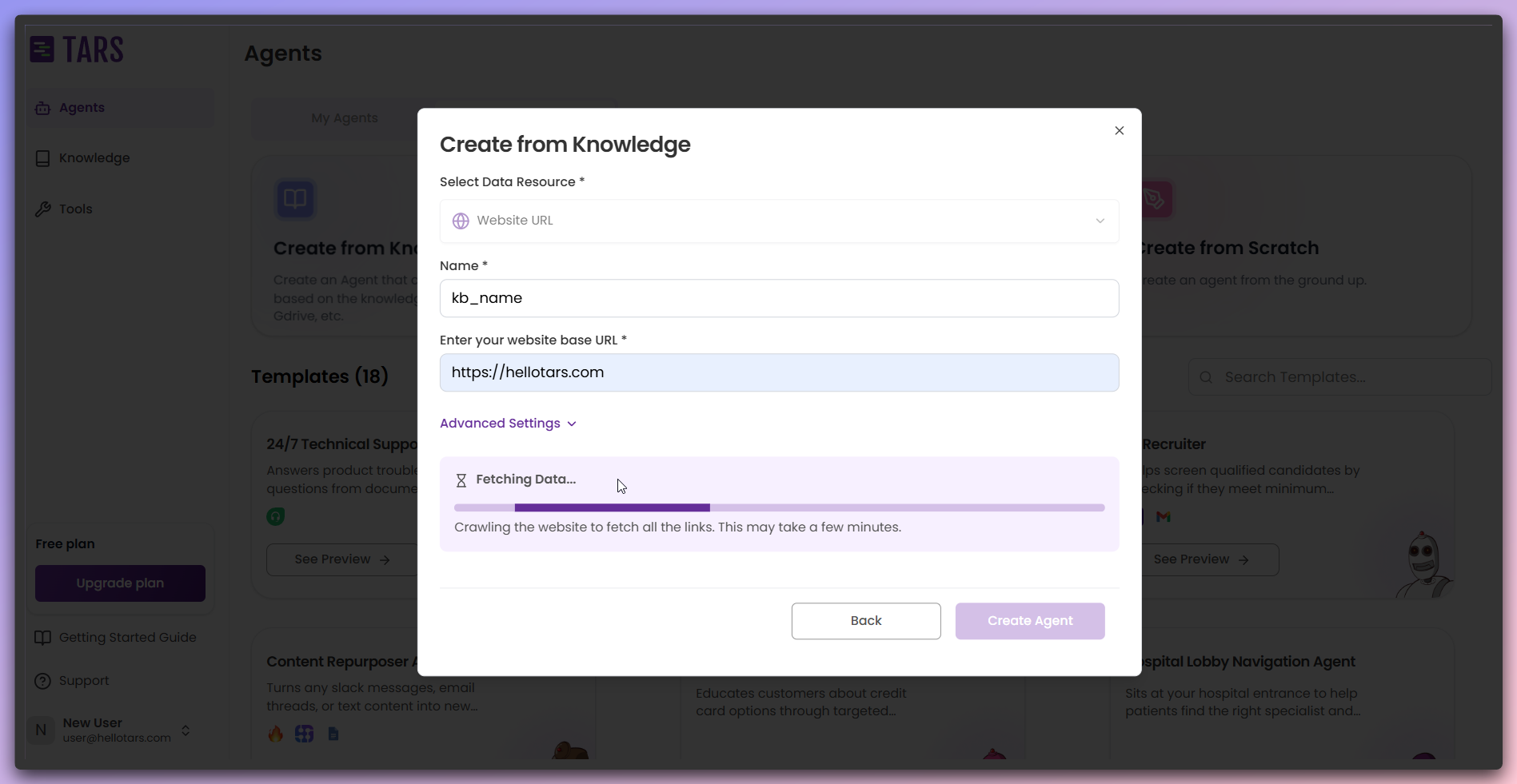 **Scraping process:** - **Content discovery**: System discovers and crawls web
pages, extracting content from each page - **Data processing**: Cleans and
organizes extracted content for optimal training preparation
The fetching process may take several minutes depending on the size of your
website and the number of pages to scrape.
After content is successfully fetched, click `Train` to process and train your
Knowledge Base.
**Scraping process:** - **Content discovery**: System discovers and crawls web
pages, extracting content from each page - **Data processing**: Cleans and
organizes extracted content for optimal training preparation
The fetching process may take several minutes depending on the size of your
website and the number of pages to scrape.
After content is successfully fetched, click `Train` to process and train your
Knowledge Base.
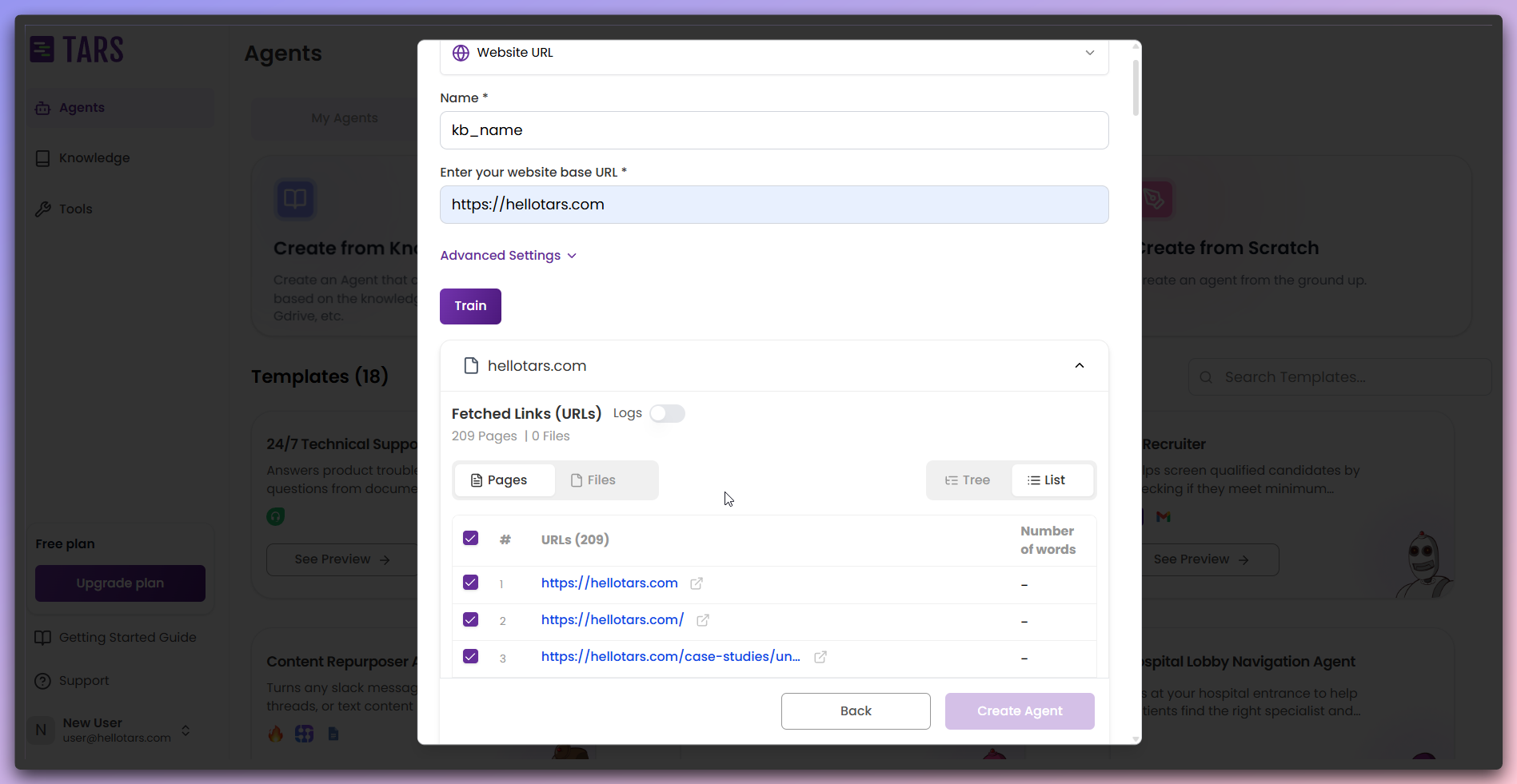 **Page selection options:** - Select the pages you want to train - Deselect
the pages you don't need - View metadata about the number of words fetched
for each page
**Page selection options:** - Select the pages you want to train - Deselect
the pages you don't need - View metadata about the number of words fetched
for each page
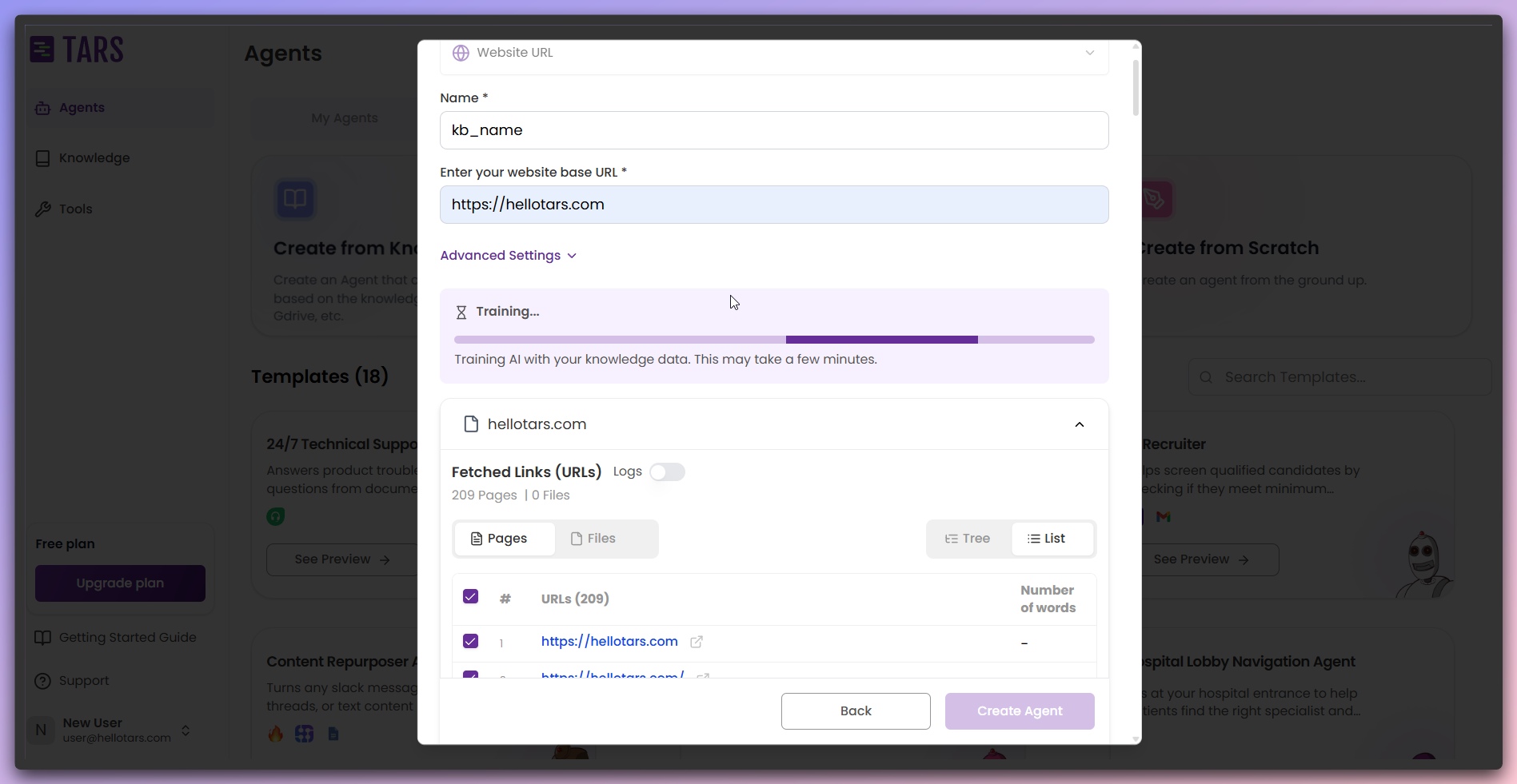 Monitor the training progress as the system: - Processes and indexes the scraped
content - Creates searchable knowledge embeddings - Optimizes the content for
AI understanding - Shows detailed training logs and progress
Monitor the training progress as the system: - Processes and indexes the scraped
content - Creates searchable knowledge embeddings - Optimizes the content for
AI understanding - Shows detailed training logs and progress
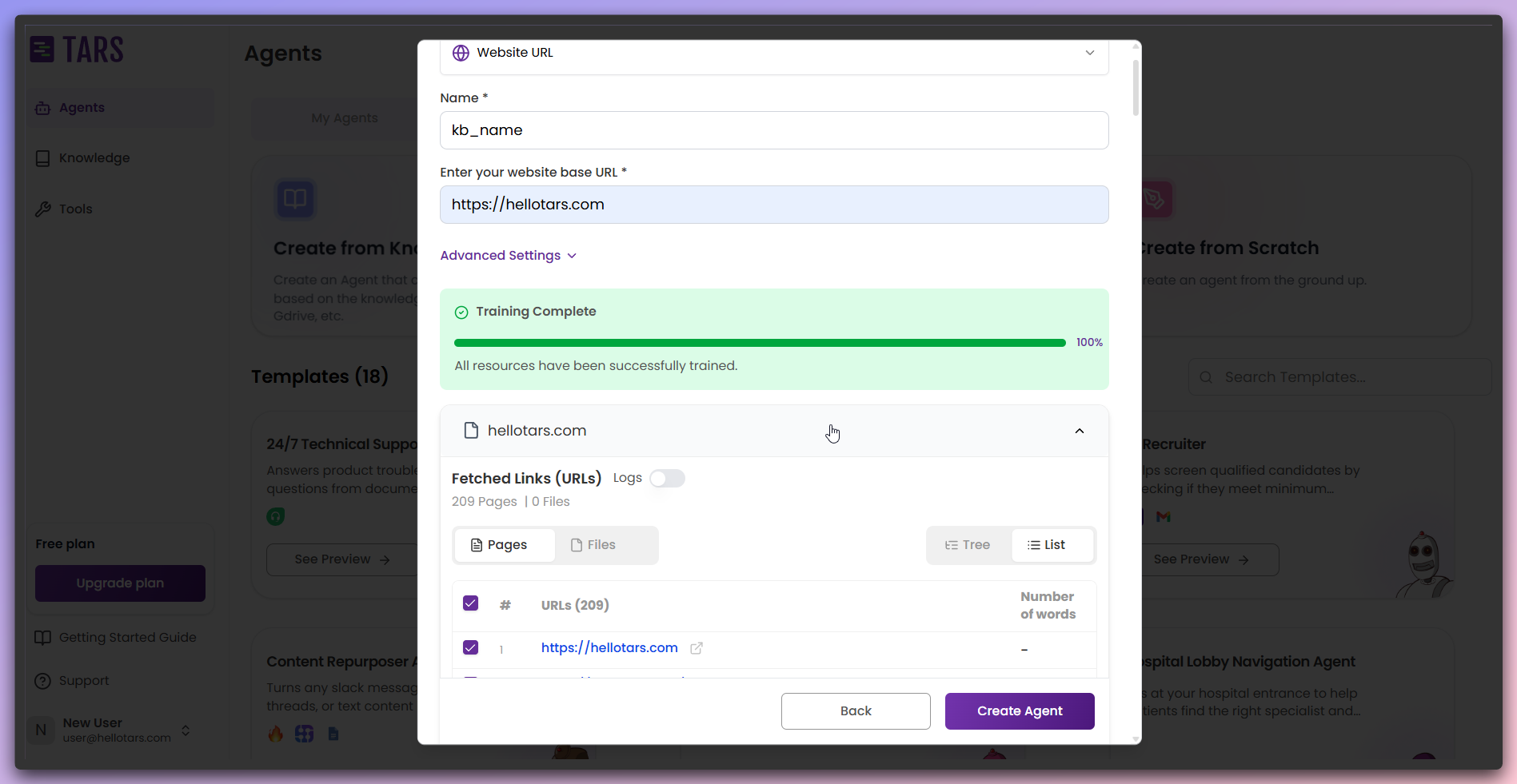 **Training completed:** - View the content that has been trained in the knowledge
base - See the pages and content the Agent now has knowledge of - Training
is complete and ready for Agent creation
**Training process:** - **Vector storage**: Content is converted to vector
embeddings and stored in vector databases for fast retrieval - **Index
optimization**: Creates efficient search and retrieval system for AI responses
Your knowledge-powered Agent is now ready!
**Training completed:** - View the content that has been trained in the knowledge
base - See the pages and content the Agent now has knowledge of - Training
is complete and ready for Agent creation
**Training process:** - **Vector storage**: Content is converted to vector
embeddings and stored in vector databases for fast retrieval - **Index
optimization**: Creates efficient search and retrieval system for AI responses
Your knowledge-powered Agent is now ready!
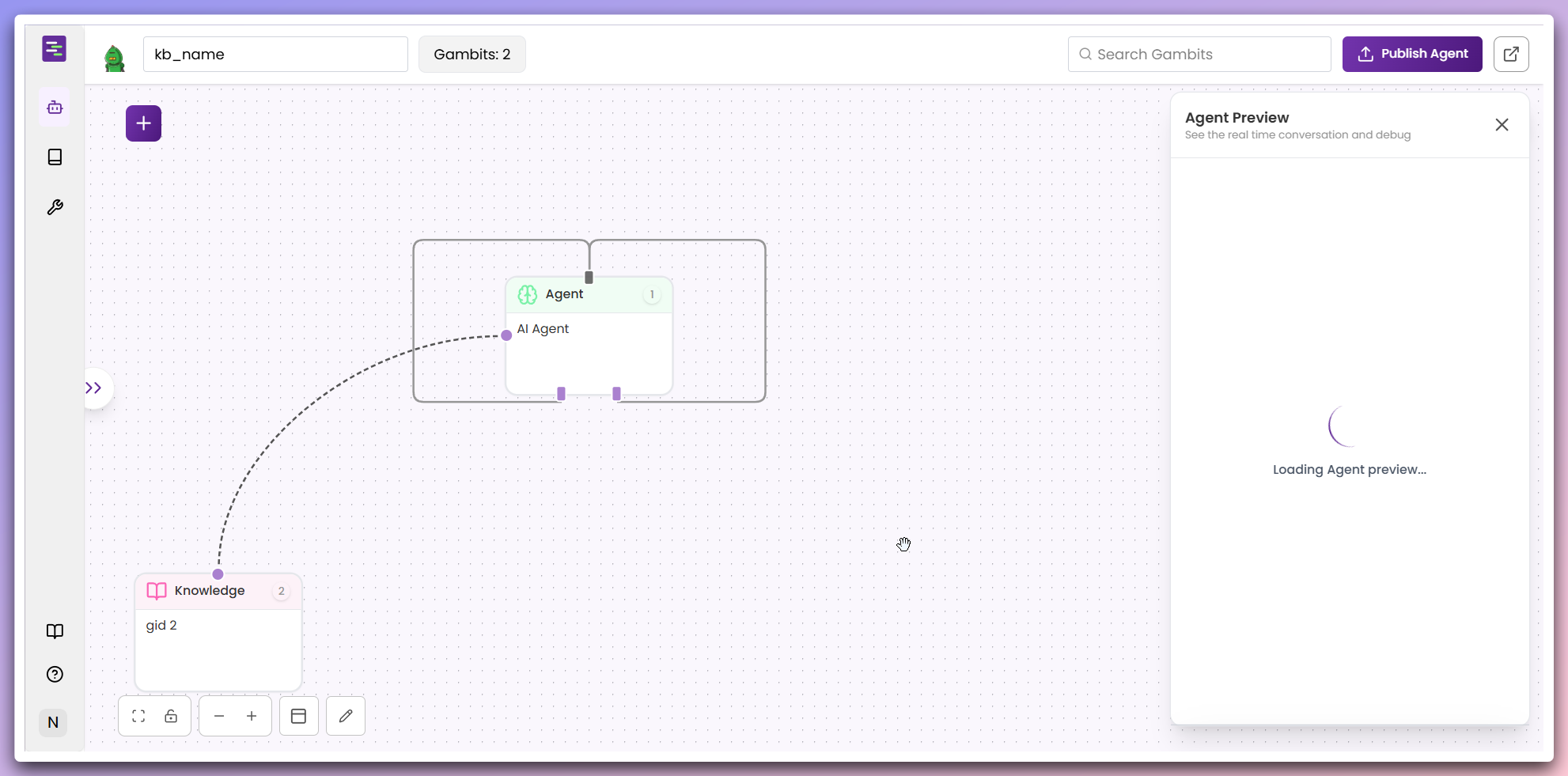 **What happens automatically:** - **Agent creation**: Agent is created with
your specified name and Knowledge Base gambit connected - **Ready to use**:
Agent can immediately answer questions based on your website content
**Content Quality**: The effectiveness of your Agent depends on the quality
and organization of your source content. Ensure your website is
well-structured and comprehensive.
**Content Updates**: If your source website changes significantly,
you may need to retrain your Knowledge Base to ensure the Agent has access to
the latest information.
**What happens automatically:** - **Agent creation**: Agent is created with
your specified name and Knowledge Base gambit connected - **Ready to use**:
Agent can immediately answer questions based on your website content
**Content Quality**: The effectiveness of your Agent depends on the quality
and organization of your source content. Ensure your website is
well-structured and comprehensive.
**Content Updates**: If your source website changes significantly,
you may need to retrain your Knowledge Base to ensure the Agent has access to
the latest information.