> ## Documentation Index
> Fetch the complete documentation index at: https://docs.hellotars.com/llms.txt
> Use this file to discover all available pages before exploring further.
# Create from Scratch
> Build custom AI Agents with full control over behavior and workflows
Creating an Agent from scratch gives you complete control over every aspect of your AI Agent's behavior, personality, and capabilities. This approach uses the visual builder to design custom conversation flows and configure advanced settings.
### What you get
**Complete customization control**
* **Custom personality**: Define your Agent's tone, style, and communication approach
* **Flexible workflow**: Design conversation flows that match your specific use case
* **Custom responses**: Craft unique responses for different scenarios
* **Integration flexibility**: Connect any tools or knowledge bases you need
* **Brand alignment**: Ensure your Agent perfectly represents your brand voice
### Perfect for
* **Unique use cases**: When you have specific requirements not covered by templates
* **Brand-specific agents**: When you need complete control over personality and tone
* **Complex workflows**: When you need sophisticated conversation logic
* **Custom integrations**: When you need to connect specific tools or systems
* **Learning purposes**: When you want to understand how agents work from the ground up
### Step-by-step creation process
Navigate to the Create Agent page and click on the `Create from Scratch` card to begin the process.
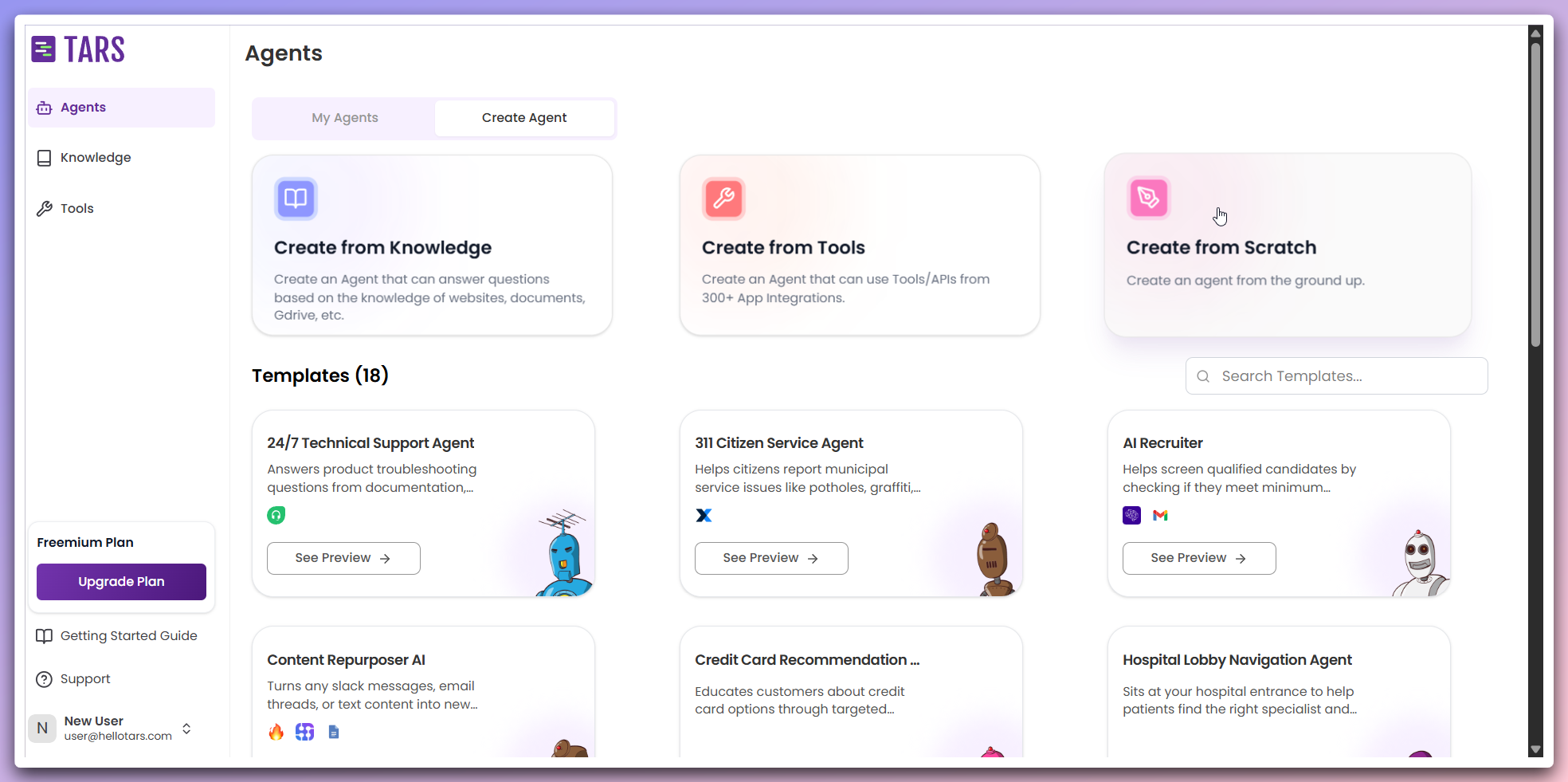 This opens a modal dialog where you can configure your custom Agent.
In the modal, provide the essential information for your Agent:
This opens a modal dialog where you can configure your custom Agent.
In the modal, provide the essential information for your Agent:
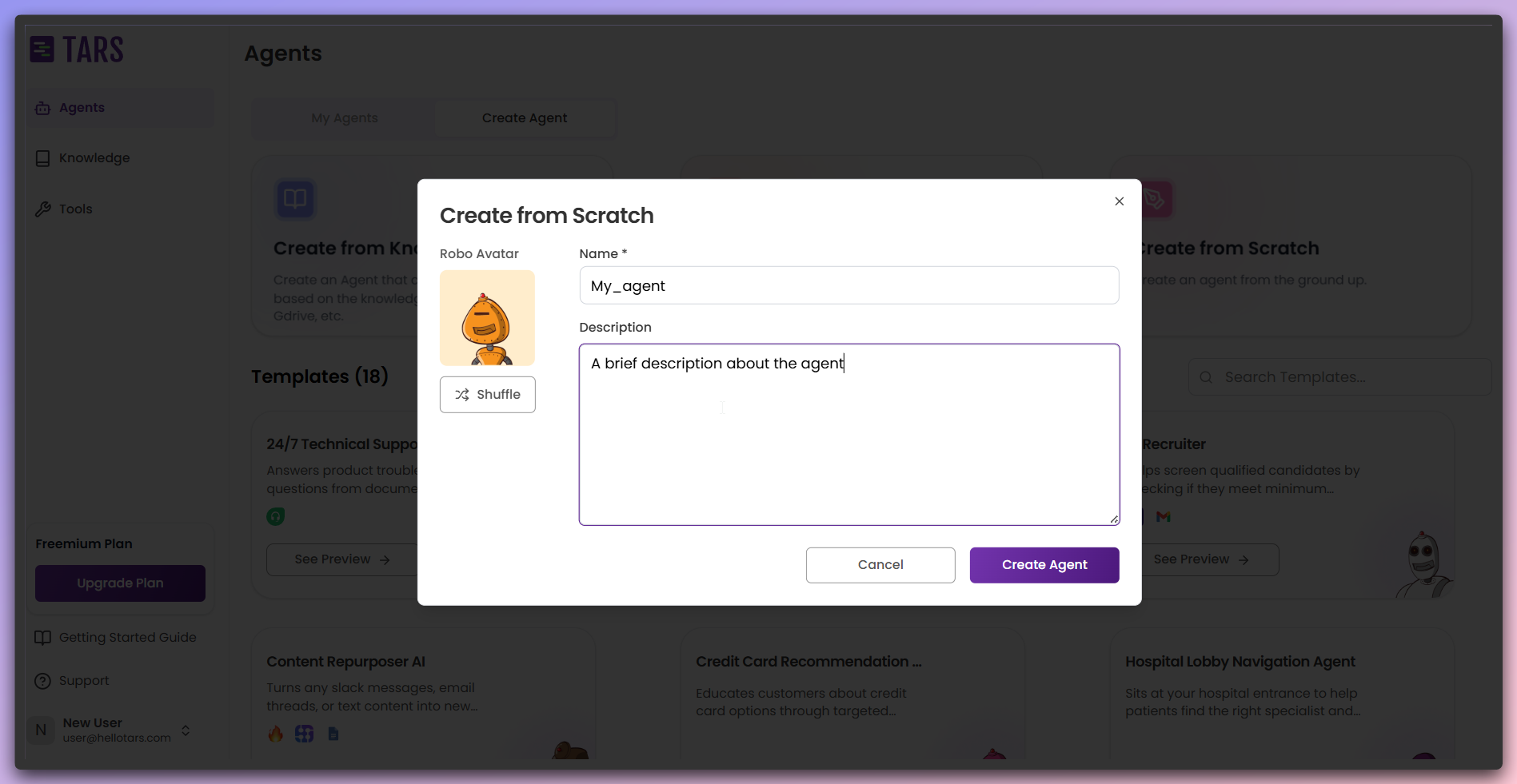 **Required fields:**
* **Agent Name**: Enter a descriptive name for your Agent.
* **Description**: Provide a brief description of your Agent's purpose.
* **Icon**: Click the `shuffle` button to cycle through available icons or keep the default.
Choose a name and description that clearly communicate your Agent's purpose
to users.
Once configured, click `Create Agent` to proceed to the builder canvas.
After clicking Create Agent, you'll be redirected to the Make section's
builder canvas.
**Required fields:**
* **Agent Name**: Enter a descriptive name for your Agent.
* **Description**: Provide a brief description of your Agent's purpose.
* **Icon**: Click the `shuffle` button to cycle through available icons or keep the default.
Choose a name and description that clearly communicate your Agent's purpose
to users.
Once configured, click `Create Agent` to proceed to the builder canvas.
After clicking Create Agent, you'll be redirected to the Make section's
builder canvas.
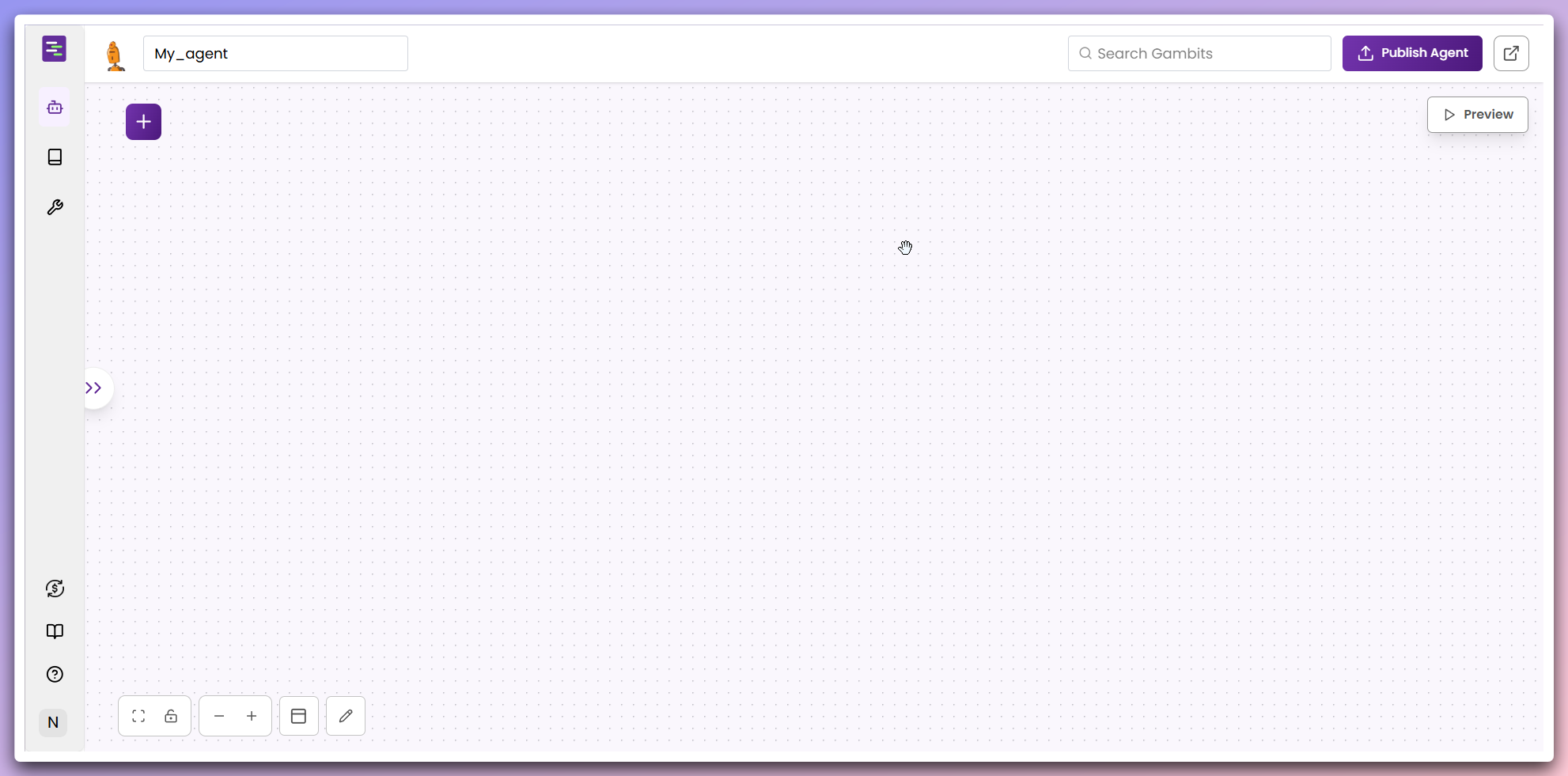 The builder canvas provides a visual interface for designing your Agent's
conversation flow.
Click the `+ (plus)` icon in the top-left corner of the builder canvas to open
the gambits panel.
The builder canvas provides a visual interface for designing your Agent's
conversation flow.
Click the `+ (plus)` icon in the top-left corner of the builder canvas to open
the gambits panel.
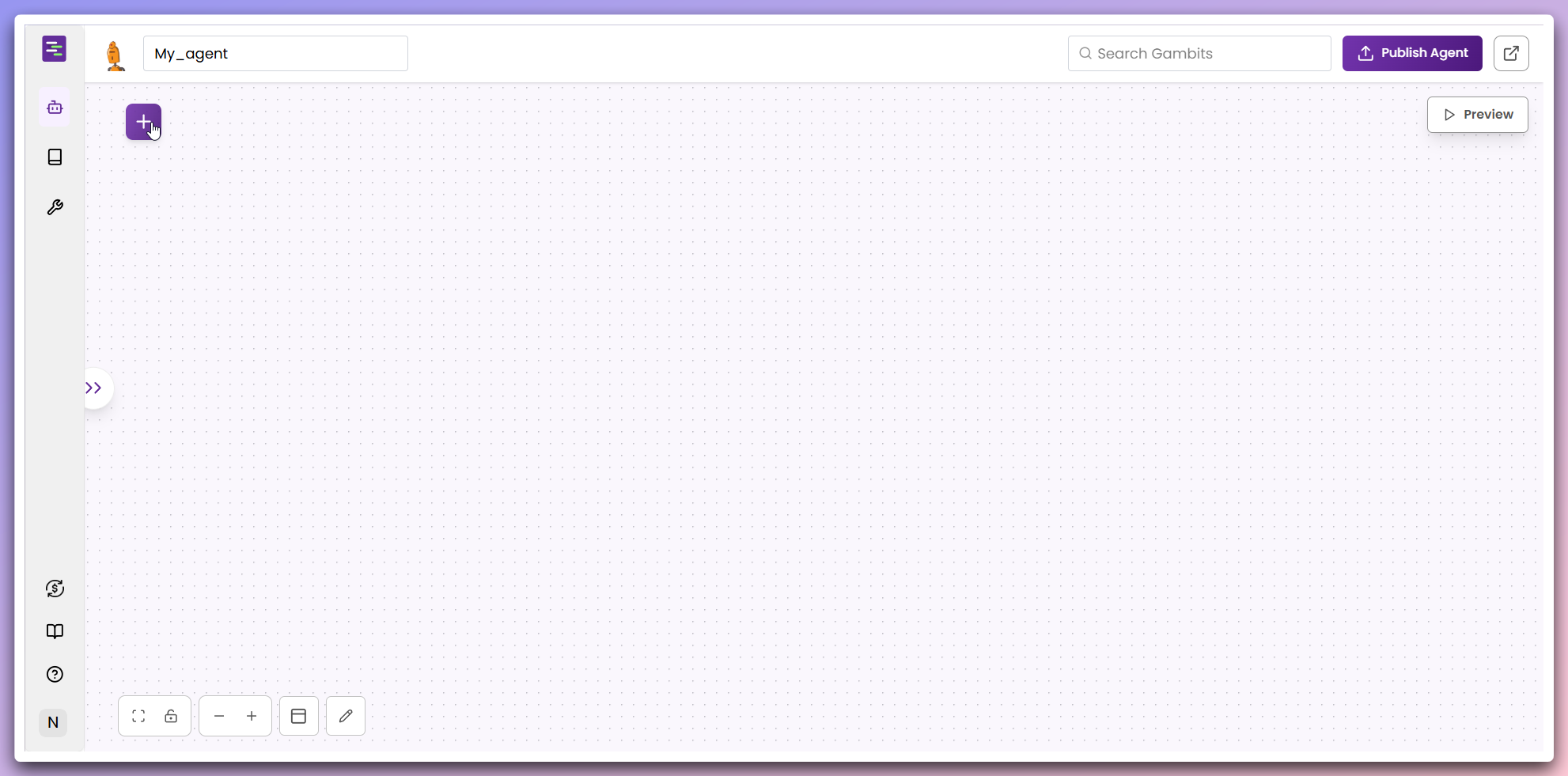 This opens a panel containing all available gambits for building your
Agent's workflow.
In the gambits panel, you'll see various gambit types. For a simple Agent
flow, select the `Agent gambit`.
This opens a panel containing all available gambits for building your
Agent's workflow.
In the gambits panel, you'll see various gambit types. For a simple Agent
flow, select the `Agent gambit`.
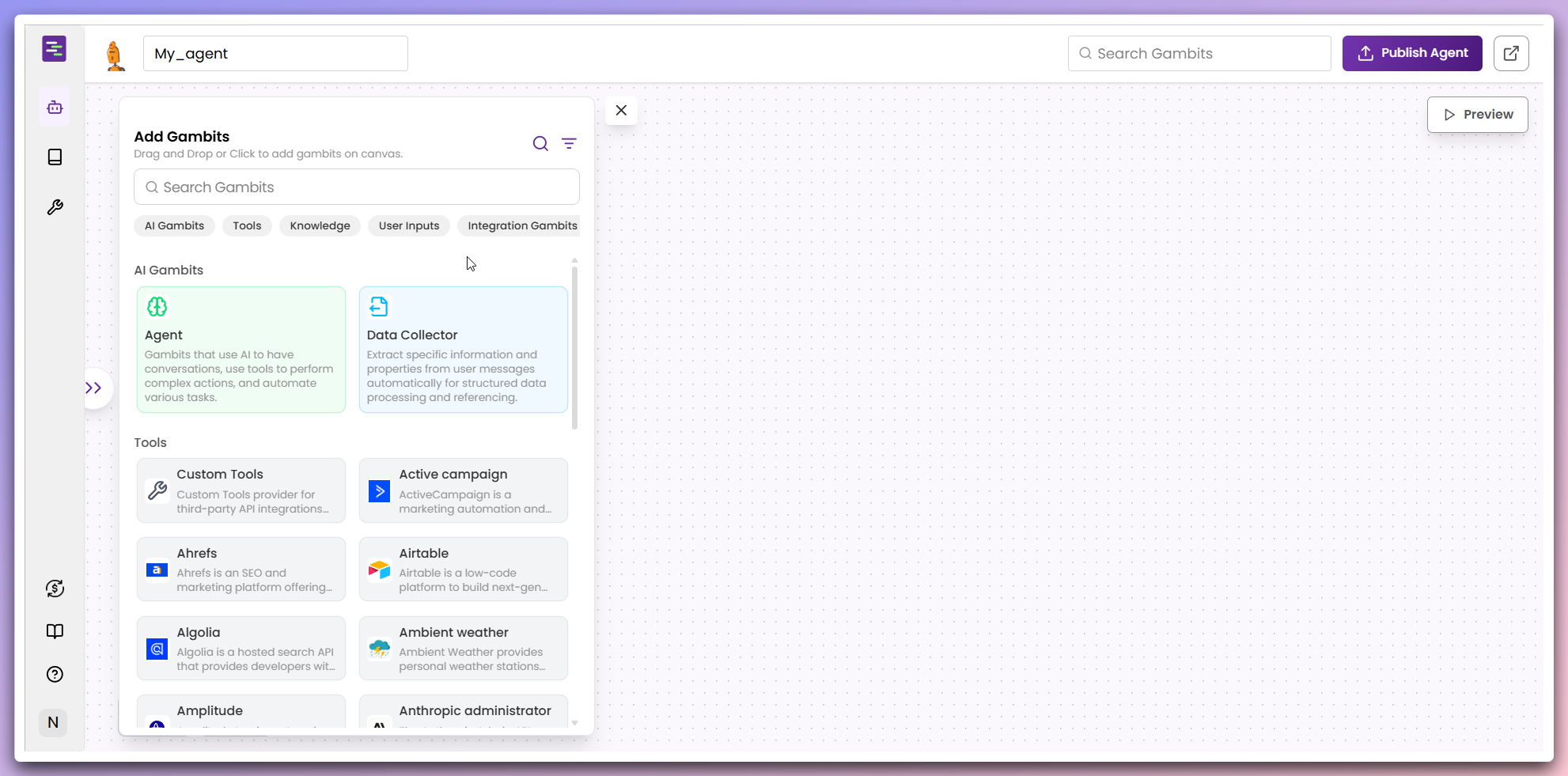 **Available gambit types:**
* `Agent gambit`: Core conversation logic and AI behavior
* `Integration gambit`: Connect external services and APIs
* `Tool gambit`: Add specific functionality and actions
* `Knowledge gambit`: Connect to knowledge bases and information retrieval
* `User input gambit`: Handle user interactions and data collection
You can either:
* **Click** the `Agent gambit` to add it to the canvas
* **Drag** the `Agent gambit` from the panel to your desired location on the canvas
**Available gambit types:**
* `Agent gambit`: Core conversation logic and AI behavior
* `Integration gambit`: Connect external services and APIs
* `Tool gambit`: Add specific functionality and actions
* `Knowledge gambit`: Connect to knowledge bases and information retrieval
* `User input gambit`: Handle user interactions and data collection
You can either:
* **Click** the `Agent gambit` to add it to the canvas
* **Drag** the `Agent gambit` from the panel to your desired location on the canvas

 The Agent gambit is now added to your workflow canvas and ready for configuration.
Click on the Agent gambit in your canvas to open the configuration modal.
The Agent gambit is now added to your workflow canvas and ready for configuration.
Click on the Agent gambit in your canvas to open the configuration modal.

 **Configuration options include:**
* **Welcome Message**: Define how your Agent greets users.
* **Prompt**: Set the core instructions and personality for your Agent.
* **LLM Model**: Choose the language model that powers your Agent.
* **Advanced Settings**: Configure chat history, temperature, markdown support, and more.
**Advanced Configuration**: For more information about Agent gambit configuration [visit here](//build-agent#create-your-ai-agent).
**Quick Start**: You can use the default settings to get started quickly and customize your Agent later as needed.
Once you've configured your Agent, click the `Publish` button in the top-right
corner of the builder canvas.
**Configuration options include:**
* **Welcome Message**: Define how your Agent greets users.
* **Prompt**: Set the core instructions and personality for your Agent.
* **LLM Model**: Choose the language model that powers your Agent.
* **Advanced Settings**: Configure chat history, temperature, markdown support, and more.
**Advanced Configuration**: For more information about Agent gambit configuration [visit here](//build-agent#create-your-ai-agent).
**Quick Start**: You can use the default settings to get started quickly and customize your Agent later as needed.
Once you've configured your Agent, click the `Publish` button in the top-right
corner of the builder canvas.
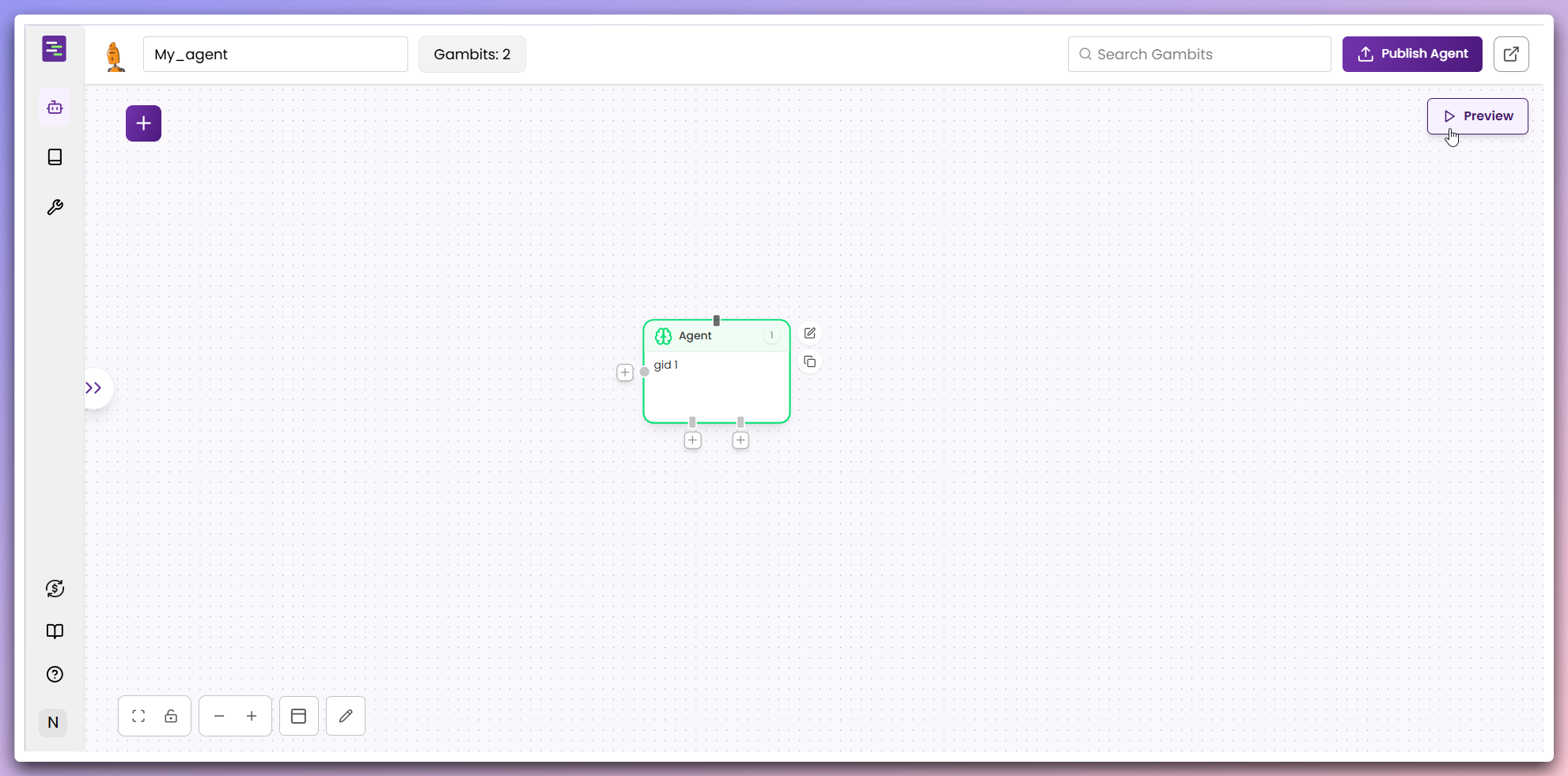
 Publishing makes your Agent live and ready for user interactions.
Click the `Preview` button to open the chatbot window on the right side of the builder canvas.
Publishing makes your Agent live and ready for user interactions.
Click the `Preview` button to open the chatbot window on the right side of the builder canvas.
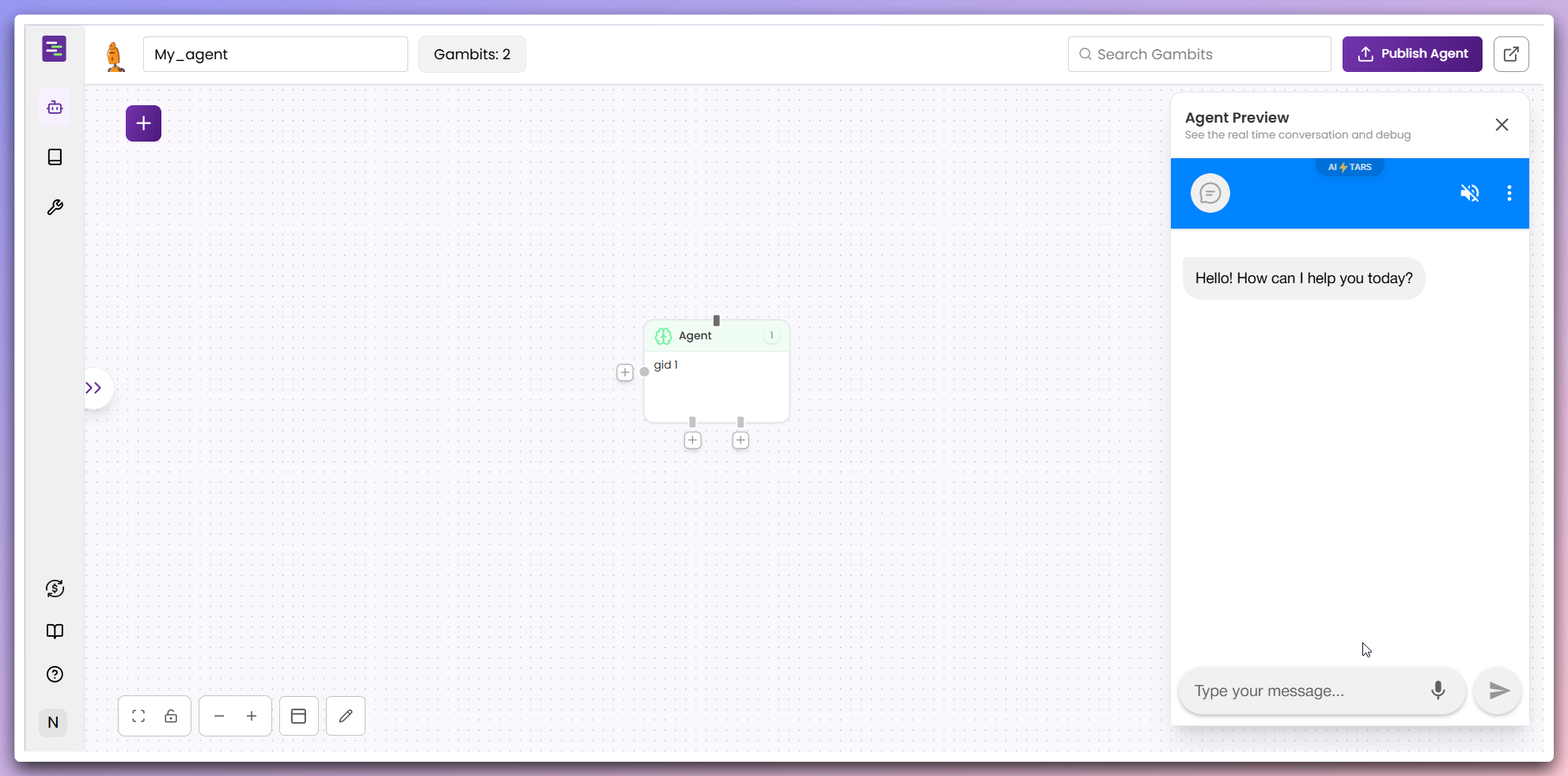 Click the `Launch` button to open your Agent in a new browser tab.
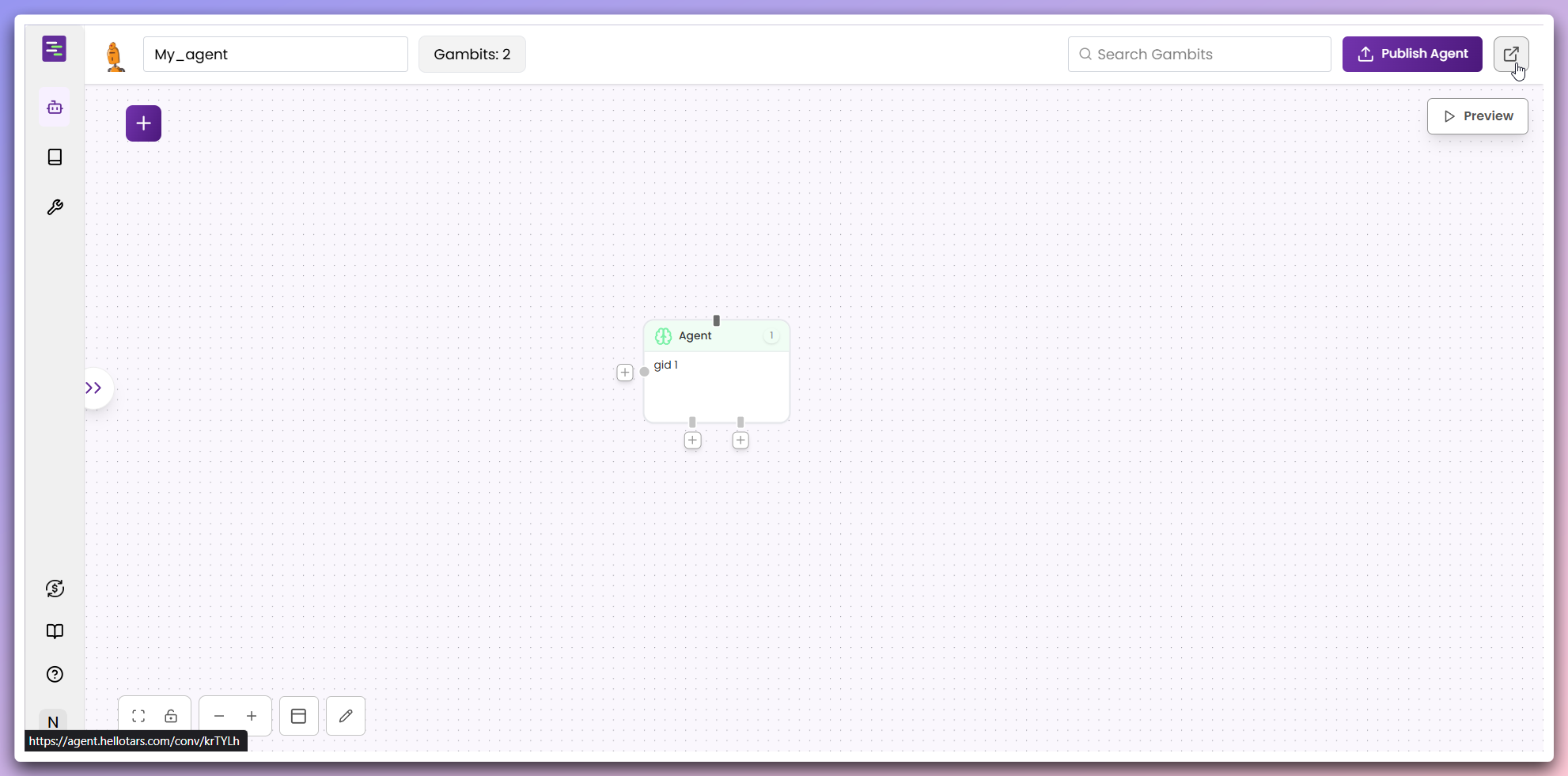
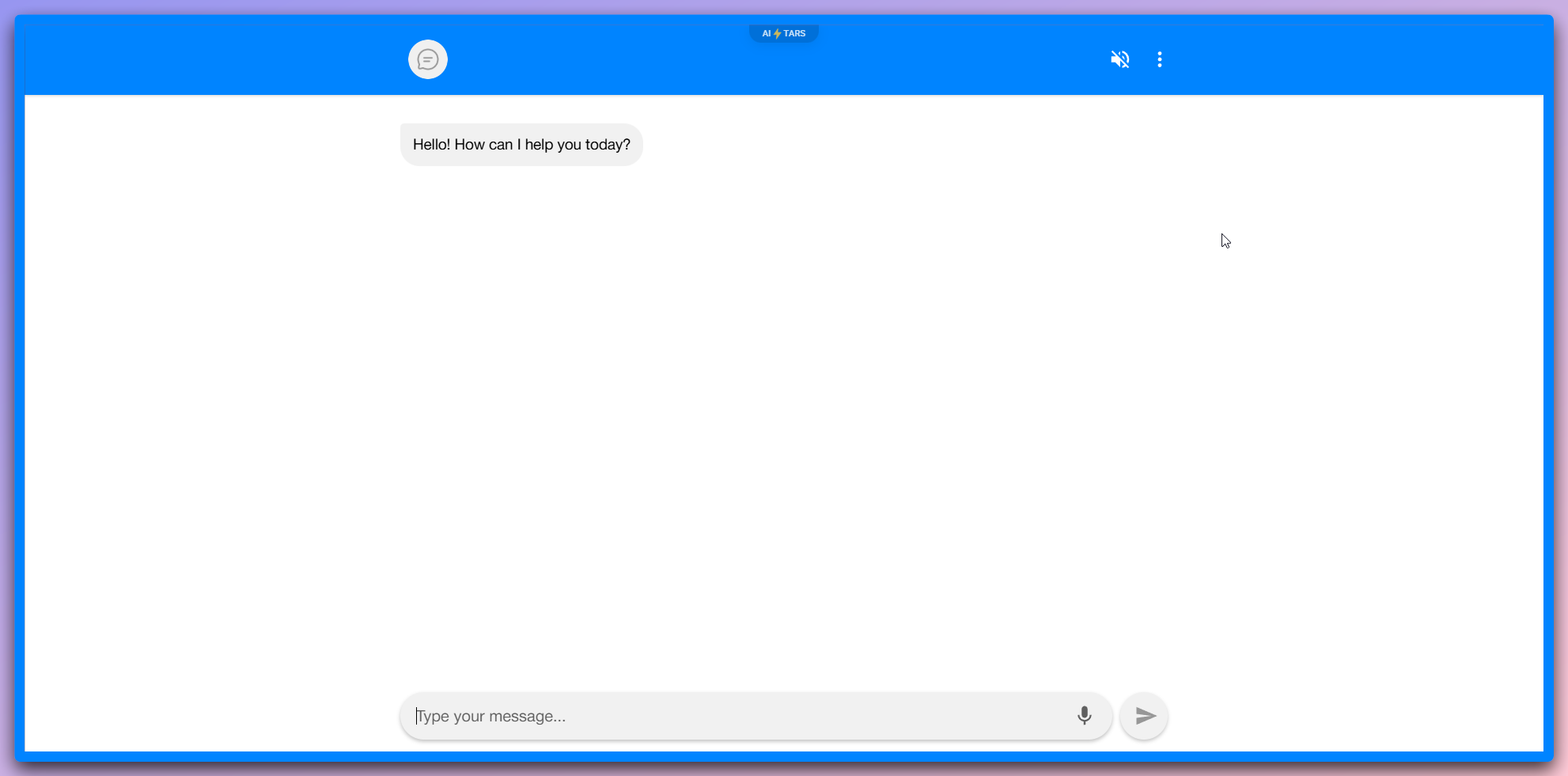 Both options allow you to interact with your Agent in real-time to test its responses and behavior.
### Next steps
After creating your Agent from scratch:
1. **Test thoroughly**: Use both preview and launch options to test different conversation scenarios
2. **Refine configuration**: Adjust the Agent gambit settings based on your testing results
3. **Add more gambits**: Expand your workflow with additional gambits for complex interactions
4. **Monitor performance**: Track user interactions and optimize based on real usage patterns
**Start Simple**: Begin with a basic Agent gambit configuration and gradually
add complexity. You can always enhance your Agent's capabilities by adding
more gambits and fine-tuning settings.
**Testing is Essential**: Always test your Agent thoroughly before deploying
to production. Use both preview and launch options to ensure your Agent
behaves as expected across different scenarios.
Both options allow you to interact with your Agent in real-time to test its responses and behavior.
### Next steps
After creating your Agent from scratch:
1. **Test thoroughly**: Use both preview and launch options to test different conversation scenarios
2. **Refine configuration**: Adjust the Agent gambit settings based on your testing results
3. **Add more gambits**: Expand your workflow with additional gambits for complex interactions
4. **Monitor performance**: Track user interactions and optimize based on real usage patterns
**Start Simple**: Begin with a basic Agent gambit configuration and gradually
add complexity. You can always enhance your Agent's capabilities by adding
more gambits and fine-tuning settings.
**Testing is Essential**: Always test your Agent thoroughly before deploying
to production. Use both preview and launch options to ensure your Agent
behaves as expected across different scenarios.