> ## Documentation Index
> Fetch the complete documentation index at: https://docs.hellotars.com/llms.txt
> Use this file to discover all available pages before exploring further.
# Create from Tool
> Build AI Agents that perform actions using connected tools
Creating an Agent from a tool allows you to quickly build an intelligent assistant that can perform specific actions using your existing tool integrations.
### What you get
**Tool-powered automation**
* **Pre-configured actions**: Your Agent can immediately perform actions using the selected tool
* **Smart workflows**: Automatically handles tool-specific processes and data flows
### Perfect for
* **Email management**: Send emails, schedule meetings, and manage contacts using Gmail integration
* **CRM operations**: Create leads, update customer records, and track sales activities with HubSpot or Zoho
* **Customer support**: Manage tickets, respond to queries, and track customer issues through Zendesk
* **Marketing automation**: Create campaigns, manage subscribers, and track email performance with Mailchimp
* **Google Workspace**: Manage documents, spreadsheets, and calendar events using Google Drive and Calendar
* **Workflow assistance**: Guide users through complex tool-based processes and integrations
### Step-by-step creation process
Click on the `Create from Tool` card to begin creating a tool-powered Agent.
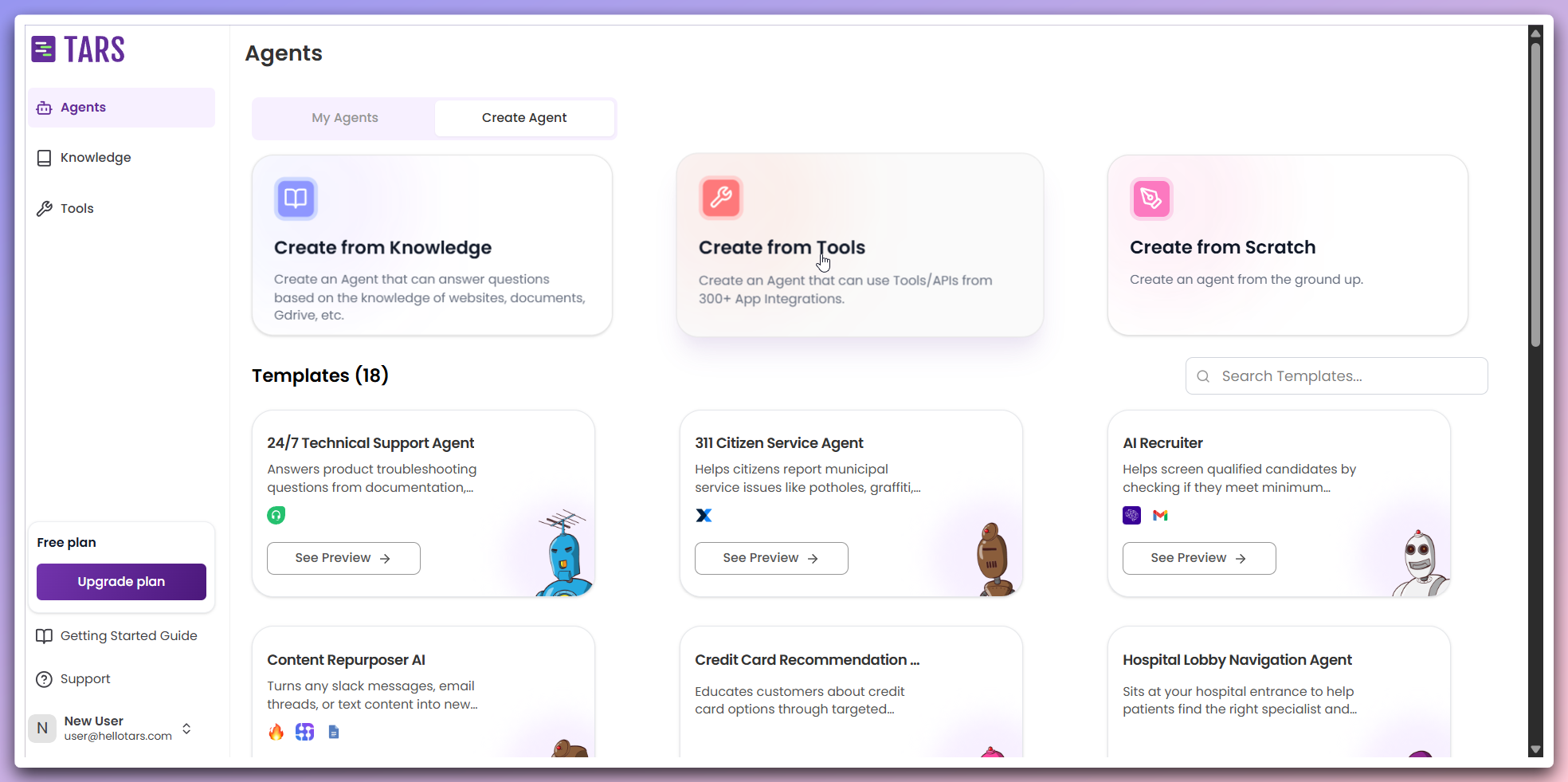 A modal opens where you can select the tool you wish to use and change the
Agent's icon.
A modal opens where you can select the tool you wish to use and change the
Agent's icon.
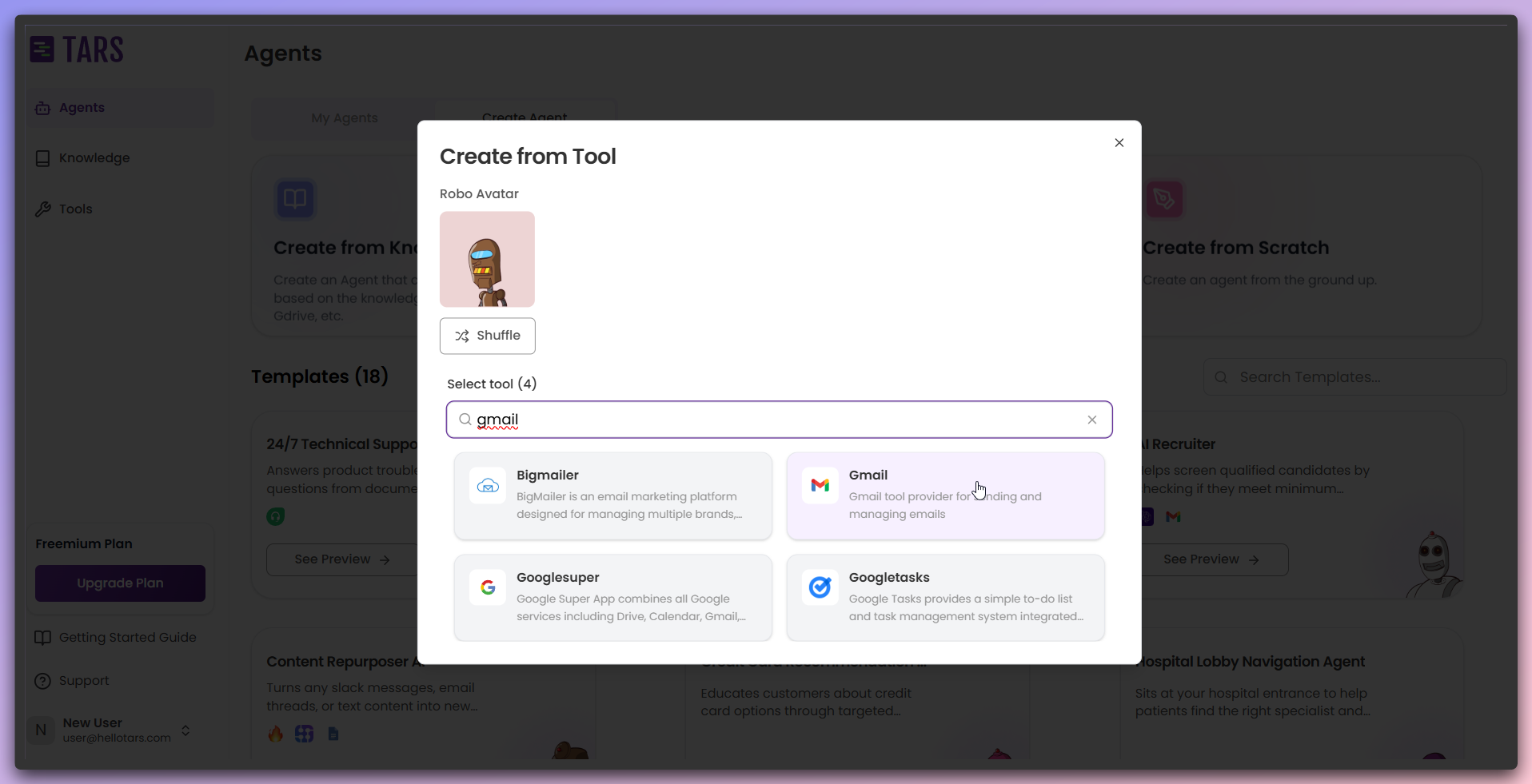 **Available options:**
* **Tool selection**: Search and select from available tools and integrations.
* **Agent icon**: Use the shuffle button at the top to change the Agent's icon.
After selecting a tool, another modal opens for tool authentication with
different authentication types.
**Available options:**
* **Tool selection**: Search and select from available tools and integrations.
* **Agent icon**: Use the shuffle button at the top to change the Agent's icon.
After selecting a tool, another modal opens for tool authentication with
different authentication types.
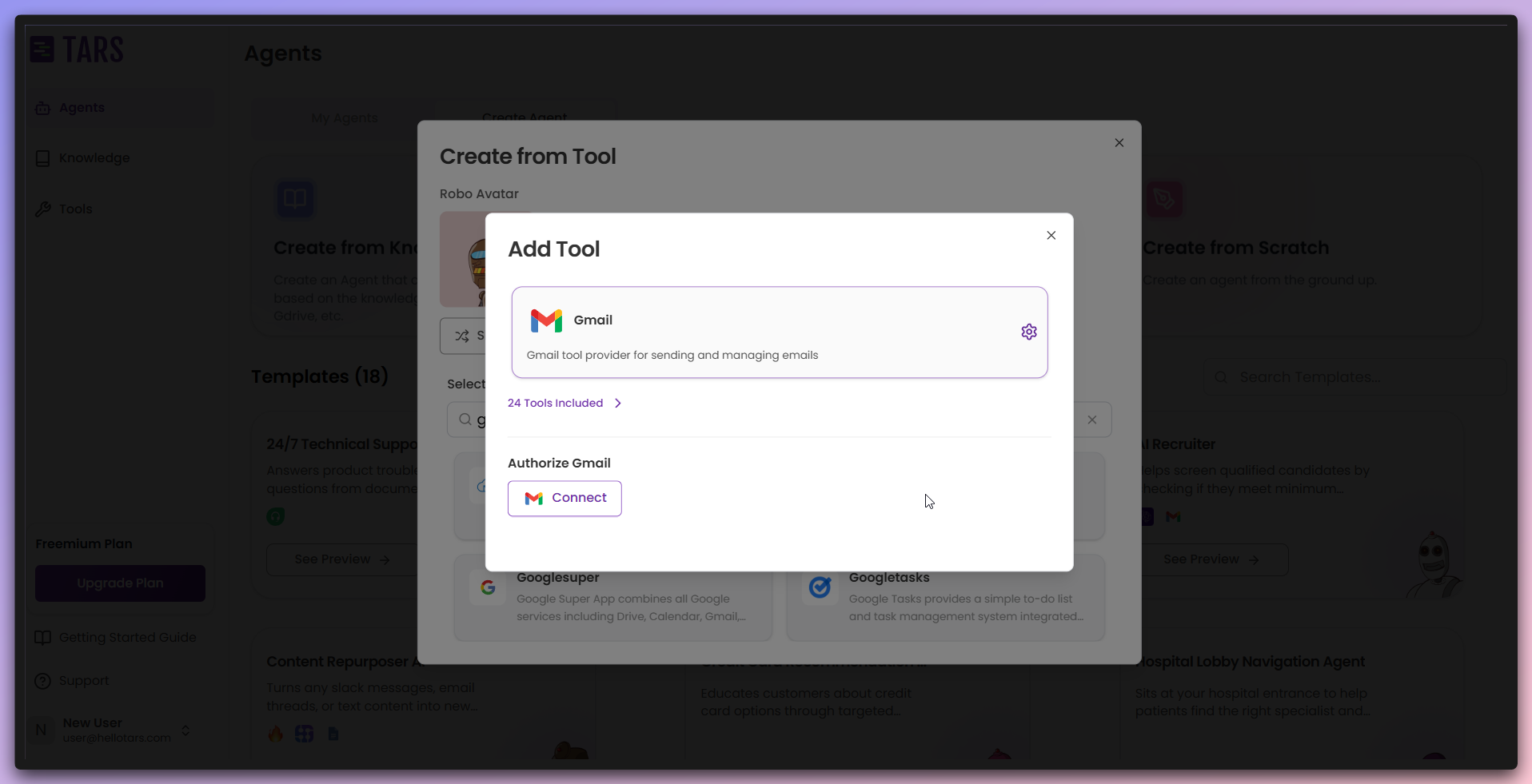 **Authentication types:**
* **API Key/Bearer Token/Basic Auth**: Provide authentication details in input fields.
* **OAuth 2**: Click the OAuth button to complete the OAuth authentication process.
* **OAuth with input fields**: Provide required input fields and then use the OAuth button to complete the process.
After successful authentication, you're redirected back to the page where the
tool is connected.
**Authentication types:**
* **API Key/Bearer Token/Basic Auth**: Provide authentication details in input fields.
* **OAuth 2**: Click the OAuth button to complete the OAuth authentication process.
* **OAuth with input fields**: Provide required input fields and then use the OAuth button to complete the process.
After successful authentication, you're redirected back to the page where the
tool is connected.
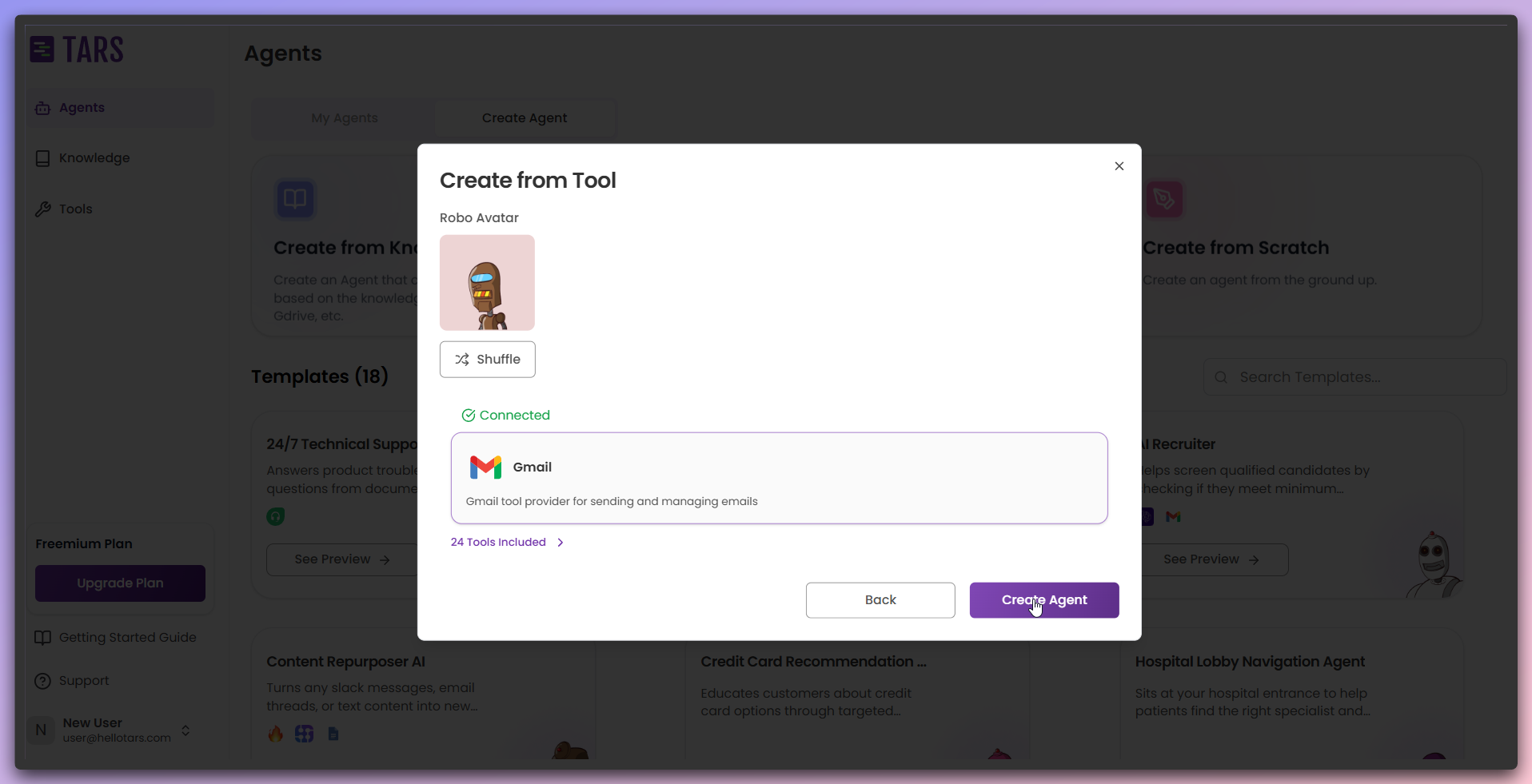 **Connection status:**
* **Tool connected**: The tool is successfully connected and ready.
* **Create Agent button**: Enabled and ready to create your tool-powered Agent.
After clicking Create Agent, your tool-powered Agent is created and ready for interaction.
**Connection status:**
* **Tool connected**: The tool is successfully connected and ready.
* **Create Agent button**: Enabled and ready to create your tool-powered Agent.
After clicking Create Agent, your tool-powered Agent is created and ready for interaction.
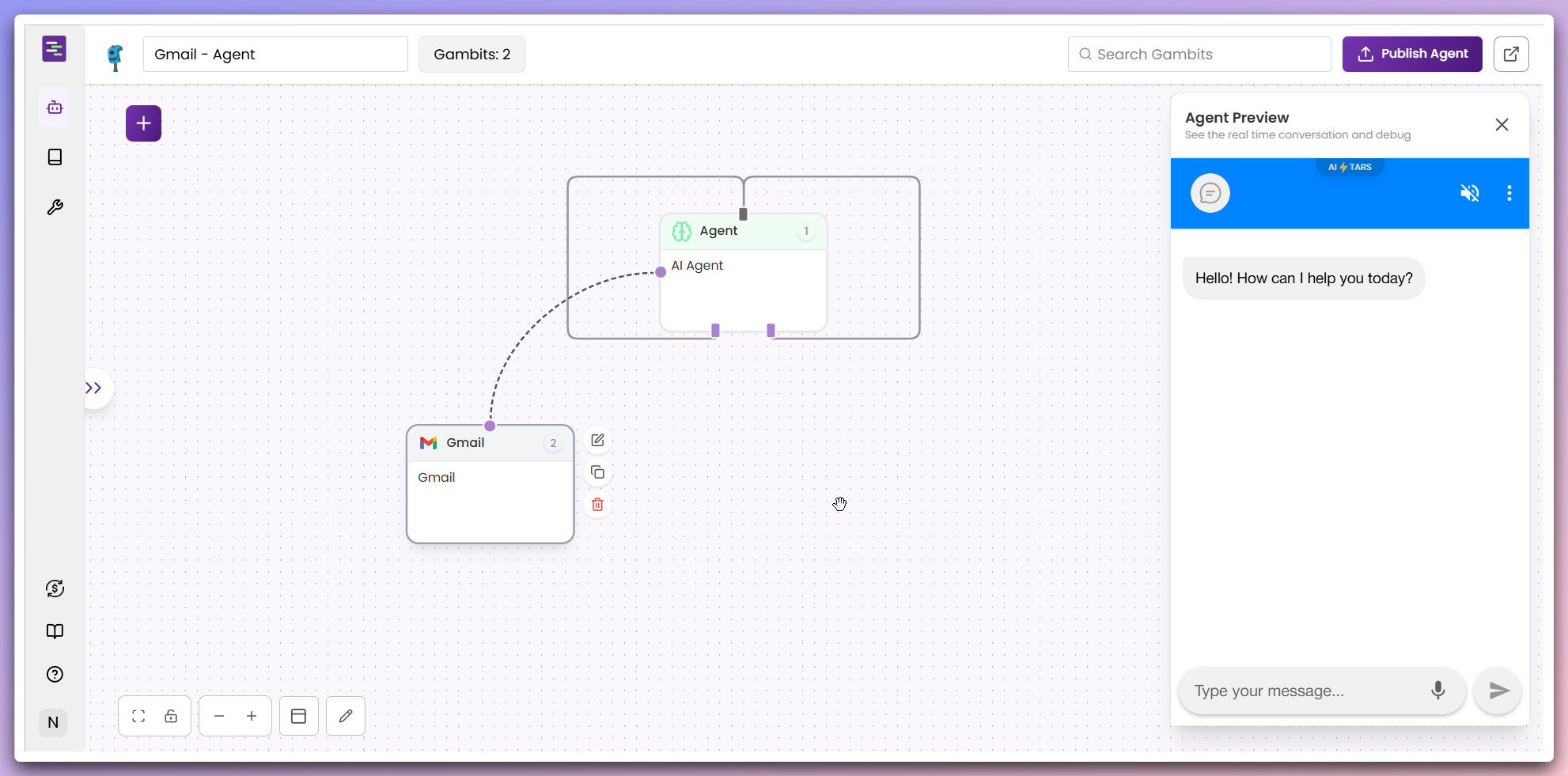 **Agent ready:**
* **Tool connected**: Agent is created with the tool connected
* **Interactive testing**: You can interact with the Agent and test the tool connection
**Tool Expertise**: The more familiar you are with the tool's capabilities,
the better you can configure your Agent to leverage its full potential.
**Dependencies**: Your Agent's functionality depends on the tool being
properly configured and accessible. Ensure your tool integrations are working
correctly.
**Agent ready:**
* **Tool connected**: Agent is created with the tool connected
* **Interactive testing**: You can interact with the Agent and test the tool connection
**Tool Expertise**: The more familiar you are with the tool's capabilities,
the better you can configure your Agent to leverage its full potential.
**Dependencies**: Your Agent's functionality depends on the tool being
properly configured and accessible. Ensure your tool integrations are working
correctly.