> ## Documentation Index
> Fetch the complete documentation index at: https://docs.hellotars.com/llms.txt
> Use this file to discover all available pages before exploring further.
# Learn how to create Knowledge Base from CSV files
> Import structured data from CSV files into your knowledge base
**CSV Knowledge Base options**: You can create knowledge bases from two types of CSV files:
* **Table (CSV)**: For structured tabular data with multiple columns
* **Questions & Answers (CSV)**: For Q\&A pairs with two columns (Question, Answer)
Both follow the same training process and workflow described below.
### Creating CSV Knowledge Base
Click on the `Table (CSV)` card to start creating a Knowledge Base from CSV files.
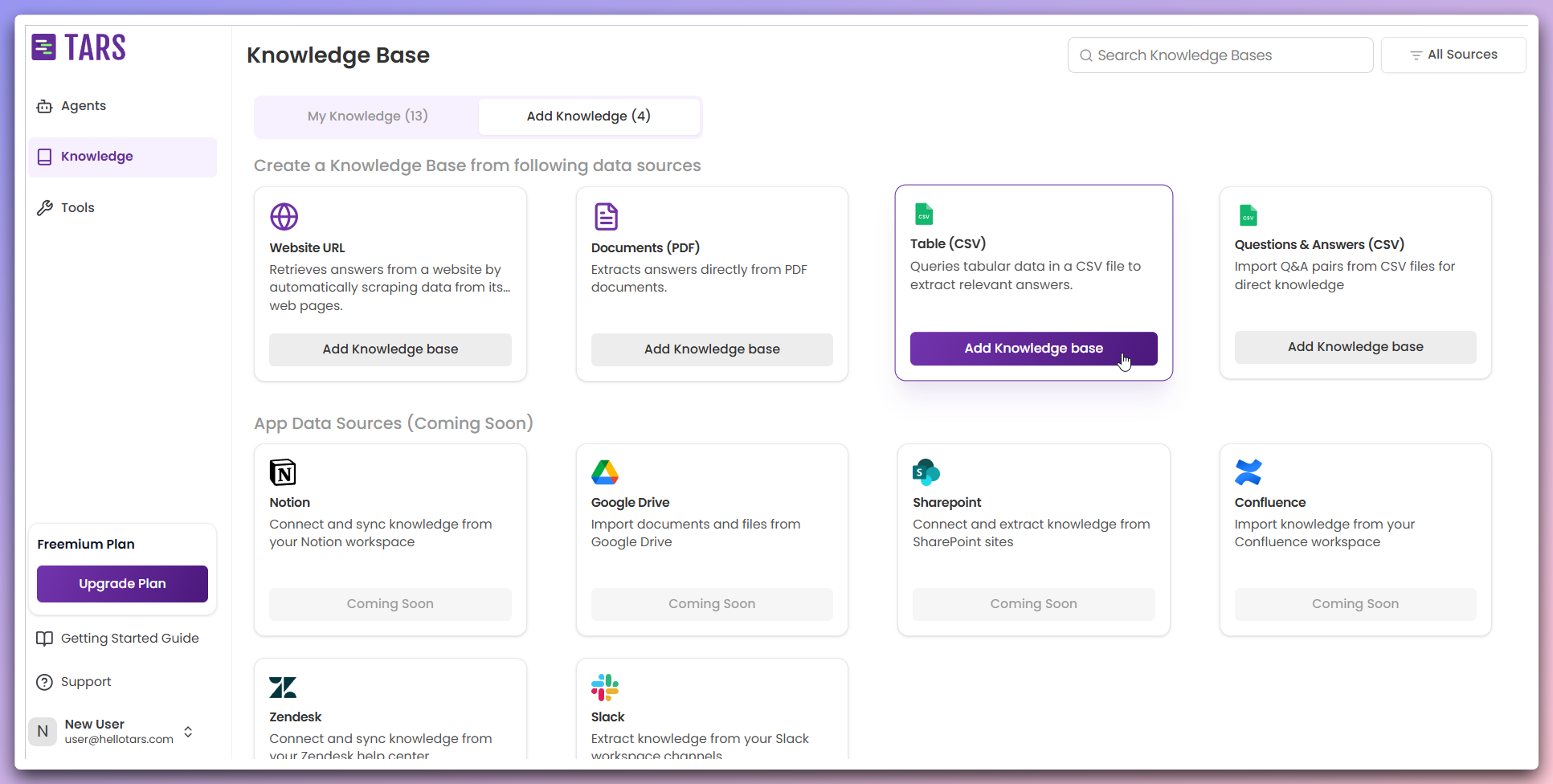 This opens the "Add Knowledge Base" modal where you can configure your CSV Knowledge Base.
**Alternative Option**: You can also click on `Questions & Answers (CSV)` card for Q\&A format CSV files. The training process remains the same for both formats.
In the modal, set up your Knowledge Base details:
This opens the "Add Knowledge Base" modal where you can configure your CSV Knowledge Base.
**Alternative Option**: You can also click on `Questions & Answers (CSV)` card for Q\&A format CSV files. The training process remains the same for both formats.
In the modal, set up your Knowledge Base details:
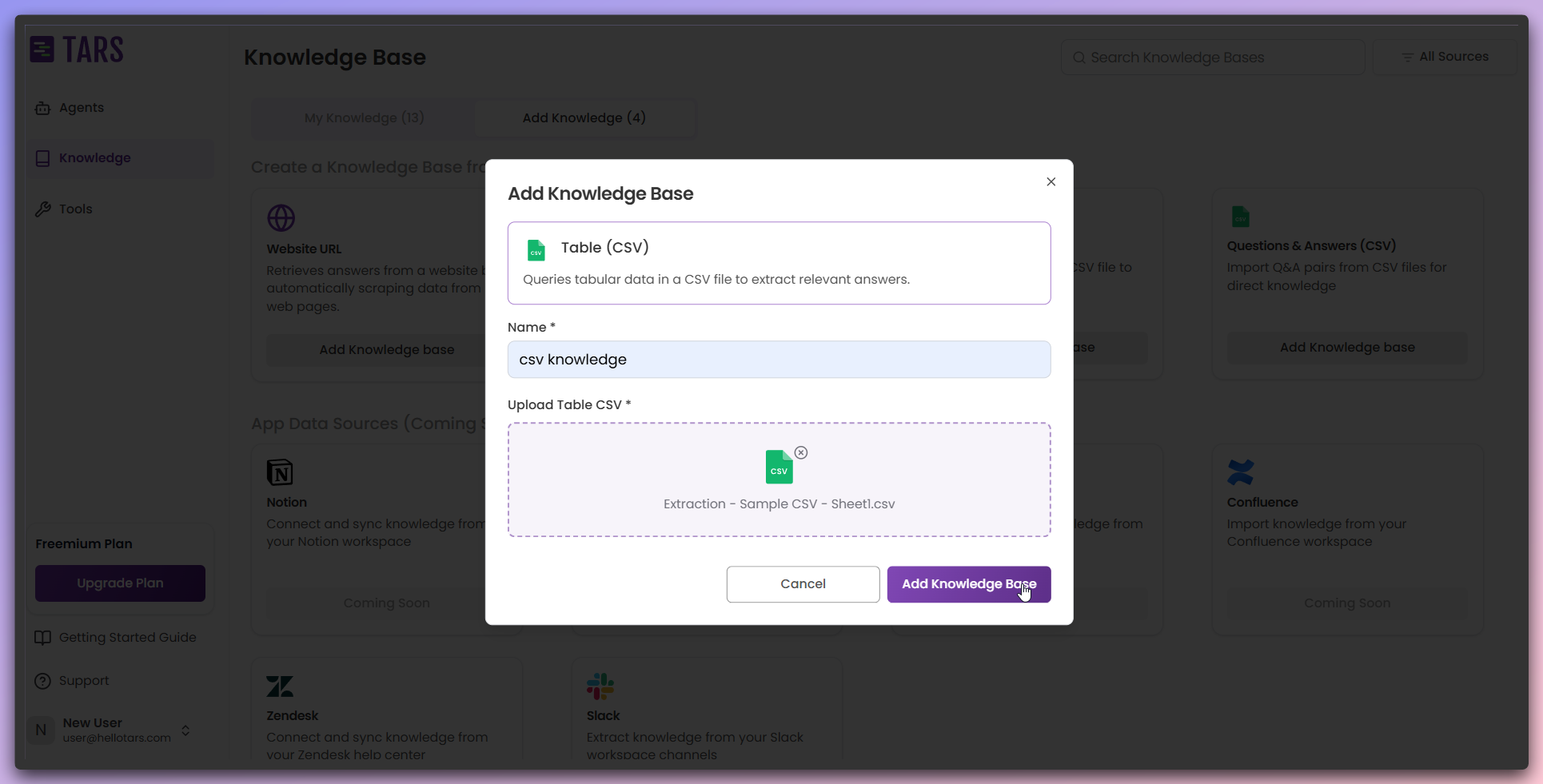 **Required Information:**
* **Name**: Enter a name for your Knowledge Base (e.g., "csv knowledge")
* **Upload Table CSV**: Add your CSV file to the Knowledge Base
**File Upload Options:**
* Drag and drop CSV file into the upload area
* Click to browse and select CSV file from your computer
* View example CSV file format for reference
**CSV format**: Ensure your CSV file contains structured tabular data with proper headers for optimal processing.
After clicking `Add Knowledge Base`, you're redirected to the Knowledge Base configuration page.
**Required Information:**
* **Name**: Enter a name for your Knowledge Base (e.g., "csv knowledge")
* **Upload Table CSV**: Add your CSV file to the Knowledge Base
**File Upload Options:**
* Drag and drop CSV file into the upload area
* Click to browse and select CSV file from your computer
* View example CSV file format for reference
**CSV format**: Ensure your CSV file contains structured tabular data with proper headers for optimal processing.
After clicking `Add Knowledge Base`, you're redirected to the Knowledge Base configuration page.
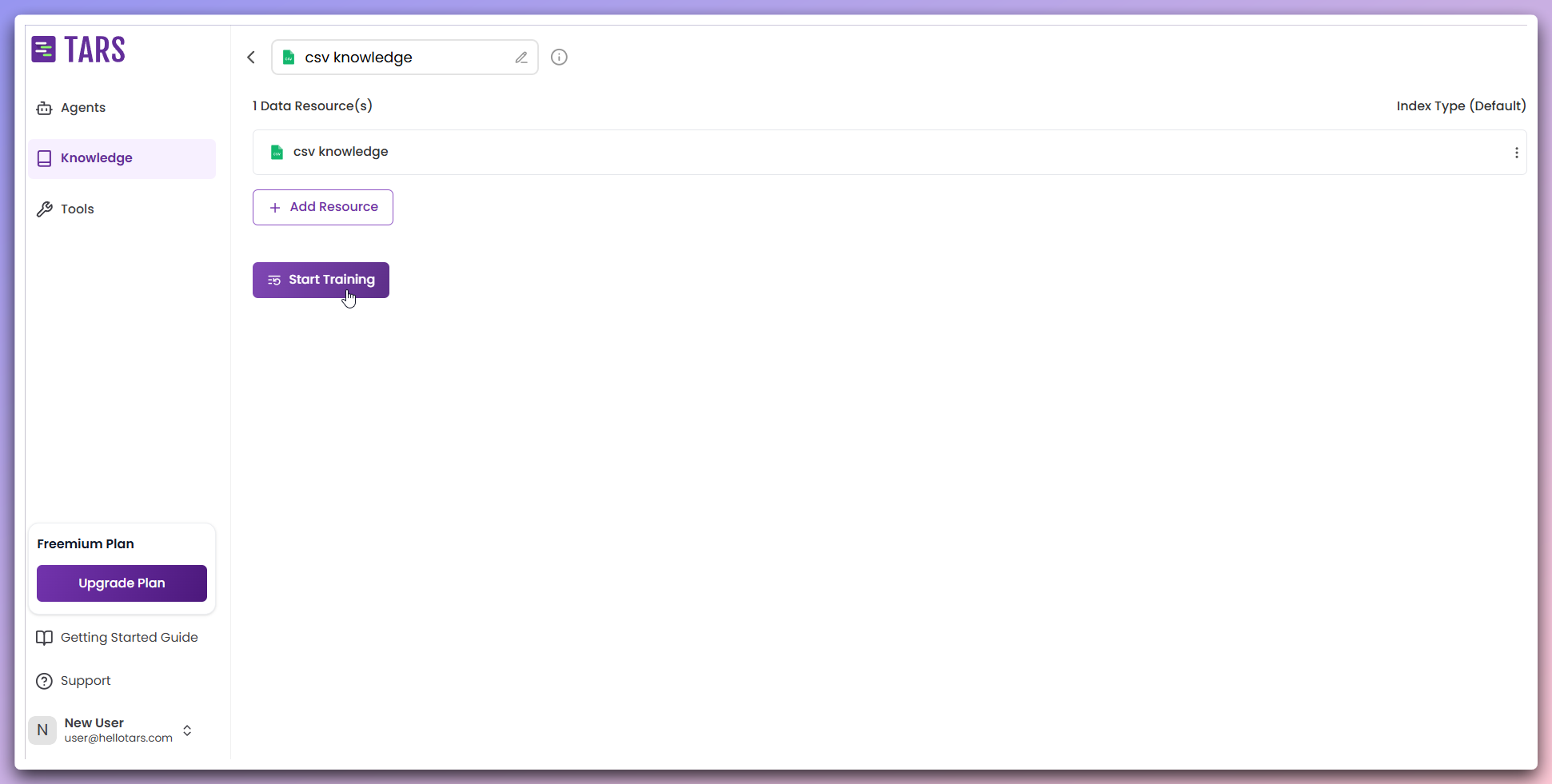 **Configuration page features:**
* **Data resources**: Shows your uploaded CSV file
* **Training status**: Displays "Not trained" status for new file
* **Add resource**: Button to add more CSV files
* **Start training**: Button to begin training the Knowledge Base
**Training required**: Your Knowledge Base must be trained before it can be used by AI Agents.
Click the `Start training` button to begin processing your CSV file.
**Configuration page features:**
* **Data resources**: Shows your uploaded CSV file
* **Training status**: Displays "Not trained" status for new file
* **Add resource**: Button to add more CSV files
* **Start training**: Button to begin training the Knowledge Base
**Training required**: Your Knowledge Base must be trained before it can be used by AI Agents.
Click the `Start training` button to begin processing your CSV file.
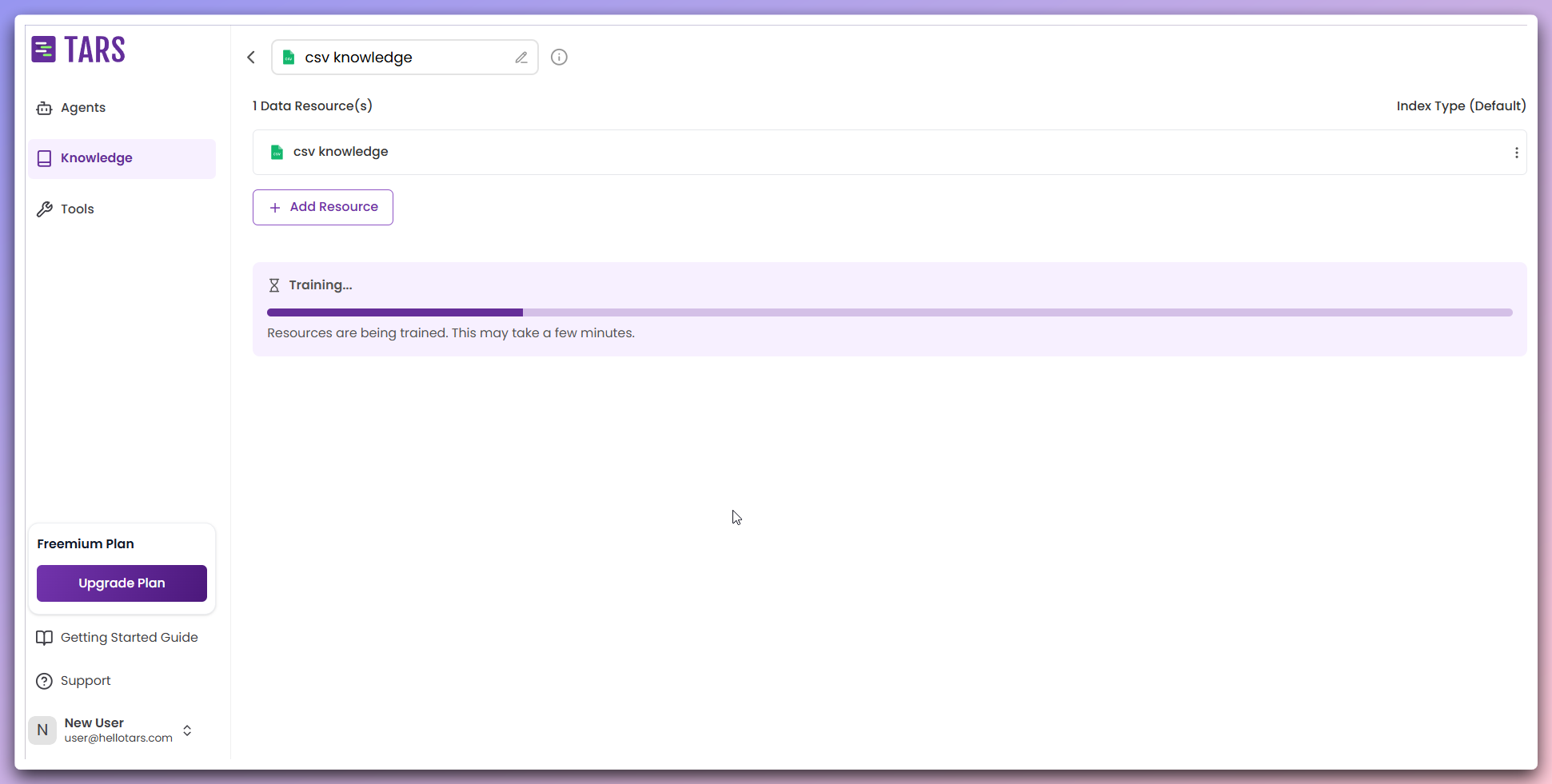 **Training phase:**
* **Initiate training**: Click the `Start training` button to begin AI processing.
* **Data reading**: The system reads and imports the CSV file for processing.
* **Resource processing**: The CSV file is being analyzed and indexed.
* **Text chunking**: The data is divided into smaller, manageable chunks for efficient processing.
* **Embedding generation**: These chunks are converted into vector embeddings using AI models.
* **Vector storage**: The generated embeddings are stored in vector databases like Qdrant and Weaviate for efficient retrieval.
* **Index optimization**: The system optimizes the index to enhance search and retrieval performance.
* **Progress bar**: Displays the percentage of training completion.
* **Status**: Indicates "Training..." with an hourglass icon.
* **Time estimate**: "This process may take a few minutes."
**Training in Progress**: Wait for training to complete before using the Knowledge Base.
Once training is finished, your Knowledge Base is ready for use.
**Training phase:**
* **Initiate training**: Click the `Start training` button to begin AI processing.
* **Data reading**: The system reads and imports the CSV file for processing.
* **Resource processing**: The CSV file is being analyzed and indexed.
* **Text chunking**: The data is divided into smaller, manageable chunks for efficient processing.
* **Embedding generation**: These chunks are converted into vector embeddings using AI models.
* **Vector storage**: The generated embeddings are stored in vector databases like Qdrant and Weaviate for efficient retrieval.
* **Index optimization**: The system optimizes the index to enhance search and retrieval performance.
* **Progress bar**: Displays the percentage of training completion.
* **Status**: Indicates "Training..." with an hourglass icon.
* **Time estimate**: "This process may take a few minutes."
**Training in Progress**: Wait for training to complete before using the Knowledge Base.
Once training is finished, your Knowledge Base is ready for use.
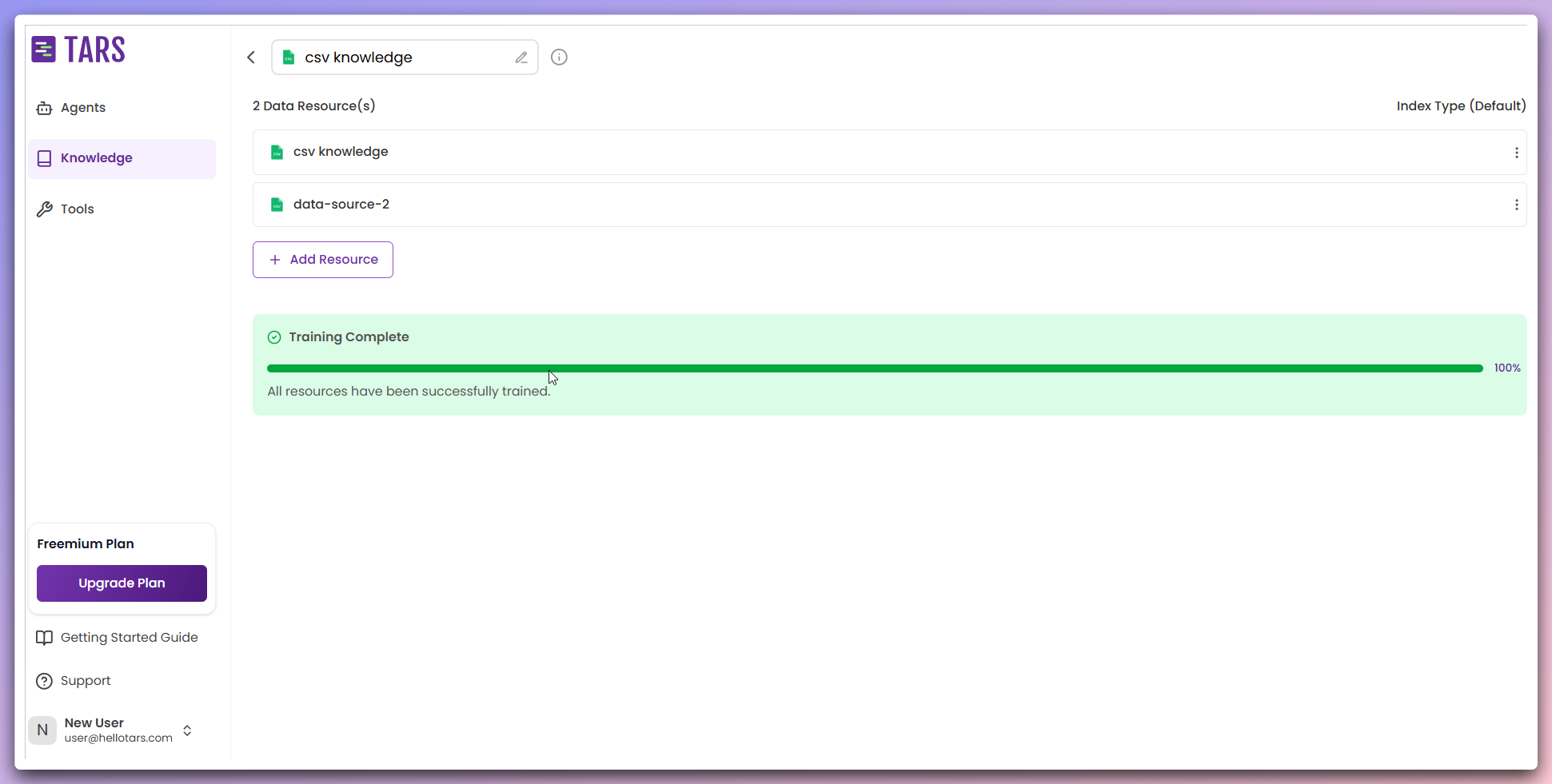 **Training Results:**
* **Status**: "Trained" with green indicator
* **Success Message**: "All resources have been successfully trained"
* **Progress Bar**: Shows 100% completion
* **Ready for Use**: Knowledge base is fully operational
**Knowledge Base Ready**: Your CSV Knowledge Base is now trained and ready to be used by AI Agents.
You can add additional CSV files to your existing Knowledge Base.
**Training Results:**
* **Status**: "Trained" with green indicator
* **Success Message**: "All resources have been successfully trained"
* **Progress Bar**: Shows 100% completion
* **Ready for Use**: Knowledge base is fully operational
**Knowledge Base Ready**: Your CSV Knowledge Base is now trained and ready to be used by AI Agents.
You can add additional CSV files to your existing Knowledge Base.
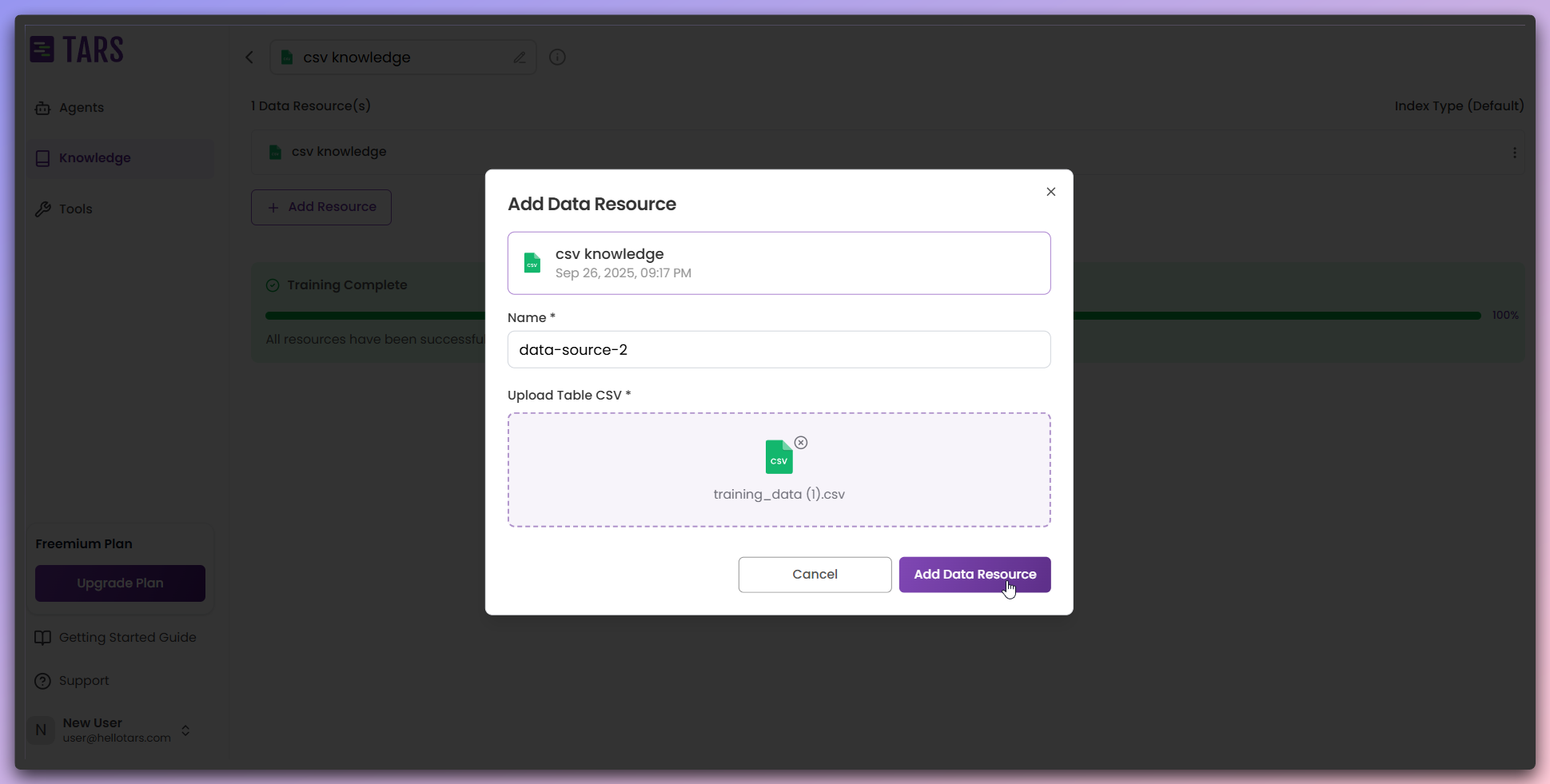 **Adding Resources:**
* Click `+ Add Resource` to add more CSV files
* Same upload process as initial file upload
* New files will show "Not Trained" status
* Multiple resources can be added to the same Knowledge Base
**Resource Management**: Each resource can be managed individually with its own training status.
After adding new resources, retrain the Knowledge Base to include the new files.
**Adding Resources:**
* Click `+ Add Resource` to add more CSV files
* Same upload process as initial file upload
* New files will show "Not Trained" status
* Multiple resources can be added to the same Knowledge Base
**Resource Management**: Each resource can be managed individually with its own training status.
After adding new resources, retrain the Knowledge Base to include the new files.
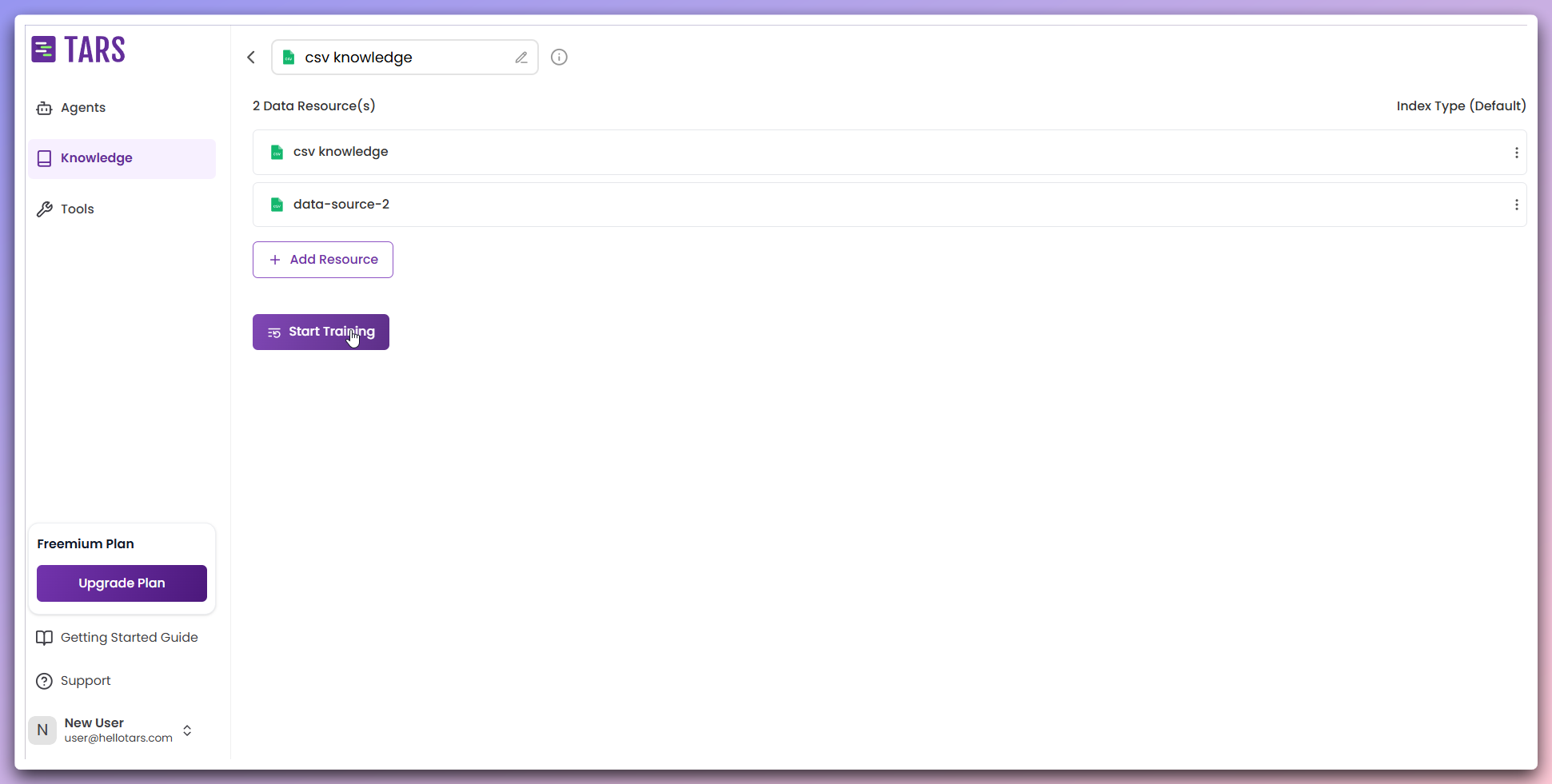 **Retraining process:**
* **Start training**: Button appears after adding new resources
* **Training progress**: Shows progress for all resources
* **Status updates**: Individual resource status updates during training
* **Completion**: All resources show "Trained" status when complete
**Refresh Page**: If the "Start Training" button doesn't appear, refresh the page to see the updated interface.
Your Knowledge Base is now available in the main Knowledge Base dashboard.
**Retraining process:**
* **Start training**: Button appears after adding new resources
* **Training progress**: Shows progress for all resources
* **Status updates**: Individual resource status updates during training
* **Completion**: All resources show "Trained" status when complete
**Refresh Page**: If the "Start Training" button doesn't appear, refresh the page to see the updated interface.
Your Knowledge Base is now available in the main Knowledge Base dashboard.
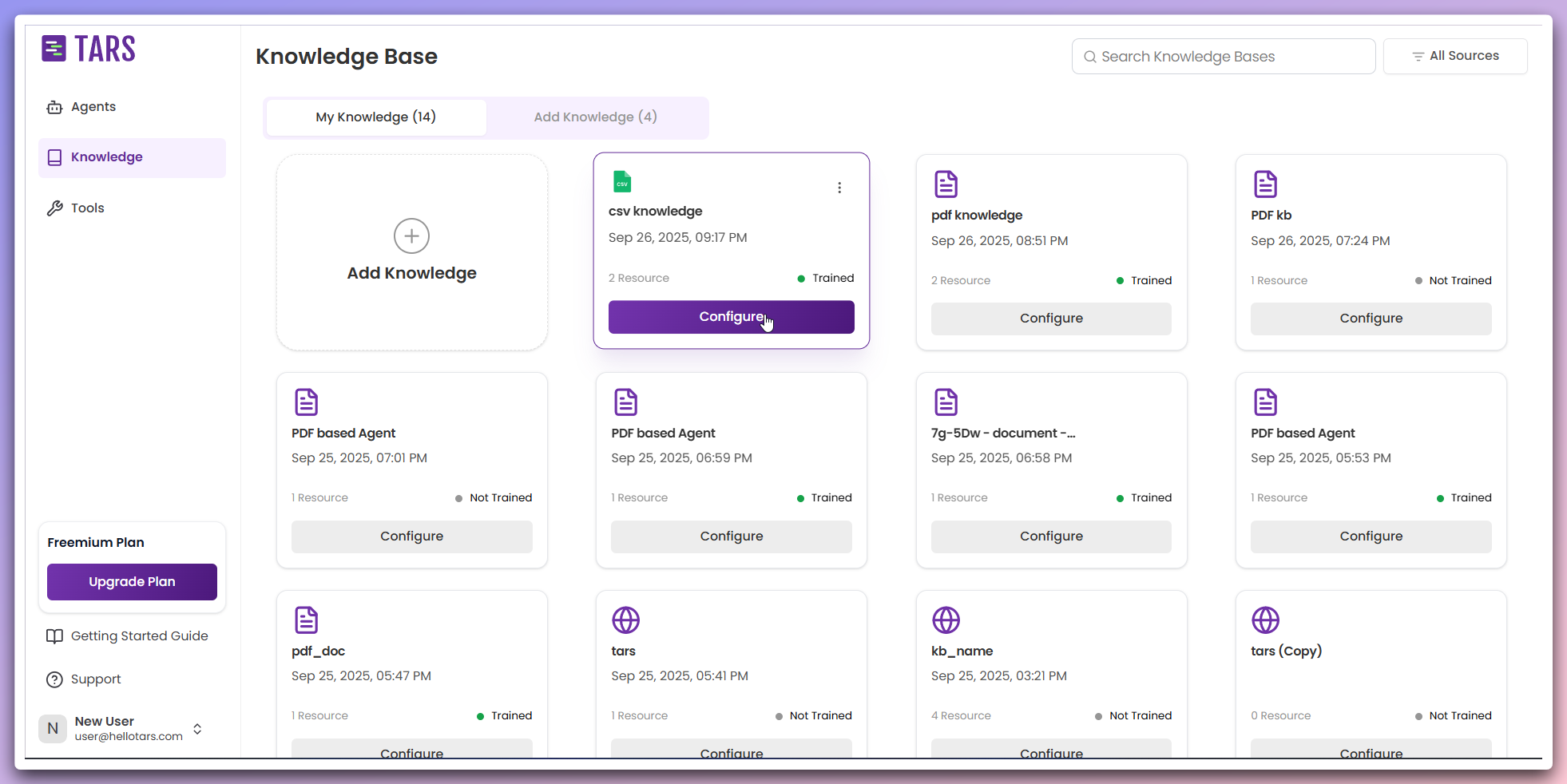 **Dashboard view:**
* **Knowledge Base card**: Shows your created Knowledge Base
* **Resource count**: Displays number of data sources
* **Last updated**: Shows creation/update timestamp
* **Training status**: "Trained" indicator
* **Configure button**: Click to access the Knowledge Base configuration page
**Access Configuration**: Click the "Configure" button to return to the training and management page for your Knowledge Base.
For Q\&A format CSV files, follow the same process using the `Questions & Answers (CSV)` card.
**Q\&A CSV format requirements:**
* **Two columns only**: Question and Answer columns
* **Header row**: First row should contain "Question" and "Answer" headers
* **Sample format**: Download the sample CSV file to see the exact format
* **Training process**: Same upload and training workflow as Table CSV
**Q\&A CSV benefits:**
* Direct question-answer pairs for immediate knowledge access
* Perfect for FAQ databases and support knowledge
* Optimized for conversational AI responses
**Sample File**: Download the sample Q\&A CSV file from the upload modal to ensure proper formatting before uploading your data.
**Dashboard view:**
* **Knowledge Base card**: Shows your created Knowledge Base
* **Resource count**: Displays number of data sources
* **Last updated**: Shows creation/update timestamp
* **Training status**: "Trained" indicator
* **Configure button**: Click to access the Knowledge Base configuration page
**Access Configuration**: Click the "Configure" button to return to the training and management page for your Knowledge Base.
For Q\&A format CSV files, follow the same process using the `Questions & Answers (CSV)` card.
**Q\&A CSV format requirements:**
* **Two columns only**: Question and Answer columns
* **Header row**: First row should contain "Question" and "Answer" headers
* **Sample format**: Download the sample CSV file to see the exact format
* **Training process**: Same upload and training workflow as Table CSV
**Q\&A CSV benefits:**
* Direct question-answer pairs for immediate knowledge access
* Perfect for FAQ databases and support knowledge
* Optimized for conversational AI responses
**Sample File**: Download the sample Q\&A CSV file from the upload modal to ensure proper formatting before uploading your data.