> ## Documentation Index
> Fetch the complete documentation index at: https://docs.hellotars.com/llms.txt
> Use this file to discover all available pages before exploring further.
# View and manage your Knowledge Bases
> Explore how you can manage your Knowledge Bases in this section
**Knowledge bases** are intelligent content repositories that store, organize, and process information to enable your AI Agents to provide accurate, contextual responses. They serve as the foundation for building smart assistants that can answer questions, provide support, and deliver domain-specific expertise based on your existing content.
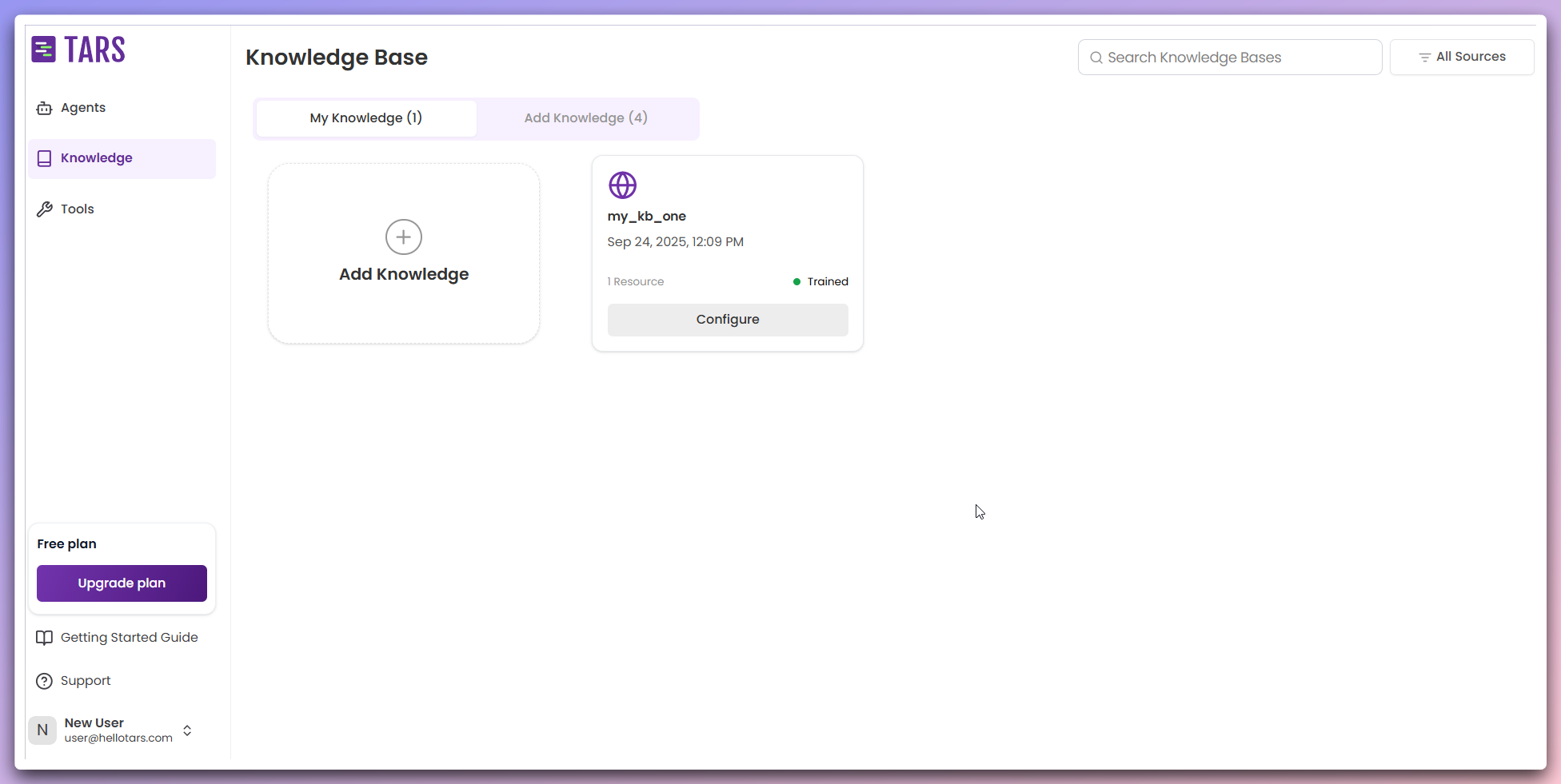
The **Knowledge** page is divided into two primary sections:
* **My Knowledge**: Manage your existing knowledge bases.
* **Add Knowledge**: Create new knowledge bases from various data sources.
## My Knowledge Bases
View and manage all your created knowledge bases in one place. Each Knowledge Base card provides essential information and quick access to management actions.
 ### Knowledge Base cards
Each Knowledge Base card displays:
* `Knowledge base name` and `description`
* `Training status` - Current processing and indexing status
* `Data sources` - Number of data sources this KB is trained on
* `Quick actions menu` - Access to management functions
* `Date added` - When the Knowledge Base was created
Click the `Configure Button` to open a modal for customizing your Knowledge Base settings. You can edit the Knowledge Base `name` and `description`, and modify basic configuration options.
Use the `Open` option in the Quick Actions Menu to view detailed knowledge
base information, data resources, and training status.
Select `Edit` from the Quick Actions Menu to modify the Knowledge Base `name`
and `description`.
Choose `Duplicate` to create a copy of the Knowledge Base with the same `name`
and `description`, but without any data resources.
Use the `Delete` option to remove the Knowledge Base and all associated data.
**Quick Access**: Use the quick actions menu for efficient Knowledge Base
management without navigating to separate pages.
### Knowledge Base cards
Each Knowledge Base card displays:
* `Knowledge base name` and `description`
* `Training status` - Current processing and indexing status
* `Data sources` - Number of data sources this KB is trained on
* `Quick actions menu` - Access to management functions
* `Date added` - When the Knowledge Base was created
Click the `Configure Button` to open a modal for customizing your Knowledge Base settings. You can edit the Knowledge Base `name` and `description`, and modify basic configuration options.
Use the `Open` option in the Quick Actions Menu to view detailed knowledge
base information, data resources, and training status.
Select `Edit` from the Quick Actions Menu to modify the Knowledge Base `name`
and `description`.
Choose `Duplicate` to create a copy of the Knowledge Base with the same `name`
and `description`, but without any data resources.
Use the `Delete` option to remove the Knowledge Base and all associated data.
**Quick Access**: Use the quick actions menu for efficient Knowledge Base
management without navigating to separate pages.