> ## Documentation Index
> Fetch the complete documentation index at: https://docs.hellotars.com/llms.txt
> Use this file to discover all available pages before exploring further.
# View and manage your Knowledge Bases
> Explore how you can manage your Knowledge Bases in this section
 ## Knowledge Base Cards
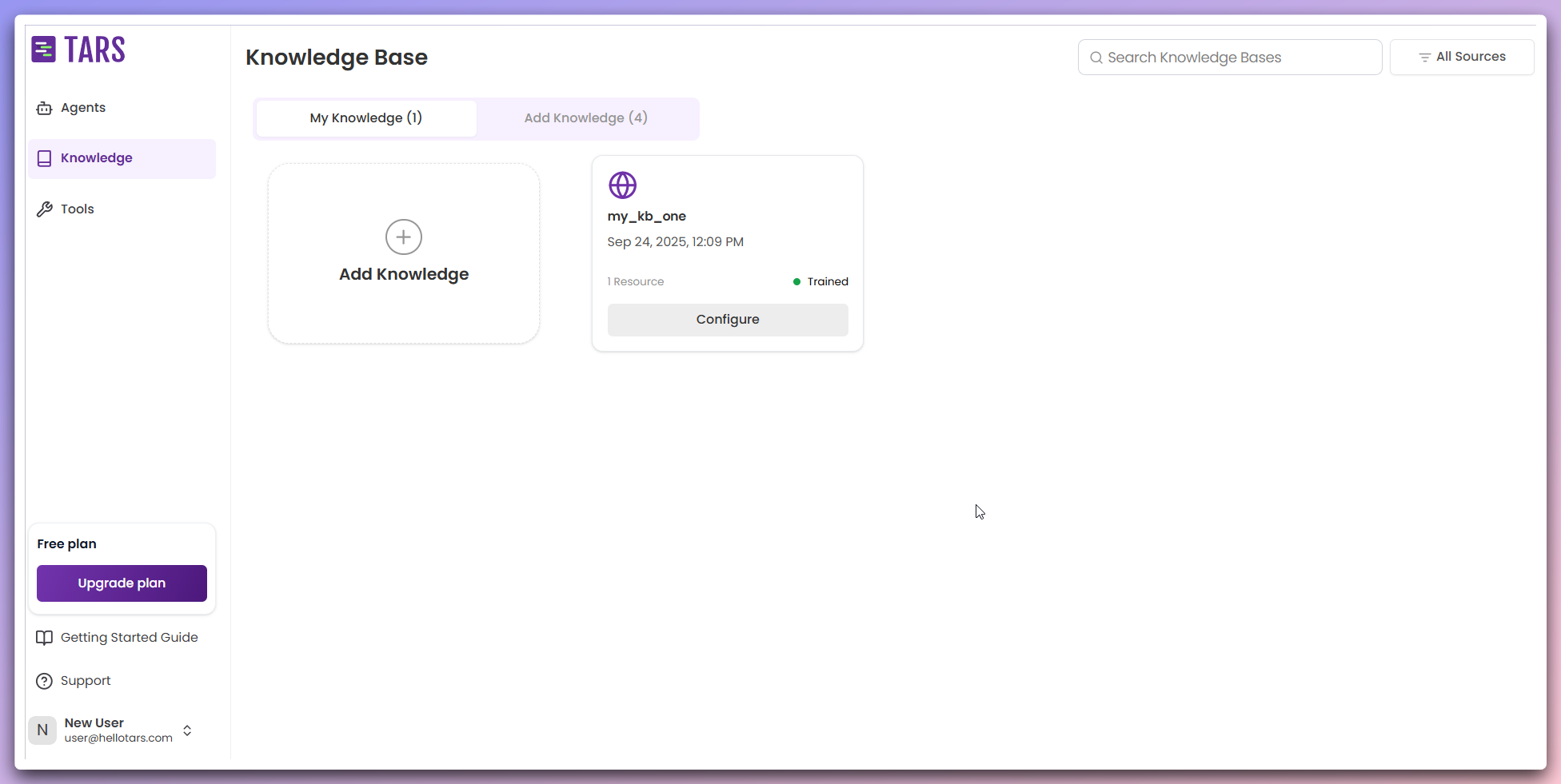
Each Knowledge Base card displays:
* **Knowledge base name** and **description**
* **Training status** - Current processing and indexing status
* **Data sources** - Number of data sources this KB is trained on
* **Quick actions menu** - Access to management functions
* **Date added** - When the Knowledge Base was created
## Managing your knowledge bases
Click the **Configure Button** to open a modal for customizing your Knowledge Base settings. You can edit the Knowledge Base **name** and **description**, and modify basic configuration options.
Use the **Open** option in the Quick Actions Menu to view detailed knowledge
base information, data resources, and training status.
Select **Edit** from the Quick Actions Menu to modify the Knowledge Base **name**
and **description**.
Choose **Duplicate** to create a copy of the Knowledge Base with the same **name**
and **description**, but without any data resources.
Use the **Delete** option to remove the Knowledge Base and all associated data.
**Quick Access**: Use the quick actions menu for efficient Knowledge Base
management without navigating to separate pages.
## Next steps
Create a new knowledge base from data sources
Learn how knowledge bases are processed and indexed
## Knowledge Base Cards
Each Knowledge Base card displays:
* **Knowledge base name** and **description**
* **Training status** - Current processing and indexing status
* **Data sources** - Number of data sources this KB is trained on
* **Quick actions menu** - Access to management functions
* **Date added** - When the Knowledge Base was created
## Managing your knowledge bases
Click the **Configure Button** to open a modal for customizing your Knowledge Base settings. You can edit the Knowledge Base **name** and **description**, and modify basic configuration options.
Use the **Open** option in the Quick Actions Menu to view detailed knowledge
base information, data resources, and training status.
Select **Edit** from the Quick Actions Menu to modify the Knowledge Base **name**
and **description**.
Choose **Duplicate** to create a copy of the Knowledge Base with the same **name**
and **description**, but without any data resources.
Use the **Delete** option to remove the Knowledge Base and all associated data.
**Quick Access**: Use the quick actions menu for efficient Knowledge Base
management without navigating to separate pages.
## Next steps
Create a new knowledge base from data sources
Learn how knowledge bases are processed and indexed