> ## Documentation Index
> Fetch the complete documentation index at: https://docs.hellotars.com/llms.txt
> Use this file to discover all available pages before exploring further.
# Analytics
> Monitor conversation volume, agent performance, customer satisfaction, and export transcripts
This guide covers everything under the **Analytics** section of LiveChat in Tars. Use these reports to monitor conversation volume, agent performance, customer satisfaction, and more.
***
## How to access
1. Click the **LiveChat** icon in the left sidebar of your Tars dashboard.
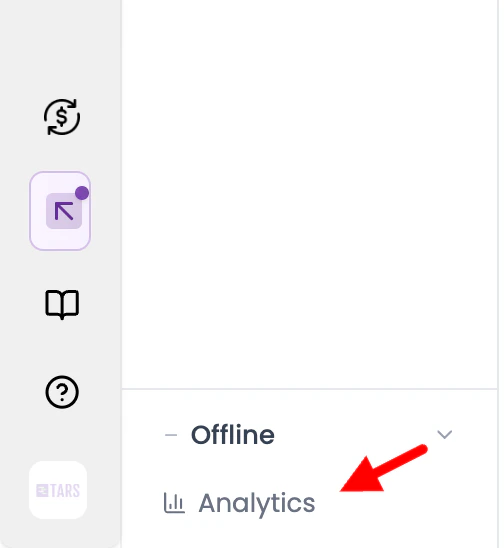 2. In the left panel, click **Analytics**. You'll find seven sub-sections: **Overview**, **Conversations**, **Agents**, **Inboxes**, **Labels**, **CSAT**, and **Transcript**.
***
## 1. Overview
*Account health and real-time conversation load.*
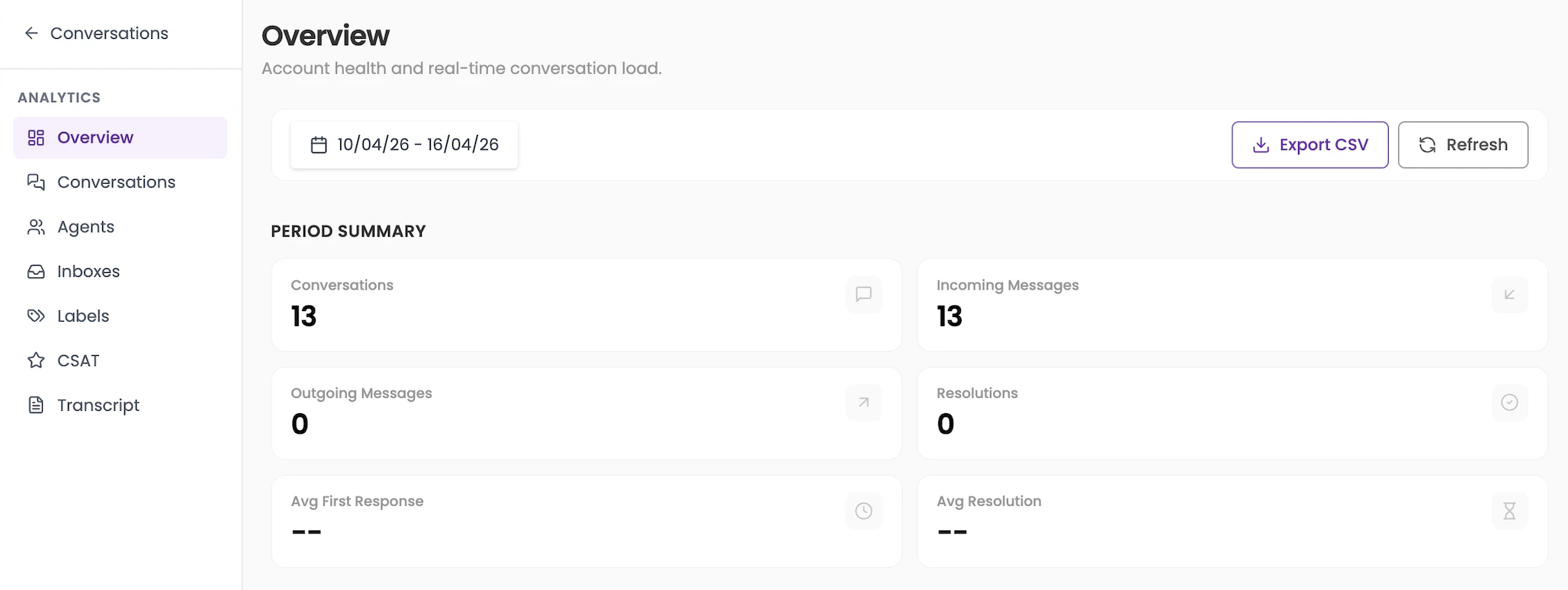
The Overview page gives you a snapshot of your LiveChat activity for the selected date range, plus a live view of what's happening right now.
### Period summary
| Metric | What it shows |
| ------------------ | ------------------------------------------------------------ |
| Conversations | Total number of conversations started in the selected period |
| Incoming Messages | Total messages received from customers |
| Outgoing Messages | Total messages sent by agents |
| Resolutions | Number of conversations marked as resolved |
| Avg First Response | Average time taken by an agent to send the first reply |
| Avg Resolution | Average time taken to resolve a conversation |
2. In the left panel, click **Analytics**. You'll find seven sub-sections: **Overview**, **Conversations**, **Agents**, **Inboxes**, **Labels**, **CSAT**, and **Transcript**.
***
## 1. Overview
*Account health and real-time conversation load.*
The Overview page gives you a snapshot of your LiveChat activity for the selected date range, plus a live view of what's happening right now.
### Period summary
| Metric | What it shows |
| ------------------ | ------------------------------------------------------------ |
| Conversations | Total number of conversations started in the selected period |
| Incoming Messages | Total messages received from customers |
| Outgoing Messages | Total messages sent by agents |
| Resolutions | Number of conversations marked as resolved |
| Avg First Response | Average time taken by an agent to send the first reply |
| Avg Resolution | Average time taken to resolve a conversation |
 ### Live status
These update in real time and are not affected by the date filter.
| Status | What it shows |
| ---------- | ------------------------------------------------------------ |
| Open | Conversations currently open and active |
| Unattended | Open conversations that have not received an agent reply yet |
| Unassigned | Open conversations not yet assigned to any agent |
| Pending | Conversations waiting on a response or action |
### Live status
These update in real time and are not affected by the date filter.
| Status | What it shows |
| ---------- | ------------------------------------------------------------ |
| Open | Conversations currently open and active |
| Unattended | Open conversations that have not received an agent reply yet |
| Unassigned | Open conversations not yet assigned to any agent |
| Pending | Conversations waiting on a response or action |
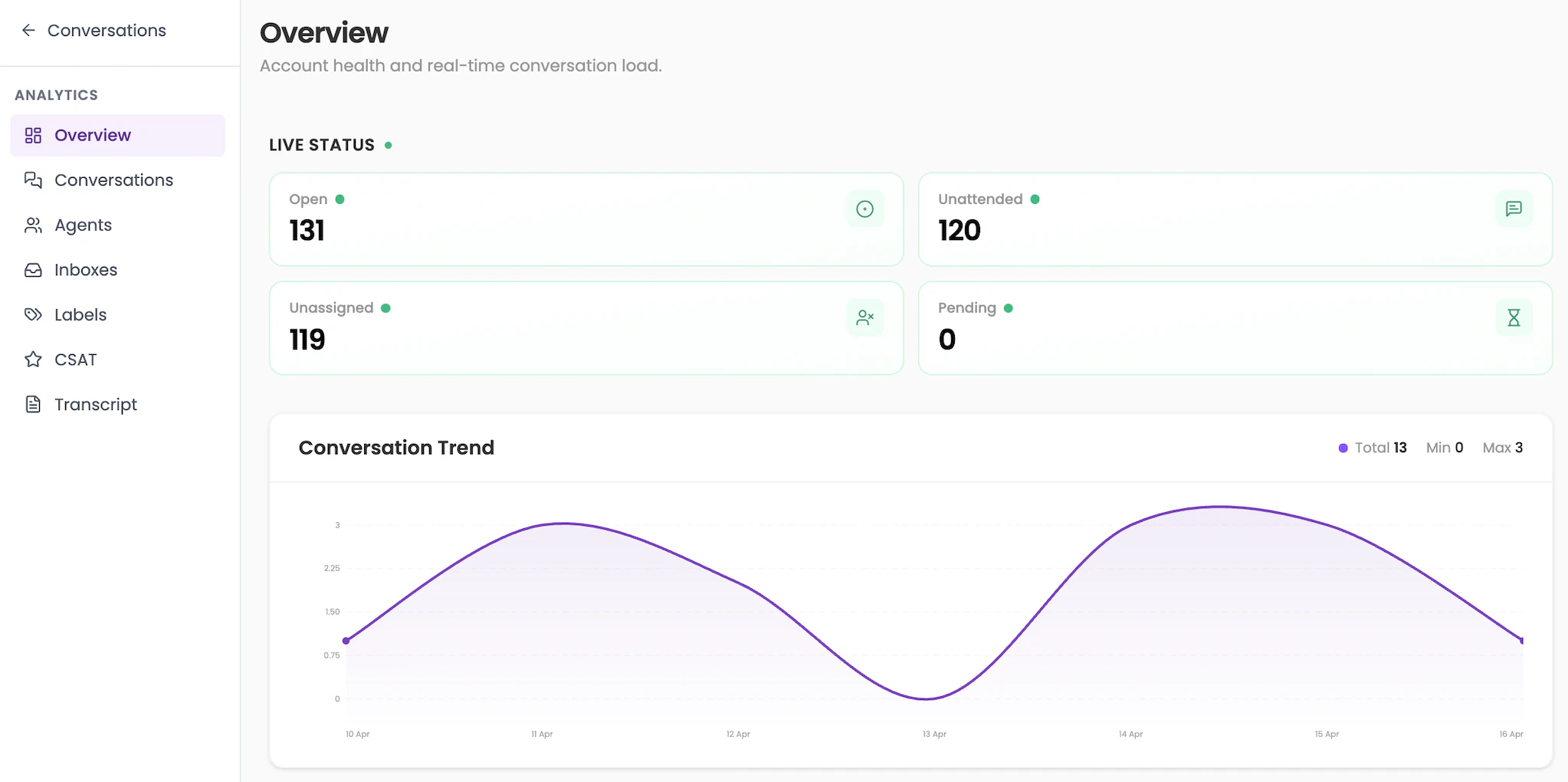 **Conversation Trend chart** — A line graph showing how conversation volume changed day by day across the selected period. Hover over any point to see the exact count for that date.
***
## 2. Conversations
*Track conversation trends and agent conversation load.*
This page breaks down conversation activity for the period and shows how the load is distributed across agents.
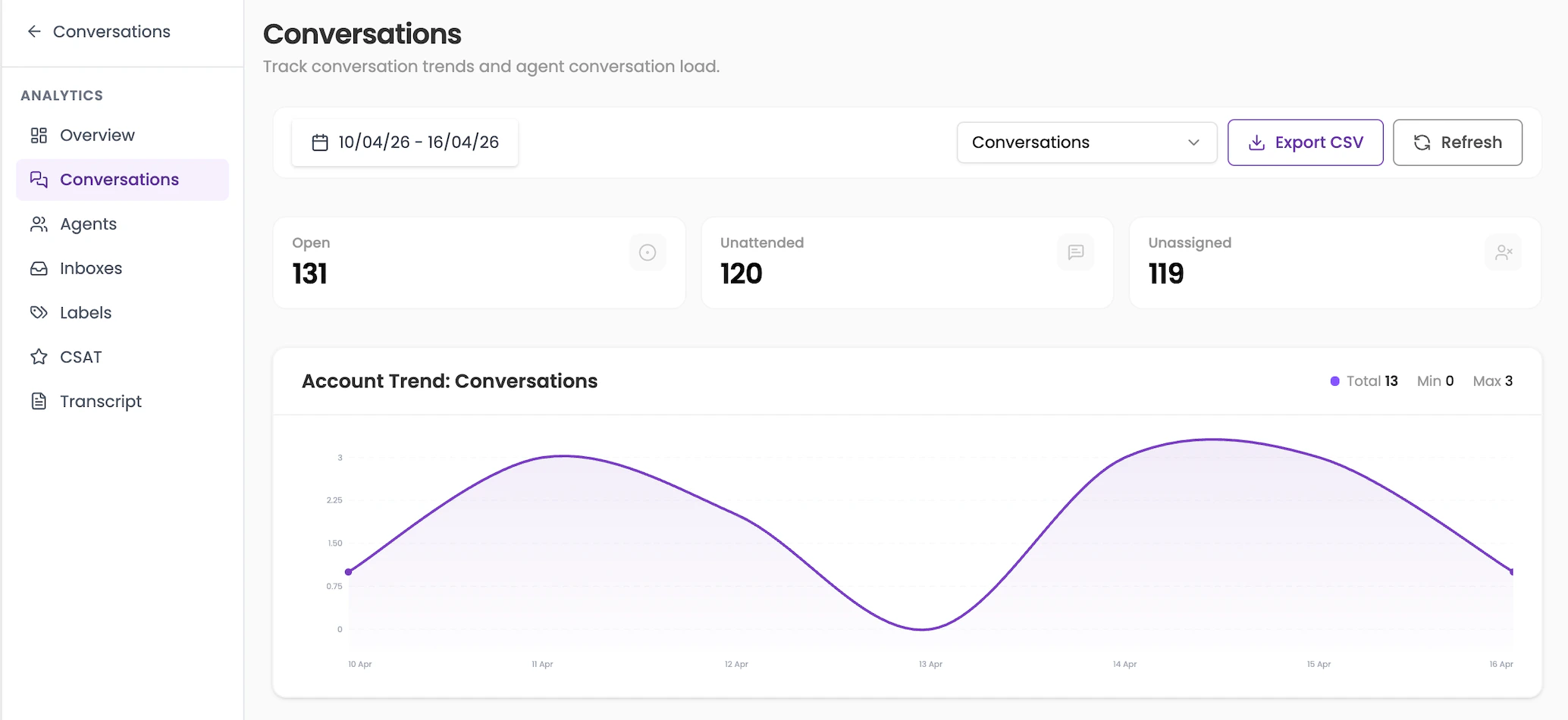
**Top metrics (live):**
* **Open** — Total currently open conversations
* **Unattended** — Open conversations with no agent reply
* **Unassigned** — Open conversations not yet assigned
**Account Trend: Conversations** — A line chart showing daily conversation volume. Use the dropdown to switch the metric being plotted (e.g. Conversations, Resolved, etc.).
**Conversation Trend chart** — A line graph showing how conversation volume changed day by day across the selected period. Hover over any point to see the exact count for that date.
***
## 2. Conversations
*Track conversation trends and agent conversation load.*
This page breaks down conversation activity for the period and shows how the load is distributed across agents.
**Top metrics (live):**
* **Open** — Total currently open conversations
* **Unattended** — Open conversations with no agent reply
* **Unassigned** — Open conversations not yet assigned
**Account Trend: Conversations** — A line chart showing daily conversation volume. Use the dropdown to switch the metric being plotted (e.g. Conversations, Resolved, etc.).
 **Agent Conversation Metrics** — A table listing every agent with their current Open and Unattended conversation counts. Use this to spot agents who are overloaded or conversations that are going unattended.
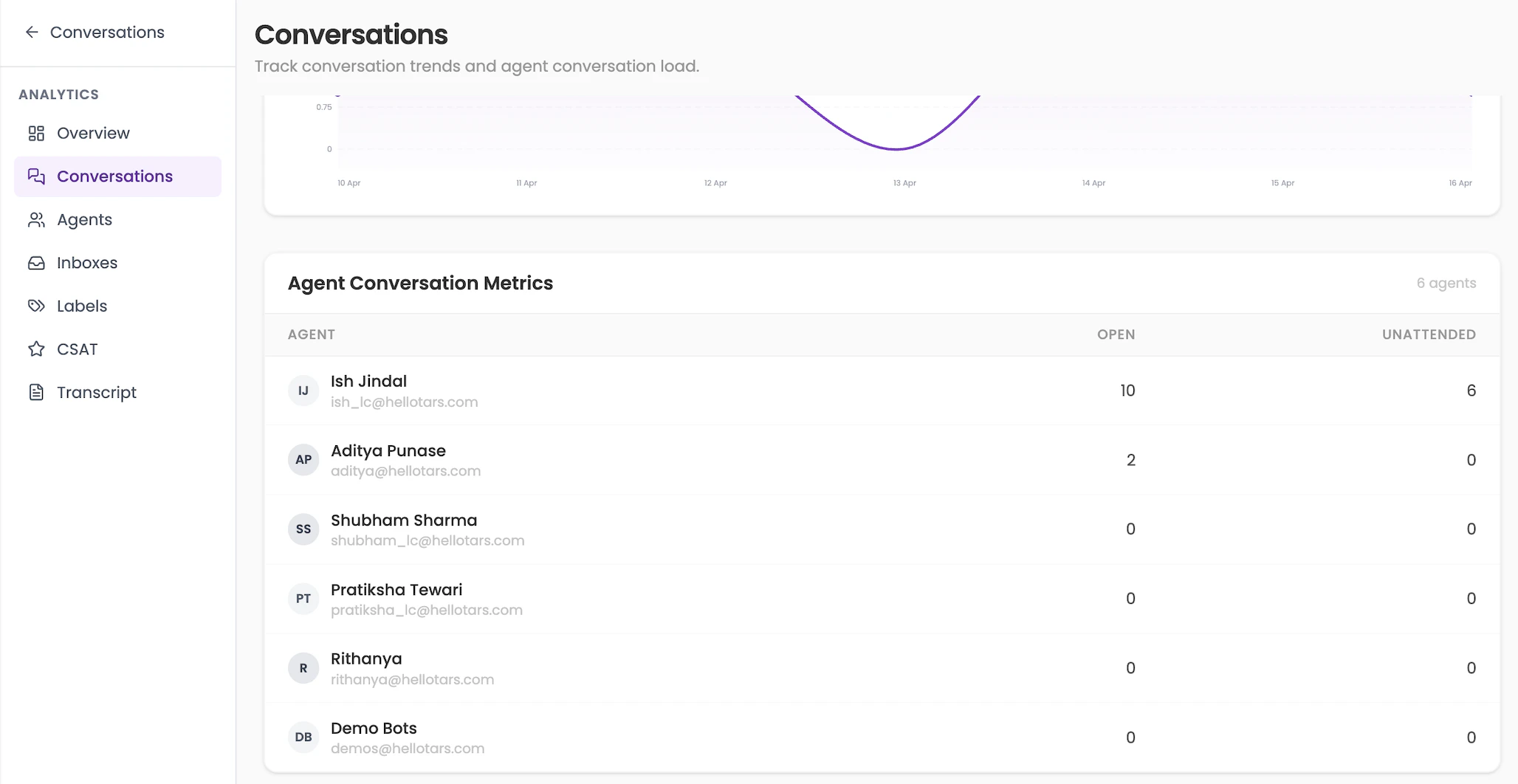 The metric counts at the top of this page reflect live data, not the selected date range.
***
## 3. Agents
*Conversation and response performance by agent.*
This page shows how each agent is performing across key metrics for the selected period.
### Agent table columns
| Column | What it shows |
| ------------------ | ---------------------------------------------------- |
| Conversations | Total conversations handled by the agent |
| Resolved | Number of conversations the agent resolved |
| Avg First Response | Average time for the agent's first reply |
| Avg Resolution | Average time for the agent to resolve a conversation |
| Avg Reply | Average time between agent replies in a conversation |
**Conversation Trend chart** — Same as the Overview trend, shown here for context alongside agent data.
The metric counts at the top of this page reflect live data, not the selected date range.
***
## 3. Agents
*Conversation and response performance by agent.*
This page shows how each agent is performing across key metrics for the selected period.
### Agent table columns
| Column | What it shows |
| ------------------ | ---------------------------------------------------- |
| Conversations | Total conversations handled by the agent |
| Resolved | Number of conversations the agent resolved |
| Avg First Response | Average time for the agent's first reply |
| Avg Resolution | Average time for the agent to resolve a conversation |
| Avg Reply | Average time between agent replies in a conversation |
**Conversation Trend chart** — Same as the Overview trend, shown here for context alongside agent data.
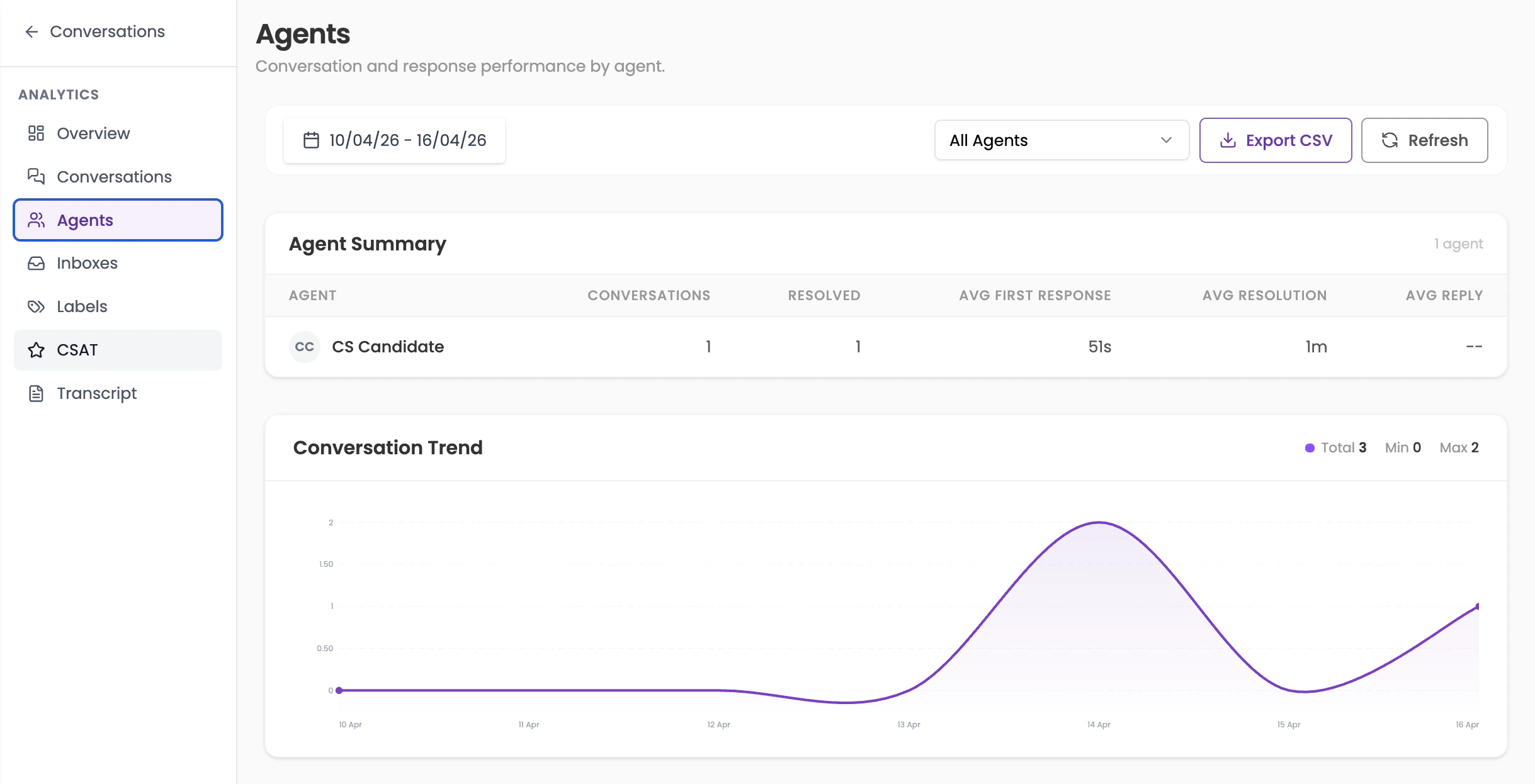 If a column shows `--`, it means there is not enough data to calculate that metric for the selected period.
***
## 4. Inboxes
*Team inbox performance and conversation trend.*
This page shows performance broken down by each inbox (e.g. Website Inbox, Support Inbox).
### Inbox summary table columns
| Column | What it shows |
| ------------------ | ------------------------------------------ |
| Inbox | Name of the inbox |
| Conversations | Total conversations received in that inbox |
| Resolved | Number of conversations resolved |
| Avg First Response | Average first response time for that inbox |
| Avg Resolution | Average resolution time |
| Avg Reply | Average reply time |
**Conversation Trend: All Inboxes** — A combined trend chart showing total conversation volume across all inboxes for the period.
If a column shows `--`, it means there is not enough data to calculate that metric for the selected period.
***
## 4. Inboxes
*Team inbox performance and conversation trend.*
This page shows performance broken down by each inbox (e.g. Website Inbox, Support Inbox).
### Inbox summary table columns
| Column | What it shows |
| ------------------ | ------------------------------------------ |
| Inbox | Name of the inbox |
| Conversations | Total conversations received in that inbox |
| Resolved | Number of conversations resolved |
| Avg First Response | Average first response time for that inbox |
| Avg Resolution | Average resolution time |
| Avg Reply | Average reply time |
**Conversation Trend: All Inboxes** — A combined trend chart showing total conversation volume across all inboxes for the period.
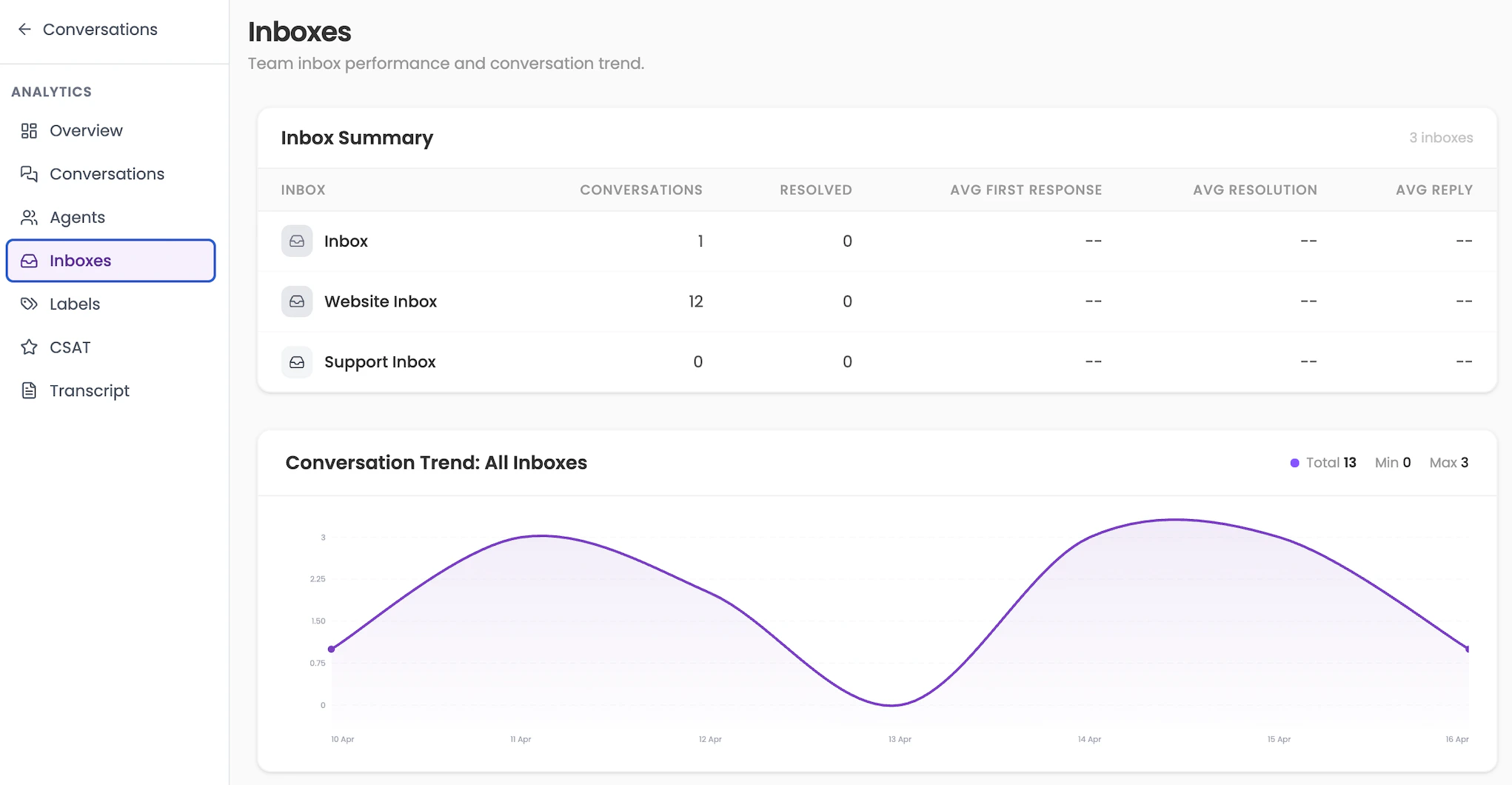 Use this page to compare inbox performance and identify which channel (e.g. website vs support) is driving the most volume.
***
## 5. Labels
*Performance metrics for labeled conversations.*
If your team uses labels to categorise conversations (e.g. "billing", "junk", "urgent"), this page lets you filter analytics by a specific label.
Use the **label dropdown** at the top to select the label you want to analyse. The metrics shown are identical to the Overview period summary: Conversations, Incoming Messages, Outgoing Messages, Resolutions, Avg First Response, and Avg Resolution.
**Conversation Trend** — Shows volume over time for conversations tagged with the selected label.
Use this page to compare inbox performance and identify which channel (e.g. website vs support) is driving the most volume.
***
## 5. Labels
*Performance metrics for labeled conversations.*
If your team uses labels to categorise conversations (e.g. "billing", "junk", "urgent"), this page lets you filter analytics by a specific label.
Use the **label dropdown** at the top to select the label you want to analyse. The metrics shown are identical to the Overview period summary: Conversations, Incoming Messages, Outgoing Messages, Resolutions, Avg First Response, and Avg Resolution.
**Conversation Trend** — Shows volume over time for conversations tagged with the selected label.
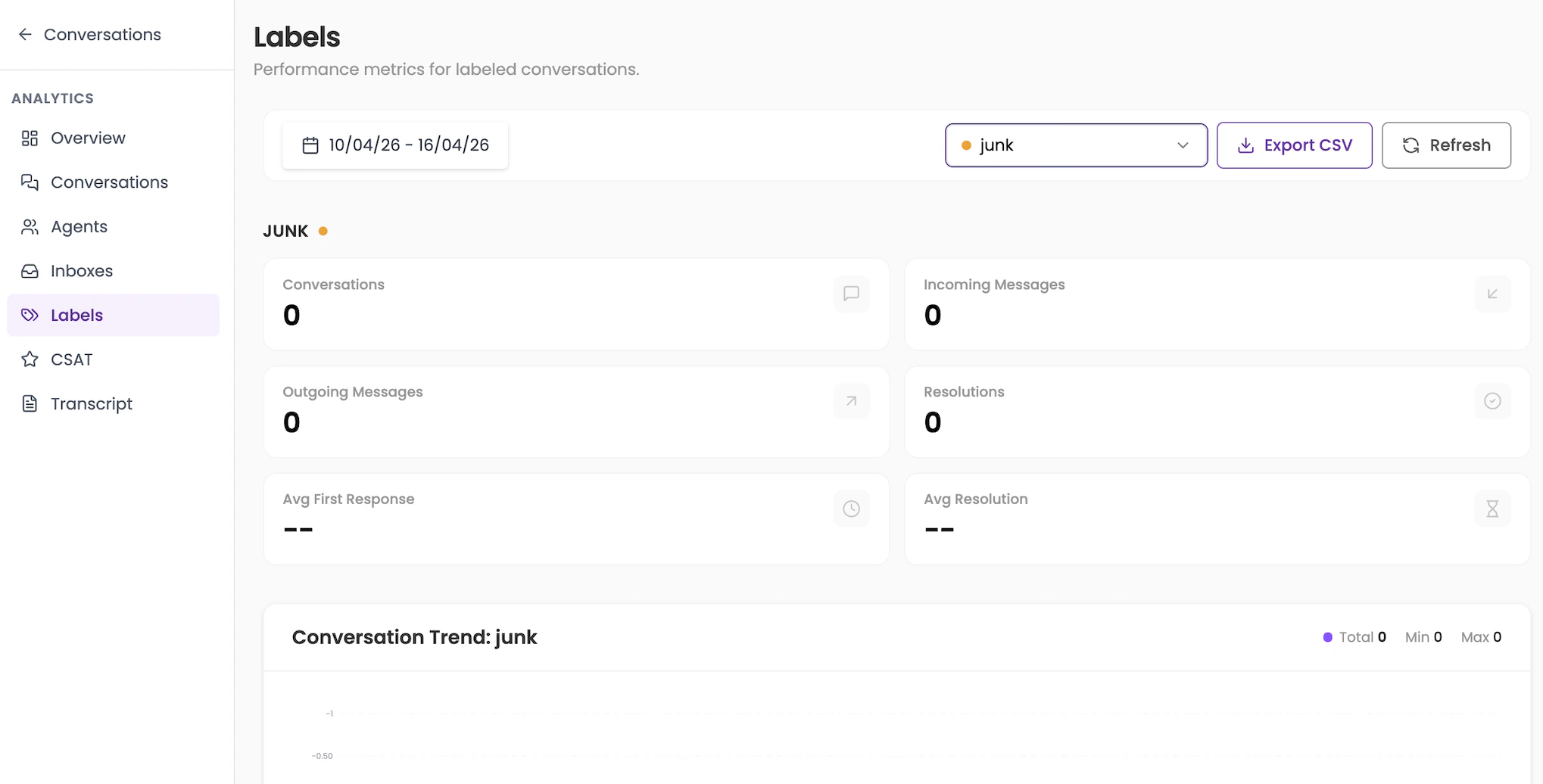 If no conversations are tagged with a label in the selected period, all metrics will show 0.
***
## 6. CSAT
*Customer satisfaction response analytics and feedback.*
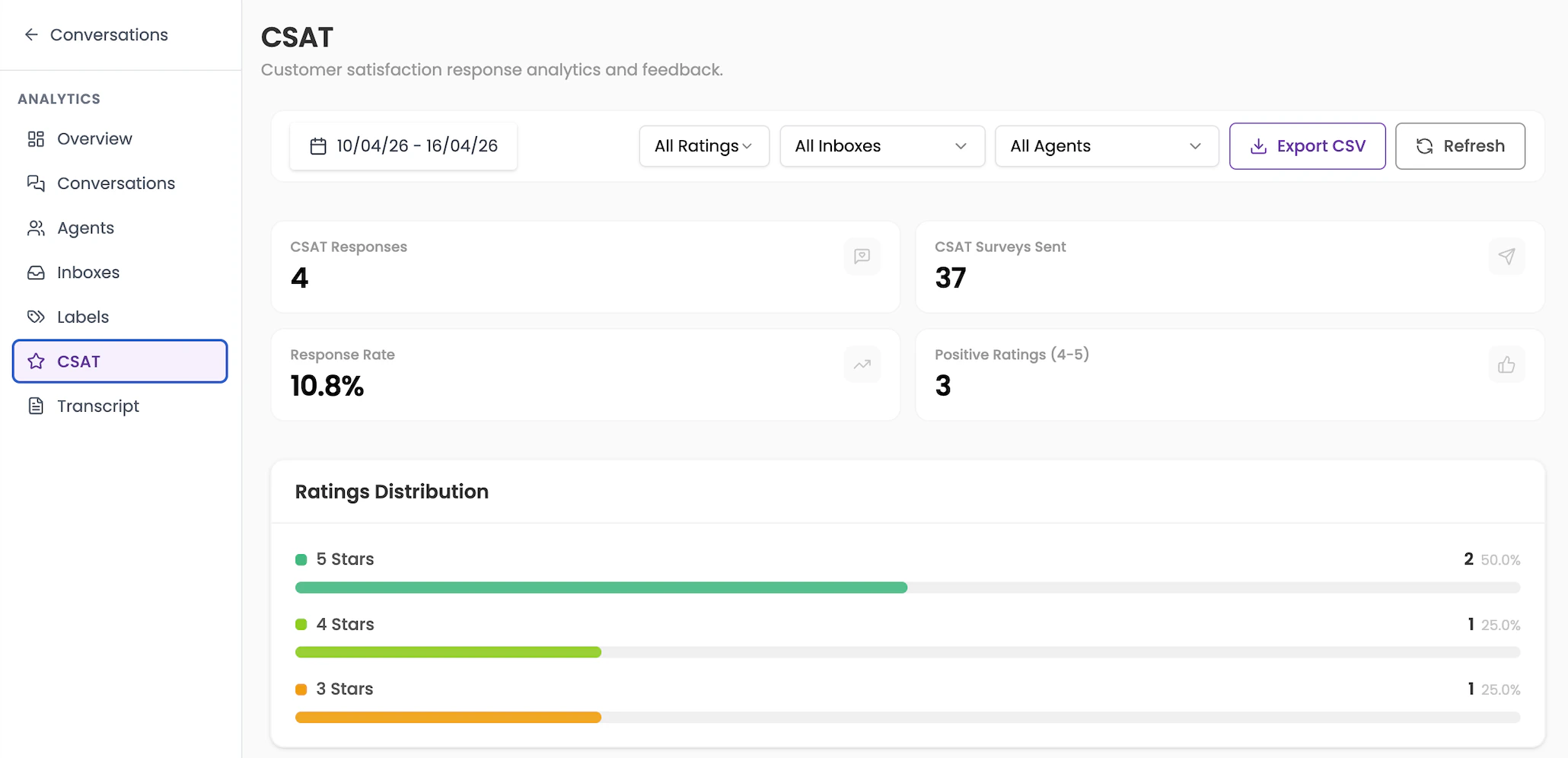
CSAT (Customer Satisfaction) tracks how customers rate their conversations after they are resolved.
### Top metrics
| Metric | What it shows |
| ---------------------- | ---------------------------------------------- |
| CSAT Responses | Number of customers who submitted a rating |
| CSAT Surveys Sent | Total number of CSAT surveys sent out |
| Response Rate | Percentage of surveys that received a response |
| Positive Ratings (4–5) | Number of responses rated 4 or 5 stars |
**Ratings Distribution** — A bar chart showing the breakdown of ratings from 1 to 5 stars, with count and percentage for each.
If no conversations are tagged with a label in the selected period, all metrics will show 0.
***
## 6. CSAT
*Customer satisfaction response analytics and feedback.*
CSAT (Customer Satisfaction) tracks how customers rate their conversations after they are resolved.
### Top metrics
| Metric | What it shows |
| ---------------------- | ---------------------------------------------- |
| CSAT Responses | Number of customers who submitted a rating |
| CSAT Surveys Sent | Total number of CSAT surveys sent out |
| Response Rate | Percentage of surveys that received a response |
| Positive Ratings (4–5) | Number of responses rated 4 or 5 stars |
**Ratings Distribution** — A bar chart showing the breakdown of ratings from 1 to 5 stars, with count and percentage for each.
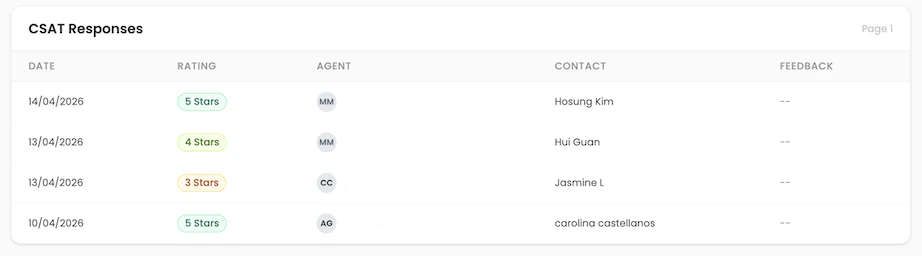
 **CSAT Responses table** — A log of individual responses showing the date, rating (1–5 stars), agent who handled the conversation, contact (customer name), and feedback (written comment, if provided).
 **Filters available:** All Ratings / specific star rating, All Inboxes / specific inbox, All Agents / specific agent.
Export the CSAT data as a CSV for deeper analysis or to share with your team in a report.
***
## 7. Transcript
*Export livechat conversation transcripts for a selected date range.*
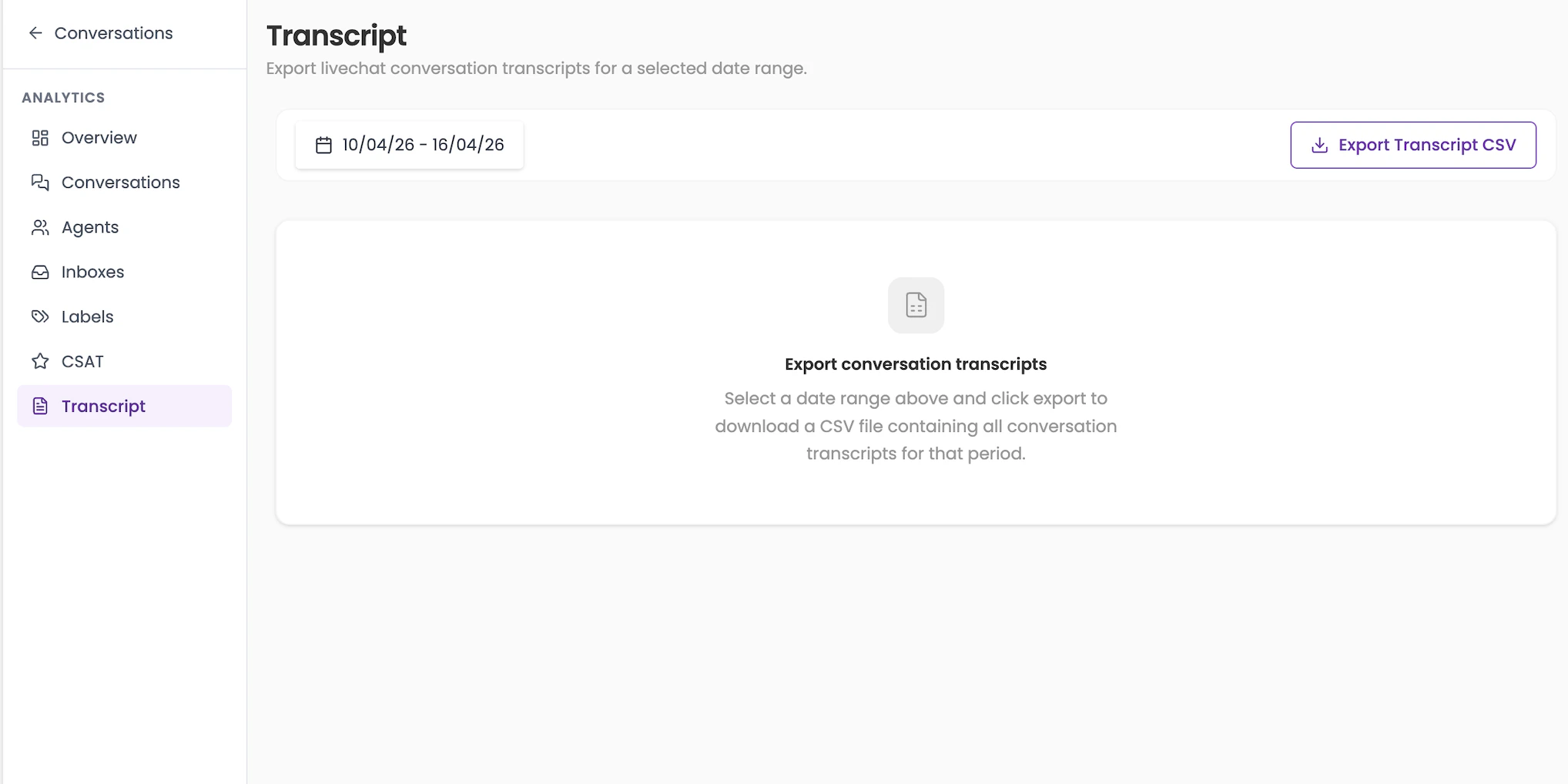
This page lets you export a full record of conversations as a CSV file.
**How to export:**
1. Set the date range using the date picker.
2. Click **Export Transcript CSV**.
3. A CSV file will download containing all conversation transcripts for that period.
**Filters available:** All Ratings / specific star rating, All Inboxes / specific inbox, All Agents / specific agent.
Export the CSAT data as a CSV for deeper analysis or to share with your team in a report.
***
## 7. Transcript
*Export livechat conversation transcripts for a selected date range.*
This page lets you export a full record of conversations as a CSV file.
**How to export:**
1. Set the date range using the date picker.
2. Click **Export Transcript CSV**.
3. A CSV file will download containing all conversation transcripts for that period.
 The exported CSV includes the full message history for each conversation — useful for audits, quality reviews, or training purposes.
***
## Frequently asked questions
Yes. The CSAT section has a CSV export option. The Transcript section lets you export full conversation histories. For other sections, you can use the date range filters and take screenshots or manually record the data.
This means there is not enough data to calculate that metric for the selected period. Try expanding the date range to get more data points.
**Open** means the conversation is active. **Unattended** means it's open but no agent has replied yet. **Unassigned** means no agent has been assigned to it at all. A conversation can be both unattended and unassigned at the same time.
The exported CSV includes the full message history for each conversation — useful for audits, quality reviews, or training purposes.
***
## Frequently asked questions
Yes. The CSAT section has a CSV export option. The Transcript section lets you export full conversation histories. For other sections, you can use the date range filters and take screenshots or manually record the data.
This means there is not enough data to calculate that metric for the selected period. Try expanding the date range to get more data points.
**Open** means the conversation is active. **Unattended** means it's open but no agent has replied yet. **Unassigned** means no agent has been assigned to it at all. A conversation can be both unattended and unassigned at the same time.