> ## Documentation Index
> Fetch the complete documentation index at: https://docs.hellotars.com/llms.txt
> Use this file to discover all available pages before exploring further.

# Tools Integration

> Connect external tools and services to enhance your AI Agent capabilities

<Frame>
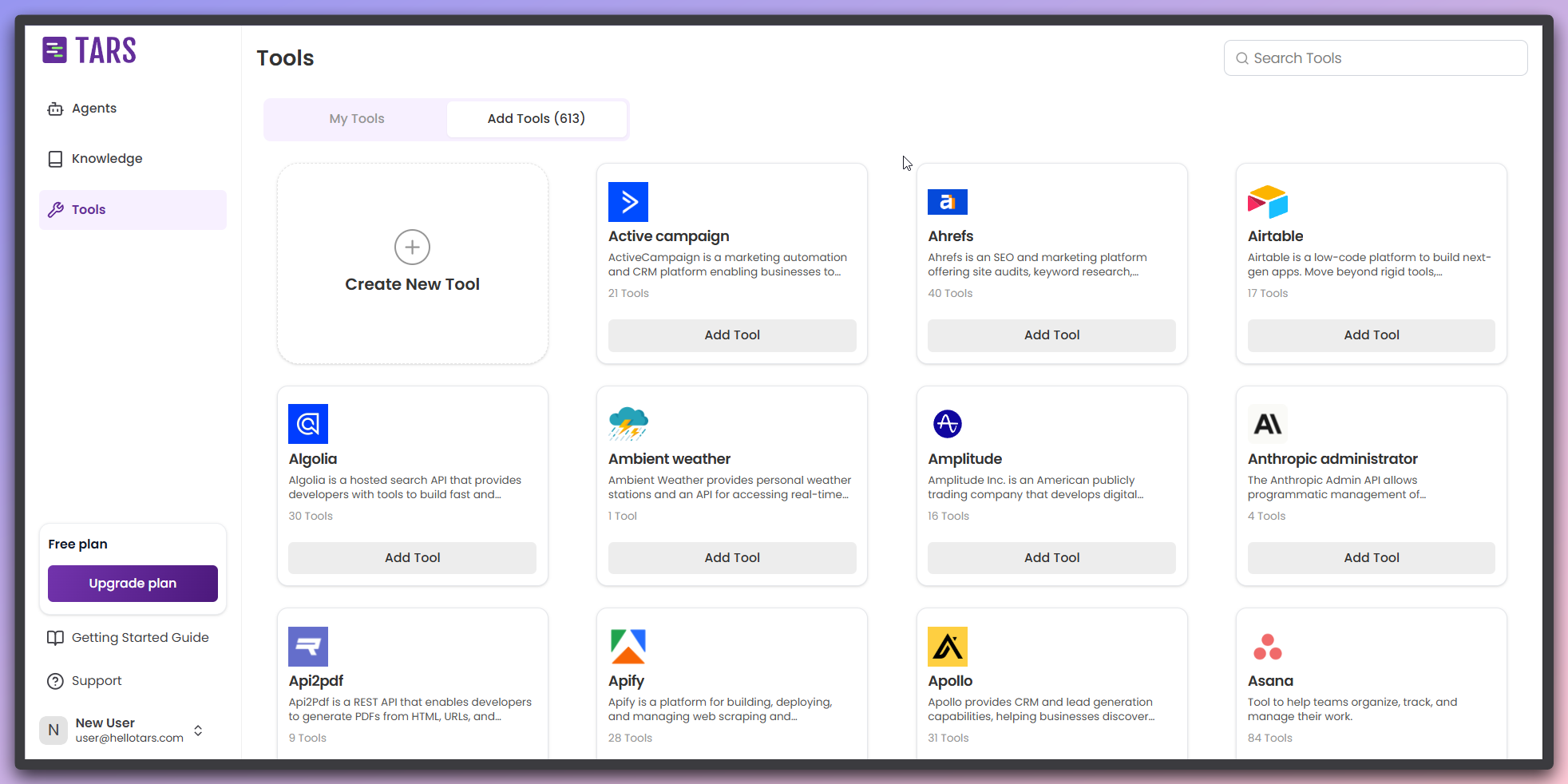
  <img src="https://mintcdn.com/tars-c52ebe98/RB0GpoNOdmX6y3VE/images/dashboard/tools/tools-overview.png?fit=max&auto=format&n=RB0GpoNOdmX6y3VE&q=85&s=e4289d7dd7d08ebd9b1d4ac2dd5b0cc3" alt="Tools overview dashboard showing all available tools" width="1964" height="982" data-path="images/dashboard/tools/tools-overview.png" />
</Frame>

Tools are external applications and services that your AI Agents can connect to and interact with. They enable your agents to perform real-world actions beyond just answering questions - like sending emails, updating databases, scheduling meetings, or processing payments. With 600+ available integrations, you can connect your agents to popular business tools and automate workflows seamlessly.

### Simple 3-step process

<Steps>
  <Step title="Choose your tool">
    * Browse the list of 600+ available tools
    * Use search or filters to find the tool you need
    * Click on the tool to view its details and capabilities
  </Step>

  <Step title="Add the tool">
    * Click the **"Add Tool"** button on the tool's page
    * A modal will open with authentication input fields
    * The modal will show different authentication options based on the tool
  </Step>

  <Step title="Authenticate and connect">
    * Follow the authentication method provided for the tool:
      * [API Key](#api-key-authentication): Enter your API key and any required fields
      * [OAuth 2.0](#oauth-2.0-authentication): Click the OAuth button to authorize access
      * [Custom Fields](#custom-fields-authentication): Fill in tool-specific authentication details
    * Click **"Add Tool"** to complete the connection
    * The tool will be added to your "My Tools" section
  </Step>
</Steps>

### Popular tools

**Most commonly used integrations**

<CardGroup cols={4}>
  <Card title="HubSpot" icon="hubspot" className="text-lg">
    <div className="text-xs text-gray-500">CRM and marketing automation</div>
  </Card>

  <Card title="Gmail" icon="envelope">
    <div className="text-xs text-gray-500">Email communication service</div>
  </Card>

  <Card title="Slack" icon="slack">
    <div className="text-xs text-gray-500">Team collaboration platform</div>
  </Card>

  <Card title="Stripe" icon="credit-card">
    <div className="text-xs text-gray-500">Payment processing platform</div>
  </Card>

  <Card title="Salesforce" icon="cloud">
    <div className="text-xs text-gray-500">Enterprise CRM platform</div>
  </Card>

  <Card title="Zendesk" icon="headphones">
    <div className="text-xs text-gray-500">Customer support solutions</div>
  </Card>

  <Card title="Shopify" icon="shopify">
    <div className="text-xs text-gray-500">E-commerce platform</div>
  </Card>

  <Card title="Outlook" icon="microsoft">
    <div className="text-xs text-gray-500">Email and calendar</div>
  </Card>

  <Card title="Mailchimp" icon="mailchimp">
    <div className="text-xs text-gray-500">Email marketing automation</div>
  </Card>

  <Card title="Zoom" icon="video">
    <div className="text-xs text-gray-500">Video conferencing tool</div>
  </Card>

  <Card title="Google Drive" icon="google-drive">
    <div className="text-xs text-gray-500">Cloud storage service</div>
  </Card>

  <Card title="Notion" icon="file-contract">
    <div className="text-xs text-gray-500">
      Collaboration and document management
    </div>
  </Card>
</CardGroup>

## Next steps

<Card title="Learn how tool execution works" icon="play" href="/platform-fundamentals/how-tars-works#how-tool-execution-is-done-in-tars%3F">
  Understand how AI Agents select and execute tools in the backend
</Card>
