
This guide is for anyone who uses Google Ads in their company and wants to take advantage of high-converting Tars chatbots in their paid campaigns.
Setting up Google Ads remarketing
Remarketing for Google Ads requires you to build an audience list, and this can be done by simply adding a Google Ads Remarketing Tag to your chatbot.1
Get your Google Ads Remarketing Tag
Get your Google Ads Remarketing Tag from your Google Ads Dashboard. It will look something like this:AW-123456789
2
Add the tag to your chatbot
Go to the Configure section of your chatbot and under Goal Settings, you will see the Third Party Analytics section. Expand Google Ads and paste your Remarketing Tag in the Remarketing / Conversion ID field.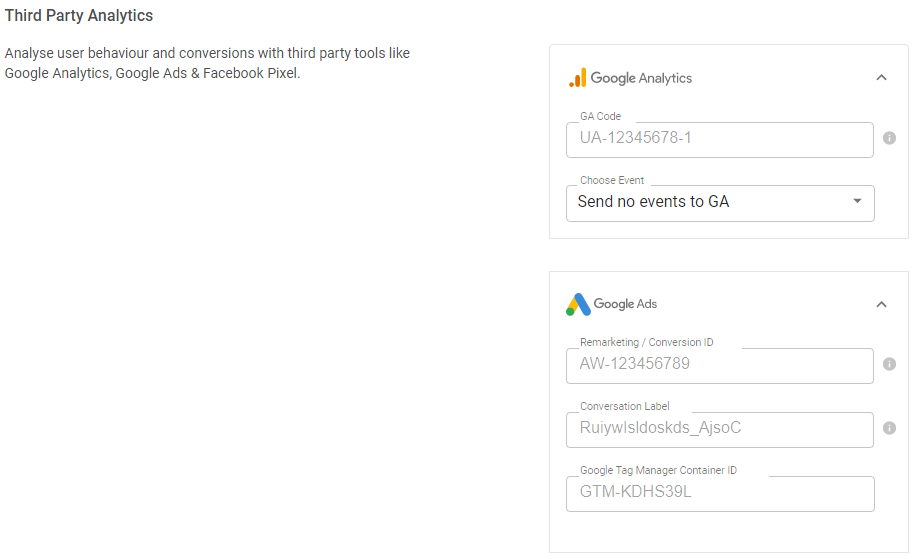
Setting up Google Ads conversion tracking
In order to track conversions with Google Ads, you need to set up the Remarketing Tag first (steps above). Also, to directly send conversion events, you need to set up goals for your bots by configuring your goal settings.
1
Create a Conversion Action in Google Ads
Conversion tracking requires you to set up a Conversion Action in your Google Ads account. If you need help setting it up, check this Google support article.Once you set up a Conversion Action, you will have 2 codes:Conversion ID - This is the same as your Remarketing Tag code. It looks something like AW-123456789 (you may have to add AW- in front of your Conversion ID).Conversion Label - This is specific to a particular Conversion Action. You can find it under the Google Tag Manager subsection once you set up your Conversion Action. It looks something like RuyHCM791ocBEL_AjvoC.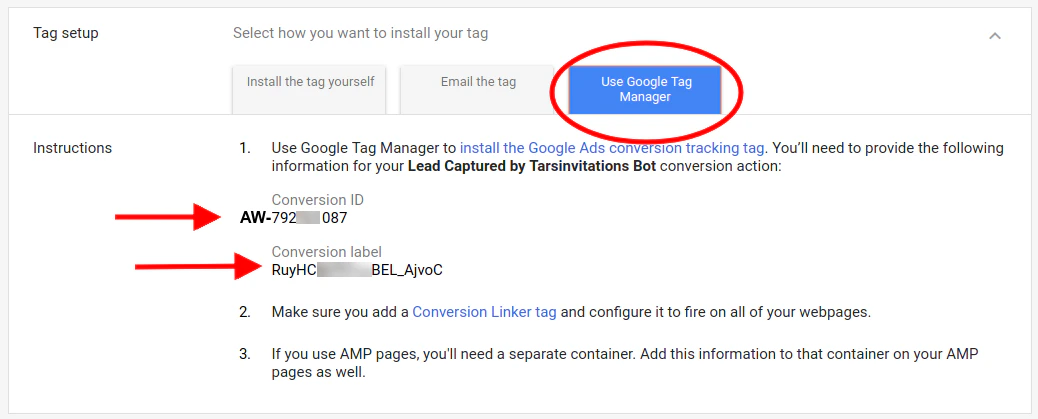
2
Add Conversion ID and Label to your chatbot
Once you have both codes, go to Configure → Goal Settings → Google Ads and enter the Conversion ID and Conversion Label.Click Save Changes.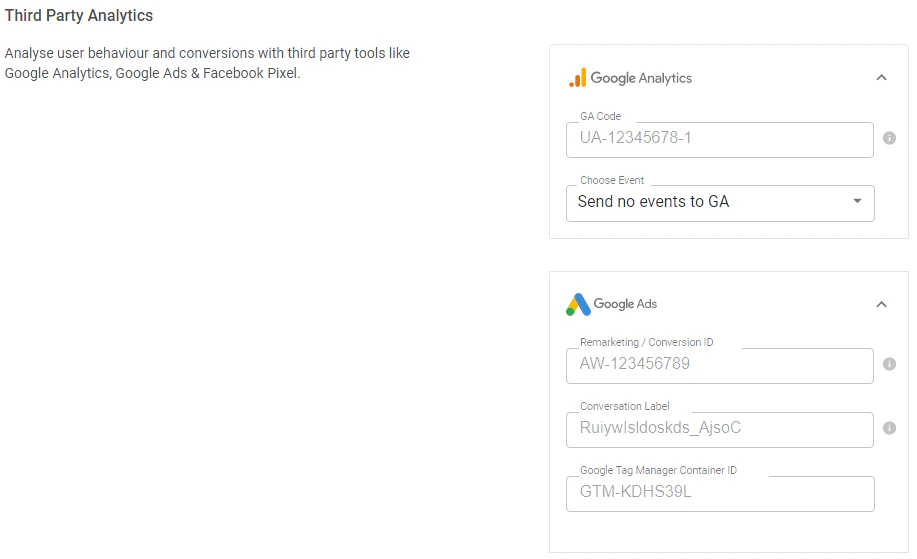
3
Set the Conversion Count
When setting up the Conversion Action in Google Ads, you might want to set the Conversion Count as One. This is used when the conversion is like a sign-up or a lead — where one user filling multiple lead forms is still counted as one conversion. This is opposed to an e-commerce purchase, where every product sale is a separate conversion.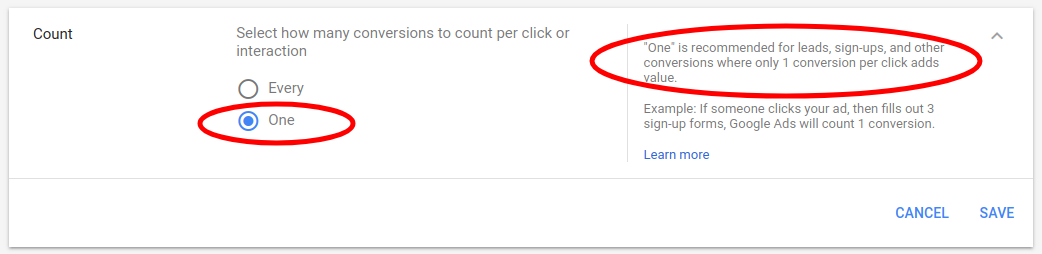
Frequently asked questions
Where do I find my Remarketing Tag?
Where do I find my Remarketing Tag?
In your Google Ads Dashboard, go to
Tools & Settings → Shared Library → Audience Manager → Audience Sources.
Your Google Ads tag will show the Remarketing Tag code starting with
Tools & Settings → Shared Library → Audience Manager → Audience Sources.
Your Google Ads tag will show the Remarketing Tag code starting with
AW-.What is the difference between Remarketing and Conversion Tracking?
What is the difference between Remarketing and Conversion Tracking?
Remarketing builds an audience list of everyone who visits your chatbot so you can retarget them with ads later. Conversion Tracking fires an event only when a user completes a specific goal (like submitting a lead form) in your chatbot. You need Remarketing set up first before you can use Conversion Tracking.
Should I set Conversion Count to 'One' or 'Every'?
Should I set Conversion Count to 'One' or 'Every'?
Use One for lead generation and sign-ups where multiple form submissions by the same user count as a single conversion. Use Every for e-commerce scenarios where each purchase is a separate conversion.
Why aren't my conversions showing in Google Ads?
Why aren't my conversions showing in Google Ads?
Make sure you have set up Goal Gambits in your bot’s Goal Settings. Conversions only fire when a Goal Gambit is reached. Also, it can take up to 24 hours for conversions to appear in your Google Ads dashboard.