Setting up Google Analytics tracking
1
Navigate to Goal Settings
Open your Agent, then go to Configure → Goal Settings.You’ll find the Third Party Analytics section at the bottom of the page.
2
Add your GA4 Measurement ID
Under Third Party Analytics, expand the Google Analytics section.You’ll see two fields: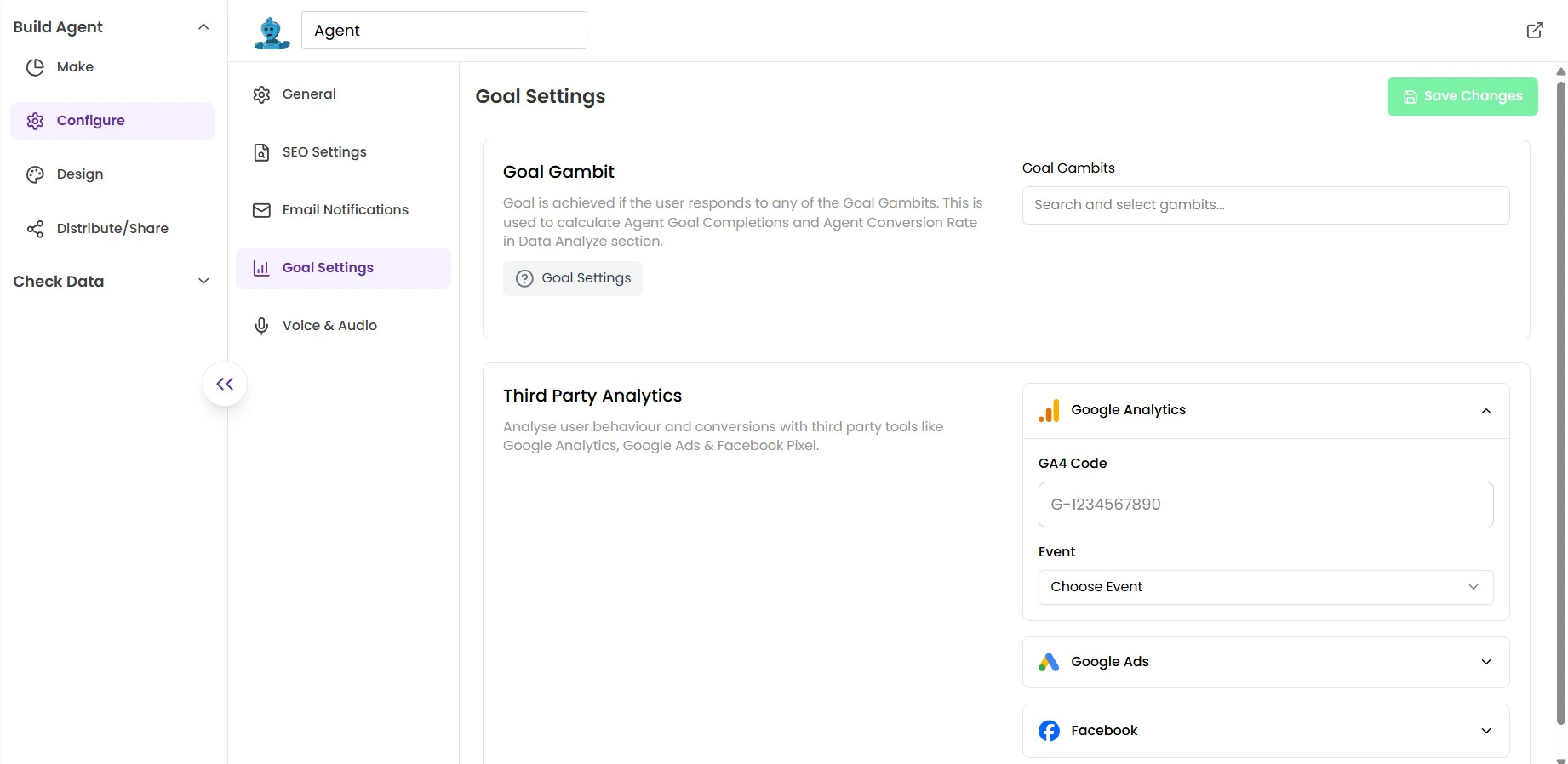
- GA4 Code — Enter your GA4 Measurement ID here (e.g.,
G-1234567890) - Event — Choose how chatbot interactions are sent to GA
Your GA4 Measurement ID starts with G- followed by a string of numbers. You can find it in your Google Analytics account under Admin → Data Streams → Web stream details.
3
Select the event type
Open the Event dropdown and choose one of the following options:Send no events to GA — No chatbot events will be sent to Google Analytics. Use this if you only want to track page-level analytics without individual chatbot interaction events.Send all user responses as events to GA — Every user response in the chatbot will be sent to Google Analytics as an event. This is useful if you want to track all chatbot interactions and engagement data, giving you full visibility into how users interact with your Agent.Send only Goal Gambit user responses as events to GA — Only responses related to Goal Gambits will be sent as events to Google Analytics. This is useful when you want to track conversion-related chatbot interactions without the noise of every single message.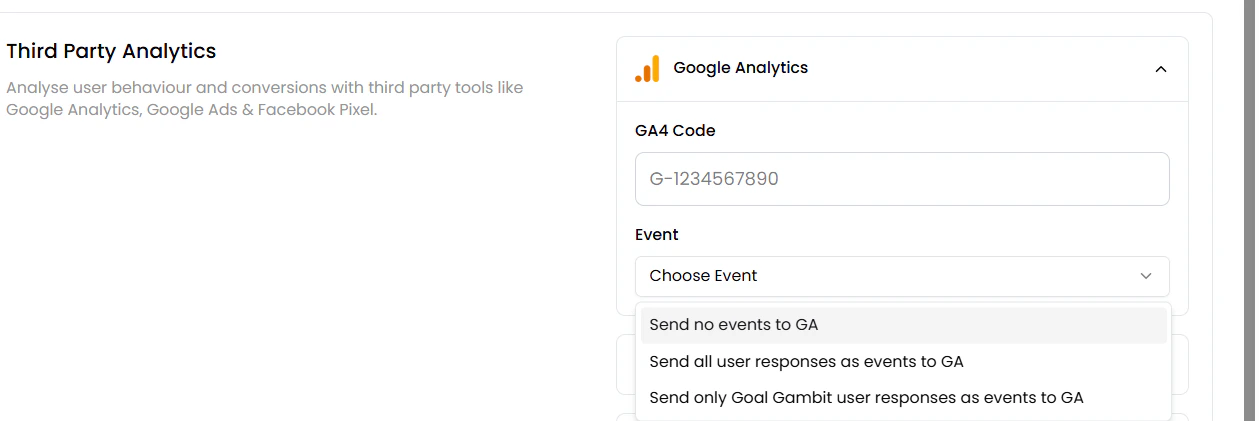
4
Save changes
Once you’ve added your GA4 Measurement ID and selected your event tracking preference, click Save Changes in the top right corner.Your chatbot will now start sending events to Google Analytics 4.
Verifying your setup
After saving, you can confirm the integration is working by checking the Realtime overview in Google Analytics.- Open your Google Analytics account where you are tracking this Tars bot.
- Go to the Realtime overview page.
- Open your chatbot in another tab and interact with it — you should see a live user appear.
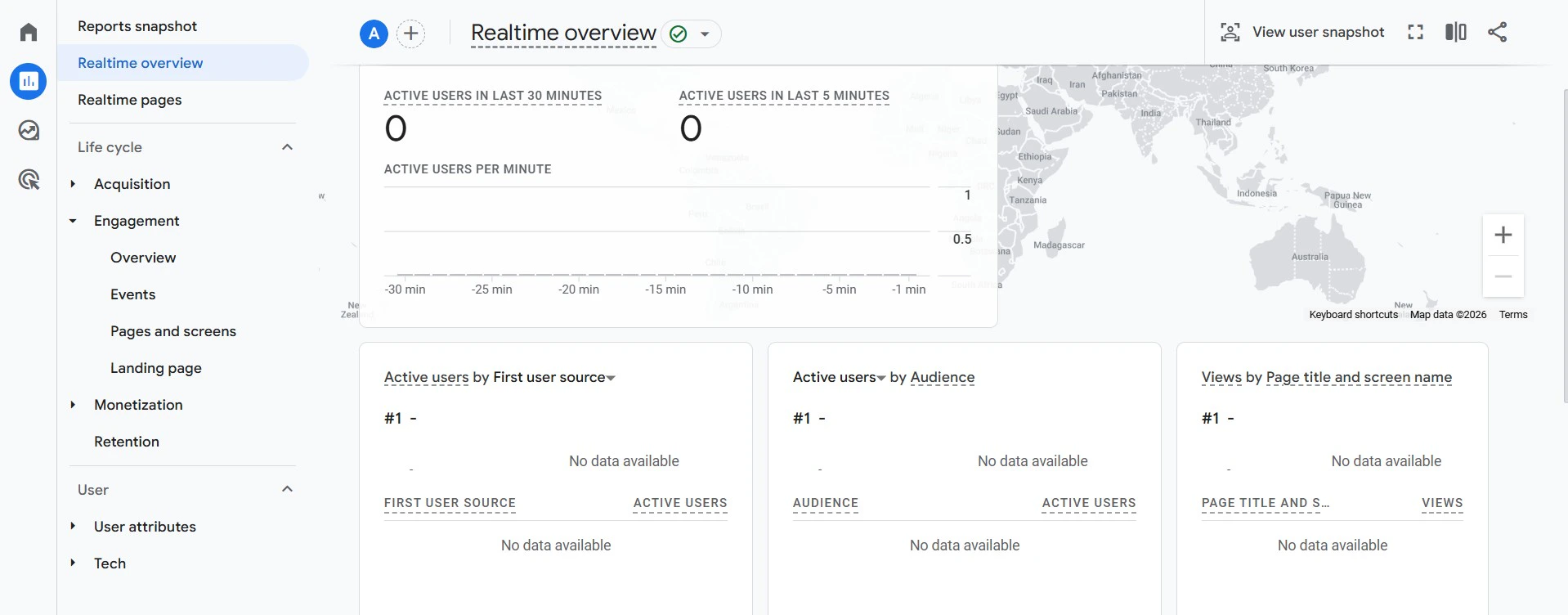
If you see a live user on your bot link in Realtime, your Google Analytics code is working correctly.
Viewing Agent’s data in Google Analytics
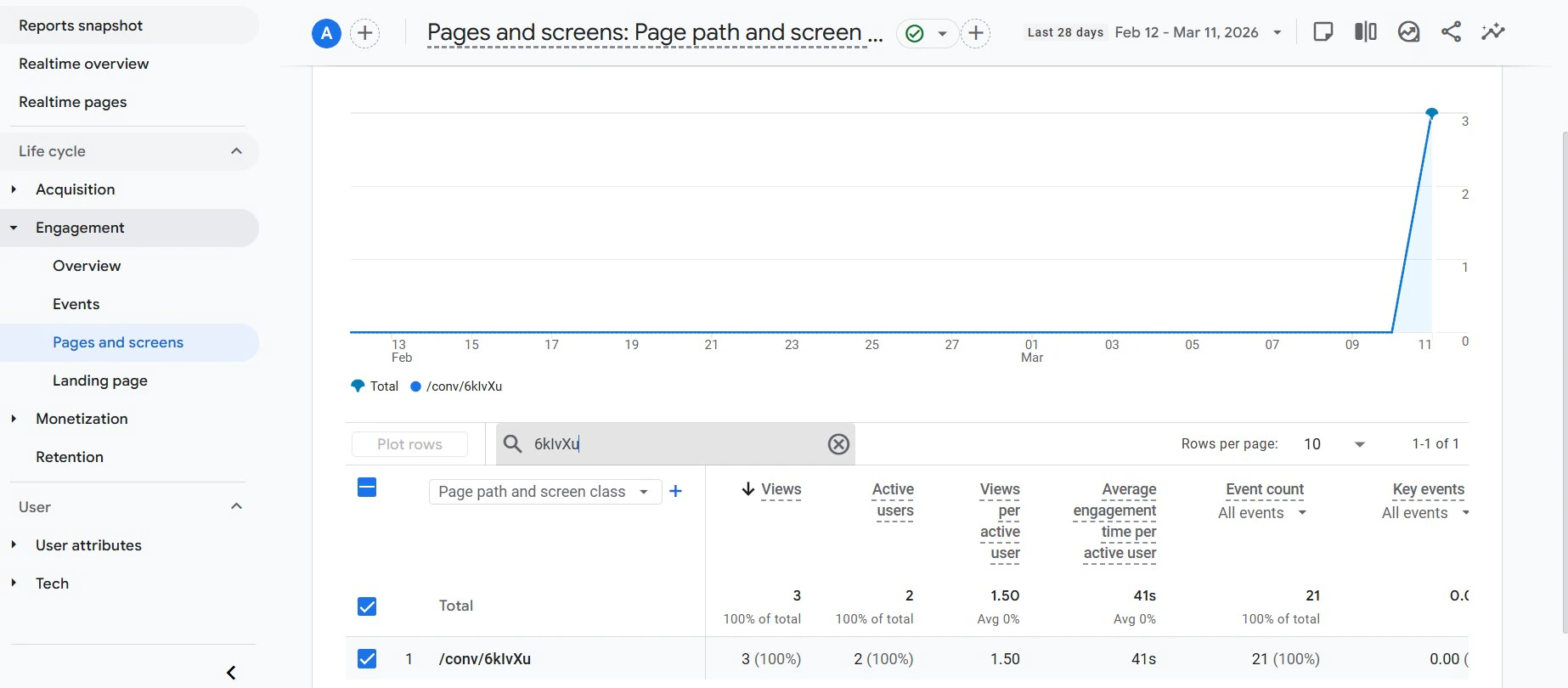
To see detailed Agent’s activity across a specific time period:Viewing conversation sessions
- In Google Analytics, go to Reports → Engagement → Pages and Screens.
- Copy your Agent’s ID from its URL — it’s the last string of characters after the final
/(e.g.,XFgTCI). - Search for that ID in the search box to filter results to just your chatbot’s activity.
Viewing stored events
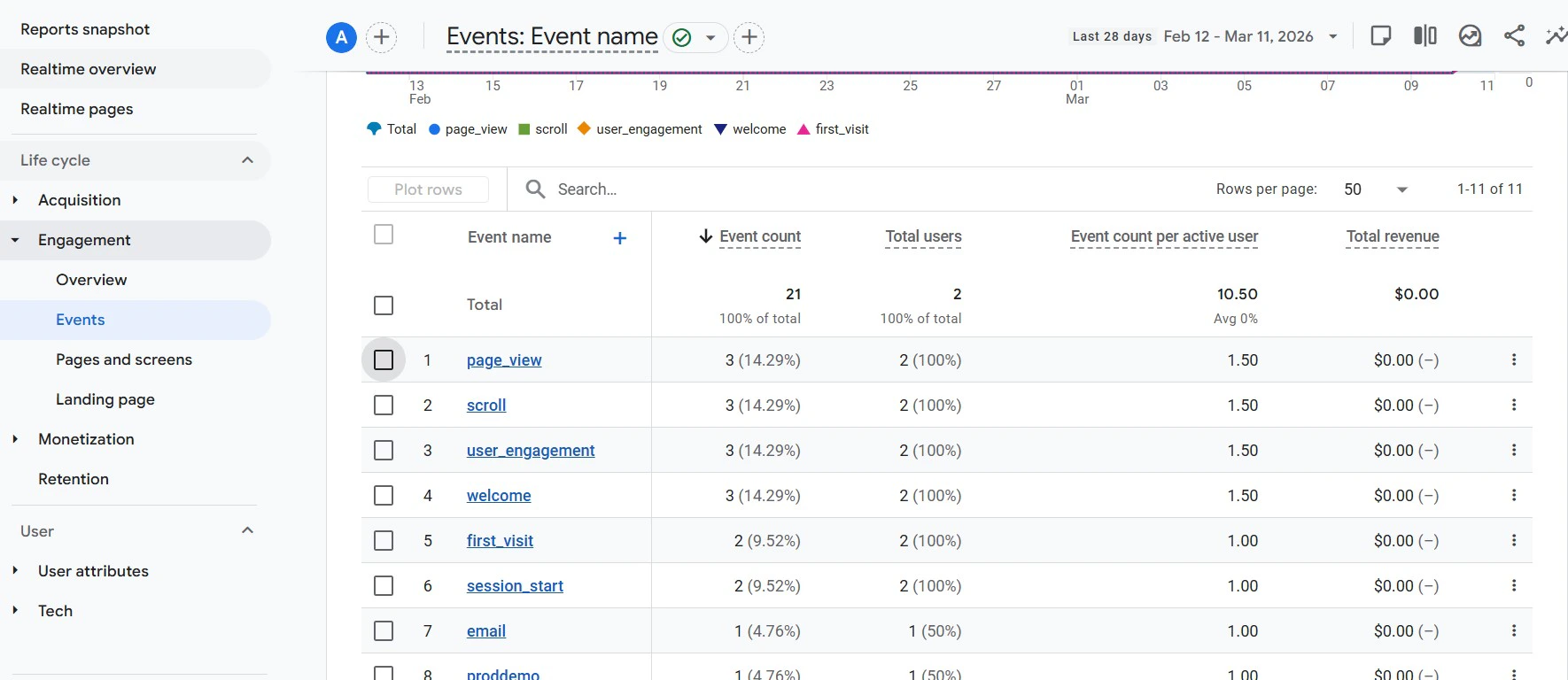
On every action in your Agent (meaning chat messages exchanged between the bot and user), Tars sends a Google Analytics event with the following parameters:- Action — Represents the Gambit name.
- Label — Represents the user’s response to that particular Gambit.
Frequently asked questions
Where do I find my GA4 Measurement ID?
Where do I find my GA4 Measurement ID?
In your Google Analytics account, go to Admin → Data Streams → select your web stream. The Measurement ID is displayed at the top and starts with
G-.What's the difference between 'All responses' and 'Goal Gambit only'?
What's the difference between 'All responses' and 'Goal Gambit only'?
All responses tracks every single user interaction as an event — useful for detailed engagement analysis. Goal Gambit only tracks just the conversion-critical interactions, keeping your event data focused on what matters most for measuring ROI.
Why don't I see any data in Google Analytics?
Why don't I see any data in Google Analytics?
Give it a few minutes after saving. If data still doesn’t appear, verify that your Measurement ID is correct and that your chatbot is published and accessible. Check Realtime Overview first, as historical reports can take up to 24 hours to populate.
Can I use Google Tag Manager instead?
Can I use Google Tag Manager instead?
Currently, the integration uses the GA4 Measurement ID directly. If you need Google Tag Manager support, contact the Tars support team for guidance.