Account settings
Configure your basic profile information and account preferences.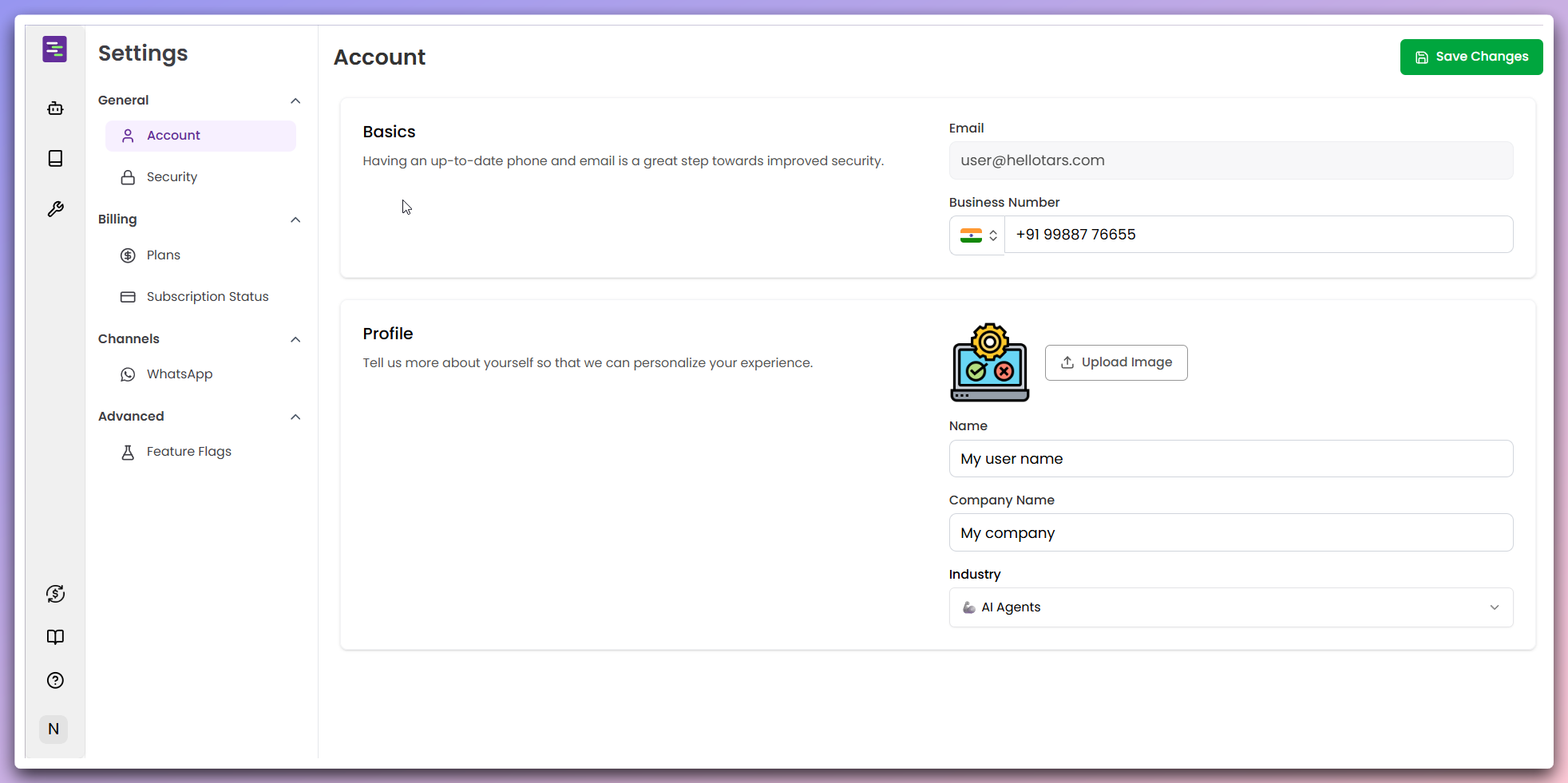
Update basic information
In the Basics section, update your essential contact information:Email address:
- Click on the
Emailfield to edit your email address - Enter your updated email in the format:
user@yourdomain.com - The system will send a verification email to confirm the change
- Click on the
Business Numberfield to update your phone number - Select your country code from the dropdown (e.g.,
+91for India) - Enter your business phone number in the text field
- Format:
99887 76655(with or without spaces)
Security note: Having an up-to-date phone and email is a great step towards improved security.
Configure profile details
In the Profile section, personalize your account information:Profile picture:
- Click the
Upload Imagebutton to change your profile picture. - Supported formats: JPG, PNG, GIF (max 5MB).
- Recommended size: 200x200 pixels for best quality.
- Click on the
Namefield to update your display name. - Enter your full name as you want it to appear, e.g.,
My user name.
- Click on the
Company Namefield to update your organization. - Enter your company name, e.g.,
My company.
- Click on the
Industrydropdown to select your business sector. - Choose from available options like
AI Agents(with robot icon). - This helps personalize your platform experience.
Save changes
After updating your information, click the
Save Changes button in the top-right corner.All changes are automatically saved and applied across all your agents and workspaces.
Security settings
Manage your account security and authentication preferences.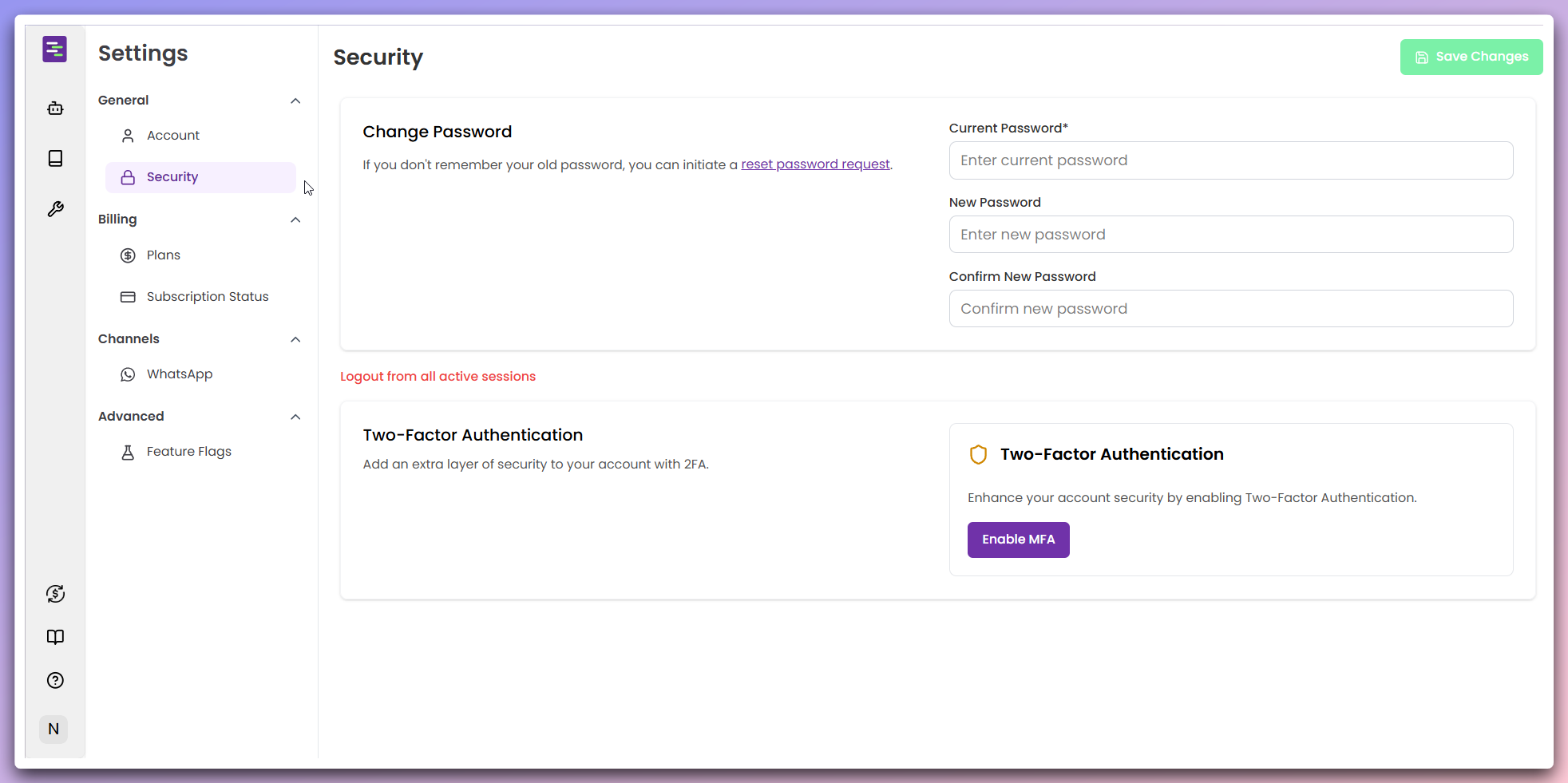
Change password
In the Change password section, update your account password:Current password:
- Click on the
Current passwordfield - Enter your existing password to verify your identity
- Click on the
New passwordfield - Create a strong password with at least 8 characters
- Include uppercase, lowercase, numbers, and special characters
- Click on the
Confirm new passwordfield - Re-enter your new password to confirm it matches
Password reset: If you don’t remember your old password, you can initiate a reset password request.
Manage active sessions
To enhance security, you can log out from all active sessions: - Click the
Logout from all active sessions link (in red text) - This will immediately
sign out all devices and browsers - You’ll need to log in again on all your
devicesEnable Two-Factor Authentication
In the Two-Factor Authentication section, add an extra layer of security:Enable MFA:
- Click the
Enable MFAbutton (purple button with shield icon) - Follow the setup wizard to configure your 2FA method
- You can use authenticator apps like Google Authenticator or Authy
- Adds an extra layer of security to your account
- Protects against unauthorized access even if your password is compromised
- Required for accessing sensitive features and data
Enhanced security: Two-Factor Authentication significantly improves your account security.
Best practices
Profile sync: Changes to your profile information are automatically
reflected across all your agents and workspaces.